
How to Delete a Retired Nest Device from Your Google Home App
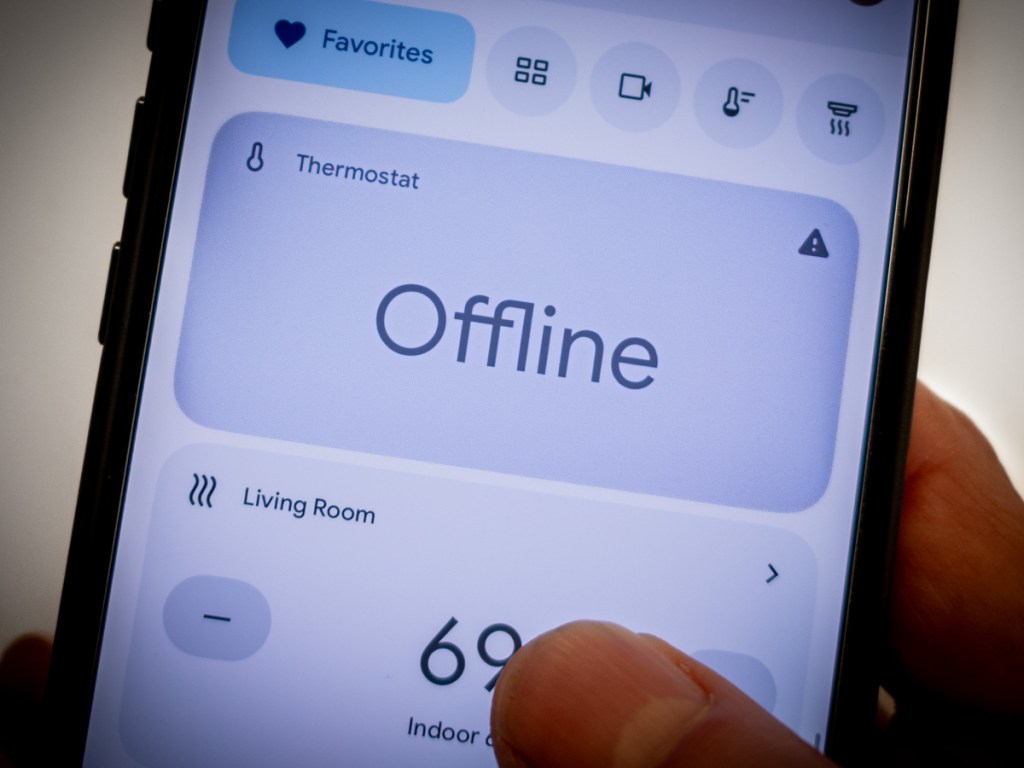
I really had no choice but to retire my old Nest Learning Thermostat. It’s an aging 2nd generation model, and Google finally stopped supporting it. So, I recently upgraded to the current gen 4 model and successfully installed that one. Problem solved, right?
Well, not entirely.
The final step was to delete the old unit from my Google Home App on my iPhone. (Who wants to see a deactivated device lingering on your app’s interface as ‘Offline?’)
According to an email I received from Google, the gen 2 model was supposed to automatically evaporate from the app. But it defied that directive and remained in place… stubbornly so.
When I tried to remove it manually, there was no obvious way to do that. So, I had to dig deeper.
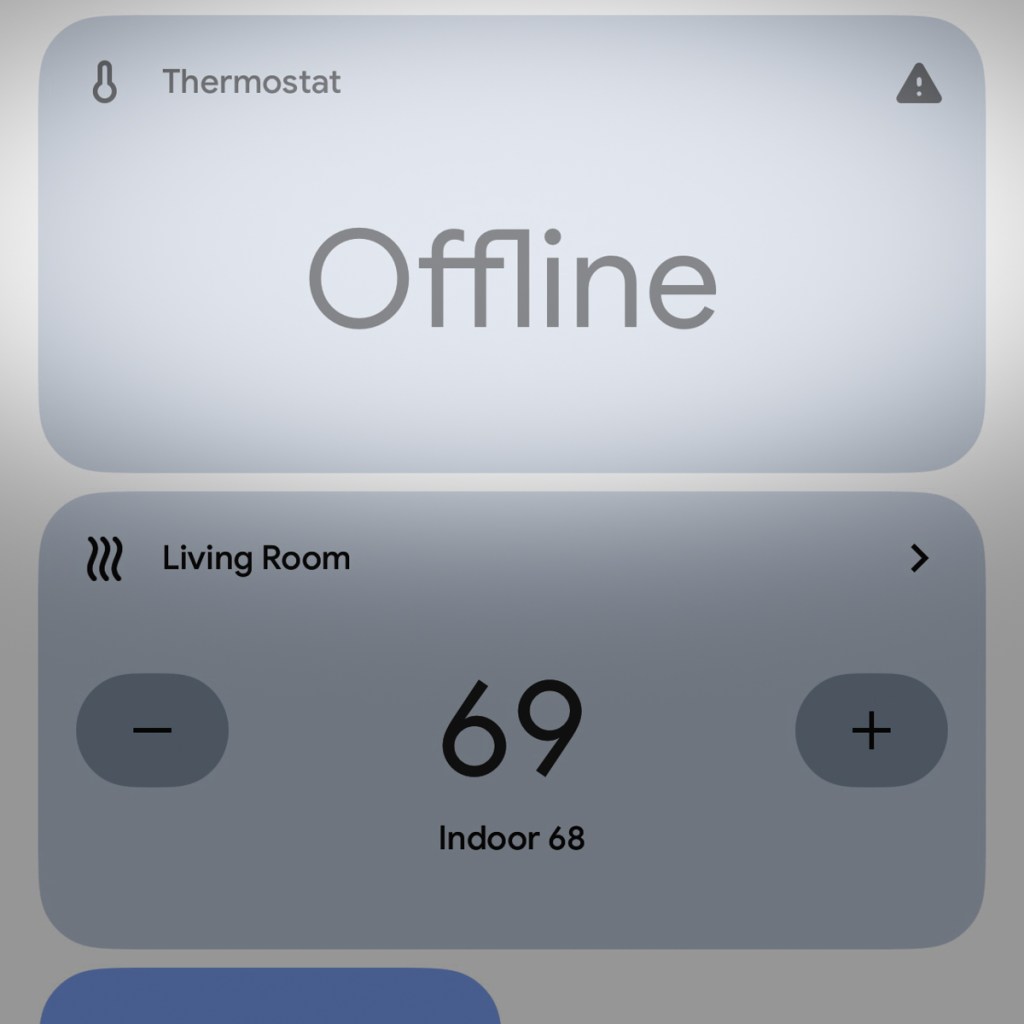
If you’ve been trying to crack the same code, here’s how to delete your decommissioned Google Nest Learning Thermostat from your Google Home app:
4 Steps to Remove a Device from the Google Home App
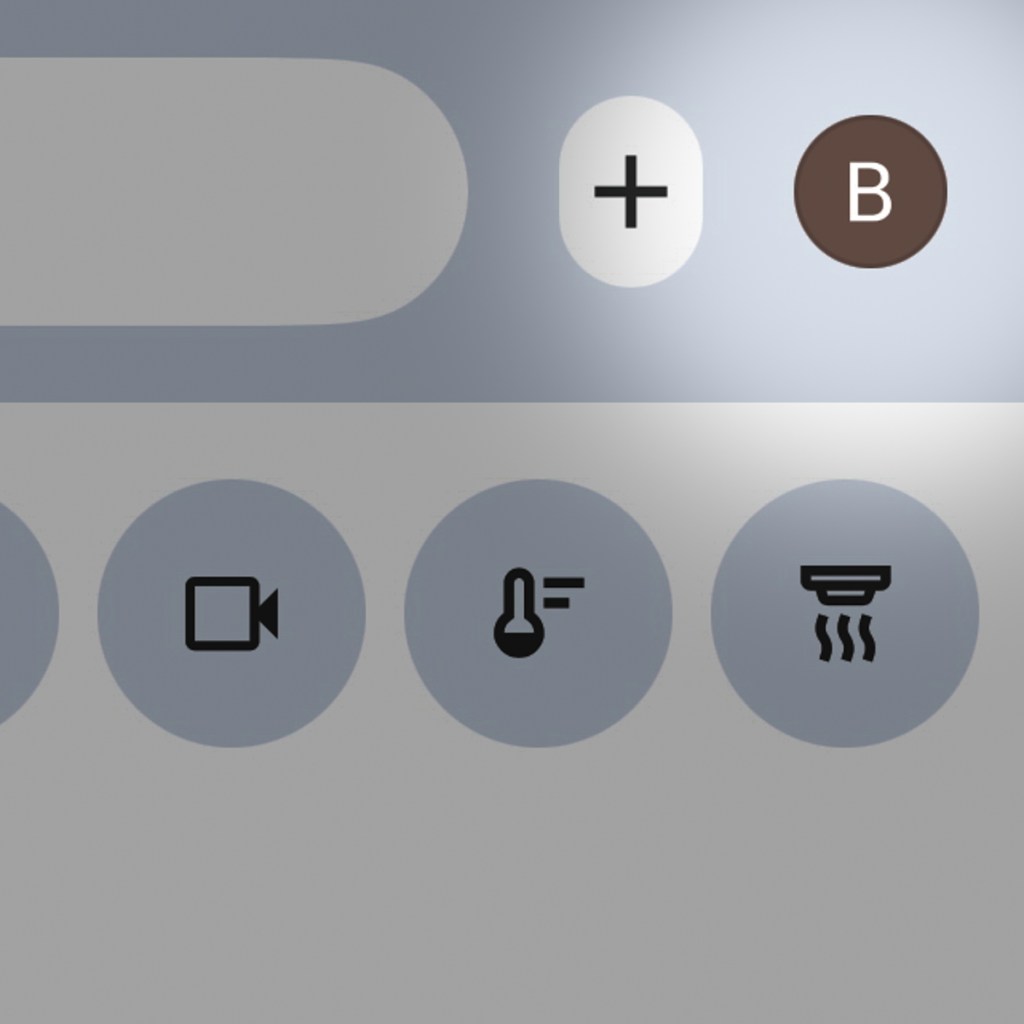
#1 – First, tap on the circular icon with your initial on the top right of the Google Home app.
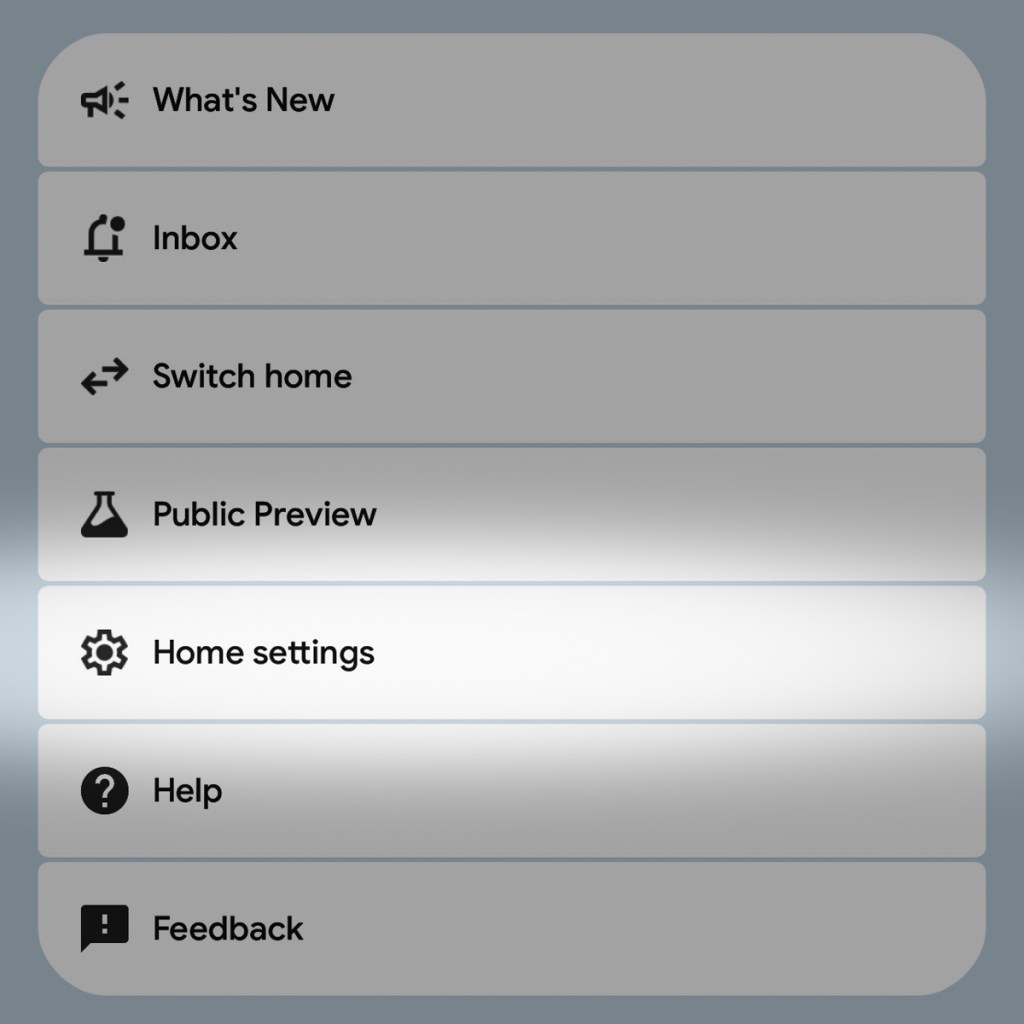
#2 – Then, tap on “Home settings.”
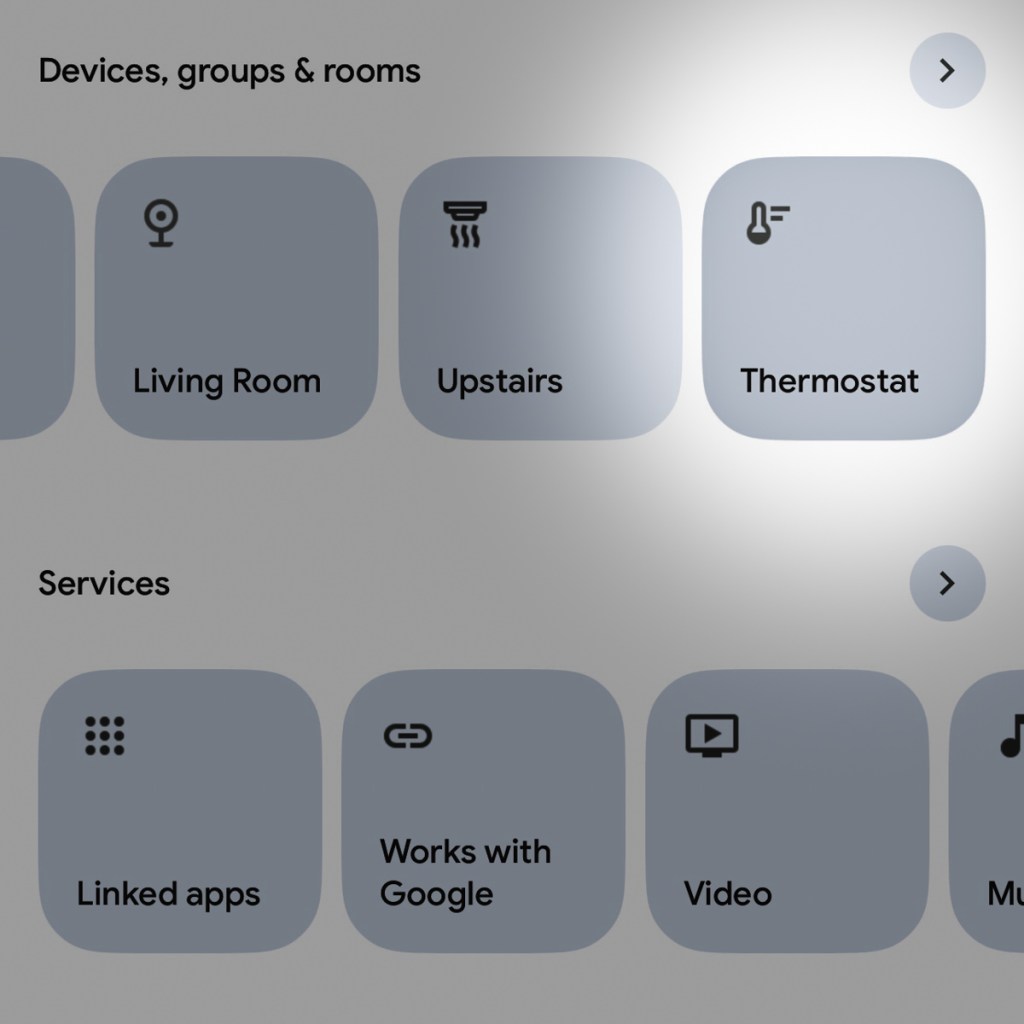
#3 – Under “Device, groups & rooms,” find and tap on your old device.
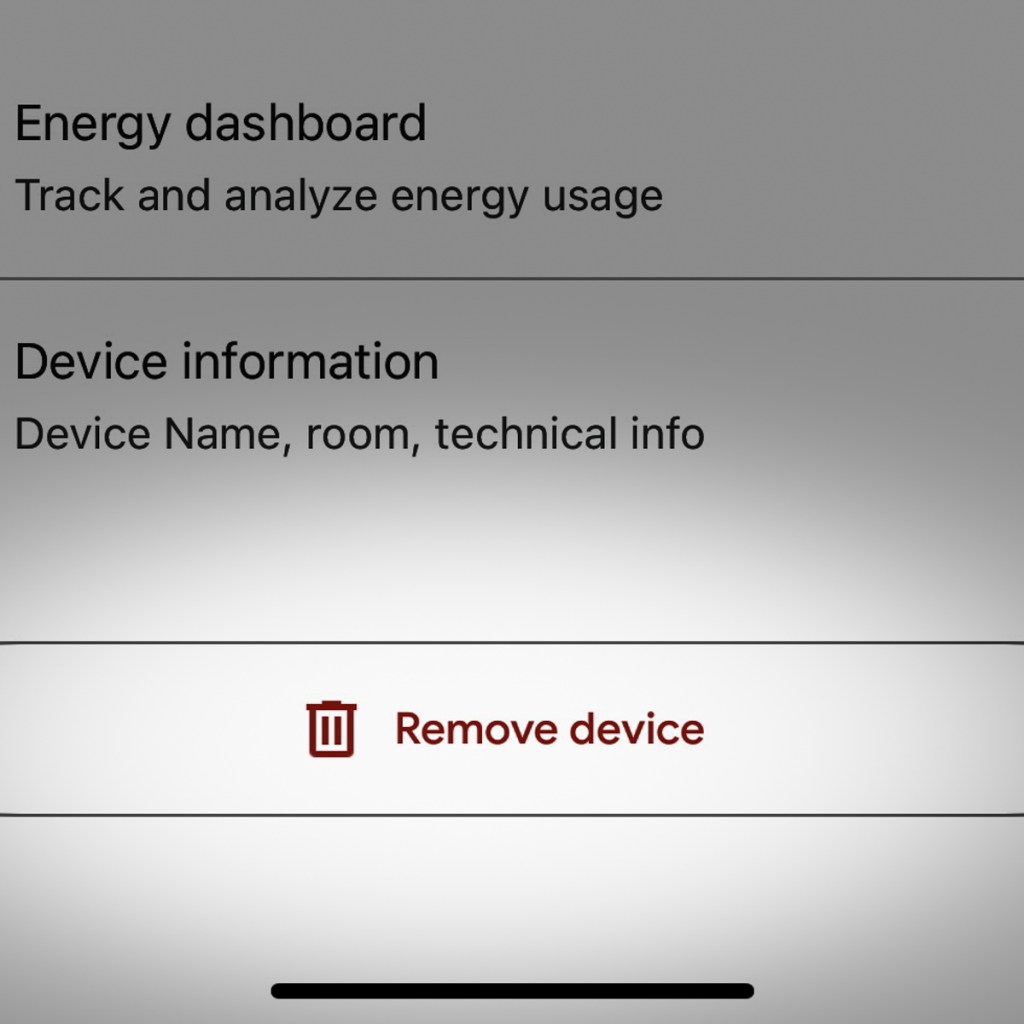
#4 – At the very bottom of the next page, tap “Remove device.”
So Simple…
That should do the trick! It’s super simple for any of your Nest devices, but you need to know where to look in the app.
After this tweak, you’re back to where you started… with remote and clutter-free access to a sleek Google Nest Learning Thermostat at the center of your smart home experience.
 At Home with Tech