At Home with Tech

Unlock the power of all your technology and learn how to master your photography, computers and smartphone.

Tag: iCloud

You Can’t Save your iPhone’s Soul if You don’t Activate this Setting
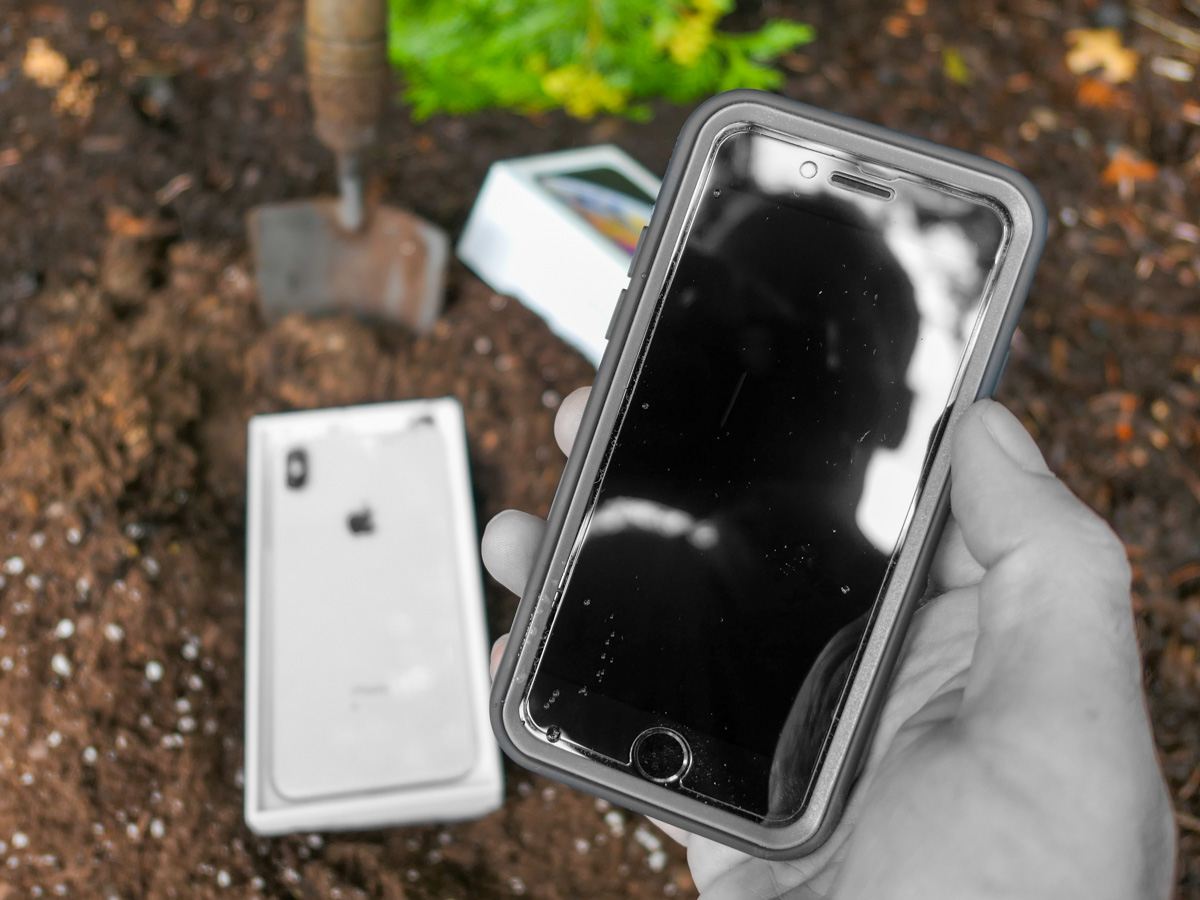
If you ever need to clone your iPhone should your device meet an untimely end, a simple setting buried in your old device is the key to success.

You may not realize it, but across the years, you’ve been building and nurturing a look and feel for your iPhone. It comes in the form of all the apps you’ve downloaded and how they’re organized on your screen. It creates an experience that’s unique to you and feels perfect, because it is. You’ve made it that way.

When you want to upgrade to a new iPhone or need to because of less-than-optimal circumstances, Apple has a process to perfectly restore all your settings and apps in your new device (passwords too). That is if you follow all of the iCloud rules.

But if you miss a step and disaster strikes, you can never transfer your iPhone’s unique personality that you’ve lovingly crafted into a new phone model. You’ll effectively lose its ‘soul.’ Sure, you can manually put all the pieces back together into a new iPhone, but the clone will never be exactly the same.

That’s what happened to me.

R.I.P. My Dear iPhone
Last time, I shared how I effectively killed my iPhone after a little kayaking mishap that submerged it in ocean water.

Thankfully, I had backed up all my Apple apps in iCloud, and when I activated my replacement iPhone at The Apple Store, those apps were already in place, loading in my important data.

But when I searched for all my other apps, they were nowhere to be found.

I was still grieving the loss of my former iPhone. (It had been less than an hour.)

Now, the pain started to pile on.

iCloud 101
Yes, I’d previously been following good iCloud back-up protocols and had properly saved everything of importance to iCloud:

  • Photos
  • iCloud Mail
  • Notes
  • Messages
  • Contacts
  • Calendars
  • Music

It was all safely stored for me.

So, restoring all of that in my new iPhone was easy. (Plus, I pay for 2 TB of Apple cloud storage to cover all my family’s devices and related files.)

I thought I had it all covered. But I didn’t.

My non-Apple apps had vanished. Here’s why…

We Can (Mostly) Rebuild It
Apparently, my old iPhone didn’t have the little iCloud backup switch in ‘Settings’ activated to its green state. I had somehow missed that.

And without that critical piece of back up flicked on, I had forever lost the snapshot of my old iPhone’s set up. All the settings, the home screen layout and all my non-Apple apps.

Now, I needed to download all my non-native Apple apps again (they were readily available in my ‘Purchased’ section in the App Store app), reorganize them and then (the worst part) re-sign into every one of them again.

That was a big project and a massive pain.

It took me the better part of a week to get my apps back in order and running properly. (You don’t realize how heavily you’ve become reliant on your phone for your day-to-day needs until you don’t have access.)

And then when I was done, I still didn’t have my old iPhone’s exact layout back. It was inevitably a bit different. (You’d otherwise need a photographic memory to restructure it perfectly.)

How to Turn On iCloud Backup to Save your iPhone’s Settings
So, if you want to avoid my Humpty-Dumpty fate, be sure to have the specific iCloud Backup switch turned on in ‘Settings.’ It’s embarrassingly simple. Go to:

  • Settings
  • Your Name (on the very top)
  • Your Name’s iPhone (in the third section from the top)
  • iCloud Backup
  • Flick the virtual switch to green
  • That’s it

Silver Lining?
The only upside to my rookie iPhone mistake is I had the chance to slim down the apps on my new phone to the apps that I actually use today. (I didn’t download the ones that I haven’t opened in years.) So, I was able to create a better-organized layout for myself.

No, it’s not my old iPhone. That’s gone. I’ve permanently lost that comfy layout.

However familiar, that’s not necessarily the best layout for me today. It was created organically across many years and through previous iPhone models.

Creating a fresh app structure from the ground up has its advantages. It certainly better represents my current needs. It’s more efficient. It makes sense.

Now I just need to train myself to remember where everything is!

Everyone Risks a Kayaking Kerplunk
Sure, we can all regularly update and reorganize the app structure on our phones. But who really takes the time to do that?

I should be thankful that I was given the opportunity to properly refresh and optimize my own iPhone experience. Right?

On the other hand, just flicking the green iCloud switch is a whole lot easier.

And better yet, think twice about bringing your iPhone on your next kayaking trip without a waterproof bag.

But as careful as you may be with your tech, there’s always some kind of kayaking kerplunk just around the corner for everyone.

So, plan ahead and make sure that the iCloud Backup switch is on!

This Mistake will Doom your iPad’s Photos and Videos

Are you backing up the media files you want to iCloud? I wasn’t, and I didn’t know it. And then the unthinkable happened. Here’s how to avoid my iPad’s fate.

Once upon a time, backing up the content on my iPhone and iPad used to mean regularly tethering them to my iMac. It was something of a laborious process, but necessary. Then iCloud showed up, and everything started to back up magically on its own. It was easy.

Set it and forget it. That’s progress, right?

But removing the chore of physically backing up my digital life also eroded my awareness of the details needed to ensure that my precious data was being properly backed up in the background.

Over the past couple of years, I must admit I haven’t thought about this much. And during the same period, my 11-year-old son effectively became the primary user of the family iPad.
(Minecraft, photo taking, videos of our cat)

How I Lost all of my Son’s Photos and Videos
Everything was working great, until it wasn’t, and the family IT guy was called in to help the iPad out. I quickly realized the iPad needed some real support and brought my iPad’s problems to the experts. It was decided to wipe the iPad, give it a fresh start… and then reload all of its data that was safely backed up in iCloud.

Easy.

Except all of the iPad’s data wasn’t being backed up. When my iPad completed its restore, all of my son’s photos and videos from the past few years were gone.

You might imagine I was a tad disturbed by this. And I may have become slightly catatonic when it was determined that the little setting to back up the iPad’s Photo Library to iCloud had not been activated.

It’s a rookie mistake. And while a huge part of me wanted to push blame elsewhere, it was ultimately my responsibility.

My son handled the loss much better than me. (He immediately began shooting new photos and videos of our cat.) He was also especially relieved that his many Minecraft worlds survived the iPad’s wipe.

Simplicity and Complacency
So, life goes on in the Lester home. My son hasn’t complained about his lost photos and videos. All seems normal.

I tell myself that this cautionary tale is a good lesson for my son to help him understand the importance of properly backing up his future digital files.

And it’s a painful reminder for me how simplicity can create complacency.

On the positive side, I’ve got better backup systems for the content in the remainder of my Apple hardware.

All this said, it’s probably a good idea to occasionally check any device’s settings for its iCloud backup plan. (Don’t just set it and forget it.)

Here’s how to do that.

How to Back Up Correctly to iCloud
To create a full backup of what’s on your iPad via iCloud, you first need to pay for enough iCloud storage to handle it. My family’s Apple devices are collecting sharing the 200 GB iCloud+ storage plan. ($2.99/month)

Then, you’ve got to tell your iPad what to back up. This is how to find the right setting for your Photo Library:

  • Tap “Settings”
  • Tap your name and face on top
  • Go to “iCloud”
  • Tap “Manage Storage”
  • Tap “Backups”
  • Tap your device’s backup
  • Tap “Choose Data to Back Up”
  • Look for “Photo Library” on top…
  • Slide the digital switch to the green setting!

Then, do the same for everything else you want to back up to iCloud.

Easy, right? But, you’ve got to do it.

Finding Peace with my Mistake
It’s been a few weeks since the ‘Lester iPad Incident’, and I’ve remained unsettled. Sure, I can attribute my error to the flaws of humanity and this human in particular. But I know I would feel better if it made more sense.

And then I figured it out…

A couple years back, I wasn’t paying for an iCloud storage plan. So, of course, the free 5 GBs of iCloud storage wouldn’t be enough for my son’s photos and videos. And so they sat there in the iPad, unprotected.
(Bad daddy)

When I finally upgraded to the 200 GB storage plan, I didn’t consider my son’s media on the iPad, and I didn’t update its iCloud storage settings to finally include the iPad’s Photo Library. (Forgetful daddy)

I had also chosen not to activate iCloud Photos, which would sync the photos to mirror images in iCloud as opposed to generating a backup file. That’s because I had wanted to keep my son’s digital media in a separate ecosystem from my own.
(Shortsighted daddy)

Looking to the Future
I think it’s time to properly recognize my son’s digital media creation and generate a child account for my son to use on the iPad. He needs his own digital space.
(Better daddy)

Yes, my son is growing up, and I need to keep up with all of his developing interests.
(More present daddy)

But it’s not only about flicking a couple of digital switches and paying for cloud storage. You’ve really got to own, organize and properly back up your digital content.

It’s a life-long endeavor and an important reminder for children of all ages.

How iCloud Photos Saved my Family’s iPhones

If your iPhone is running out of storage, it may be because it’s housing too many photos and videos. Here’s why iCloud Photos can help.

My wife and I have been happily shooting and collecting thousands of photos and videos on our iPhones over the years. But there’s a problem. We’re running out of storage on our devices.
(As we upgraded from one iPhone to the next, the digital files simply ported over, and our huge visual libraries kept on growing.)

On one level, it’s nice to have access to every photo and video you’ve ever taken on a smartphone. But it’s entirely impractical. It’s way too many files, and more importantly, any iPhone probably can’t handle that much content without being overwhelmed with the storage need.

Sooner or later, your iPhone will become hobbled. And when you find yourself deleting apps to try to free up precious memory, you really know you’ve got a problem.

Yes, I’ve been there. You need a better solution.

Fortunately, Apple’s got one.

iCloud Photos
To access more storage, you have to look to the cloud. You simply activate Apple’s iCloud Photos, and all of your photos and videos will sync to your iCloud account and across all of your other Apple devices.

How does this help your iPhone? Well, just be sure that “Optimize iPhone Storage” is checked in the settings for your iCloud Photos. That’s the magic step.

When you activate this setting, your iPhone will generate and hold onto smaller versions of your photos and videos while the full-resolution versions live in iCloud.

With just the compressed versions of your photos and videos on your iPhone, you’ll suddenly have a whole lot more available local storage.

Plus, you’ll have all of your media backed up in iCloud.

There is a Cost
Of course, there’s a price for this iCloud ‘upgrade.’ (The measly 5GB you get for free will barely cover a week’s worth of content.)

50GB costs 99 cents/month, and 200GB is $2.99/month.
(2TB goes for $9.99/month, but that’s much more data than your iPhone can generate.)

Before your turn on iCloud Photos, you’ve got to upgrade to an iCloud plan that will cover your needs.

I decided to go with the 200GB plan and share it with my wife’s iPhone through Apple’s Family Sharing feature.

No Finish Line
iCloud Photos is a simple solution to solve for the problem of your ever expanding library of photos. Paying a few bucks a month to activate this capability is definitely worth it.

But simply maintaining a disorganized library of imagery over the years isn’t going to do you any favors. You’ve got to eventually go through your photos… choose the best ones, organize them and then delete the rest.

You need to do the work and curate your best images. Otherwise, they’ll get lost in your sea of countless photos.

Sure, they’ll be safely stored in iCloud. And your iPhone will have more storage.

But that shouldn’t be the end of the story.

Good luck as you continue this life-long photo and video project!