At Home with Tech

Unlock the power of all your technology and learn how to master your photography, computers and smartphone.

Tag: iMac

The Frisky Ghost in Your Computer
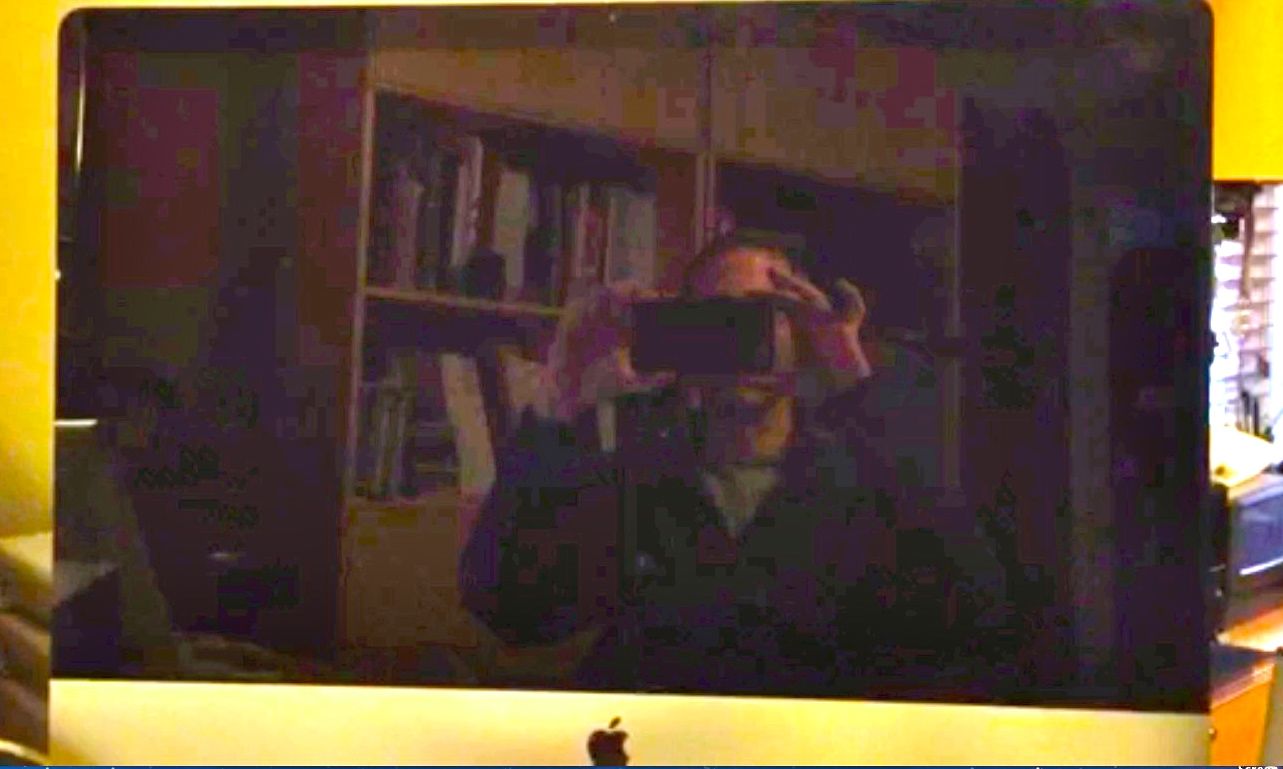
I’ve got a ghost in my iMac. This little digital demon likes to make my screen go black, especially when I’m writing this blog. It’s making my life feel a tad jaggy. Time for a trip to the Genius Bar…

I’ve got a ghost in my iMac. This little digital demon likes to make my screen go black, especially when I’m writing this blog. It’s making my life feel a tad jaggy. Time for a trip to the Genius Bar…

If you’re reading this, your computer or mobile device powered up today.

It’s healthy.
I hope you’re healthy.
(Friends and family too.)
Happy New Year.

What more is there, really?

That said, you shouldn’t take note of such cheerful matters only once a year. Especially when it comes to your precious technology…

Tech goes bad. Sometimes you can fix it. Often it’s down for the count. The important thing is to always keep an open mind throughout the stress of any repair process.

My Mac Fell Asleep… and Wouldn’t Wake Up.
So my iMac went ‘black’ a little over a week ago.
It didn’t exactly die… the screen just popped off. I heard the computer’s guts still whirring in the background. It was like the iMac prematurely began its sleep process, but got stuck.

However, I couldn’t shake this near slumber via my Apple wireless keyboard. Nor with my Magic Trackpad. All I could do was tap the power button in the back to fully settle my computer into sleep mode. And then when I clicked it back to life, the screen popped on as if nothing had happened.

But then the ghost in my machine acted up again five minutes later.
And again… one minute later.

Houston, we have a problem!

It’s Not the Computer
So I brought my iMac to the Genius Bar at my local Apple Store.
(You may recall from my last post, I had also brought it there in search of more RAM.)

The Genius plugged in her power cable and USB keyboard and started running a bunch of diagnostics.
Thirty minutes later, my computer was issued a clean bill of health.

It wasn’t misbehaving in the slightest. The screen shone bright and constant.

The Genius hypothesized that one of my peripheral connections (USB hub) was causing the problem and suggested I connect one at a time to identify the culprit.

Uh huh.

The Cinderella Syndrome
So I brought my iMac home, put it back on my desk, plugged in the power cord, and powered it up. Nothing else was connected.

The screen began to glow.
And thirty seconds letter, my screen transitioned immediately back to its Cinderella mode!

Somehow, I was not surprised.

Sleep-Deprived Ghost
So I boxed up my inscrutable monolith and drove it back to the Genius Bar.

The next Apple Genius immediately acknowledged the problem. In fact, it had happened to him on his own iMac!
(What luck!)

He explained it was a ‘corrupt sleep image,’ which had developed in the OS software. And this bad sleep image simply needed to be deleted.
(He told me it was a ‘known’ problem since Mountain Lion, but Apple has never officially acknowledged it.)

He talked about how they are not quite sure why this particular digital elixir works. It just does.
(How comforting.)

This fix required typing in some ‘dangerous’ commands like ‘sudo’ that can destroy your computer if you don’t know what you’re doing.
(Apparently, ‘sudo’ renders your computer helpless to protect itself against any request… amateur, evil, or otherwise.)

The only safe way to use ‘sudo’ for someone like me is to mention the word in conversation at a party.
(Anyone who works in IT will immediately react and assume you’re one of them… if that’s what you want.)

You’re also not supposed to activate a program called ‘Terminal.’ My Genius looked at me when I asked him about it, and he said with a serious look, “Stay away from Terminal.”
(As he kept staring, I nodded and said, “This is not the droid I’m looking for.”)

And speaking of “Star Wars,” this ‘simple’ correction was so complicated, my Genius had to call over the Obi-Wan Genius to execute it properly.

Click.

Roll the Credits?
And the bad sleep image was terminated.

Next, my Genius asked me to do ten minutes of work on my iMac to demonstrate a clean bill of health, and then he sent me on my way.

As I boxed up my machine, he explained my computer would rebuild a new sleep image as I kept using it. All will be good again…

Well, that seemed easy.

At Home without Tech
Too easy…

I settled my ‘sleepless’ iMac back in at home and began working on it.
One hour passed. Then two…
As the third hour approached, I turned away from the screen… for just a moment.
When my gaze came back…. All I saw was black.

My frisky ghost was back.

D’OH!!

Trip #3 to the Genius Bar
The next Genius listened to my frustrated tale of woe as we powered up my machine. As I explained the past two ‘fixes,’ apparently my phantom menace got bored playing its little game.
My screen went black in front of everyone at the Apple Store.

I raised my hands high and did a little hop as if the home team had scored the winning touchdown. I looked around for some kind of affirmation from the crowd. All I got was a bunch of confused stares.

I turned back and saw that this Genius also did not share my enthusiasm.

He said, “I think it could be a bad graphics card. We’re going to have to take it in and see.”

I asked him how long the fix would take.

“Three to five business days.”

I was okay with that. I had prepared myself for this possibility and would use my old MacBook Pro laptop as my back-up computer.
(It’s good to have access to another computer for times like these.)

And how much would the repair be?
“We’ll call you when we confirm what the problem is…”

And then I went home.
Sans iMac.

That was last Monday…

The Cliffhanger Continues
Tuesday, I waited for the phone to ring. At 4pm, I gave Apple a call to see how the fix was going. The repair shop hadn’t gotten to it yet, but the Genius I spoke with confirmed Apple would mend my iMac in the three to five business days…
(assuming I approved the cost)

His subtext was clear.
(Don’t call us. We’ll call you…)

Wednesday passed.

And the next day.
(That was New Year’s… so I guess I can’t count it as a business day.)

Friday evaporated.
(though not without an amazing experience watching my four year old son learn how to ice skate)

And the weekend, of course doesn’t qualify as a business interval.

Time to Make a Hard Decision
But on Saturday, the call came.

It wasn’t good news…
The graphics card wasn’t the problem… It was the LCD display.
It had to be replaced!
(D’oh!!)

So I had a choice to make, and it wasn’t an easy one…
The new screen install vs. a completely new iMac

You can make a good argument for either choice.
Which means there’s pain to each one…
(Fixing an older machine at an expensive price point or dropping a pretty penny on the latest and greatest)

After some soul searching, I went with the fix, hoping to get a little more life out of my current iMac.
(and also considering I had just spent $$$ putting more RAM into it!)

The Genius then said she needed to order the replacement LCD. I asked if the repair would still be completed in the promised three to five business days.

She answered it wouldn’t be.

I paused.

Finally she admitted the delay existed because Apple had been counting on the graphics card fix… they had even ordered and received the part.
(But I think too many days had passed before the Genius doctors finally got to the patient and then realized they needed to change their diagnosis.)

So the repair won’t be done till sometime next week.
(I’ll survive.)

Stay Tuned…
And you know what that means?
Yep….
This story is now officially a cliffhanger.
(I hope there’s a happy ending.)

We’ll see how my little tech adventure concludes next week!
Strengthen Your Computer with a New Year’s RAM Boost

As you consider your New Year’s resolutions, don’t forget about the health of your computer. It might need a little more memory and a lot less dust!

As you consider your New Year’s resolutions, don’t forget about the health of your computer. It might need a little more memory and a lot less dust!

My iMac has been acting somewhat sluggish lately… lots of spinning beach ball action. I first thought it was simply because I had so many family photos jamming up my Aperture photo management software. But I eventually realized there might be more afoot than a memory-hogging program.

I can’t believe it, but my iMac is already kind of old. It’s a mid-2010 vintage with 4GB of RAM. (random access memory)

My iMac hadn’t been to the Genius Bar at the Apple Store for a long while.
(ever?)
So I figured it was time to take it in for a check up…
Why not start off the New Year right on solid digital footing?

My Trip to the Genius Bar
Fast forward to my Genius Bar appointment, which I had easily booked online.
My designated Genius ran a few diagnostics on my iMac, and within twenty minutes she gave it a clean bill of health. I asked her if installing more RAM might help my digital companion reclaim some of its original pep.

My Genius looked a bit skeptical and said that 4GB should be enough to run memory-intensive programs like Aperture, but she decided to bring in a second opinion to confirm her perspective.

Enter Genius #2…
This Genius looked at me knowingly and without missing a beat said, “Oh yes. You definitely need more RAM.”

My iMac has 4 RAM slots. Two of them contain 2GB RAM chips, and the other two of the slots are empty. Genius #2 suggested putting in four 4GB chips for a total of 16GB.

I said, “Great! Let’s do it.”
It’s common knowledge you can buy RAM memory elsewhere for less and install it yourself, but I wasn’t feeling especially adventurous. I was willing to pay a premium for a little official Apple love.

But the gesture wasn’t returned… this Apple store didn’t stock this older RAM.
(D’oh!)

I think I may have started to hyperventilate, because Genius #2 took me aside and quickly began typing into one of the many humming iMacs surrounding us…
www.macsales.com.

The name of this website he called up is actually Other World Computing, or ‘OWC,’ for those in the know.
Genius #2 told me it was a reputable site to purchase extra memory, and
I could pick up the 16GB of RAM I needed for a great price…$77.99

Impatient Human
So I boxed up my massive iMac and schlepped it back to my car.
(Yes, this is the one time in four years you get to use the original box and packing Styrofoam. How else are you supposed to safely transport this
30-pound monster?)

As I was driving home, feeling mildly dissatisfied without immediate resolution, I scanned my brain for something swifter. Then, I remembered there was an Apple-authorized reseller just down the street from my house. Maybe that store had the RAM I needed…

And in fact it did. But the pricing wasn’t quite as competitive as OWC….
Still, I picked up two chips of 4GB RAM there.
(You always want to buy memory in matching pairs.)

That would bring my computer up to 12GB of RAM. Not quite the recommendation of 16GB, but I figured I could always upgrade the other two slots later if I really needed to.

The Dusty Install
Everyone I talked with… from Genius #2 to the helpful sales lady at the third-party store assured me it was super simple to install the RAM chips on my own. I’ve actually done this kind of operation a couple times before on non-Mac machines, and it always made me feel a little queasy jamming a delicate memory chip into a computer slot without breaking something.
(Plus you’ve got to worry about ‘grounding’ yourself so you don’t zap your computer with a little static electricity discharge.)

But I was committed… and I had come this far. So I began the operation…

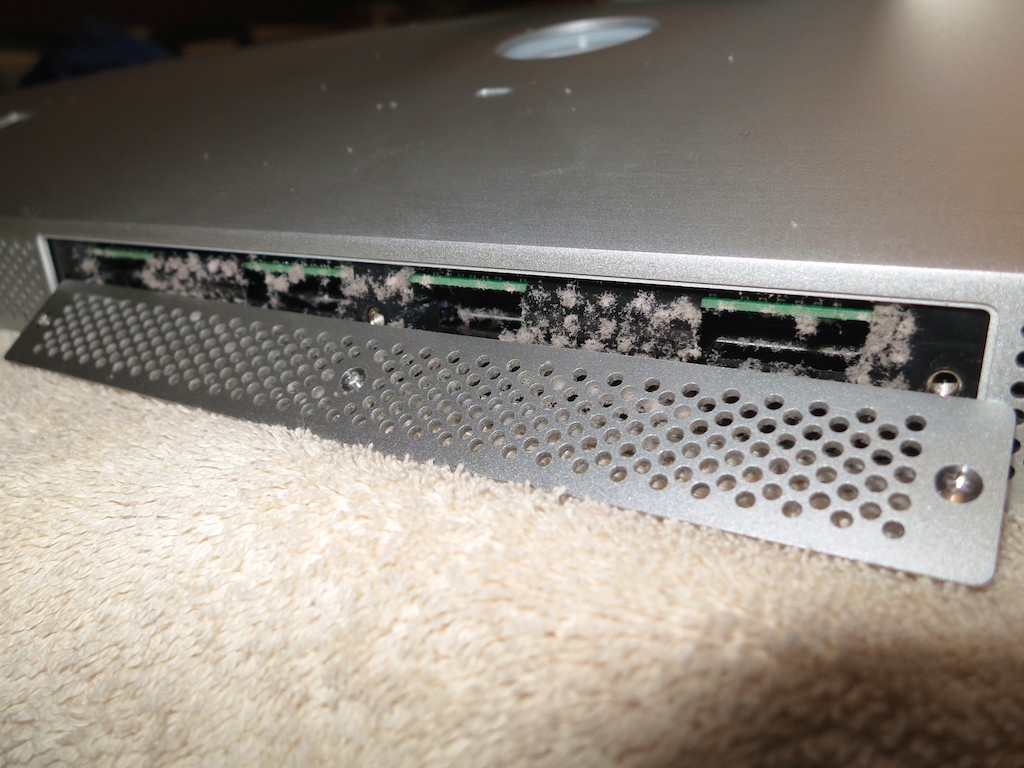
I place my heavy iMac face down onto a towel on my dining room table. Under the bottom edge of the screen were three tiny Philips head screws, which housed a metal cover protecting the four RAM slots.

Unscrewing them was straight forward, but I wasn’t prepared for what I saw when I removed the cover…

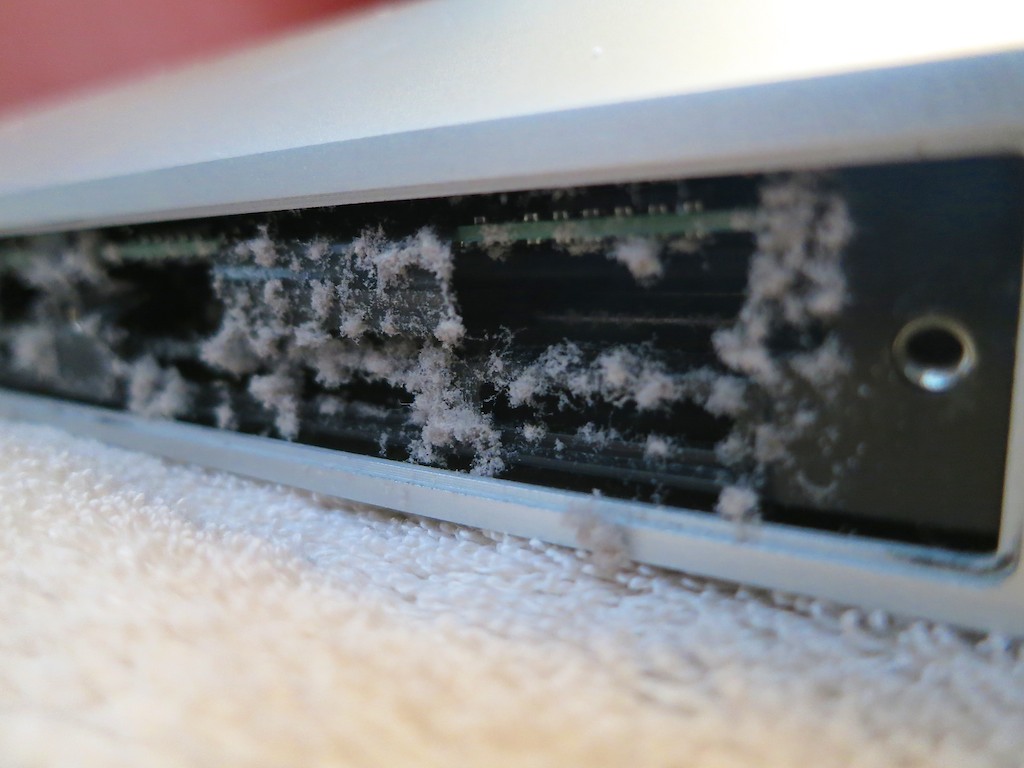
There were these ‘mini-mountains’ of upside-down dust piles on the bottom edges of the two existing RAM chips.

These linty stalactites can’t be good…

Dust on RAM Chips


Now what…?!
I didn’t have a can of air to blast the dust away.
(That actually might have been a bad idea if I blew some of the dust deeper into the guts of my Mac.)

So I carefully removed the dust with a tiny, soft brush.
As a result, a few clumps of dust fell into the side of the machine, just out of finger’s reach… but I carefully removed these powdery bandits with tweezers.

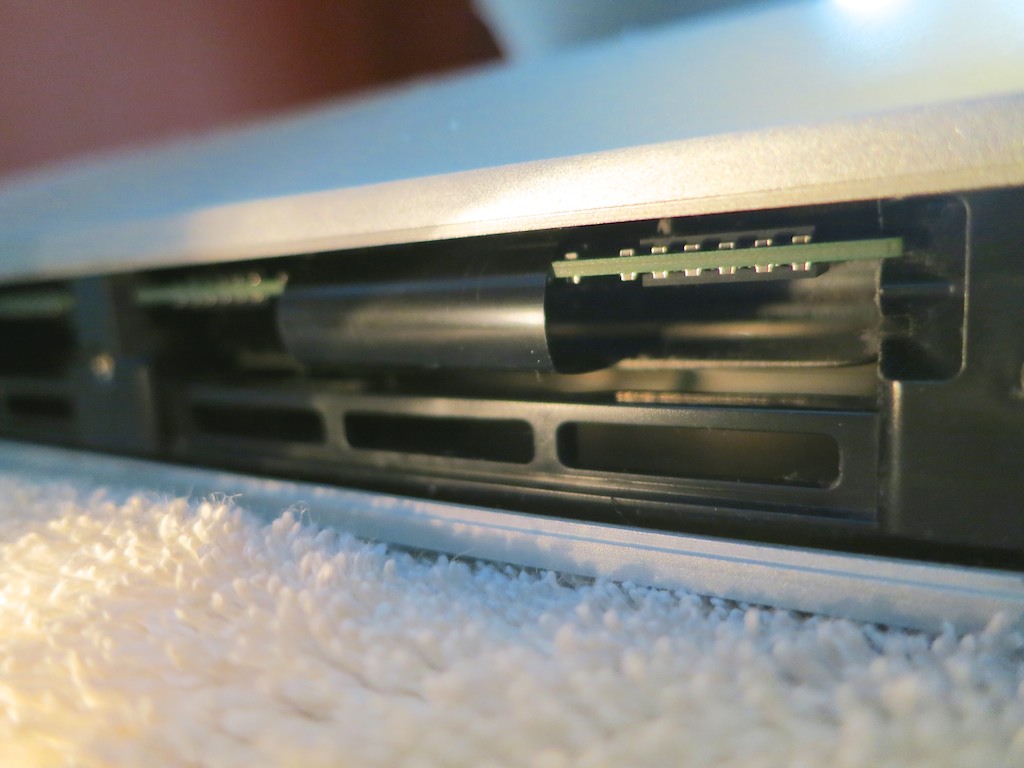
I wouldn’t exactly call my cleaning an exact science or a perfect execution, but at least there was a whole lot less dust hanging around to clog up my computer’s airflow.

After Dust Cleaning


Now, it was finally time to insert my new RAM.

The Operation is a Success, but…
Yes, it was indeed a pretty straightforward process… you lift out two flexible, plastic tabs that are blocking your way… and then you insert your RAM with increasing effort until you feel that horrible scrunching sound of two plastic parts being forced to bond together.
Apple literature describes it as a ‘click.’
(But it never feels to me so clean and simple.)

And that’s it.

You hope you haven’t done any damage; you screw the bottom plate back on… and you lug your iMac back to its normal location and plug it in.

Then it’s time to turn your buddy back on…

Happy Computer…
“BONG…”

I immediately checked to see if the new RAM memory registered.
(You can click on the Apple icon on the far left and then on “About this Mac.”)

And there it was… “12GB.”

I opened up Aperture and happily saw an immediate improvement. My computer was indeed much more snappy!

Problem solved.

…Happy New Year
So as you consider your New Year’s resolutions, you might want to make sure you’re not waiting around for your computer to keep up with the “new you” this year.

Everybody and everything needs a little boost… every so often.

Cure the Cause of Your Computer’s Crippling Coma

Does your Mac get a headache keeping up with all the programs you’re running? It’s time to dial it back. Activity Monitor can help you decide which programs to close down.

Does your Mac get a headache keeping up with all the programs you’re running? It’s time to dial it back. Activity Monitor can help you decide which programs to shut down.

My iMac has been slowing down lately.
Slowwwwww…

Its spinning beach ball shows up whenever you click on the simplest task…
And then you’ve got to wait around like it’s 1999.
You look up…stare into space.
Yup…
The moon’s still there.

Suddenly, you hear the whir of the computer’s fan grow louder.
It really shouldn’t be working this hard.

Hmmm.
Well, my Mac is a few years old…

So I wondered if it was time to think about a new one.
But it’s got 4 GB of RAM and the i7 processor.
It shouldn’t be hurting that badly.

Doctor Barrett… what’s the problem?!

Activate Repair Disk Permissions
One good maintenance check is to run ‘Repair Disk Permissions’ in Disk Utility.
That can speed things up a bit.

Unfortunately, that fix didn’t improve the health of my panting processor this time.

Of course, the big question is…

  • How much software do you have running simultaneously?

No computer is a bottomless bottle of beer.
So I sat down with my Mac and we began some self-reflection.

Billions and Billions of Programs
Well, first off… I often use Adobe Lightroom to edit and organize all my photos.
(Everyone talks about what a memory hog that program is.)

Then, you might recall I added Backblaze a while back for automatic cloud backup, in addition to my Time Machine drive.
(You can never be too careful.)

Do I have lots of Safari windows open?
Guilty as charged.

Plus I see, Dropbox, Word, Outlook….

Already, it’s getting to be a pretty large list.

Maybe I’ve been maxing out my Mac after all.
(And I haven’t even mentioned iTunes or Final Cut Pro.)

So how are you supposed to know how much weight your Mac can bench press?

X-ray Vision into Your Computer
Yes, Apple has, of course, thought of that.
The answer comes in the form of a little utility called Activity Monitor.

It lists all of your open programs, charts the drain and graphically displays the ‘memory pressure’ your poor computer is enduring.

There’s lots tech jargon to consume, but it’s immediately clear which programs are depleting your digital companion.

And then you can close down the particular offenders directly in Activity Monitor.

Time to Tidy Up
I’ve opened Activity Monitor before, but it was more out of curiosity than need.

This time, I went in and saw some Safari pages ‘not responding’ and putting a pretty big drain on the system.

Click…. See you guys later!

That seemed to do the trick… but then I didn’t close out of my nifty new window into my Mac’s brain.

I left it open and positioned it in the top left corner of my screen.
And that was a few weeks ago…

Now, it’s always there to help me see what’s going on and which hungry programs are grabbing more than their fair share.

Yes, a newer Mac or more RAM would also solve the problem, but really, how many programs do you need to have open simultaneously?

When I was a kid at home, my mom always pestered me to turn off all the lights in the room I just left.

“That’s just wasting electricity,” she’d say knowingly.

Decades later, I finally get it…

Happy Computer, Happy Human
…What’s that, you say?
And how much memory does it taken to run Activity Monitor 24/7?
Good question…

Could this reveal a circular logic flaw…?

As I write this, Activity Monitor is sipping a miniscule 14.7 MB.
By comparison, Word is consuming 148.3 MB.
And my cloud backup is gulping 698.3 MB.

The price we sometimes pay for peace of mind…

By comparison, Activity Monitor is a welcome dose of aspirin to clear up your headache and keep your computer focused on what really matters in the moment.