At Home with Tech

Unlock the power of all your technology and learn how to master your photography, computers and smartphone.

Tag: iPhone 15 Pro Max

Is There a Wireless Charging Stand for iPhone SE?
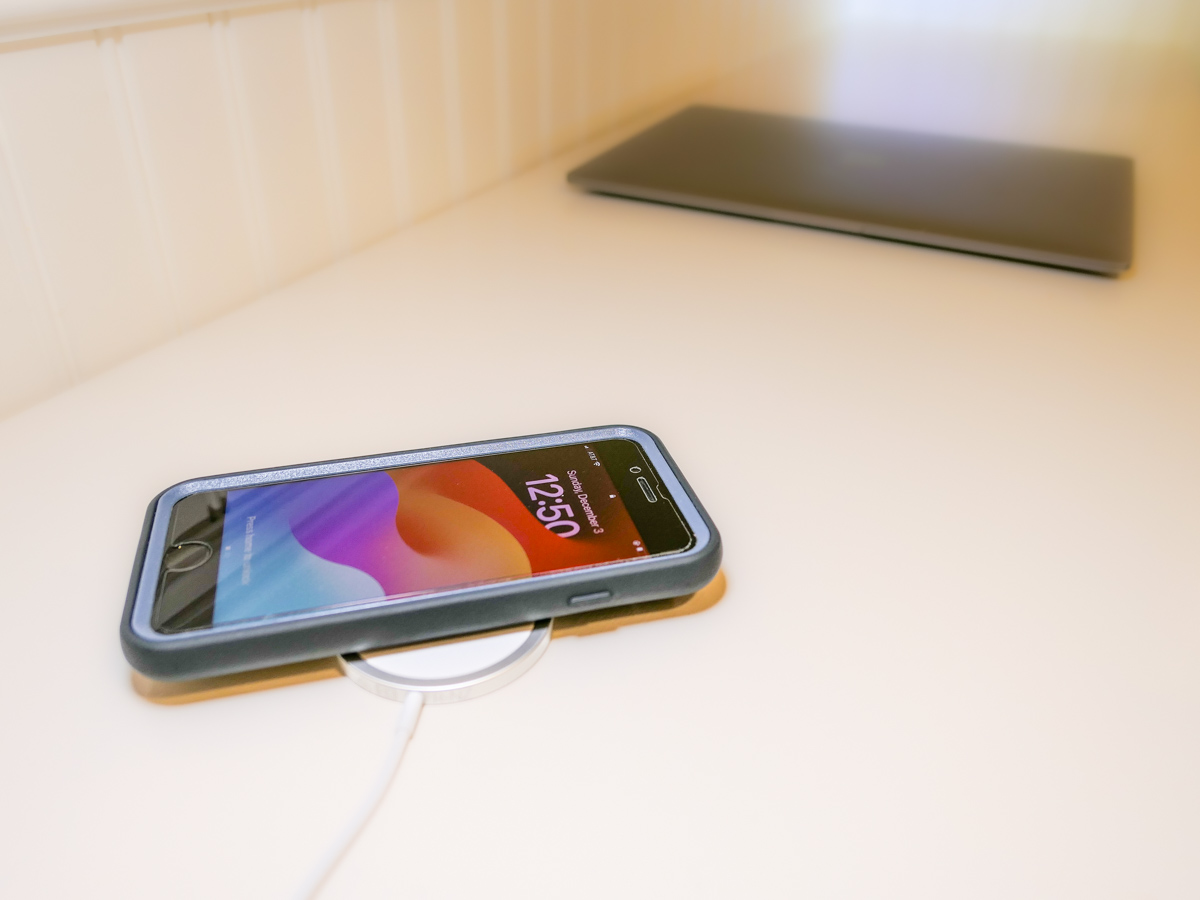
Even though iPhone SE isn’t built with MagSafe magnets, you can still charge it wirelessly. But it won’t stick to a charging pad. Thus begins my journey for a workable solution.

By now, it shouldn’t be this hard to figure out how to charge up all your gear. But if you’re like my family, you’ve got different versions of the same device (like iPhones) running simultaneously. So, over the years, I’ve collected various chargers that could keep powering newer tech. That’s good, right?

But the charging equation is complicated now that the tech industry sells much of its gear with the ‘bring your own charger’ sales strategy. Then, you’re forced to figure out how to power your new device. You need to immediately run through the compatibility equation with your existing power blocks.

Yesterday’s chargers may not be strong enough to handle today’s power-thirsty tech. And in a family where the kids are likely using older gear than the adults, every charger won’t work across the board.

And the complexity doesn’t stop there. There’s fast-charging technology and wireless-charging to also consider.

Wow. Do you also feel it’s hard keeping up?

Barrett’s Recent iPhone Purchases
Some months back, I had a little kayaking mishap, and my old iPhone XS Max drowned only weeks before iPhone 15s came out.

So, I decided to buy myself a new iPhone SE to hold me over with the plan to later gift it to our 13-year-old son.

For that period, I stuck with the standard Apple 20W USB-C Power Adapter and lightning cable. But when I ordered my new iPhone 15 Pro Max, of course I quickly upgraded to Apple’s MagSafe wireless circular charging pad.

No Click-and-Stick for the SE
When I had a moment to stop fixating on my new flagship iPhone, I turned my attention back to the scrappy but still totally capable new SE. I wondered whether it couldn’t also charge wirelessly. (Yes, I was totally enamored with the belated joy of wireless charging.)

Unfortunately, the basic iPhone SE doesn’t contain the magnets for MagSafe functionality. But yes, it actually can wirelessly charge if placed properly on top of a Qi charger.

That last detail didn’t thrill me. Without that magnetic ‘click-and-stick,’ you can easily miss the charging connection lock by a few millimeters and end up in the morning with a smartphone that’s not ready for the day.

Stand vs. Pad
But I figured if I could find a solution where the iPhone SE fit more snugly into place, like on a stand vs a pad, that could be a better system for charging success.

Unfortunately, Apple does not sell a wireless charging stand without a MagSafe connection requiring iPhone levitation. So, I had to turn to other manufacturers…

Fortunately, I found two brands I trust that offered what I needed.

Anker 313 PowerWave Wireless Charger Stand
Anker makes a Qi-certified, tilted stand that an iPhone SE can safely lean on without relying on MagSafe.

The stand is boxed with a Micro USB to USB-A cable that connects to a USB-A wall charger. But it doesn’t come with the charger. You’ve got to provide that separately.
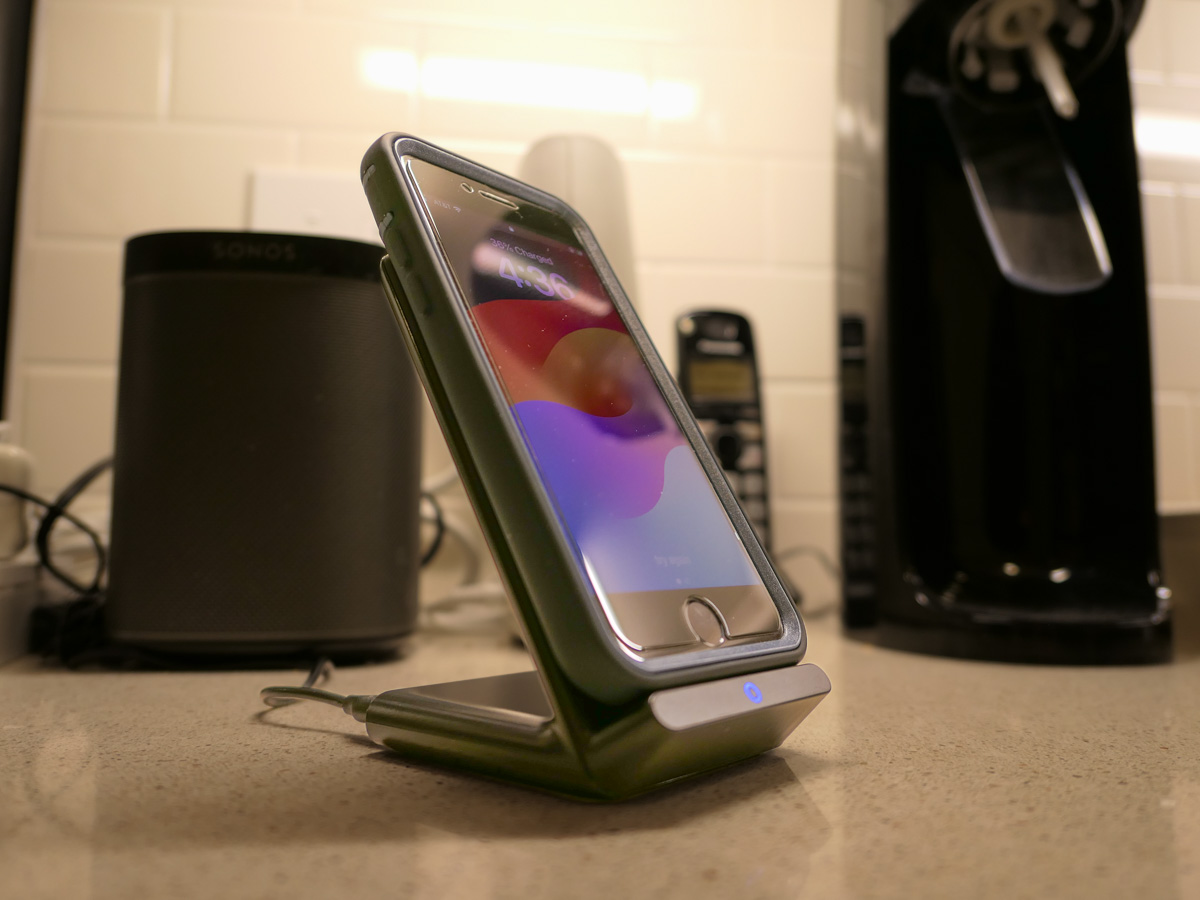
Anker states that you can’t use one of your old Apple 5V/1A stock chargers (the original tiny white block). Not powerful enough. You need a minimum of 5V/2A output. An iPad charger will work if you believe in sharing one charger for different devices. (What could go wrong with that plan?)

So, I knew I also needed a new power block.

Anker PowerPort+ 1 with Quick Charge 3.0
I read the fine print on the Anker stand’s power requirements to maximize its capabilities. My mind started to melt.

I immediately searched for a shortcut and landed on Anker’s only small USB-A charger. (All of their other models are USB-C.)

With both stand and charger, the Anker price is $30.38.

Belkin Boost Charge Wireless Charging Stand
Belkin offers an all-in-one solution, which you may feel is more elegant that my MacGyvered Frankenstein Anker plan.

You don’t have to figure out which charger block to buy. A Belkin charger comes packaged with the stand (which is similar to the Anker model, though more rounded).

I Bought the Anker Wireless Charging Package
I think both the Anker and Belkin options are solid choices. That said, the Anker stand and charger is only 30 bucks vs $45 for the Belkin option.

Based on this pricing differential, I went with Anker.
Click.

Fast-Charging is Always Helpful
All I really wanted was an overnight wireless charging solution for our iPhone SE. And now we’ve got that.

But as it turned out, I’ve also put in place a fast-charging solution with the Anker 313 Stand and PowerPort Quick Charger for any number of our current and future devices.

As much as I prefer the overnight charging rule for our son, what could possibly go wrong with that rigid strategy combined with the complexities of busy family life?

We all sometimes need a little quick boost of power in the morning.

And so do our devices.
How to Protect the Camera Lenses on the Back of your iPhone

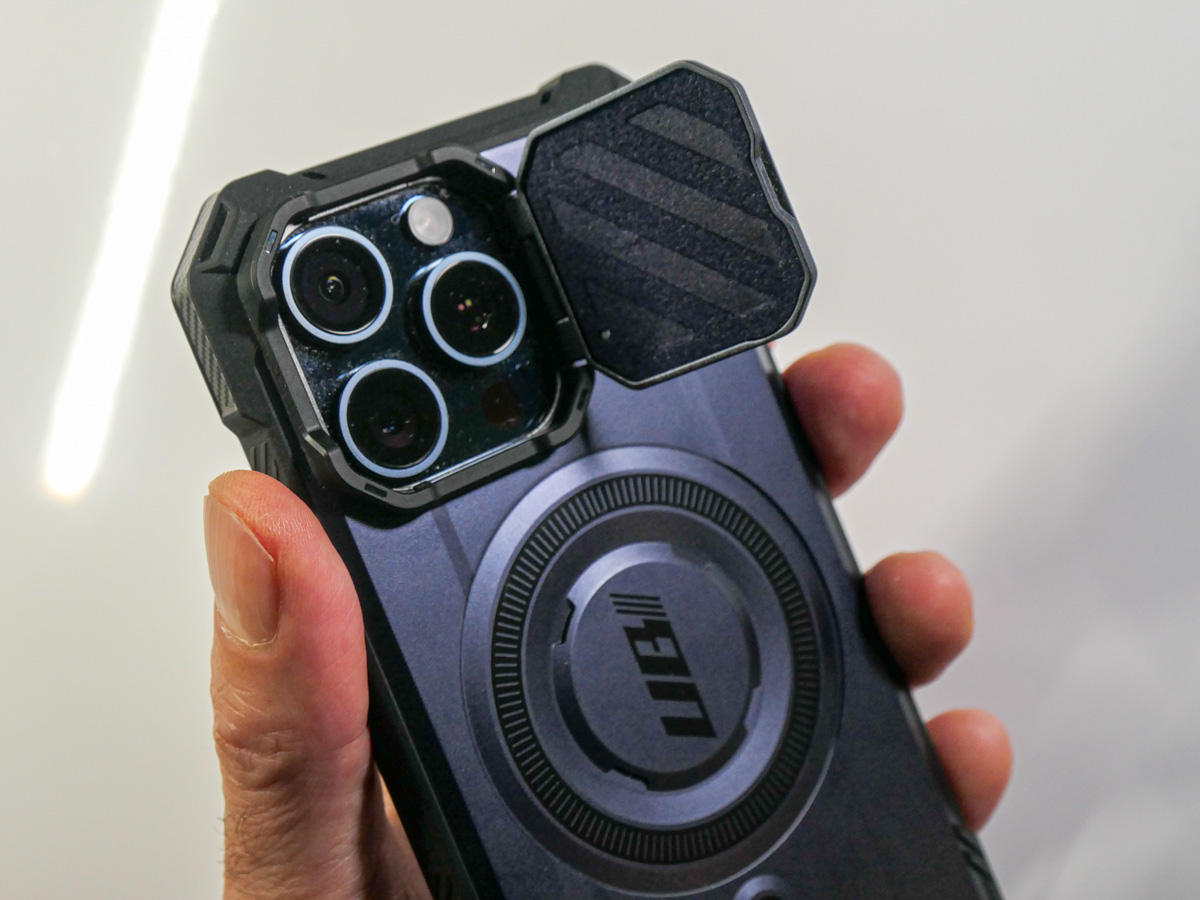
If you worry about destroying your iPhone’s three camera lenses, you might want to consider buying a case with a lens cover.

In many ways, the most prominent feature of an iPhone is its camera system. Being able to make a phone call these days is almost an afterthought. And those three camera lenses on recent iPhones are fairly large. Long gone are the little lens dots on the back of smartphones.

As I began to consider my daily life with my brand-new iPhone 15 Pro Max, I thought about how to best protect its three lenses from damage. Of course, I know I’ll be constantly placing my new iPhone on various surfaces facing up to maximize its ‘always on’ trick. (Love that!) And in practicing this technique, my iPhone will always rest on its camera lenses.

That doesn’t feel quite right.

A Standard Case Won’t Cover Every Danger
Sure, many iPhone cases have a lip surrounding the lenses that prevent direct contact. Other cases can even out the back side of an iPhone, so it becomes one flat surface without the lens bump. Then, they won’t protrude at all.

But those three lenses are still unprotected and exposed to the grimy elements.

You wouldn’t mistreat any other camera lens that way. You’d have a lens cap for it, right?

What happens to those three iPhone lenses after daily contact with any number of surfaces? Wouldn’t that eventually smudge and scratch them, affecting the optics of all your photos and videos?

Sure, the little camera lenses are natively constructed with sapphire crystal lens covers. Does that make them impervious?

A Genius Perspective
So, I brought my concern to a couple Apple Genius’s when I picked up my iPhone 15 Pro Max at the Apple Store.

One mostly brushed off my question as irrelevant. He said that he simply wipes off his iPhone’s lenses for smudges and they’re ready to go. He said otherwise, he “doesn’t think much about it.”

Whenever I visit an Apple Store looking for answers, I often quiz multiple Geniuses. So, I kept going…

I found another Apple Genius who appeared more analytical. (Maybe it was the glasses.) He told me that all flat clean surfaces were safe to rest an iPhone on. I should just be mindful of avoiding gritty surfaces. Those “might” scratch the camera lenses.

I felt a bit better with that answer. But life isn’t flat and clen. Life is gritty, especially when you least expect it.

An iPhone Case with a Lens Cover
The standard solution of simply wiping off my three little lenses with a microfiber cloth (or my sleeve) just wasn’t going to cut it. I knew I wanted a more comprehensive plan.

Question: Had any iPhone case manufacturers yet designed their cases with a dedicated lens protection solution? After a little quick Googling, I realized that in fact, yes… some of them had.

Though I may be in the minority for wanting this extra protection, I decided to buy an iPhone case that offered a protective lens cover.

Cases for new iPhone models take time to enter the market. So, I looked for a quick and dirty solution to help my iPhone’s lenses avoid the grit.

I found two types of cases built with little plastic covers that shielded the camera lenses. They moved one of two ways:

  • Sliding over and away (left to right)
  • Folding over and back (like a little door)

SUPCASE Closed-Door Solution
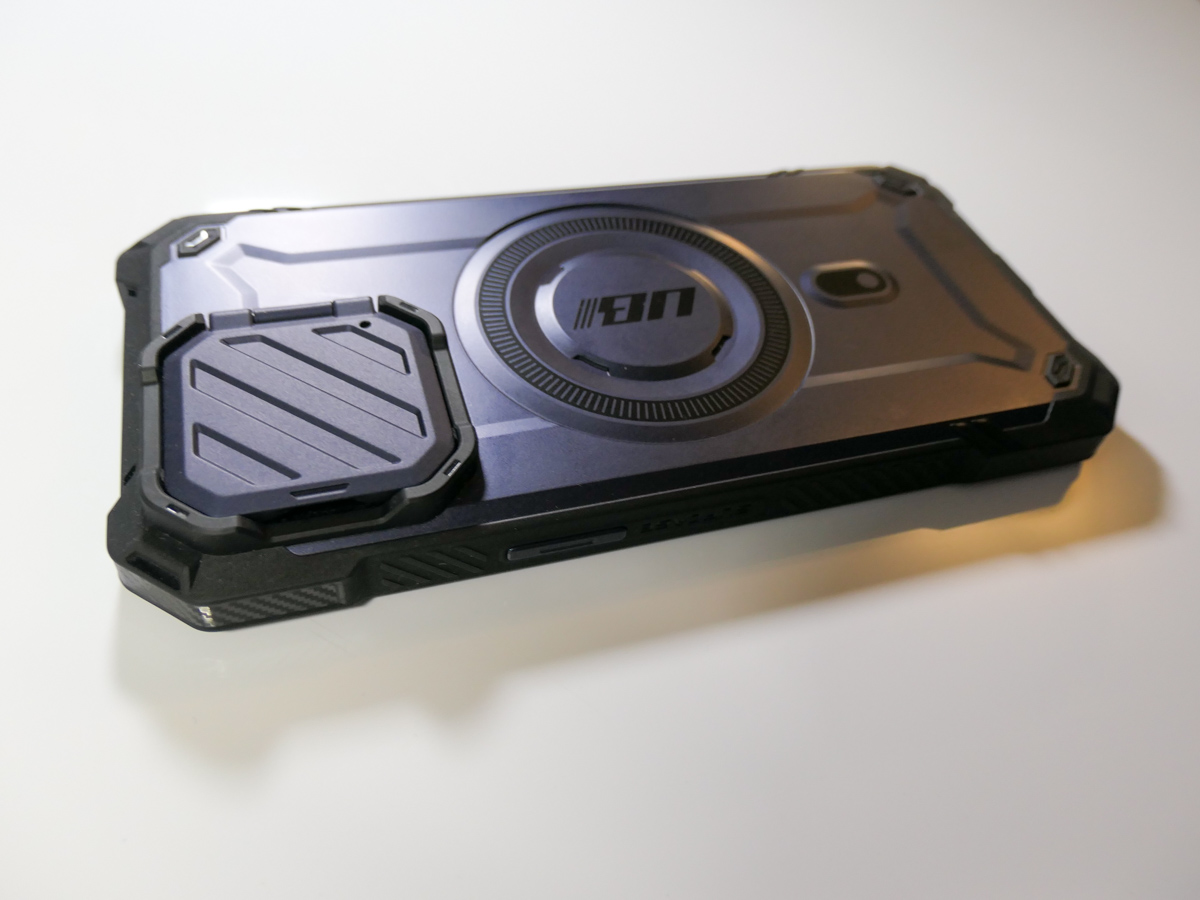
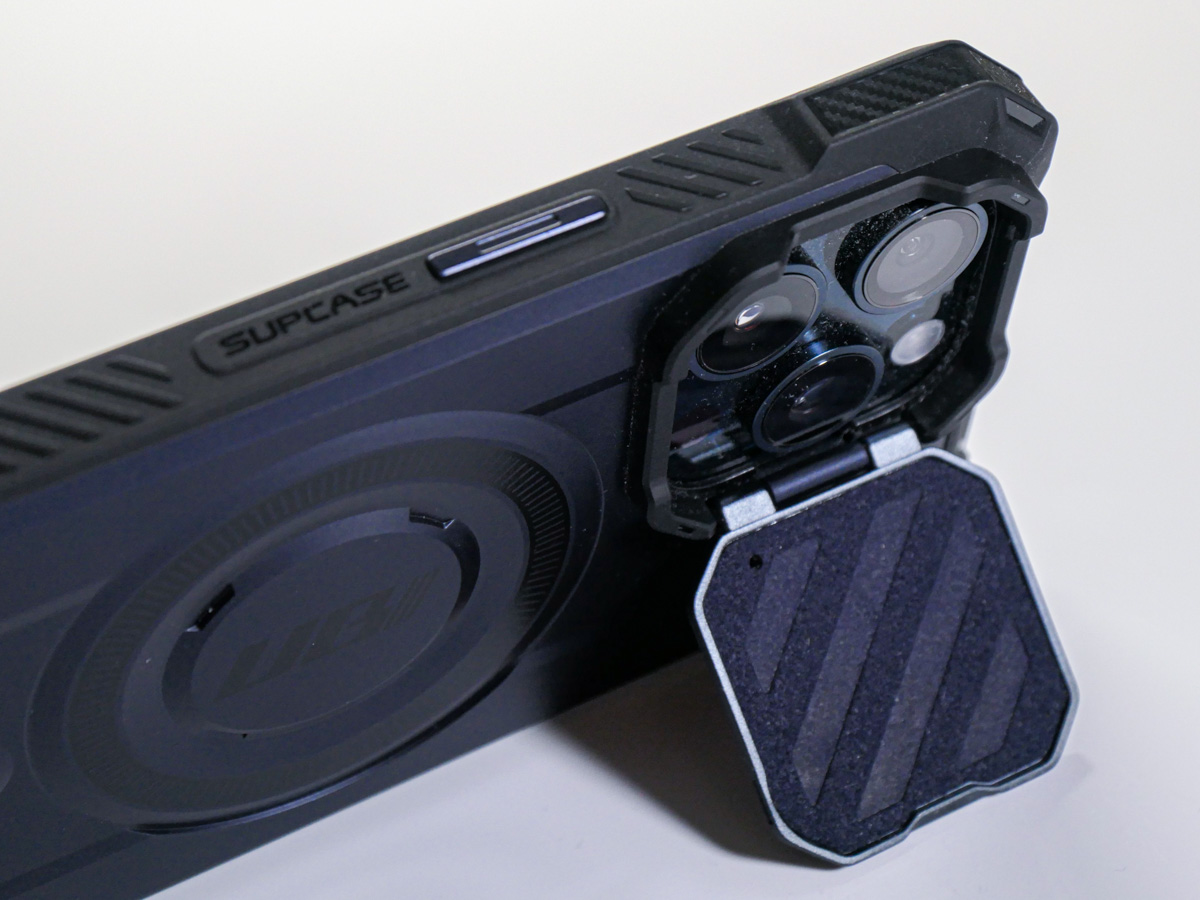
I ended up trying out the tiny door concept with the SUPCASE UBMag XT Case.
Amazon has it for $26.99.
The little lens door locks in place when it’s closed and is appropriately stiff as you move it. (The plastic flap doesn’t swing around when it’s open.) The door can also double as a kickstand for your iPhone.

The SUPCASE allows for MagSafe charging and magnetic grip, and functionally works just fine.

Most importantly, the “closed door” gives me peace of mind as I move my iPhone and its three camera lenses around.
All this said, the lens cover does require the extra step of opening it before taking a photo. So, in those spontaneous moments, you’ll inevitably lose a second or two before getting off your first shot.

Cautious Optimism
I wanted immediate protection for my new iPhone, and for a case in the sub $30 category, this was a solid choice. It’s a good way to begin ahead of other iPhone 15 Pro Max case options entering the market.

Does that mean I’ll eventually upgrade to another case? Perhaps. No case will last through your iPhone’s expected lifetime. My iPhone cases have all shown wear and tear long before that. But isn’t that the whole point?

The case takes the licking, and your iPhone keeps on ticking.
(Wait…that’s another brand.)

Bottom line: My three new camera lenses now have their extra layer of protection. Do they actually need a cover? Who really knows for sure…

But the idea of it certainly makes sense to me.

Case closed.

8 Ways to Quickly Get your New iPhone Up to Speed

I’m the proud owner of my new iPhone 15 Pro Max. Beyond the basic set up, here are the next steps I took and extra purchases I made to quickly unlock my iPhone’s full potential.

Buying a new iPhone and setting it up is easy. But integrating it into the daily routines of your old device is not as simple as you might expect. Sure, migrating apps and data over is straight forward, but’s that’s not everything you need to think about. There are other steps to take and more decisions to make surrounding your core purchase.

It’s been five years since I bought my recently departed, beloved iPhone XS Max, and I found myself a bit rusty on remembering everything I needed to take care of surrounding my iPhone 15 Pro Max purchase.

Here’s my guide with eight tips to help speed the entire process and get you quickly up and running with your next iPhone.

#1
Be Sure to Join the Virtual Line Early on Launch Day
If it’s time to upgrade to your next iPhone, then it makes sense to buy one the day it’s released to maximize its twelve months of being the ‘latest and greatest.’ I bought my iPhone 15 Pro Max online at 8:20am the day of its launch. It arrived a week later, and I picked it up at the Apple Store. Sweet.

But that happy story first required 25 minutes of frustration, persistence and I think a dash of luck.

I sat down at 7:55am EDT in front of my Mac Studio on launch day and promptly waited for the Apple Store to open for business. (Yes, it’s usually down during the hours ahead of a new iPhone going on sale.) The Apple Store didn’t open (for me) until 8:05am. And then it took another fifteen minutes of multiple failed purchasing attempts (as I fought others around the world to be among the first new iPhone owners) before the transaction finally went through. (I’ve had the same challenge over the years when buying an iPhone on day 1.)

Apparently, I just squeaked through before the delivery times began to slip into October and November.

So, it clearly pays to be prompt and close to the front of your virtual line.

#2
Buy More Storage than You Think You’ll Need
Five years ago, I wrote my blog post, “Why Do You Need an iPhone with 512GB of Storage?” And while I recommended the idea of having what was at the time a ridiculous amount of storage, I ended up sticking to 256GB. This time, 512GB was a no brainer for the extra $200.

The choice was whether to spend another $200 on top of that for 1TB.

While I’m enamored with the idea of recording Pro Res video clips, I no longer feel the need to permanently house every piece of media I generate locally on my iPhone. With that strategy, even 1TB storage would eventually not be enough.

The truth is you can’t carry around every digital media file you’ve ever created. And I would also argue why would you? That would be a crippling number of videos and photos to manage.

Sure, I’m always impressed when a parent can pull out their iPhone and quickly flip through tens of thousands of photos to find that one cute photo of their kid from a decade ago. That’s a superpower I don’t have. And I’m willing to bet that no one will be able to retain that capability forever. You can only flip though so many files before your finger falls off.

#3
Buy the 20W USB-C Power Adapter
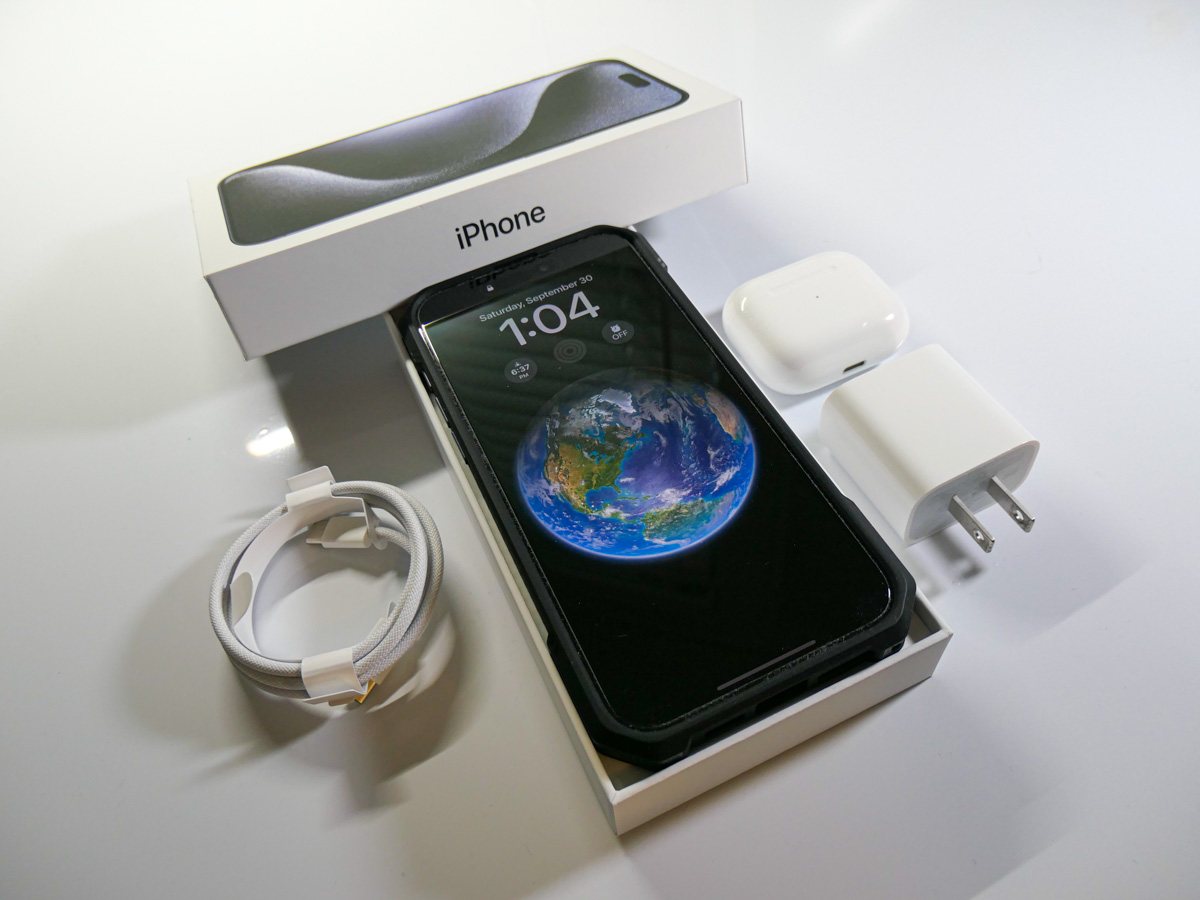
Apple’s 20W USB-C power adapter is the new norm. Goodbye tiny 5W adapter (though it will still work slowly in a pinch). Unfortunately, you don’t get a 20W adapter in your iPhone’s box (just a USB-C cable). So, you’ll need to buy one separately if you don’t already have one.

#4
Replace your Lighting Cables
I’m sure you know by now that the Lightning connector is out, and USB-C is in for the iPhone 15 line. Yes, you do get one USB-C cable in your iPhone’s box, but that’s not going to be enough, right?

You’ll have to replace your existing arsenal of Lightning cables to maintain your new iPhone’s power/charging stations.

And if you intend to continue using your old USB-A chargers, you’ll need to buy some USB-A to USB-C cables.

#5
Buy a Case with a Camera Cover
Choosing a protective case for a new iPhone can easily become a complex decision. Unless you take the path of least resistance and go with an Apple case, it could be weeks of research before you come to a decision (guilty).

I wanted a case ready to go for my iPhone 15 Pro Max (essentially as a temporary solution, if need be). So, I took a chance and ordered one on Amazon before my iPhone arrived. That’s way early, because case manufactures are still guessing a new iPhone’s physical specs at that point. But I did okay.

The case fits really nicely, and its distinguishing feature is its little folding door cover for my iPhone’s three camera lenses.
Protecting those little lenses was on my mind, and this quickly took care of that concern!

#6
Unpair and Pair your Apple Watch
Your Apple Watch is an intensely faithful device. It sticks to only one iPhone at a time. If you think that by simply cloning your old iPhone’s identify into your new iPhone, your Apple Watch will gleefully follow along, you’d be wrong.

Your Apple Watch needs to literally break up with your old iPhone and then marry your new iPhone. So that means first unpairing it. And then pairing it again.

It’s not an especially quick process. So, set aside a half hour or so for this.

#7
Sign Back into your non-Apple Apps
Yes, your iCloud apps will be ready to go. But for everything else… nope.

You’ll need a chunk of time to sign back into the rest of your apps.

#8
Add a MagSafe-Compatible Charger for your Car
And then there’s your iPhone’s car interface. No matter how you connect your iPhone in, you’ll want to consider how it’s positioned in your car (perhaps mounted to your dash). A MagSafe-compatible solution is a good idea for both positioning and charging.

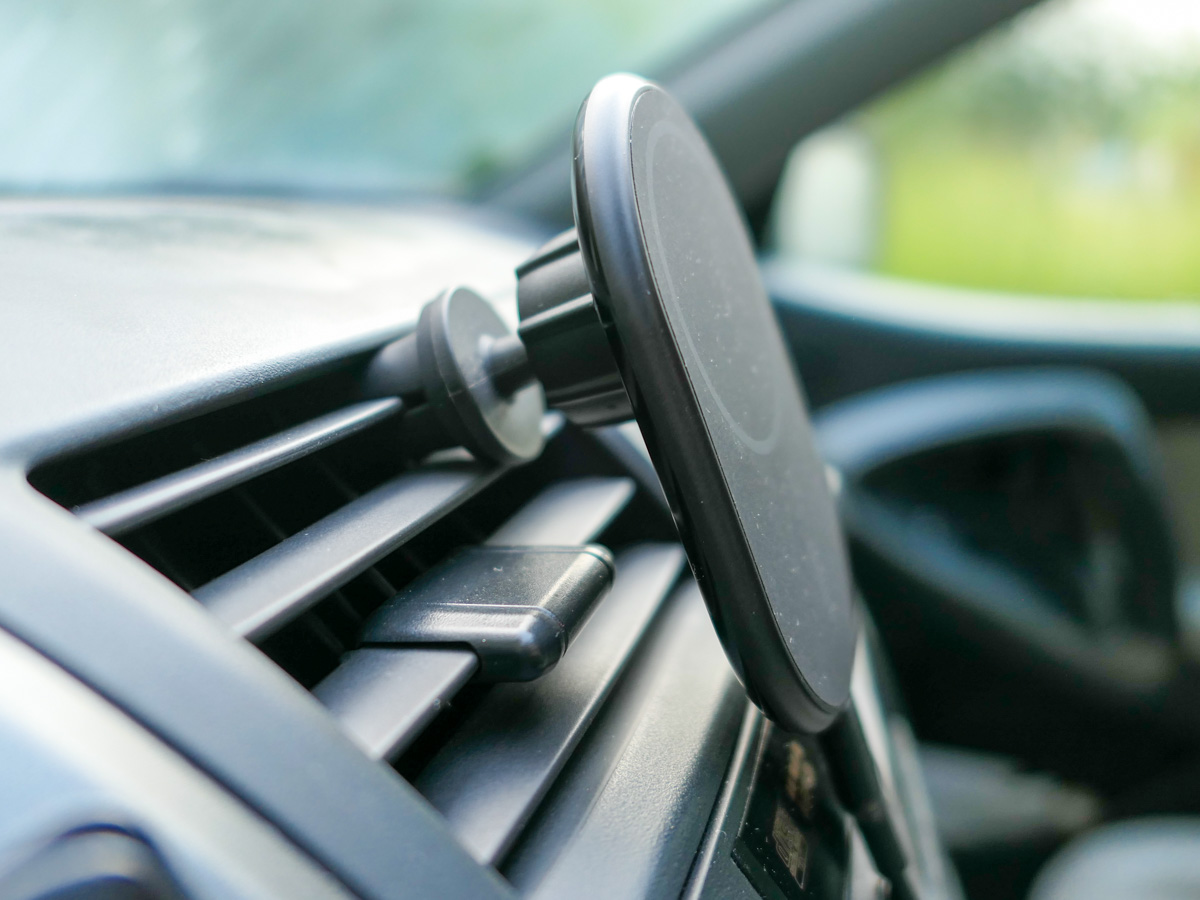
I picked up Belkin’s Magnetic Wireless Car Charger that’s MagSafe-compatible and mounted it to one of the air vents on my dash.
The magnetic grip is plenty strong. The vent mount slides in fine, though it does feel a bit ‘MacGyvery,’ (which in fact it is).

Technically, it’s not an official MagSafe mount and thus doesn’t charge as fast. (Belkin’s upgraded MagSafe model is the real deal, but it’s quite pricy at a hundred bucks!)

This one works just fine.
Click.

For the record, I also saved some money on my Belkin charging mount by buying a used one. I clicked on Amazon’s “Saved with Used – Like New” icon for $41 bucks (same model). It really was like new, and I saved almost twenty bucks. So, if you see that purchasing option, I think it’s a good idea for this type of support tech.

One other note… Some magnetic mounts are just that… magnetic. They don’t offer charging. So, check the fine print when reviewing your choices.

Doing the Work Pays Off
Getting your new iPhone back into the groove of your old device takes some planning and additional spend. Sure, you may have the latest and greatest in your pocket, but no smartphone is an island. It will also need its own accessories to be able to keep up in your orbit.

You’ve taken years to curate the experience you want from your iPhones. Only when everything is literally back in place and properly supported will your next iPhone really feel like… yours.

I recommend making this a weekend project. That’s what I did.

It’s time well spent, and let me tell you, there’s no better feeling than starting a Monday morning with your gleaming piece of new Apple tech operating at its full potential.