
How to Save your iPhone when It Runs out of Storage
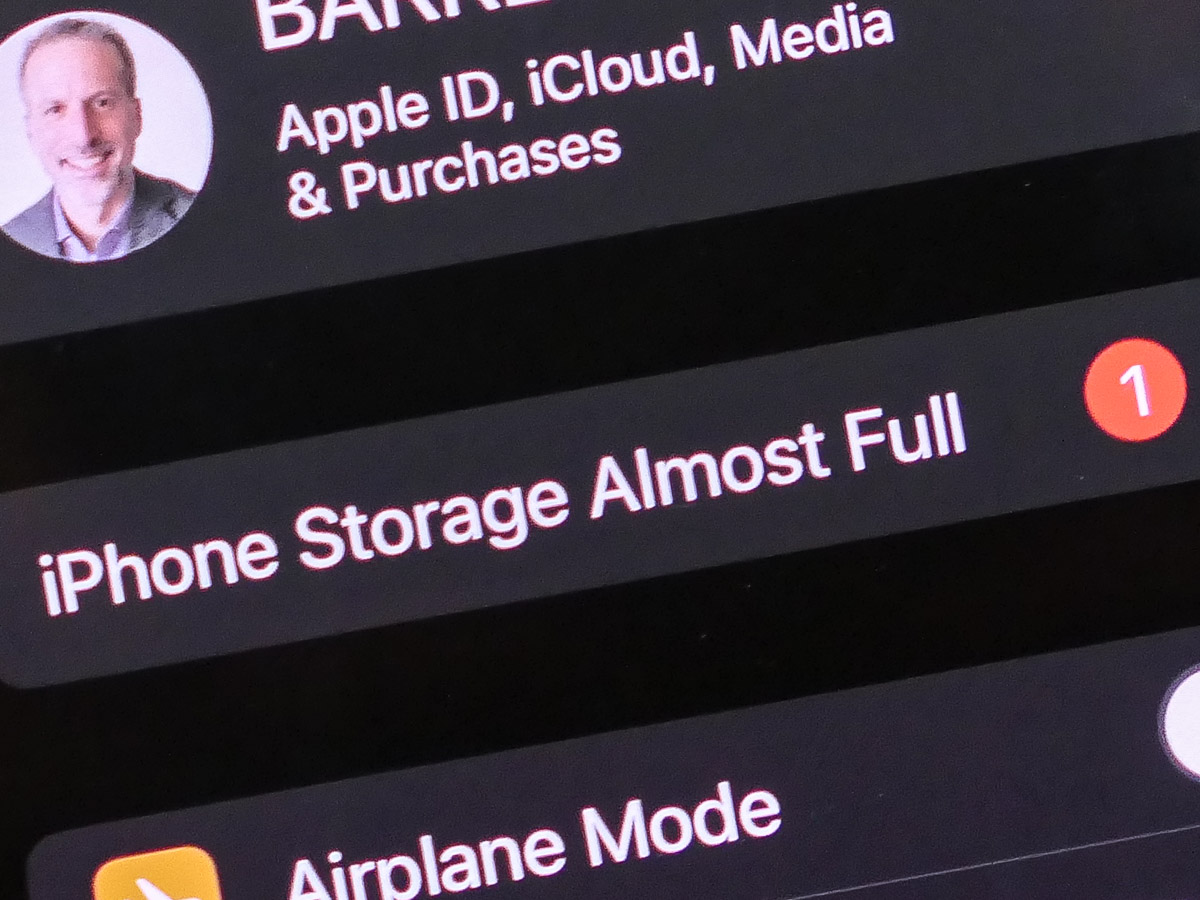
Don’t panic! Take these steps when you see that your iPhone’s storage is almost full.
I once pondered why anyone would ever need an iPhone with 512GB of storage. Now, three years later, I know that answer. My 256GB iPhone is packed, and I want more space. Sure, my media files can (and do) live in any number of clouds or hard drives, but of course there’s a cost with maintaining that solution.
If you’re in the same situation and considering upgrading to a device with 512GB or a whopping terabyte of storage, you probably should look at the other side of the same equation and ask yourself why do you really need to carry around that much data on your smartphone.
Let me answer that one… You don’t.
I don’t. (That said, my next iPhone will have more storage. But honestly, that’s a band-aid solution.)
The real problem and solution has to do with media management.
This is not about having enough space to maintain your media library on your smartphone. It’s about not having enough time over the years to thin out the files you don’t need. You wake up one day to realize you’ve got tens of thousands of disorganized photos and hundreds of home videos dancing about.
They’re clogging up your phone, and the irony is many of them are throwaways, minor variants of better versions. You just never found the time to go back and delete them.
iPhone Storage Almost Full
You can ignore this reality for only so long. Eventually, your device will force you to respond. You have to go through all of your media files and hack away at them.
I’ll go out on a limb and say that nobody really needs tens of thousands of photos to represent their day-to-day lives. So it’s time to roll up your sleeves and put on your media management hat.
The Good News
In the process, you might come across some unexpected fast lanes to free up space.
To do that, first review your iPhone’s storage report:
- Click on iPhone Storage in Settings.
You’ll see a graph illustrating what types of files are sucking up your phone’s memory. You might spot a category that can be easily cleaned up. I did…
Delete All of your Downloaded Podcasts!
I found that I had 40GB in old downloaded podcasts that I could quickly eliminate. (That was a huge surprise.) I hadn’t realized when I started ‘following’ certain podcasts a couple years back that all of the new episodes would continue to download, regardless whether I ever listened to another one.
40GB gone! Whoa!
So, if you’re a podcast listener, you should definitely check that category.
And don’t forget to change the settings to stop your iPhone from automatically downloading new podcast episodes.
- Go to the Podcasts Settings on your iPhone
- Turn off Automatic Downloads: Enable When Following
Your iPhone’s storage report also offers a few quick and easy methods to free up memory, such as offloading unused apps. So don’t miss those opportunities.
But sooner or later you’ll need to face all of those photos and videos. It’s time to do the hard work.
Reversing Course Takes Time
You’ve slowly brought yourself to this precipice. And it may feel like death from a thousand nicks. It’s overwhelming.
So give yourself some time to dig out. Five minutes a day can do wonders. As long as you’re deleting more media files each day than your creating, you’ve found the right path.
Take control. Your smartphone will thank you.

 At Home with Tech