At Home with Tech

Unlock the power of all your technology and learn how to master your photography, computers and smartphone.

Tag: iPhone video

How to Text your iPhone’s Video Clip if the File is Too Big

Your only hope to successfully share your video via text is to compress it into a smaller version. Here’s how I did that to a video of my son practicing the piano.

If you shoot a 4K video on your iPhone and then attempt to text it to someone, you’ll likely run into the problem of a file-size limit. That happened to me recently when I was asked to capture my fifth-grade son practicing a piece of music for his piano teacher to review.

Fortunately, my son’s piano lessons have been proceeding just fine over the past year of Covid as a virtual learning experience, courtesy of FaceTime and two iPhones. Unfortunately, this recording ended up running six-minutes long, and I had forgotten to reset my iPhone to shoot video at a lower quality. The result was the creation of a massive 2 GB file.

That’s way bigger than what you can text or email from an iPhone. And as it turned out, my clip would still have been too large to send even if it was recorded at my iPhone’s lowest quality setting of 720p.

Compression Required
Sure, there are ways to upload a large video file to the cloud and then create a download link to send to your recipient. Apple offers iCloud Mail Drop (5 GB file-size limit). And of course, there are other cloud solutions.

But you’re still sending over a massive file for someone else to download. I would suggest that’s not good digital etiquette. Unless your recipient specifically needs your video at its original quality, the decent thing for you to do is to first compress the file into a smaller version for viewing.

Unless you trim your video’s length, you’ve got to find a way to shrink your file before sending it along.

AirDrop
So, my solution was to use Apple’s AirDrop tool to wirelessly send my video from my iPhone to my iMac (There’s no file-size limit.)

Then, I opened up the video clip on my iMac in QuickTime and simply exported a copy in a smaller size from the drop-down menu (480p).

Finally, I dragged the new, compact file into the Messages app on my iMac and ‘texted’ the video to my son’s piano teacher. This kept our video sharing in the same digital ecosystem as we’ve previously been using.

There are other video compression tools available for a Mac (such as the Compressor app), but QuickTime will usually do the trick.

iMovie
If you don’t want to move your file over to a computer and instead prefer to do the compression work on your iPhone, you can easily use iMovie.

Just bring your original video into the iMovie app and then immediately move to export a new file (unless you first want to perform some editing tweaks).

  • Click the blue “Options” tab and select either 360p or 540p resolution.

And then, voilà! You can send your smaller file along.

There are also third-party video compression apps for an iPhone in the App Store, but I suggest you simply stick with iMovie for your basic compression needs.

Less is More
None of this guarantees that your new file will be small enough to text or email. But if the length of your original video is just a couple of minutes, you should be in good shape.

Unless you’re using a cloud-sharing solution, a best practice for any video recording plan that requires sharing your clip is to limit the length. Everyone has space limitations on their smartphones and nobody will enjoy having to manage a huge video file.

Keep it short. Keep it small. And don’t forget to compress it!

The Best Video Recording Setting for your Smartphone

There isn’t a one-size-fits-all solution on how to set up your iPhone’s video recording menu. But here’s a great default setting that should handle many of your needs.

If you’ve found yourself suddenly thrust into the spotlight of having to record occasional videos of yourself for work-related projects, you’re not alone.

So many of us have been relying on Zoom and other video conference platforms to stay in touch during the pandemic. Yes, these live virtual meetings are carrying much of the load for video communications, but not every moment can be live. Sometimes, you’ve got to prerecord your message and send it in for editing.

Your Smartphone’s Movie-Making Power
And while you can certainly record a video message using your computer (assuming your webcam is working), you should really consider using your smartphone, which can typically generate a much better image. Plus, you’ll probably have a lot more flexibility finding the right spot at home to shoot in.

Before you activate your inner Francis Ford Coppola, you need to choose your smartphone’s best setting for your video message.

Go with 4K Video at 30 FPS
4K video is usually best, because it’s the highest quality that smartphones can generate. (Plus, 4K will give your video editor some flexibility to reposition you in your shot if that’s needed. It’s possible that the final edit won’t be in 4K. So, your editor will be able to crop your shot without losing image quality.)

But I’d recommend recording 4K video at 30 frames per second instead of 60 fps.

Creating 4K video on an iPhone at 60 fps uses a newer video compression format that Apple has coined High Efficiency. It may be more efficient from a file size/image quality perspective, but the highly compressed codec is harder to edit. In fact, there’s potential for audio syncing problems and dropped video frames. What that means is some computers are more prone to creating editing errors due to the heavier technical lift of handling this video format.

So, unless you’re going for slow motion in the video edit or you’re shooting action footage, which benefits from a higher frame rate, you really don’t need 60 fps. (Plus, 60 fps takes up more storage.)

How to Find your iPhone’s Video Recording Menu
To confirm your video recording setting, tap on:

  • Settings
  • Camera
  • Record Video

And this is what you’ll see.

4K at 30 fps is the way to go!*

It’s Time for your Close Up
*Of course there are exceptions. 60 fps recording might be specifically required or 1080p HD video could be good enough for an existing 1080p edit. Plus, older iPhones can’t shoot 4K at 60 fps. (That trick started with iPhone 8 and iPhone X.)

But If you’re just recording video of yourself talking, and you don’t have other technical guidance, it’s hard to go wrong using the 4K 30 fps video setting.

Just don’t forget to keep your main light source in front of you, your smartphone horizontal and any visual distractions off to the side.

Good luck!

Why Do We Love Slow Motion Video?

Wanting to capture a moment in slow motion is often born from our cultural fascination with the cinematic experience. Better understanding the ‘why’ will help direct your quest for more successful slow-mo shots.

Just about anyone can create slow-motion video clips these days. With a smartphone and a little help from a consumer-grade handheld gimbal or even a little digital image stabilization, it’s not that hard to generate a buttery-smooth cinematic shot… in slow motion.

And if you’re working with more advanced production gear from my world that many in corporate video production are using today, the results can be even more impressive. With a digital cinema camera, fast lens, and the right lighting, you can create amazing slow-motion shots at reasonable price points that were unimaginable five years ago.

But why am I and so many others obsessed in the quest to generate slow motion shots (for both personal and professional use)?

Learning about Slow Motion at the Movies
It’s not like viewing our reality in slow motion is natural. Sure, certain people talk about their surroundings slowing down right before an emergency. But that’s more about cognitively processing versus actually watching something move slowly.

Slow motion is essentially a special effect born out of the technology of movie making.

We only understand slow motion as part of our learned understanding of the cinematic viewing experience. We all grew up watching slow motion at the movies, on TV and now… online.

Slowing Down Sports Action
At a basic level, slow motion is a magical way to visually dissect an important moment that simply happens too quickly. It generates more time for us to actually process what’s happening.

Its use during sports TV coverage is an obvious example. That home run or touchdown is always better shot in slow motion. And the value of slow-mo in televised sports also applies when you shoot your family backyard touch-football highlight.

The Emotional Rush
But I’m often more interested in the use of slow motion as a visual tool that offers an emotional point of view. When a particular moment in a movie suddenly slows down, it often represents an emotional turn in visual storytelling.

And when that slow-motion shot is paired with a low audio rumble or ominous violin strings, experiencing that moment flicks a switch in our brains. We’ve been trained like Pavlov’s dogs to have a conditioned response… in this case, an emotional surge.

You know that feeling, right? The one that sends a tingle down your spine or involuntarily squeezes those muscles behind your ears.

In short, we feel something of a rush.

A great movie moment can easily do that to you. And slow motion is one of the ways to complete that circuit.

As a visual storyteller in my career and also at home as the self-appointed family documentarian, I’m always looking for opportunities to create this kind of moment… that same rush for my viewers.

Slow motion isn’t the only way to get it done. But when strong artistic execution is married with good slow motion and the right narrative moment, it’s undeniably a holy-grail moment for any creative.

Warning!
But if you’re also a digital content creator, I’ve got a warning…

Don’t go crazy with slow-mo. Just like any creative tool, we should have a clear reason to use it and not simply treat it like some kind of cheap trick. Because that’s exactly what it would become.

Plus, pointless slow motion is just… slow.

Also, when considering using a b-roll clip as part of your editing process, don’t slow the clip down simply to extend it to ‘fit’ in your editing timeline gap. (This is possible only if your footage was originally shot at a high frame rate.)

I believe that ‘filling in the gap’ is a misuse of slow motion. It’s never the best way to intentionally use slow-mo… mostly because it’s not intentional… it’s just convenient.

Find the Meaning in your Slow Motion
Barrett Juggles in Slow Motion
Sure, having a little fun with slow motion is fine.

Barrett Walks in Slow Motion
And who isn’t flattered having a ‘hero shot’ of them captured every now and again?

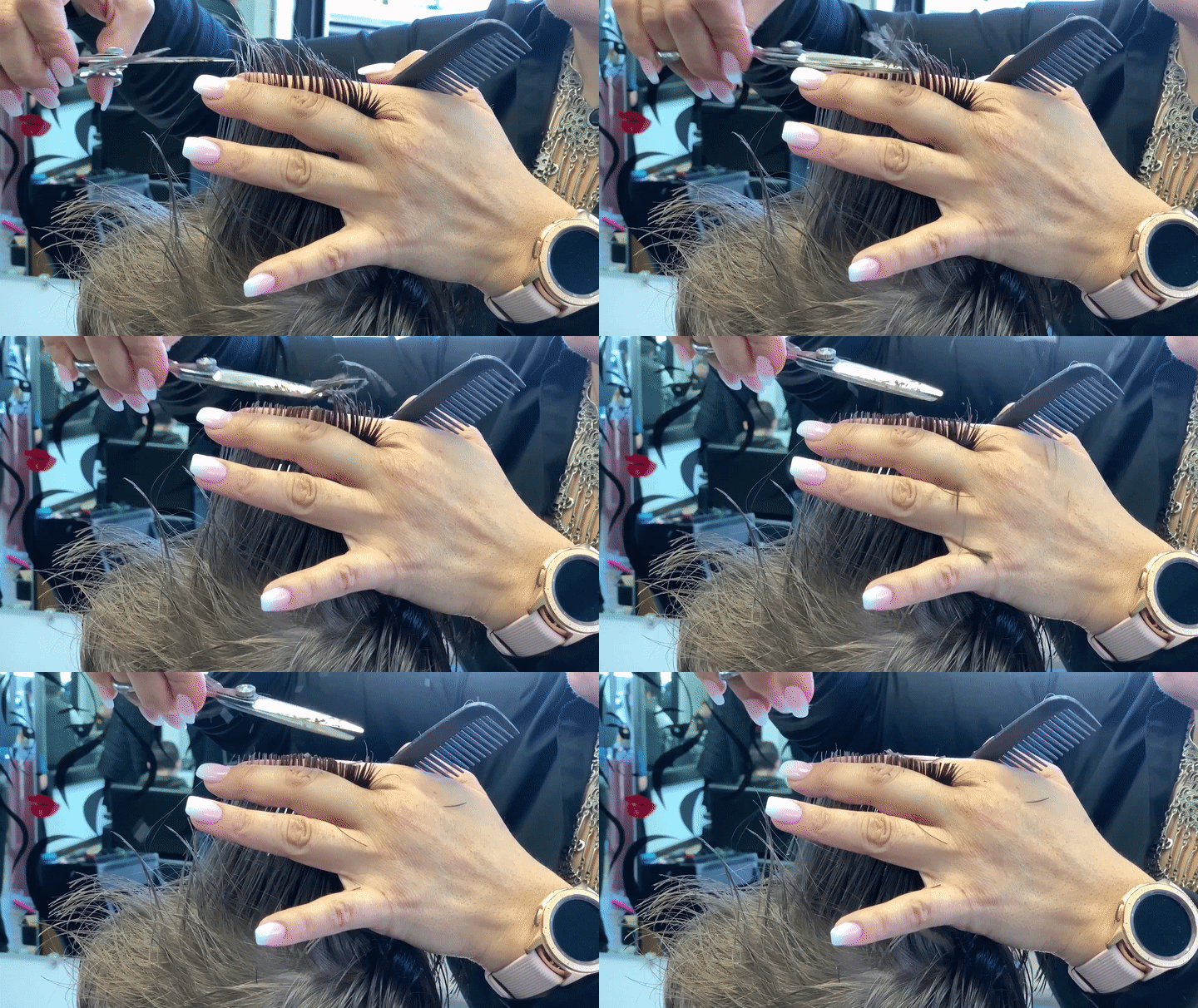
Haircut in Slow Motion
But when we’re offered the opportunity to look for deeper meaning behind slow motion, that’s when it gets interesting.

Where used properly, slow motion will reveal fundamental truths that we may miss at normal speed.

Yes, it’s an entirely unnatural way to experience the world, but one that technology has successfully created for us. The great filmmakers have shown us the visual guidelines for slow motion. Now, with the democratization of slow-mo video creation, it’s up to you and me to respect and apply them.