At Home with Tech

Unlock the power of all your technology and learn how to master your photography, computers and smartphone.

Tag: iPhone

Best Case Designs to Protect Your iPhone’s Camera Lenses

Are you frustrated when you search to buy a product, and it doesn’t seem to exist? Welcome to my world. 

A couple years back I decided that I wanted to give extra protection to the three camera lenses on the back of my iPhone 15 Pro Max. The obvious solution was a case with a removable cover for the lenses.

Sure, I know the iPhone’s lenses are coated with a layer of synthetic sapphire. Yes, they’re supposed to be totally scratch resistant. Every Apple genius I’ve talked with has confirmed there’s no need to worry about the lenses. (Just don’t point a diamond-tipped drill bit at them.)

iPhone Cases Should Offer More Lens Protection
As a result of this collective consensus, just about every iPhone case leaves this part of the iPhone entirely unprotected (except for a raised rim).

But this doesn’t feel quite right to me. Other camera lenses (for ‘traditional’ cameras) are offered the protection from a lens cap.

I simply want a similar safeguard for my iPhone.

Case Closed?
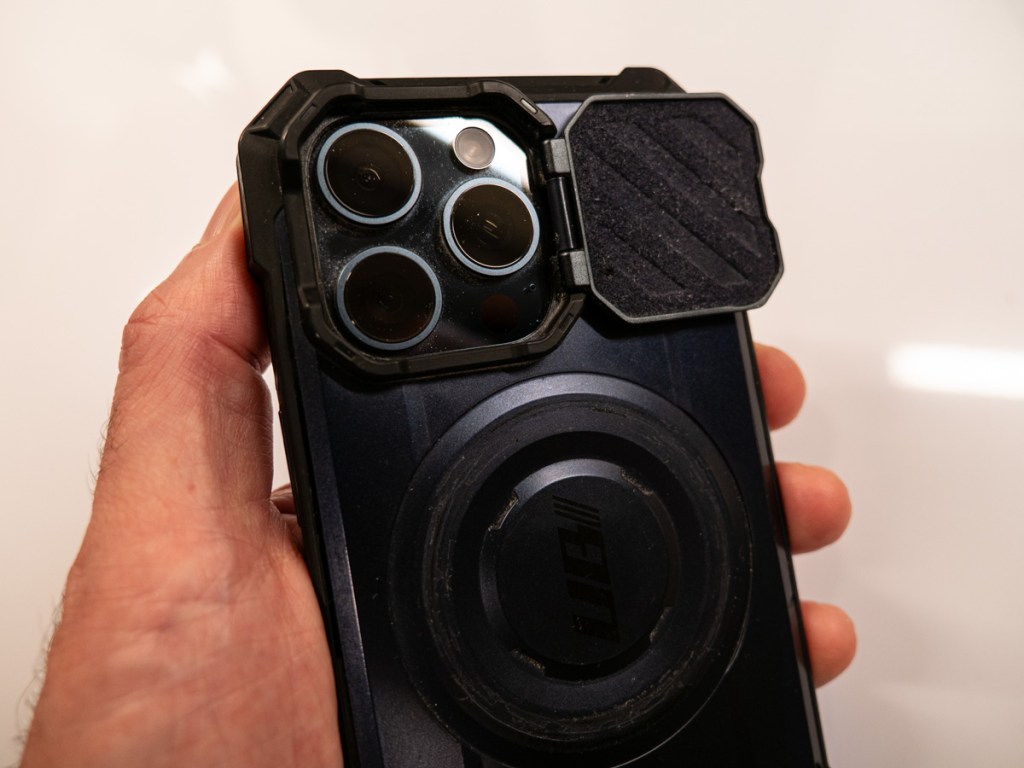
First off, I shunned the option to buy those clear, pop-on caps for each iPhone lens. Sure, they may protect the lens, but I think these caps must degrade the resulting quality of the iPhone pictures.The good news is I eventually found an iPhone case with a little ‘door’ over the lenses that I could simply flip open. 

It’s the UBMag XT case made by SUPCASE, and it was exactly what I needed. That is… until the frame recently started to crack and separate. (To be fair, I got almost two years of protection from my SUPCASE. Maybe that’s all anyone should expect.)

So, I began my search for a replacement. I decided to look for a different brand that might offer a more durable case.

Sliding Towards Disappointment
After extensive Googling, here’s what I came up with:

  • Were there any more cases with flippy doors out there?
    No, none that I could find. 
  • What about cases with little plastic sliding doors to protect the lenses?
    Yes, there were a few cases like that on Amazon.

But unfortunately, all those cases with a sliding door received mediocre reviews. It felt like I’d find these cases at the bottom of a Cracker Jacks box. 

I was not inspired.

A New iPhone Case Category Emerges
No flippy-door cases. Cheaply made ‘sliding’-door cases. Now what?

My little research project had revealed that today’s iPhone case market has seemly matured into a mind-numbing number of inexpensive options from unknown brands that are impossible to properly assess. And I’m not even talking about my (unreasonable?) need to cover up my iPhone’s camera lenses.

So, with hundreds of iPhone cases to choose from, there wasn’t one for Barrett? 

Well, not entirely. Across my journey, I accidentally came upon a solution built for a different requirement.

iPhone Cases Designed to Mount External Lenses
I discovered an iPhone case market for add-on lenses that enhance an iPhone’s photographic chops. (You mount these ‘mini’ premium lenses on top of an iPhone’s native lens using a specialized iPhone case or a clip.) 

Now, you may think that’s a freaky concept. Why would anyone want to start bolting a Frankensteinian lens on top of their uber-svelte iPhone?

The answer is the massive 48-megapixel camera sensor that iPhones now use for the main 1X camera. That feature attracts certain photographers and filmmakers. With better glass, an iPhone can be upgraded beyond its original photographic parameters.

You can buy telephoto, anamorphic, fisheye and macro lenses to push your iPhone closer into DSLR/mirrorless camera territory without spending thousands of dollars more.

No, I wasn’t looking to do any of this. (Not exactly.) But when I realized a class of iPhone cases exists designed to house these add-on lenses, I decided to take a closer look. 

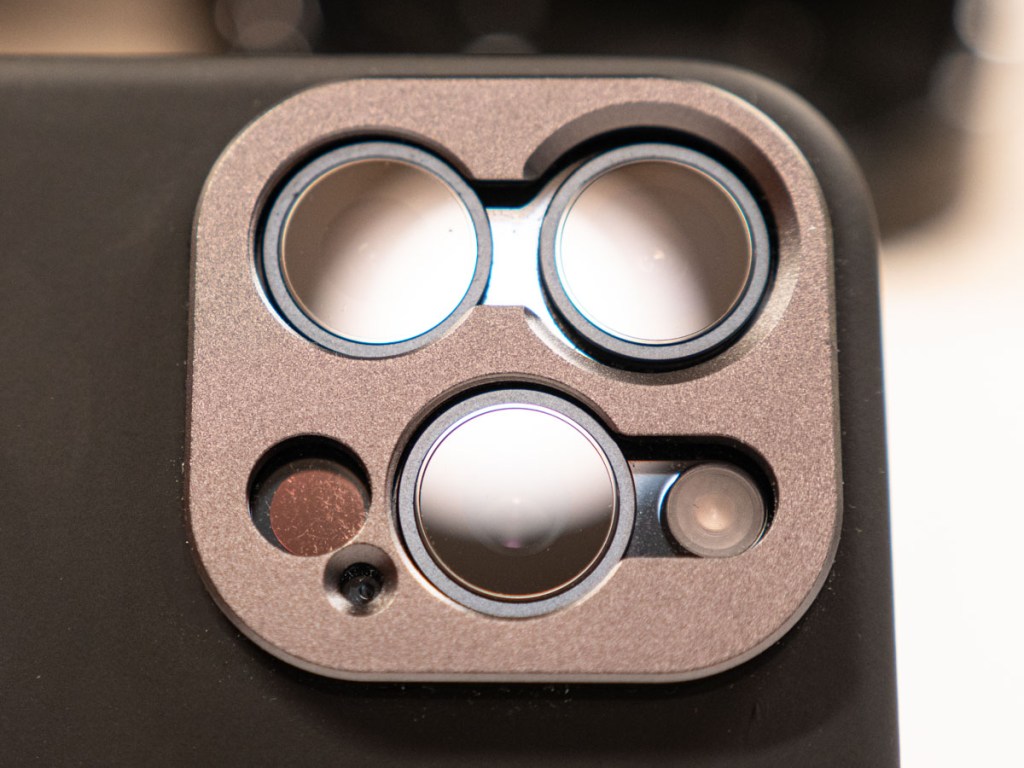
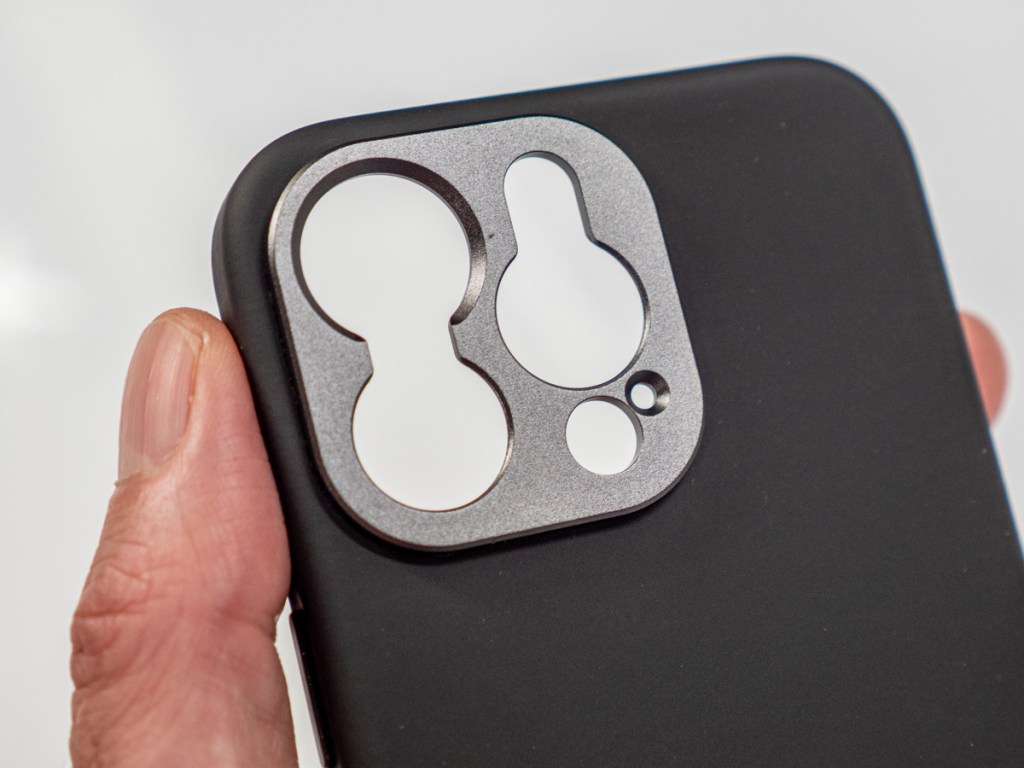
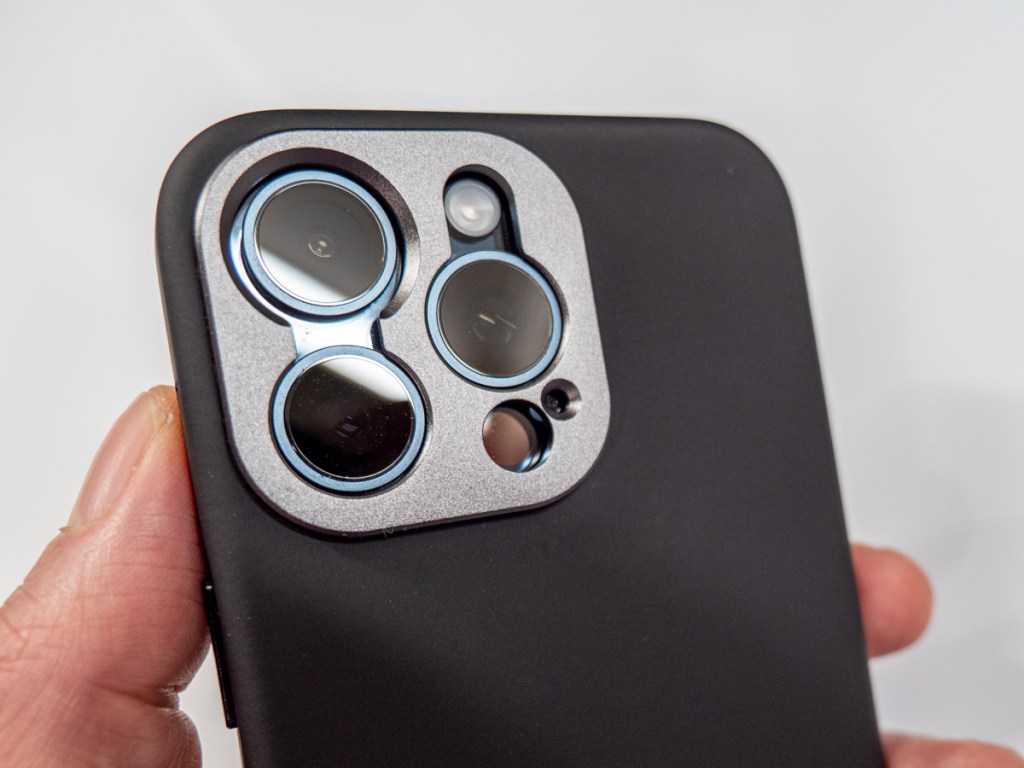
The structural design of these cases recesses the iPhone’s native lenses, creating the necessary clearance to attach an external lens.

More importantly, this lens-mount design also creates the solve for my lens protection obsession. Even though the iPhone’s lenses are still exposed, they’re perfectly cocooned within their circular openings.

Eureka!

Case Brands to Consider
I discovered these seven companies that manufacture iPhone lenses and their associated lens-mount cases:

  • Freewell
  • Moment
  • Neewer
  • PolarPro
  • Reeflex  
  • SANDMARC 
  • ShiftCam

None of the cases from these companies are designed with a flippy or sliding door for the base iPhone lenses. I finally had to let that dream go.

But this case category has its own advantages. Here are some important differentiators:

Lens Cap from Freewell
Freewell is the only brand to offer an actual pop-off lens cap for its iPhone case. (It’s magnetic.)

Lens Plate from PolorPro
The PolarPro LiteChaser case with a defender plate offers a slide in-and-out lens cover. (It does the same job as a lens cap.)

Protection Vs. Speed
These two options would satisfy my need to cover and protect my iPhone’s camera lenses. But even though I found what I was looking for, I still wasn’t satisfied. Why?

I realized that from a usability perspective, every time I wanted to use my iPhone camera, I would have to first remove the lens cap or defender plate and put it in my pocket. Only then could I turn my attention back towards taking the picture or video.

And that extra step takes a few seconds. Is it such a big deal? Yes, in fact, I think it is.

Often, when I take a photo, it’s very much in the moment… meaning the perfect image is right in front of me. A few seconds later is often too late. The moment is gone.

Spending any time fiddling with a removable lens cover would contribute to me missing that moment. (A flippy door or slide-aside solution is so much faster.)

Plus, there’s the added baggage of forever having to keep track of the little black cover and worrying about losing it.

All my enthusiasm drained away again. Even though I found what I was looking for, I realized it still wasn’t right for me.

So, now what?

Hello, SANDMARC
Yes, I had to compromise on my definition of ‘protection.’ 

Even without a lens cap or removable plate, these ‘pro’ cases still protect the native iPhone lenses with their lens-mount design. And that’s a big step in the right direction for me.

One company’s marketing tuned particularly well into my lens protection concerns. 

It’s SANDMARC. 

This brand from San Diego makes a variety of travel bags and iPhone gear and specifically promotes its iPhone Pro Case as “a case designed to protect your iPhone camera.”

SANDMARC’s website hooked me with this line: “Whether you’re a photographer or not, this is the case to get for the everyday.”

Huh.

The tank-like 17mm lens mount block is aluminum, and the case is designed for MagSafe wireless charging.
(Note – The leather version of this case is not MagSafe.)

Nice.

SANDMARC’s Pro Case costs $45, which is double the cost of most cases out there. That said, it does have a microfiber inner lining and metal buttons.

Plus, if it does the job, I’m fine with that price point.

And after many hours of research, I decided that I had finally reached my destination. Click.

My SANDMARC iPhone Pro Case was shortly on its way with free shipping.

Runner Ups
A few of the other brands did come close to reaching the finish line but ultimately fell short.

  • Moment
    This brand is perhaps the best known in this market. I just didn’t like the half-twist mount solution for the T-series mobile lenses as much. It didn’t seem quite as secure. (Yes, I can’t hide that I was already wanting a Frankenstein lens.)
  • Reeflex
    I originally decided that this was the case for me. But I had a question about shipping costs from Italy. Reeflex’s website promised amazing customer service (though only through email). I tried twice with my question but never heard anything back. This is certainly not a good way to begin a relationship with a company. So, I bailed.
  • ShiftCam
    I just couldn’t get beyond the fabric finish of their case. Maybe that’s cool, and yes, it’s great that it’s machine washable. But I’m not going to do that. 

Lens Protection Achieved!
All that mattered is I finally found the right case for Barrett. I’ve introduced my new SANDMARC iPhone Pro Case to my iPhone, and I’m satisfied with this new union. 

My iPhone’s camera lenses are doing just fine sitting recessed in the case. Mission accomplished.

End of story? Well, not quite.

A New Lens Comes Next
This SANDMARC case also offers my iPhone a new superpower if I simply screw in any of those nifty, little add-on lenses. I think you’ve already guessed where this is going.

Next time – Barrett goes microscopic!

My new case is already taking me on a new photographic journey…

How to Update Account Settings on Apple Watch Using your iPhone

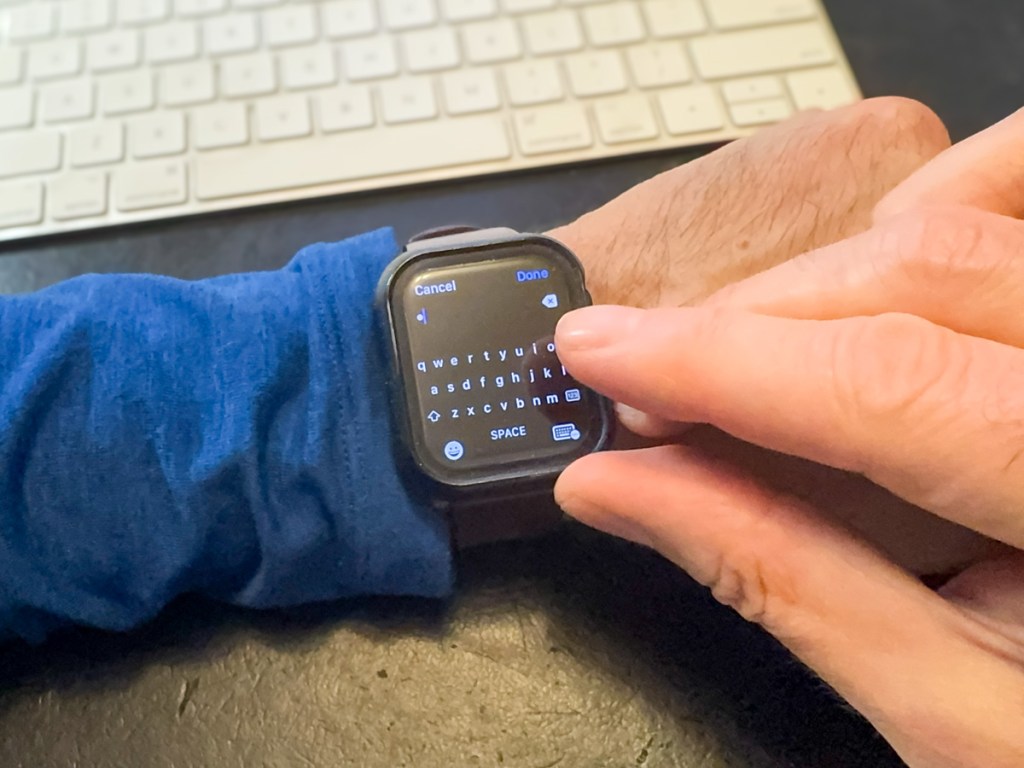
Trying to type into Apple Watch keyboard
Stop trying to sign into your Apple ID using your Apple Watch’s micro keyboard. Your finger is probably way too big for this. Here’s the better way to get the job done.

I don’t like messing with my Apple Watch. I’ve set it up to do what I want, and I usually don’t dig in to change the settings. The screen is so tiny. Yes, its interface is clever, but it’s not much bigger than a postage stamp. 

And that’s fine. It’s a watch… not an iPhone. 

Sure, it’s similar to iPhone in certain ways and is best tethered to one. And I can easily interact with it using the Digital Crown and side button.

But please don’t ask me to type anything into my current Apple Watch Series 9. That’s absurd. Yes, you can call up a cute micro keyboard to use. But come on… My index finger takes up 30% of the entire surface of my Apple Watch. 

Update Apple ID Account Settings on your Apple Watch
But that exactly what my Apple Watch sometimes asks me to do after a software update. I’m supposed to log back into my Apple ID account. And then my Apple Watch presents me with its tiny keyboard. Are you kidding?!  

My finger’s surface area can press onto 3 keys easily… so tapping away gives me about a 30% chance of keystroke success. (And the tiny scribble pad? That’s no better.) 

So recently, after failing to sign into my Apple account after multiple miss-tapping sequences, I looked for another way in…

Use your iPhone Instead
If you think your iPhone can help, you’d be correct. Strangely, I couldn’t quickly solve this tech challenge by Googling it, but eventually I found the clue. Here’s how it works:

  • You simply need to activate your sleeping iPhone right after your Apple Watch prompts you to micro-tap your password. 
  • Immediately, your iPhone will come to the rescue and open a thin text-prompt window on its own screen for you type into. 
  • And as you do that, your password will magically mirror onto your Apple Watch’s screen. Done.

So obvious, right? (The solution is already baked into the Apple Watch/iPhone relationship.)

No More Micro Tapping
Perhaps the whole world already knows this trick. And if it’s just you and me who’ve finally caught on, so be it. (I won’t tell anyone.)

But now, my finger will never again attempt the absurd micro-tap dance on my Apple Watch. 

It’s a micro win… but a win, nevertheless.

Here’s a Great Place to Snap a Photo of Manhattan’s Iconic Skyline at Sunset

It’s hard to miss this famous skyline as your Amtrak train nears or leaves the Big Apple. And sunset is a particularly special time. So, it warrants trying to take a photo or two…

The weather conditions have to be right. Plus, there’s only a six-minute stretch when the train is close enough and oriented correctly with its windows directly facing the east side of Manhattan. 

The Best Views of New York City
Then, take out your smartphone. Press it as close to the window as possible to avoid reflections from the inside of the train. (The fact that your phone’s lens effectively lies flat with the phone’s body will protect it from accidental bumps into the glass due to your train’s jerky movements.)

And then start snapping away.

As much as I always want to zoom closer with my iPhone 15 Pro Max’s 2x or 5x lens to better frame the skyscrapers, the wider shots are better. I think you need that foreground in the shot to help tell the visual story. Plus, the train’s motion is less of a problem for your phone’s camera if you’re not zoomed in.

Just Another Bonus for Taking the Train
Yes, it’s an amazing vista to take in, but you should temper your expectations for your photos. Remember, you’re shooting through glass, and the train is moving.

Still, it’s worth a shot.

I go for it whenever I’m on Amtrak’s Northeast Regional or Acela heading back to Connecticut from Washington, D.C. (These photos are from my recent trip.)
In the old days, it would be when I was heading out of New York City back to Boston. (So, I’ve been at this for a while.)

And yes, I do prefer taking the train vs. a plane between these destinations. It’s much more convenient and relaxing. (The door-to-door time comparison is similar after you bake in the extra hours spent at the airport.) But I digress…

Enjoy the Show
Sunset isn’t the only time to try to capture these photos of New York City. (Shooting directly at the sun can really confuse a camera and isn’t especially great for its sensors. But a few brief clicks shouldn’t play too much havoc with the electronics.)

These magic sunset minutes always call out to me as the deep orange light bathes the landscape. 

It’s both unearthly and entirely natural.

And you’ve got one of the best vantage points of this city a photographer could hope for.