At Home with Tech

Unlock the power of all your technology and learn how to master your photography, computers and smartphone.

Tag: iPhone

Pair a Bluetooth Keyboard to your Smartphone for your Next Zoom Meeting

If you need to take copious notes on your smartphone during a Zoom meeting, here’s why you may want to add a physical keyboard to the equation.

It’s easy to forget the power and flexibility of our smartphones; often the only limiting factor is the compact size. Yes, the smaller screen is sometimes difficult to work with compared to a laptop. But for me, it’s the miniature keyboard that can be infuriating. It’s simply really hard to type fast.

Recently, I flew to the West Coast on a business trip, and for an hour on one evening, I needed to step away and jump on a personal Zoom call and take notes for the community group.

My first thought was to pack my personal laptop or iPad for the task. But then I looked at my iPhone and wondered if it could actually handle the exercise.

Of course, the Zoom meeting part was easy. It was the simultaneous note taking that would be the challenge. So I tested it out…

Working with Zoom and Microsoft OneNote Simultaneously
I used the Microsoft OneNote app on my iPhone for the note-taking part, and it interfaced just fine with the Zoom app. I simply swiped out of the Zoom meeting and then worked in OneNote. (The Zoom meeting still shows up in a small window.)

Yes, I could tap…tap…tap my notes. But it was not nearly as fast as I knew I would need.

I required a real keyboard. And then it came to me… What about a Bluetooth keyboard?

A Multiversal Solution?
Using a Bluetooth keyboard with an iPad is common, but trying the same trick with a tiny iPhone feels somewhat absurd. Who have you ever seen do that???

Though you might have spotted it while traveling through some other part of the multiverse, some crazy old-school blogger in this reality was now going to give it a try.

Logitech Keys-to-Go Bluetooth Keyboard
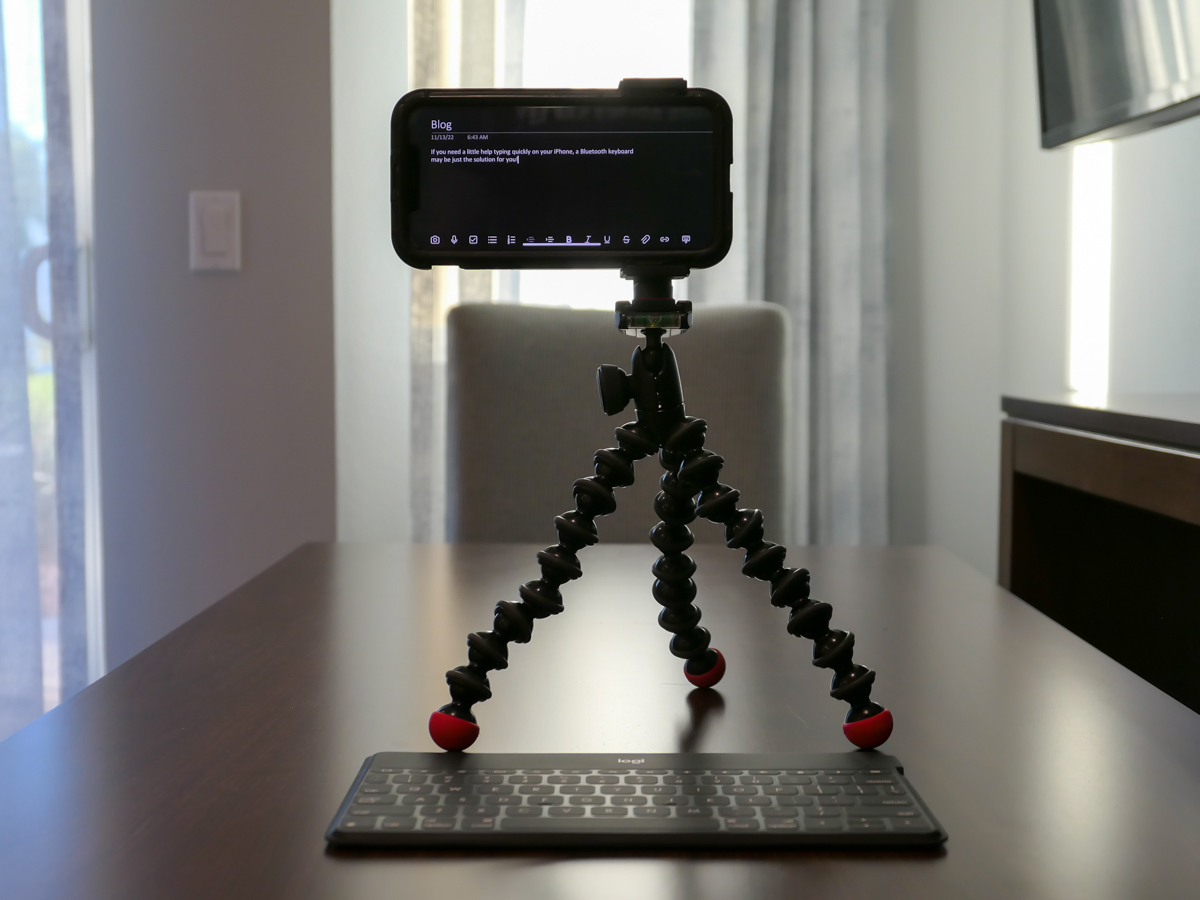
While there are a few choices out there, I ended up going with the Logitech Keys-to-Go Bluetooth Keyboard… mostly because it’s featured on Apple’s website. I figured it must work properly if Apple is pushing it, right? (Spoiler alert: The two devices pair just fine, though you do have to push a little harder on the Logitech’s keys.)

At the time of this post, this keyboard was on sale
at Logitech’s website for $49.99.

It’s also on Amazon for the same price.

Click.

A Few Optional Accessories
When it was time to do my Zoom meeting in the field with my new keyboard, I must admit, I had also brought along a little more gear to facilitate a smoother experience.

  • I had my small Joby tripod with smartphone grip to mount my iPhone a little higher up. ( I didn’t want the shot pointing up my nose.) The taller positioning also made it easier to read the screen as I typed away.
  • To ensure I wouldn’t run out of juice, I plugged my iPhone into a little portable power (my Anker battery), as a wall plug wasn’t nearby.
  • And of course, I wore my Apple AirPods.
  • My multitasking iPhone stunt went off without a hitch, but if you strip away the optional tech, just the iPhone and Bluetooth keyboard will certainly get the job done.

Add this Technological Distinctiveness to your Own
Not having to pack an extra computer when flying is a game changer. A slim Bluetooth keyboard is hardly a noticeable add to your carry-on luggage, and it’s not an expensive piece of tech you have to worry about being stolen.

It may not be an intuitive pairing, and the tech form factor certainly looks clunky and somewhat absurd (“Star Trek” Borg-like).

That said, adding a physical keyboard to the much smaller iPhone does facilitate much faster typing speeds. So give your thumbs a rest!

I have now happily assimilated this technological distinctiveness.

Borg Barrett transmission ends now.

9 Tricks to Eject Unwelcome Ghosts in the Machine

Do you sometimes get spooked by your tech’s unexpected glitches? Here are a few of the ways I chase away the unwanted ghosts in my gear.

A good day is when all of your tech behaves and operates properly. While it’s sometimes fun to get a little scared during the Halloween season, that feeling should never kick in, simply because your gear starts glitching out on you.

Here are my 9 tricks to help your tech treat you right.

#1
Remove the Pocket Lint from your Smartphone’s Port
Is your smartphone misbehaving and not charging when you plug it in? Or do you have to wiggle the connection until the juice starts flowing? The culprit is likely a fuzzy pocket-lint mass that’s collected inside the phone’s port. Here’s the fix.

#2
Adjust your Camera’s Internal Clock
If maintaining the chronological sequence of your vacation photos is important, and you’re using a second camera on top of your smartphone’s camera, both clocks had better be synced. Otherwise your vacation photos will end up being displayed out of order.

#3
Turn off Portrait Orientation Lock on your iPhone
If you’re trying to watch a video, and your iPhone won’t play it full screen when you rotate it horizontally, the problem is likely the Portrait Orientation Lock. Here’s how to turn it off.

#4
Delete Downloaded Podcasts You’ve Already Listened to
Is your smartphone almost out of storage? Of course it is. Here’s one big way I like to free up badly-needed memory on my iPhone.

#5
Back Up All of your iPad’s Data
Last year, I lost a lot of my son’s photos and videos on our family iPad when we took it to an Apple Store for maintenance. I was devastated by my rookie mistake of not setting up the iPad’s iCloud backup properly.

My son was annoyed, but he quickly moved on and simply took more photos. (And I’m still writing about it.)

#6
Stop your Email Program from Suggesting Old Addresses
Wouldn’t it be nice if everybody had one email address assigned at birth, and that was it for life? How simple would that be? Then, you could easily keep track of all your contacts. No more old email addresses that don’t work.

Until that happens, here’s an easy way to clear out old email addresses from ‘Auto-Complete.’

#7
Do your Software Updates
Keeping all of your digital gear current with software updates is an endless process that requires a fair amount of effort and organization. And following an auto-update strategy can sometimes lead to updates that aren’t ready for prime time. I think it’s best to have your tech remind you about the updates, and then you can manually install them.

#8
Reorganize the Apps on your Smartphone
If you’ve been having difficulty finding certain apps on your smartphone or they’re not where you thought you left them, it’s time to take a few minutes and do a little reorganizing. That can include placing some of your apps into topic folders and perhaps pruning others you haven’t used for a while. (You can always reload them!)

Losing a few long-forgotten apps will also free up memory on your device.

#9
Make Sure You have Enough Wi-Fi Bandwidth at Home
When you’re presenting during a Zoom meeting from your home office, the last thing you want is for someone to interrupt and report that you’ve frozen up. While there’s no bulletproof way to prevent that, you can certainly upgrade your internet plan to improve your odds.

Going old-school and hardwiring your computer to your router may also result in faster streaming speeds.

Boo!
Hopefully these tricks will help prevent your tech from acting naughty and spooking you out!

We’re Living in a Vertical Video World

If you’ve been fighting back against the vertical video revolution, it’s time to jump into the pool. The water’s warm. Here’s how I found peace with this disruption.

I recently had an epiphany about the growing trend of vertical video disrupting the fundamentals of video production. My mini “ah ha” happened during a Zoom interview recording at work, when one person’s Zoom feed was accidentally locked in a vertical position. More on that story in a moment…

But regarding the general battle between horizontal and vertical video… It’s already over.

The smartphone has effectively killed horizontal video. We’re just living through the transition. Yes, it’s going to take some years, but it’s time to acknowledge the truth.

And that’s been really hard for me to do.

The First Time
Ten years ago, I was producing a corporate video shoot inside a multimedia brand center. My business client walked up to me ten minutes before the interview was scheduled to begin and asked if we could shoot the video vertically. She thought the background of our video shot would look more compelling if seen vertically.

I looked closely for any sign that this wasn’t actually a serious suggestion. The moment felt like those western movies right before the gunslingers do their shoot out. I squinted my eyes, tapped into my inner Clint Eastwood and waited for what felt like minutes before I responded.

“Vertical?”

“Yes.”

It was a serious request.

Vertical Alignment is Coming
So, I explained that we couldn’t reset the shot in time, as our interviewee had already arrived. And I dodged the bullet.

But I remember feeling unsettled that the horizontal foundation of all video was so casually being challenged.

That was a decade ago. A lot has changed. The truth is my client was just slightly ahead of her time.

I have not forgotten this story, and it has been a reminder to me that creative winds and video boundaries are constantly evolving. That’s life. Everything changes.

Vertical TV Sets in your Home?
Today, vertical video is everywhere, primarily fueled by the social media apps on our smartphones. Vertical is natural. Vertical is comfortable in your hand. Vertical is accessible in every way, except on standard horizontal TV monitors.

But if you look around, there are plenty of vertical video monitors in public spaces.

It’s just a matter of time, until they show up in your home…

No More Rules
I know I’m fighting a losing battle whenever I try to correct someone who’s shooting a smartphone video vertically. Sure, I still work in a horizontal medium, though (here it comes) not exclusively.

Yes, today I am creating vertical video too. (There, I’ve come out and said it.)

And the transition to vertical video is only accelerating.

The iPhone has a Vertical Lock
So, back to my more recent story directing the remote interview via the Zoom feed. The interviewee was using her iPhone, which was fine. (The image quality was actually superior to the other three webcam Zoom shots in the conversation.) But for some unknown reason, the phone’s camera was locked in the vertical orientation. I asked her to turn her iPhone ninety degrees and then immediately back again. No dice.

I was stumped. I turned to the other crew members in our TV control room and asked for suggestions.

“Turn off the vertical lock!”

What? The iPhone has a vertical lock? (I had forgotten.)

I pulled out my iPhone and was quickly reschooled on this iOS feature.

That was indeed the solution for our remote interviewee, and her Zoom interview proceeded on horizontally.

Tap the Portrait Orientation Lock
After the interview, I looked again at my iPhone. I swiped down from the top right corner to access my Control Center screen.

It’s the “Portrait Orientation Lock” button. (The icon is a little lock surrounded by a circular arrow.)

If it’s activated, your iPhone screen and apps won’t rotate horizontally when you hold your iPhone horizontally.

Your phone’s screen is then effectively locked into a vertical orientation.

Huh.

You might wonder why that feature is even there. Clearly, there’s a need to prevent horizontal anything!

And after doing some research, I am reminded that this frustrating feature is not that new. Apple has been satisfying the vertical preference for quite some time. In fact, I first discovered this way back in 2018.

A Vertical Matrix?
Yes, you and I are clearly living a vertical video world, though admittedly with any number of horizontal holdouts.

This feels a bit like my own Matrix story. You’re welcome to join if you feel similarly inclined. (There are plenty of pods to house all of us.)

But guess what? I wouldn’t place all bets on vertical video. Oh no. The truth is video can no longer be restricted to any dimension. It’s not horizontal, and it’s not vertical. Sometimes, it’s square (of course).

Maybe video will evolve into the circular. Perhaps oblong? Who knows… Trapezoidal?

The days of vertical video as the mainstream will surely be numbered.

But I’m getting ahead of myself.

Learn to Love Vertical Video
For now, I’m simply happy to say that I’ve successfully discarded my horizontal bias. I have made my peace with vertical video.

I am comfortable working on digital canvases that orient both vertically and horizontally.

Barrett has evolved.