At Home with Tech

Unlock the power of all your technology and learn how to master your photography, computers and smartphone.

Tag: iPhone

How iCloud Photos Saved my Family’s iPhones

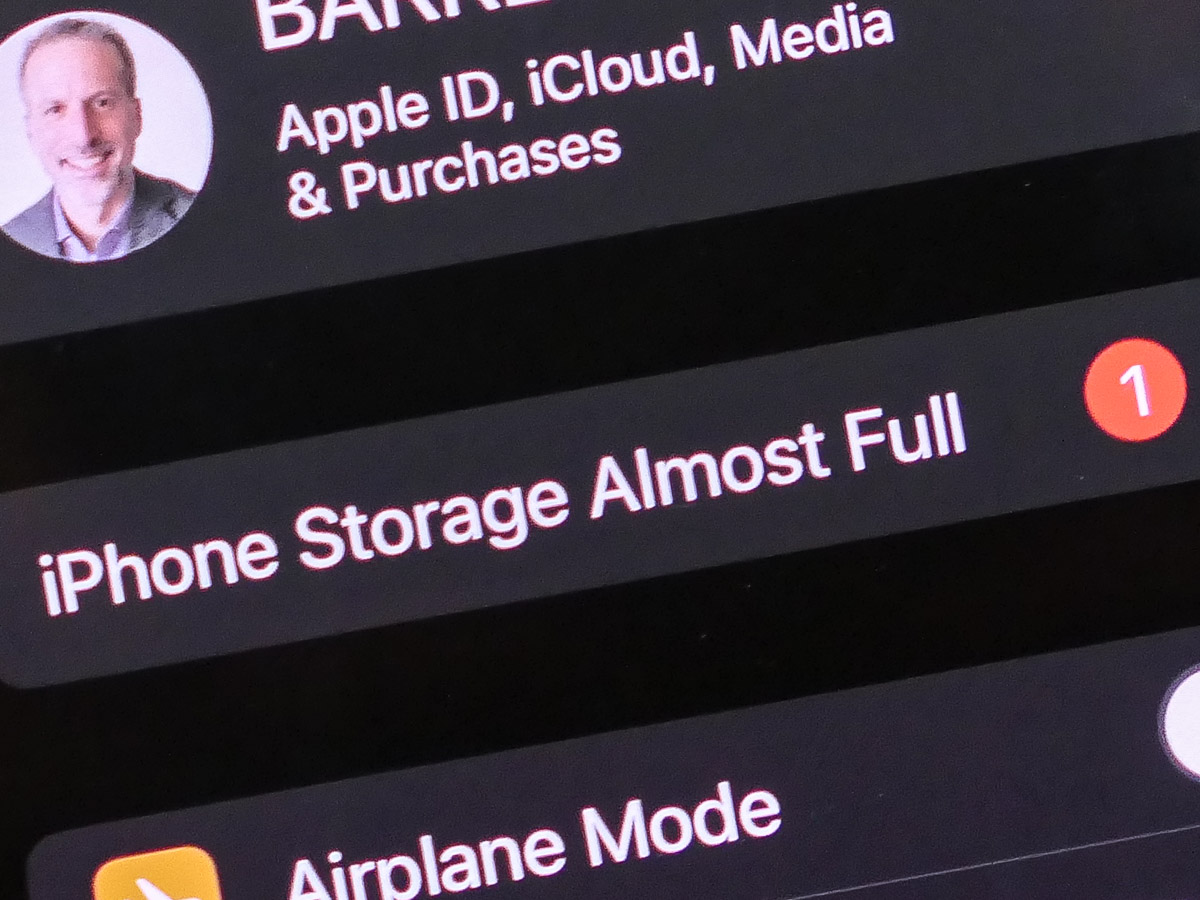
If your iPhone is running out of storage, it may be because it’s housing too many photos and videos. Here’s why iCloud Photos can help.

My wife and I have been happily shooting and collecting thousands of photos and videos on our iPhones over the years. But there’s a problem. We’re running out of storage on our devices.
(As we upgraded from one iPhone to the next, the digital files simply ported over, and our huge visual libraries kept on growing.)

On one level, it’s nice to have access to every photo and video you’ve ever taken on a smartphone. But it’s entirely impractical. It’s way too many files, and more importantly, any iPhone probably can’t handle that much content without being overwhelmed with the storage need.

Sooner or later, your iPhone will become hobbled. And when you find yourself deleting apps to try to free up precious memory, you really know you’ve got a problem.

Yes, I’ve been there. You need a better solution.

Fortunately, Apple’s got one.

iCloud Photos
To access more storage, you have to look to the cloud. You simply activate Apple’s iCloud Photos, and all of your photos and videos will sync to your iCloud account and across all of your other Apple devices.

How does this help your iPhone? Well, just be sure that “Optimize iPhone Storage” is checked in the settings for your iCloud Photos. That’s the magic step.

When you activate this setting, your iPhone will generate and hold onto smaller versions of your photos and videos while the full-resolution versions live in iCloud.

With just the compressed versions of your photos and videos on your iPhone, you’ll suddenly have a whole lot more available local storage.

Plus, you’ll have all of your media backed up in iCloud.

There is a Cost
Of course, there’s a price for this iCloud ‘upgrade.’ (The measly 5GB you get for free will barely cover a week’s worth of content.)

50GB costs 99 cents/month, and 200GB is $2.99/month.
(2TB goes for $9.99/month, but that’s much more data than your iPhone can generate.)

Before your turn on iCloud Photos, you’ve got to upgrade to an iCloud plan that will cover your needs.

I decided to go with the 200GB plan and share it with my wife’s iPhone through Apple’s Family Sharing feature.

No Finish Line
iCloud Photos is a simple solution to solve for the problem of your ever expanding library of photos. Paying a few bucks a month to activate this capability is definitely worth it.

But simply maintaining a disorganized library of imagery over the years isn’t going to do you any favors. You’ve got to eventually go through your photos… choose the best ones, organize them and then delete the rest.

You need to do the work and curate your best images. Otherwise, they’ll get lost in your sea of countless photos.

Sure, they’ll be safely stored in iCloud. And your iPhone will have more storage.

But that shouldn’t be the end of the story.

Good luck as you continue this life-long photo and video project!

How to Add a Missing Person to a Group Text from your iPhone

Feeling left out because of that group text you weren’t on? Don’t worry. There’s an easy way to get you back into the chat. Here’s how.

Have you ever sent out a group text from your iPhone, only to realize moments later that you’ve forgotten somebody? Or how about receiving a group iMessage and noticing that a friend has been unintentionally left off. Is it possible to correct the error and add in the missing person to your ongoing chat?

It certainly is.

For those who may be rolling your eyes right now, please feel free to stretch your own boundaries and compose your next multi-dimensional group text to a parallel universe. However, if you tend to face more earthly-based technical conundrums, and you’re currently jostling your head to shake loose the answer just outside your consciousness, I certainly understand. (It’s how I spend a fair amount of time.)

So, I’ve got a refresher for you. At first glance, it may not seem that obvious, because the ‘Add Contact’ button is hidden.

Here’s how to uncover it:

It’s Buried in the Info Icon
In your iPhone’s Messages app, tap on the text that requires more people in your reply.

  • Then, tap on the face circles representing the existing group. Your action will open three more options to tap on: ‘audio,’ ‘FaceTime’ and ‘info.’
  • Tap ‘info’ on the top right.
  • You’ll then see the current list of people. On the bottom of the list, locate ‘+ Add Contact’ in an inviting blue color.
  • Tap ‘+Add Contact.’
  • Then, simply type the new name and tap ‘Done’ on the top right.

The Answer is Also in the Details
If you’re instead using the Messages app on a Mac computer to respond to a group text, it’s even easier to make the fix:

  • Select the message.
  • Click on the blue ‘Details’ on the top right.
  • Click on the blue ‘Add Member’ under the list of member names.
  • Then type in the new name to add into the chat.

Voilà!

Whoops
Group chats have become such a common part of our texting and email experience. It’s certainly an effective communications tool as long as ‘replying to all’ continues to convey relevant information to all.

And of course, you’ve got to make sure that ‘All’ is actually a complete list of the intended recipients. Replying to ‘Almost All’ can tend to create future problems.

As texting is often done on the fly, it’s always a good idea to double check your list of names.

Then, all will thank you.

How to Text your iPhone’s Video Clip if the File is Too Big

Your only hope to successfully share your video via text is to compress it into a smaller version. Here’s how I did that to a video of my son practicing the piano.

If you shoot a 4K video on your iPhone and then attempt to text it to someone, you’ll likely run into the problem of a file-size limit. That happened to me recently when I was asked to capture my fifth-grade son practicing a piece of music for his piano teacher to review.

Fortunately, my son’s piano lessons have been proceeding just fine over the past year of Covid as a virtual learning experience, courtesy of FaceTime and two iPhones. Unfortunately, this recording ended up running six-minutes long, and I had forgotten to reset my iPhone to shoot video at a lower quality. The result was the creation of a massive 2 GB file.

That’s way bigger than what you can text or email from an iPhone. And as it turned out, my clip would still have been too large to send even if it was recorded at my iPhone’s lowest quality setting of 720p.

Compression Required
Sure, there are ways to upload a large video file to the cloud and then create a download link to send to your recipient. Apple offers iCloud Mail Drop (5 GB file-size limit). And of course, there are other cloud solutions.

But you’re still sending over a massive file for someone else to download. I would suggest that’s not good digital etiquette. Unless your recipient specifically needs your video at its original quality, the decent thing for you to do is to first compress the file into a smaller version for viewing.

Unless you trim your video’s length, you’ve got to find a way to shrink your file before sending it along.

AirDrop
So, my solution was to use Apple’s AirDrop tool to wirelessly send my video from my iPhone to my iMac (There’s no file-size limit.)

Then, I opened up the video clip on my iMac in QuickTime and simply exported a copy in a smaller size from the drop-down menu (480p).

Finally, I dragged the new, compact file into the Messages app on my iMac and ‘texted’ the video to my son’s piano teacher. This kept our video sharing in the same digital ecosystem as we’ve previously been using.

There are other video compression tools available for a Mac (such as the Compressor app), but QuickTime will usually do the trick.

iMovie
If you don’t want to move your file over to a computer and instead prefer to do the compression work on your iPhone, you can easily use iMovie.

Just bring your original video into the iMovie app and then immediately move to export a new file (unless you first want to perform some editing tweaks).

  • Click the blue “Options” tab and select either 360p or 540p resolution.

And then, voilà! You can send your smaller file along.

There are also third-party video compression apps for an iPhone in the App Store, but I suggest you simply stick with iMovie for your basic compression needs.

Less is More
None of this guarantees that your new file will be small enough to text or email. But if the length of your original video is just a couple of minutes, you should be in good shape.

Unless you’re using a cloud-sharing solution, a best practice for any video recording plan that requires sharing your clip is to limit the length. Everyone has space limitations on their smartphones and nobody will enjoy having to manage a huge video file.

Keep it short. Keep it small. And don’t forget to compress it!