At Home with Tech

Unlock the power of all your technology and learn how to master your photography, computers and smartphone.

Tag: Mac Studio

How to Ensure a UPS will Protect your Computer during the Next Blackout

Do you know how old the support systems are that power your tech? Sometimes your backup plan needs an update. Here’s what happened to me.

Do I protect my home office computer from power surges? Well, of course I do. But I go further than a simple surge protector. I bathe the power flow through a UPS (Uninterruptible Power Supply) to provide a cleaner AC feed than my wall outlet can. Plus, my UPS offers some battery back-up juice to smooth over any brownouts or brief blackouts.

Think of it as ‘conditioning’ your power. Because no computer likes a dirty power feed.

I have a CyberPower UPS.
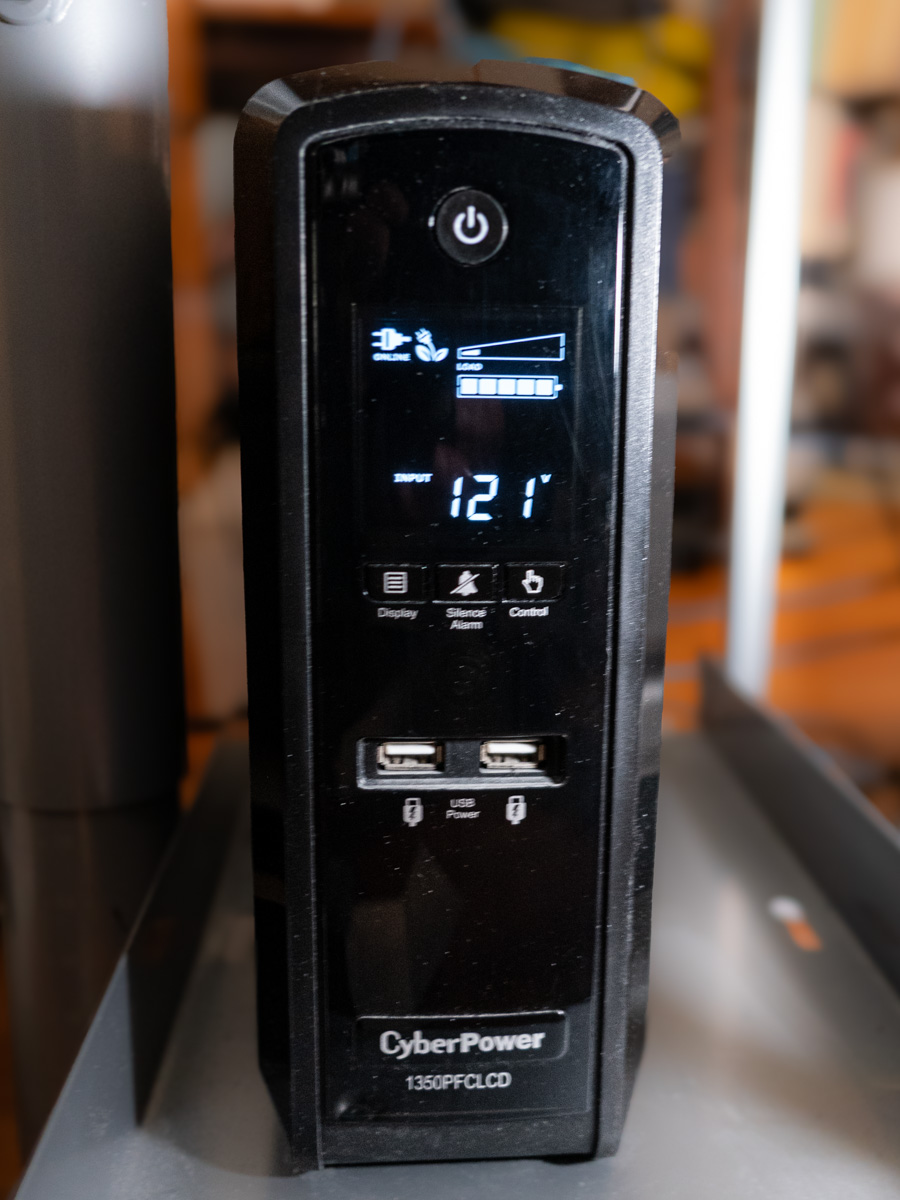
It’s the CyberPower PFC Sinewave Series CP1350PFCLCD, 1350VA/810W Pure Sine Wave UPS ($229.95).

Previously on At Home with Tech
I set up my CyberPower UPS years ago and then mostly forgot about it. Sure, there are ways to monitor the health of a UPS through a USB cable connection, but I stopped doing it after I upgraded to newer Macs (reasons unclear).

Across the years, my CyberPower UPS would occasionally kick into a self-check mode. So, I figured everything was okay.

But I’ve realized that wasn’t the case. In fact, after two recent ‘incidents,’ my UPS was clearly in trouble. And that meant my Mac Studio was flying with no net.

When your World Goes Dark
The first situation was a power outage on my street that coincidentally happened while my wife and I were out on a Sunday walk in our neighborhood. When we returned a half hour later, my Mac Studio was dark, and all signs of power on my desk had evaporated.

I turned to my UPS. It too was dark, though it projected a sickly clicking sound.

Huh… Well, maybe it just drained out after 15 minutes or so… That’s all it’s really rated for. Still, I had concerns. Fortunately, my Mac was not damaged by the incident.

Then, a week later, for no apparent reason my sleeping Mac Studio suddenly lost all power. (The comforting white dot had just disappeared.)

I was right there at my desk working on something else when I noticed my Mac’s condition. The lights in my office hadn’t flickered. Nothing else suggested a power brownout. And then I heard that eerie clicking sound coming from the UPS again.

Okay… something was definitely wrong.

I rebooted the UPS and then considered the facts. I took a moment to research when I had originally bought my CyberPower UPS.
(That was easy, because I wrote a blog post about it.)

Could my UPS really be a decade old? In fact… it was. Clearly, no battery lasts forever. Ten years is really pushing it.

I’m no engineer, but it seemed clear my UPS had simply reached its end of life.

Time to Replace the Battery
My first thought was to replace the whole unit, but it’s a higher-end model, providing a cleaner ‘pure’ Sine-wave power feed.

Perhaps I could just replace the massive battery for a fraction of the cost. It’s actually constructed that way. And in fact, Amazon sells the CyberPower replacement battery for 81 bucks.

That seemed like the better move, but it was going to take some installation work. I figured… how hard could it be?

So, I went for it… Click.

Mission Possible
The eight-pound package arrived.

Clunk.

I unpacked it and then unplugged the UPS to prep it for surgery. I felt like I was working in a Jefferies Tube on the Starship Enterprise. So, I embodied my inner Scotty and got to work.

With some force, I slid off the front cover of the UPS, revealing a nest of wires covering the battery in the back. As I tried to carefully move all the wires to the side, the main wire connector dislodged and popped away. D’oh! Now, I was in a scene from “Mission Impossible.” (Fortunately, a countdown timer did not activate.)

I pulled out the old battery and slid in the new one. Then I tried to reattach the wire connector. Yes, it felt a bit like a ‘cut-the-red-or-black-cable’ choice. That’s because I didn’t know whether ‘up’ or ‘down’ was the correct orientation. But it all clicked in. (I heard that satisfying ‘snap.’)

Then, I slid on the front cover, screwed it in, and put the UPS back in place. I powered it up and let it charge. I brought my computer and monitor back online, and everything seemed to be… okay.

Tether Your Mac via a USB Cable
I also connected a USB cable from the CyberPower’s USB port to my Mac Studio. (I’d never done it for this particular Mac.)

This important data tether enables your Mac to share the status of a connected UPS. (Brilliant!)

Plus, once a UPS is connected this way, you can then instruct your Mac to safely power down in the early moments of a blackout while your UPS is still capable of feeding backup power. Here’s how to do that:

Go to:

  • Go to System Settings
  • Click on Energy Saver

If your UPS is connected via USB, the ‘UPS Options’ button will suddenly appear. From there, you can select from several choices on when to safely shut down your Mac.

I instructed my Mac to automatically power down when my UPS reached 25% capacity. (There’s also the option for battery-time remaining and UPS-time used.)

For more advanced control, you can also download CyberPower software, but this simplified data feed was enough for me.

Returning to Warp Speed
Now, I can also see a power icon on the right top bar on my Mac’s desktop. It reports that the UPS is connected and I’m at 100%.

Warp power has been restored, and this episode has a happy ending.

It’s also a cautionary reminder that a set-it-and-forget-it mentality is never the best strategy for maintaining your home tech’s health.

Replacing the battery may seem like an obvious solve. You just need to remember where they all live and how old they are.

Do you?

How to Rescue Family History Locked Away in an Old DVD

You’ll need to first extract your unusable ‘VOB’ video file that’s buried in your DVD and convert it to a file format that your computer can play. Here’s how I did that with this fifteen-year-old DVD I made for my father about his life.

You may recall that DVDs were once used to save VHS and analog video files from extinction. It was the magic ‘digital’ solution! Then technology moved on, and DVDs effectively disappeared as streaming and cloud platforms took over our lives. Physical media was history! (Well, not completely.)

All the DVDs that I had ‘authored’ containing family videos simply went to the back of my closet, forgotten for another day.

Is that your story too?

Old DVDs are Drink Coasters
Should you eventually want to play one of these DVDs again, you’ll need a working DVD player hooked up to a TV or a computer with a DVD drive. Both scenarios are increasingly unlikely. So, it’s time to face the reality that you really need to rescue your video files before it’s too late.

I recently confronted that exact moment with a DVD I had burned fifteen years ago. It was originally a gift to my dad for Father’s Day. It was a little documentary I had made for him about his life. Now, of course, it’s an irreplaceable keepsake, and it came back to me after he passed in 2022. But if I can’t access the media, it’s effectively a worthless drink coaster.

Copy the VOB File to your Desktop
The first step is to find a way to copy the video file off the DVD to a computer. And that may not be a simple process. Fortunately, I still own a portable optical Apple drive that I had purchased with an old iMac. (They still sell the Apple USB SuperDrive for $79.)

When you look at the file structure of an authored DVD from your computer screen, it’s complex. The file you’re looking for is the ‘VOB’ file (mostly likely the largest one).

Dragging the .VOB over to my Mac Studio took some time. (My old SuperDrive is a USB-A relic.)

But don’t get too excited just yet. Clicking on the VOB file on your desktop is useless. You’ve got to convert it to be able to play it. Here’s how to do that…

Rename the Extension from VOB to MPG
That’s right. All you need to do is rename it as a .mpg file. That’s because it’s really an MPEG-2 file. Once you name it that way, it should play fine on your Mac. But you’re not totally done.

That’s because .mpg is an old, bulky codec. Sure, it may play on your computer today, but it’s not that compatible anymore. So, the next time you click on it, who knows what may happen. You should take the next step and convert it to an .mp4 or .mov.

Convert the MPG to MP4 or MOV
There are any number of ways to do this. If you’ve purchased the ‘Compressor’ app for your Mac, that will do the trick.

Alternately, if you own Roxio’s ‘Toast’ software, that will also convert VOBs directly to MP4s. I had to pay to upgrade my older Toast software to Toast 20 Platinum to get it working on my Mac Studio.

And if you’re looking for a free software solution, ‘HandBrake’ is another path to take.

Where’s my Original Edit?
You may be wondering why I didn’t just find my original video edit from fifteen years ago. That way, I could have avoided my whole DVD file-conversion dance. But that assumes I still knew where that old file is.

Sadly, I’m not as digitally organized across the decades as I had hoped.

The good news is I still had my drink coaster to convert. And this message in a bottle is now found, updated and living happily in its converted form.

Rescue your Past
DVDs are history. Computer hard drives won’t live forever either. Cloud solutions offer better future-proofing comfort, but that assumes these companies stick around for the decades to come. It can make your mind spin faster than a DVD in an optical drive!

I think the only way to address this challenge is to just take it… one decade at a time. For now, focus on extracting your video files from your old DVDs.

Good luck!

Our Computers aren’t Built to Handle so Many Videos and Photos

It’s really simple to create media with our smartphones, and we’ve all become home filmmakers. But it’s becoming increasingly hard to store all the media files. If you’re not worried that you’ll eventually run out of SSD storage space in your Mac, think again. Here’s what you can do about it. (And it won’t take up a lot of desk space.)

A year back, I upgraded from my older 4TB iMac to my new 2TB Mac Studio. My decision to go with only 50% of the internal storage was based on Apple’s more expensive internal SSD drive pricing. (My old iMac had a larger, but slower, spinning hard drive, which is no longer part of the line up.)

I always thought that Apple would forever offer increased internal storage without charging more. (Aren’t we all needing more storage as we document our lives with photos and videos?)

But once Apple moved from HDD spinning drives to next-generation SSD drives, that equation imploded.

  • An Apple Studio with a 4TB SSD costs $1,200 more!
  • You can’t even buy an iMac today with more than 2TB of storage. And that will set you back $600-$800.

Something’s very wrong. We’ve got less to work with and paying more for it.

Still, pricing aside, I successfully deluded myself that didn’t actually need 4TB. (Ha!)

Better Digital Housekeeping?
Sure, I had filled up my old iMac’s 4TB drive, but I told myself that maintaining and transferring all that content from computer to computer was unreasonable. I didn’t need all of it within my internal drive. instead, I would offload much of it to external drives and my G-Technology RAID for long-term storage.

I brainwashed myself that the new 2TB SSD in my Mac Studio should be more than enough once I performed some long-overdue digital housekeeping.

That was just wishful thinking.

Face the Inevitable
Sure, I’ve done some media management, but my goal of a 50% reduction was unobtainable. Within a year, my 2TB internal drive was bursting at the seams. (And we all know that Macs aren’t built to allow you to later upgrade internal storage.)

And Apple hasn’t helped any by continuing to improve its iPhone’s capabilities to generate RAW photos and advanced video codecs (including ProRes files). All this means larger media files.

We’re all filmmakers now with the critical need to house our content libraries somewhere. What did they think was going to happen when we moved these huge files over to our Macs?

iCloud Storage?
Sure, I could export terabytes of my media into Apple’s iCloud ecosystem. But come on… that’s not really a good value proposition.

  • 2TB costs $9.99/month
  • 6TB is $29.99/month

Let’s do the math:
I would have to go with the 6TB plan, which comes out to $360/year. While that is surprisingly competitive with external hard drive pricing, across multiple years… it gets too expensive.

Certainly, $360 x multiple years is more than the one-time cost of buying a companion external drive. I know physical drives won’t last forever, and you’re supposed to upgrade them every few years. So perhaps a future iCloud storage plan could be a reasonable solution… if the pricing comes down.

SSD Drives
But what is today’s answer when your internal drive gets filled up?

Well, that’s simple: You’ve got to buy an external drive and plug it in. (I know I didn’t have to tell you that.)

The real question is what kind of drive?

To match the speed of your internal drive, you’ll want to buy a similar technology. If you’ve got an internal SSD, you should look at getting an external SSD.

So, that’s what I did.

Video Editing
Another question is what you want to do with the drive.

My most demanding task is editing my family videos and personal creative projects, which are all shot in 4K. Many of my video files are generated by my iPhone 15 Pro Max.

Plus, I’ve got:

So, perhaps my video editing needs are more advanced than the average user.

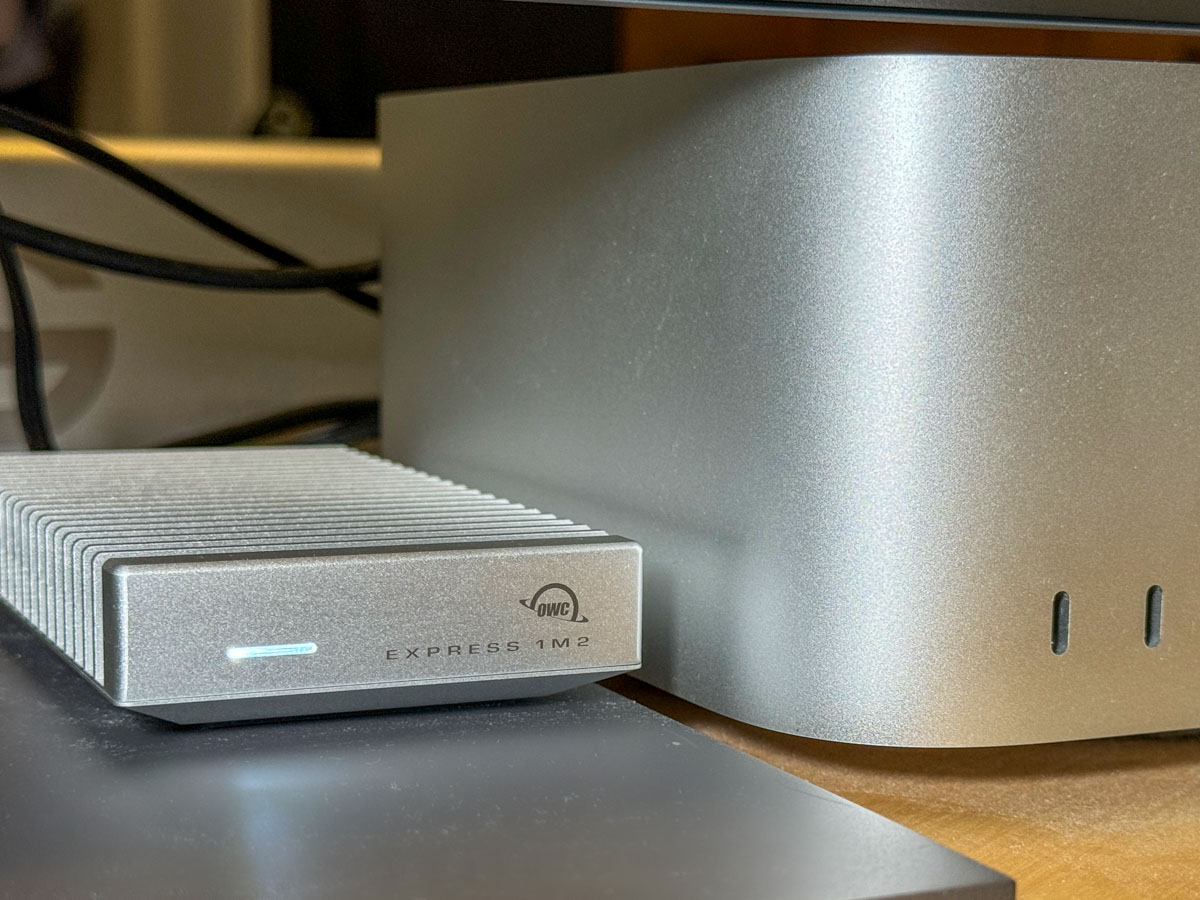
4TB OWC Express 1M2 SSD
All this said, I decided to go with a fast NVMe M.2 SSD. And I wanted to take advantage of the Thunderbolt 4 interface my Mac Studio offers. While there are many Thunderbolt 3 drives on the market, only OWC appears to offer a USB4 drive (same as Thunderbolt 4).

Now, some of you will immediately question my need for such a fast drive, and others will point out that thunderbolt 3 drives are fast enough for my media workflow. I know.

But this is a dizzying choice. So, I figured it’s best to go with a little more oomph than not enough.

So, I landed on the bus-powered 4TB OWC Express 1M2 SSD. (It’s an enclosure with the 4TB NVMe prepopulated.)
This Express 1M2 is blazing-fast, boasting 3200MB/s. It gets positive reviews, it’s compact and so far… it’s working great for me.

The Price for Performance and Peace of Mind
No, it’s not exactly cheap. (Remember, SSD technology is pricy.)

Yes, I could have saved more and bought a less expensive NVMe separately and popped it in an empty OWC 1M2 enclosure. But… I’m a baby.

Really, I just want this thing to work out of the box. Sure, plenty of you may chide me for being so ‘tech-timid.’ But hey… I’m not ‘Mr. At Home with IT.’ I know my limits. I’m not building my drives. I’ll buy them pre-built, thank you very much.

I just want some peace of mind. (Sure, I back up my files, but that’s also a complex equation.)

So, yes, I’m willing to pay a little more.

Build a Big Enough Home for your Files
Let’s review:

  • I bought a new Mac that had 50% of the internal storage of my old Mac
  • I inevitably ran out of space
  • A year later, I spent more money to buy a companion OWC drive for my Mac
  • I plugged it into my Mac Studio via a Thunderbolt 4 port, and I’m back in business

Yes, my story has a happy ending, but I’m not that happy.

Sure, maybe I have more media storage needs than the average bear, but not by that much.

I think today’s new computers simply need more internal storage. The fact that Apple sells its base-level computers with only a 256GB SSD is absolutely silly. (I could choose a stronger word.)

The lesson here is over the years, you’re going to need a bigger hard drive for your computer. And you’re going to pay for it one way or another.

So, plan for the future.