At Home with Tech

Unlock the power of all your technology and learn how to master your photography, computers and smartphone.

Tag: Microsoft OneNote

Pair a Bluetooth Keyboard to your Smartphone for your Next Zoom Meeting
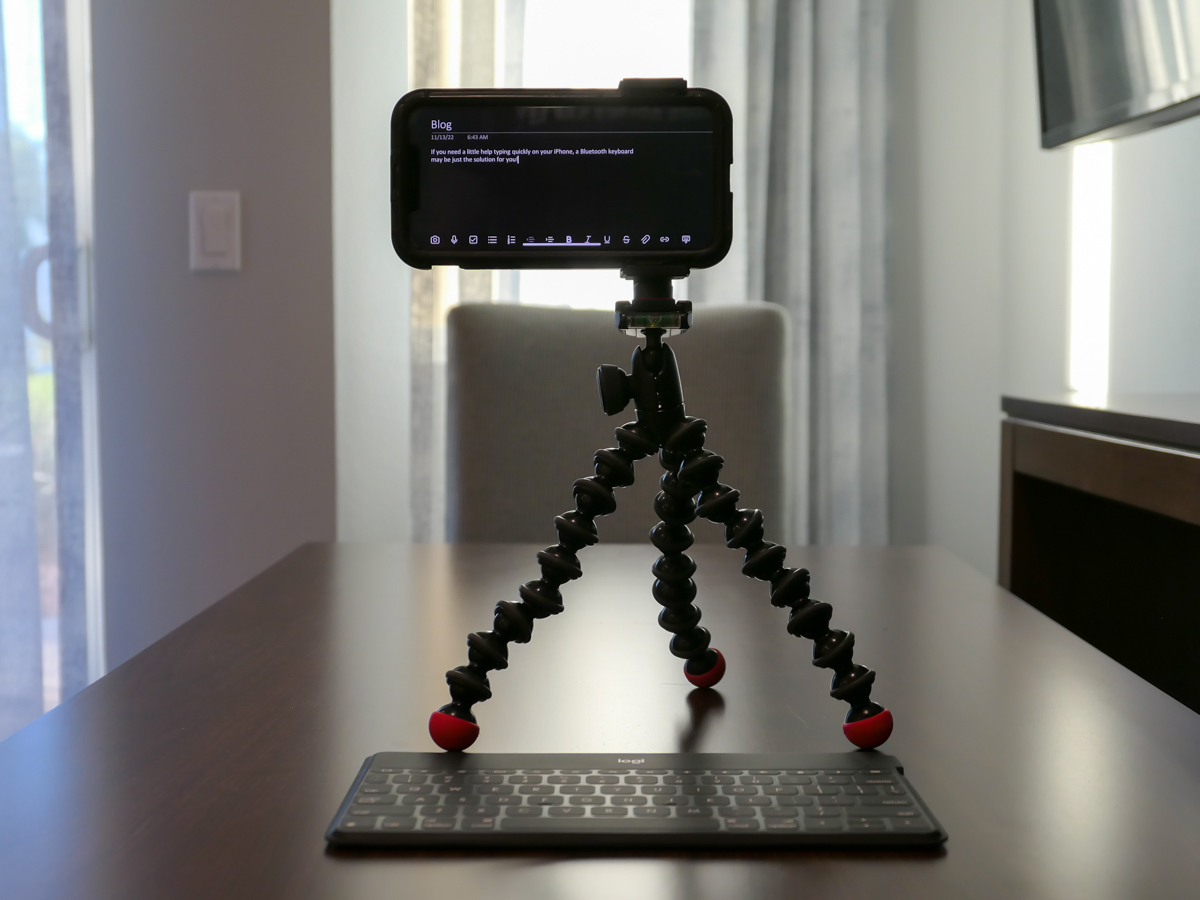
If you need to take copious notes on your smartphone during a Zoom meeting, here’s why you may want to add a physical keyboard to the equation.

It’s easy to forget the power and flexibility of our smartphones; often the only limiting factor is the compact size. Yes, the smaller screen is sometimes difficult to work with compared to a laptop. But for me, it’s the miniature keyboard that can be infuriating. It’s simply really hard to type fast.

Recently, I flew to the West Coast on a business trip, and for an hour on one evening, I needed to step away and jump on a personal Zoom call and take notes for the community group.

My first thought was to pack my personal laptop or iPad for the task. But then I looked at my iPhone and wondered if it could actually handle the exercise.

Of course, the Zoom meeting part was easy. It was the simultaneous note taking that would be the challenge. So I tested it out…

Working with Zoom and Microsoft OneNote Simultaneously
I used the Microsoft OneNote app on my iPhone for the note-taking part, and it interfaced just fine with the Zoom app. I simply swiped out of the Zoom meeting and then worked in OneNote. (The Zoom meeting still shows up in a small window.)

Yes, I could tap…tap…tap my notes. But it was not nearly as fast as I knew I would need.

I required a real keyboard. And then it came to me… What about a Bluetooth keyboard?

A Multiversal Solution?
Using a Bluetooth keyboard with an iPad is common, but trying the same trick with a tiny iPhone feels somewhat absurd. Who have you ever seen do that???

Though you might have spotted it while traveling through some other part of the multiverse, some crazy old-school blogger in this reality was now going to give it a try.

Logitech Keys-to-Go Bluetooth Keyboard
While there are a few choices out there, I ended up going with the Logitech Keys-to-Go Bluetooth Keyboard… mostly because it’s featured on Apple’s website. I figured it must work properly if Apple is pushing it, right? (Spoiler alert: The two devices pair just fine, though you do have to push a little harder on the Logitech’s keys.)

At the time of this post, this keyboard was on sale
at Logitech’s website for $49.99.

It’s also on Amazon for the same price.

Click.

A Few Optional Accessories
When it was time to do my Zoom meeting in the field with my new keyboard, I must admit, I had also brought along a little more gear to facilitate a smoother experience.

  • I had my small Joby tripod with smartphone grip to mount my iPhone a little higher up. ( I didn’t want the shot pointing up my nose.) The taller positioning also made it easier to read the screen as I typed away.
  • To ensure I wouldn’t run out of juice, I plugged my iPhone into a little portable power (my Anker battery), as a wall plug wasn’t nearby.
  • And of course, I wore my Apple AirPods.
  • My multitasking iPhone stunt went off without a hitch, but if you strip away the optional tech, just the iPhone and Bluetooth keyboard will certainly get the job done.

Add this Technological Distinctiveness to your Own
Not having to pack an extra computer when flying is a game changer. A slim Bluetooth keyboard is hardly a noticeable add to your carry-on luggage, and it’s not an expensive piece of tech you have to worry about being stolen.

It may not be an intuitive pairing, and the tech form factor certainly looks clunky and somewhat absurd (“Star Trek” Borg-like).

That said, adding a physical keyboard to the much smaller iPhone does facilitate much faster typing speeds. So give your thumbs a rest!

I have now happily assimilated this technological distinctiveness.

Borg Barrett transmission ends now.
How to Organize your Life Using Microsoft OneNote

If you suffer from ‘yellow-stickie-syndrome,’ I’ve got the perfect digital solution to help eliminate your analog clutter.

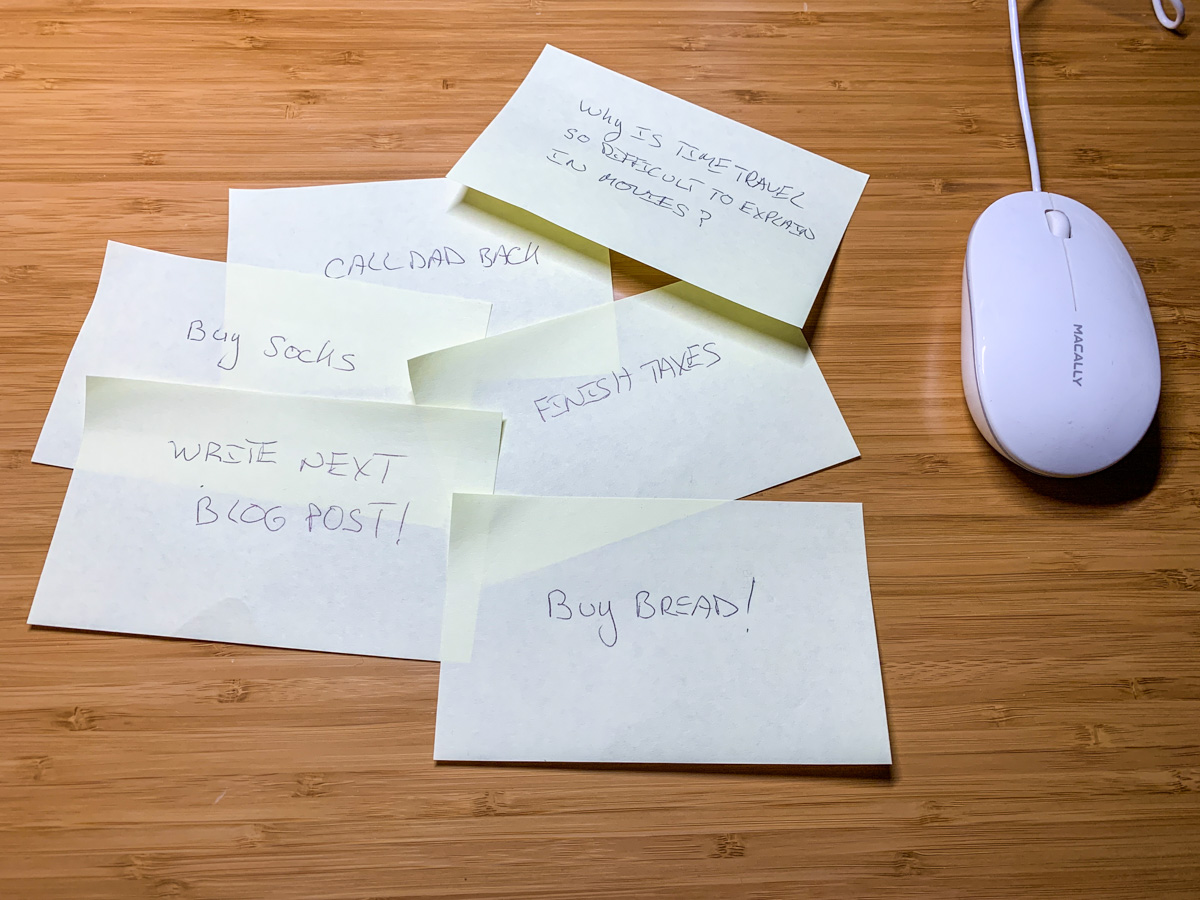
I have a problem with paper. It’s those little yellow stickies, to be precise. Whenever I have an idea or need to remember a detail, I quickly jot it down and stick my thought onto my home office desk. Needless to say, it’s not a strategy for organization. That said, whenever I complete a task, I take great pleasure in crumpling up the little stickie and throwing it in the basket behind me. Swish!

I know there are better ways to organize your personal to-do notes, and I do have digital solutions in place (Apple’s ‘Notes’).

I Love my Yellow Stickies
But my yellow stickie fix still remains in my personal preferences.

I must admit I like having those little reminders facing me when I sit down with my cup of Joe in the morning. The visual cues keep my home headlines at the forefront of my consciousness.

It’s messy, but effective.

Digital File Cabinet
On the work front, I’ve had more success preventing message clutter. I never suffered from ‘yellow-stickie syndrome’ in the office, mostly because I used a notebook, which I brought with me to meetings. When laptops became a common work tool, I would carry mine about and type up my notes into the computer. Easy. Right?

But the question remains how to best organize that flow of digital information.

If you maintain a Microsoft Word document that houses your ongoing meetings, that will mimic a paper notebook and eventually generate an overflow of details. If you create a Word doc for each meeting or project, then you’ve got to maintain dozens or hundreds of files. That’s too many. Plus, if you forget the name of your file or the date you created it, you may not have a sufficient bread-crumb trail to easily get back to it.

Sure, you can create folders for all of these docs, but it’s a clunky and ever expanding process to maintain.

The goal is to create and easily maintain a virtual version of the perfectly organized file cabinet. There’s got to be software that does this for you.

Well, of course there is.

Microsoft OneNote
My app of choice is Microsoft OneNote. (There are others, but OneNote is baked into Microsoft Office… so it’s right there for you.)

Plus, it’s exceptionally intuitive to use.

I first create ‘Sections,’ which are my broader categories, and then ‘Pages’ which live in each Section. My Pages represent individual projects, meetings or topics.

Yes, you’ll eventually create a massive number of individual Pages, but because they’re organized into dedicated Sections, it’s much easier to keep track of them.

Finally, after I’ve completed a project on a Page, I move that Page into a ‘completed’ Section. This little trick goes a long way to keeping my digital clutter to a minimum.

I think once you set up your own OneNote file, you’ll never want to use a physical notebook again. Just be sure to back it up or sync it to the Cloud.

Happiness is a Completed Chore
I’ve also set up Microsoft OneNote on my home iMac in the attempt to replace my yellow stickie notes. It’s the perfect cure for my touch of yellow madness.

OneNote initially cleaned up my desk in no time. But I eventually slid back into my old stickie patterns.

I think many of us have certain analog crutches that are difficult to part with. That’s okay. If I want to feel the crumple and swish of a completed chore, is that so wrong?

Alternately, when you need some serious help organizing your brain, chances are Microsoft OneNote is already right there for you. Just click on the program icon!

Satisfaction across time can be elusive. So I recommend you employ every tool available to regularly hit that pleasure center in your brain.

Crunch.