At Home with Tech

Unlock the power of all your technology and learn how to master your photography, computers and smartphone.

Tag: Microsoft Word

Master the Art of Transcribing Speech in an Audio File with Microsoft Word’s AI Magic

If you want to convert an audio file into an AI-generated text transcript for free, you could find a robot from the future to handle the task. But look no further than your Microsoft 365 subscription. Here are the quick and easy steps to upload and transcribe your file using Word on the web.

Many AI transcription tools available today convert recorded speech to text from audio and video files. AI voice-to-text conversion isn’t perfect, but it’s getting better all the time.

The easy ‘pro’ solution is to use Adobe Premiere Pro, which integrates strong transcription powers into its video-editing interface. But if you’re not in the Adobe ecosystem or looking for other solutions that don’t require video editing, you’ll need to look elsewhere.

Most standalone AI transcription tools do cost money after a limited free trial. In doing research for a personal project, I tried to identify a low-cost or free AI solution.

And I was hoping to find it with a recognizable brand I felt I could trust. Happily, I discovered that Microsoft effectively offers what I needed.

And the Microsoft solution is free (as long as you already pay for a Microsoft 365 account).

Microsoft Word on the Web via your Microsoft 365 Account
There are a few important details to take care of before getting started on your transcription journey with Microsoft:

  1. You have to use the web version of Microsoft Word via your Microsoft 365 account. (That’s the key to opening this free transcription door.)
  2. You also need to use Chrome or Edge (not Safari… which seemingly doesn’t offer the ‘Transcribe’ feature).
  3. If you’re working with a video file, you first need to convert your video to an audio file. Yes, Microsoft Word transcription only lets you upload audio files, and that creates an extra step (but it’s worth it).

To make the audio file, I use the ‘Compressor’ app on my Mac. (You can also use QuickTime.) The conversion process goes surprisingly fast. (I converted to MP3s with Compressor, but you can convert to other audio formats.)

Step-by-Step Guide to your AI Transcript

Once you’ve got your audio files created and ready to go, here’s how to create your AI transcripts:

Click on the ‘Dictate’ drop-down on the top right of Word’s ribbon. Then the ‘Transcribe’ option displays. Click it.

Click on ‘Upload audio.’

Choose your audio file to be used. The Transcribe feature activates.

The full transcription will quickly appear on the right after 30 seconds or so, depending on the length of your audio file. Click ‘Add to document.’ Click ‘With speakers and time stamps.’

Click on ‘File.’ Choose ‘Save as.’ Choose ‘Download a copy.’

Done! That’s it.

Now you’ve got your AI-driven transcript with time stamps that you can easily work with.

Perfection Not Required
If you’re planning to edit a video using these transcripts, you can select your sound bites by simply highlighting the sentences you want. From there, you can create your paper edit. (A paper edit is the roadmap you’ll follow when doing your actual video editing.)

Is the AI transcript from Microsoft perfect? Not at all! But it’s good enough to select the sound bites you need.

Not Subtitle-Ready
Warning: If you’re eventually planning on taking the next step to create subtitles/captions from these clips for a final video, you’ll still have some ‘human-powered’ proofing work ahead of you (as there are plenty of AI misspellings and misinterpreted words).

Easy and Fast Solution
In the old days, people would transcribe long audio or video files themselves. If you paid someone to do this, it could cost hundreds of dollars. Now, AI has effectively taken over this painstaking task.

Though imperfect, it gets the job done.
(And don’t forget- AI transcription technologies will only continue to improve over time.)

Plus, it’s free and already baked into your Microsoft 365 account.
(Yes, you do need to pay for Microsoft 365, but then this is a great way to maximize that necessary investment.)

They say emerging AI will continue to make our lives ‘easier.’ I’m happy to report that this is just another example.

How to Use Microsoft Word as a Teleprompter for your Next Zoom

This easy reformatting trick in Microsoft Word will help you present better when reading your notes during your next Zoom meeting.

It’s always important to establish eye contact with your audience if you want to create a strong connection. The same is especially true when talking via Zoom and other video conferencing platforms. And the only way to do that is to stare directly at your little webcam. That can be difficult when you’re also trying to pay attention to all of those little boxes of faces on your screen.

There’s also the reality that many of us have had to Frankenstein together more advanced work stations at home with multiple monitors, creating even more eyeline complexities.

In short, a lot of people aren’t following the best practice of looking directly at their webcams these days. If you’re even close, I think most folks on the receiving end are relatively forgiving.

Now, I’m not saying that’s okay. I’m saying that’s what I’ve seen happening. And because it’s generally become acceptable to look slightly off camera while Zooming, there’s a huge opportunity to exploit in that little space between where you should look and where your eyes are likely focusing .

Create your own Teleprompter
If you’re presenting to your Zoom audience, and you’ve got notes or perhaps a full script to read, you should position them on your screen right under your webcam to reduce the effect that you’re reading. A physical page of notes taped under your webcam can work, but I’m not talking about an analog solution. Move that Microsoft Word window up. Keep it all digital.

The closer you can get your Word doc to your webcam the better. It’s like activating your own little teleprompter. The result will be remarkably close to the appearance that you’re effortlessly talking to your audience and not reading your script. And because your audience has been conditioned to seeing others look off screen, they likely won’t notice your visual trick.

Don’t Let your Eyes Ruin your Illusion
That said, they will see you reading your notes if your Word window is still at its normal width. Your eyes will clearly be moving left to right and from line to line. (Then, the jig will be up!)

You need to make your Word window thinner… only 8-10 words across to correct the problem.

But then how are you supposed to see a complete line of your script if only part of it is now visible?

Here’s the fix:

Use Web Layout
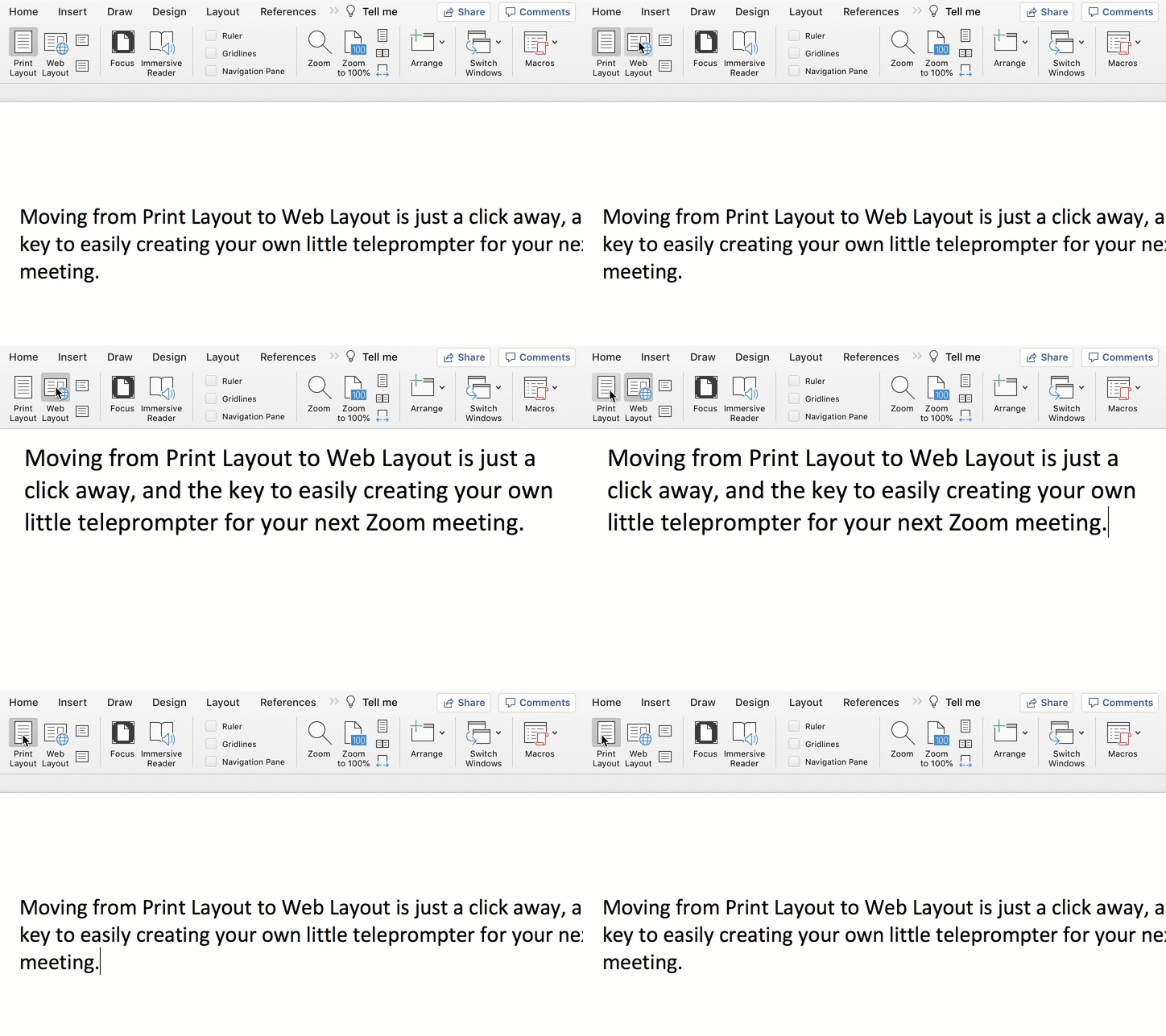
Change the view in Word from Print Layout to Web Layout.

Once you do that, you can shrink the width of your page, and the text will automatically wrap to fit your thinner Word window.

Then, all you need to do is scroll down the page using your mouse or trackpad as you’re reading.

Congratulations, you’ve effectively created your personal teleprompter!

How to Adjust the Default Settings
Here are the easy steps to make the change to your Word doc:


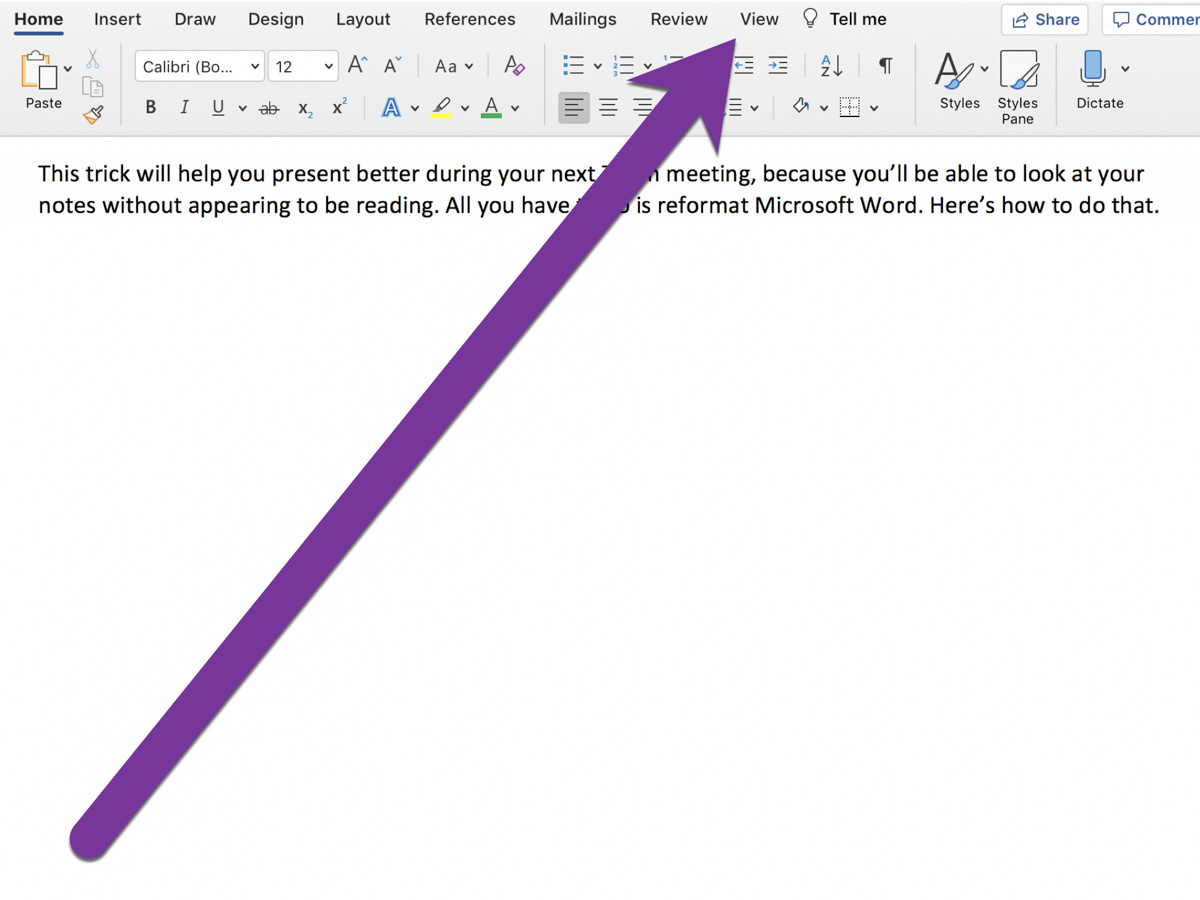
On Word’s top menu bar, click on View from the Home menu.


On the left, you’ll see Print Layout and Web Layout. Click Web Layout.


Then, click on Zoom to adjust the size of your text so you can easily read it.

That’s it!


Advanced Tip: Minimize the Ribbon
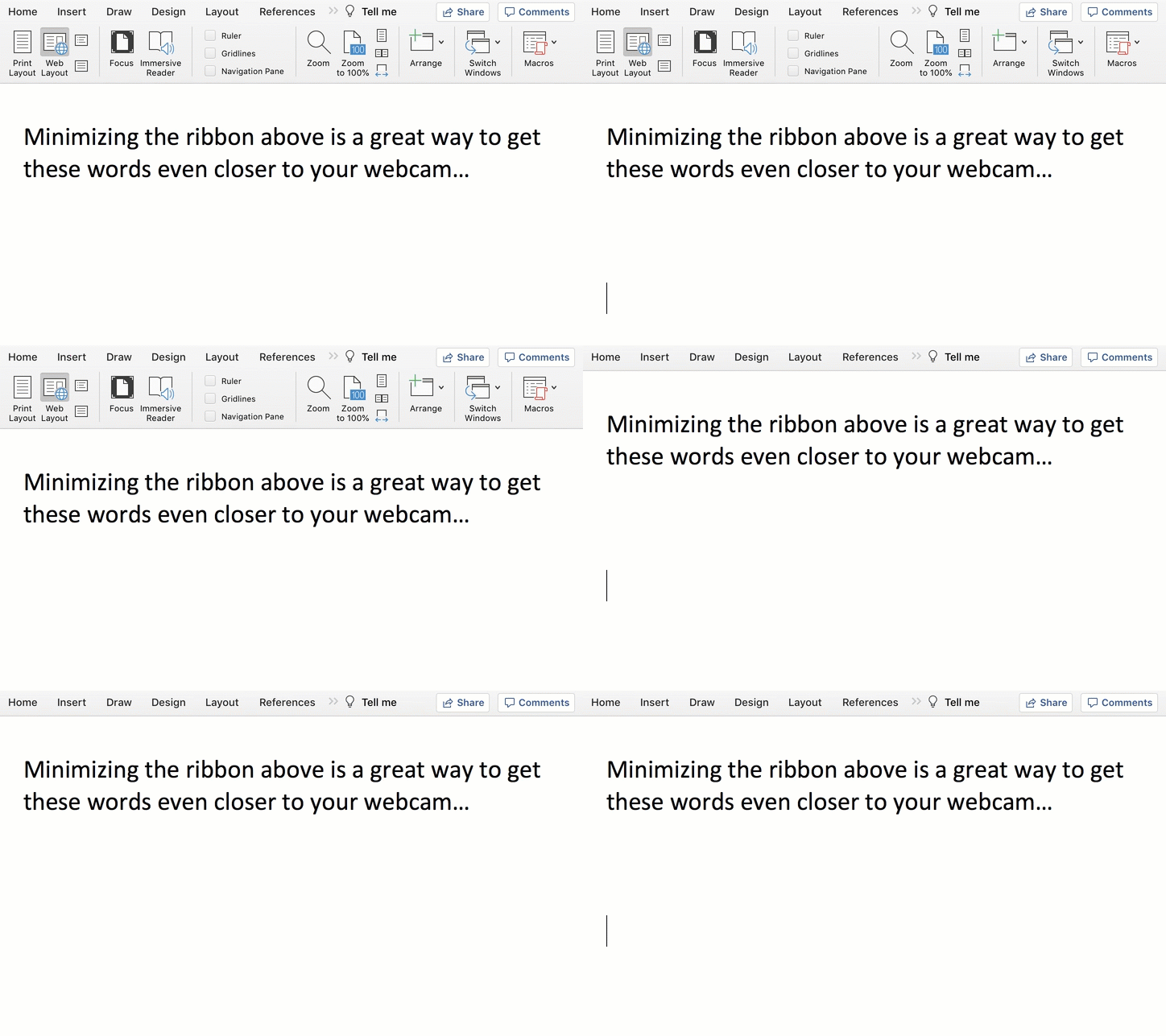
To get your notes even closer to your webcam, collapse Word’s top ribbon.

On a Mac, press Command + Option + R.
On a PC, press Control + F1.

Another Tool for your Virtual World
Living life on Zoom during these many pandemic months has been draining for all of us. Reformatting Microsoft Word to serve as your pseudo-teleprompter is one way to make your Zoom presentations a lot easier.


A Quick Way to Fix a Corrupted Word File

Why does it always seem that technology will fail you at the worst moment? Here’s a trick to help you the next time disaster strikes…

Why does it always seem that technology will fail you at the worst moment? Here’s a trick to help you the next time disaster strikes…

Repeatedly saving your Microsoft Word document doesn’t always help if your PC laptap unexpectedly runs out of power. Yeah, that happened to me last week at work…

My .docx file containing the results of a productive 90-minute team script-writing session got trapped when the file became corrupted. Well, it was kind of my fault, because my laptop was only running on battery power.

But to be fair to the faulty human, there was no warning… none at all.
Now, come on!
(My Apple products always warn me when I’m dangerously low on power.)

“Khaaannnn!!!”
Then, when I plugged in my laptop and rebooted, I couldn’t open up the script.
The computer ‘suggested’ the file was unrecognizable or it had been corrupted.
Uhhhh…
What do you do?
What do you do??!

We needed to get this script right over to our video editor as we had a really tight deadline. But part of the team was about to disperse to meet other commitments.

So I couldn’t just magically say, “Reassemble!”
That would take time. And time we didn’t have…

Suddenly, I was facing my own Kobayashi Maru* scenario!

Fixing the File, Stat!
The only option was to take the dead file into surgery and try to extract the data. So I brought the challenge to two tech experts in the room. I looked at them both and said, “You’ve got to come through on this. Please… work the problem!”
(I felt like Ed Harris in “Apollo 13.”)

For the first fifteen minutes, it didn’t look good.

But then, within a few moments of each other, they each came back, offering up a new file of mostly unreadable gobbly gook. But buried in their horrible ‘creations’ were the magic sentences from the script I needed.

We were saved!

Try This at Home
So of course, I was interested in the tech voodoo they used. They took different paths to the finish line, but the solution that surprised me the most was the one that used a Mac. And it was so straightforward.

The secret?

With your Apple computer, simply open the damaged Word file using TextEdit…

  • Do a ‘Control Click’ on the damaged file
  • Go to ‘Open With’
  • Then click on the ‘TextEdit.app’ option

And Voilà!

I tried it myself…
No, the results didn’t look pretty, but what I wanted was all in there.
(I just had to sift a little.)

TextEdit to the Rescue
So what did I learn from my little ‘experience?’
(Get your fortune cookie folder out.)

Yes, Murphy’s Law is alive and well.
But don’t forget it’s always darkest just before the dawn.

Never trust your PC laptop to run on battery for too long.
(Using pen and paper may not yet be such an antiquated concept.)

Always bring in the team to help you beat your Kobayashi Maru* test.

And most importantly, remembering Apple’s simple TextEdit as a repair tool can really save your day!

*This is a “Star Trek II: The Wrath of Kahn” reference about handling the
‘no-win’ scenario.
(Apologies, if I’ve just stated the obvious. “Qapla!”)