
Our Computers aren’t Built to Handle so Many Videos and Photos

It’s really simple to create media with our smartphones, and we’ve all become home filmmakers. But it’s becoming increasingly hard to store all the media files. If you’re not worried that you’ll eventually run out of SSD storage space in your Mac, think again. Here’s what you can do about it. (And it won’t take up a lot of desk space.)
A year back, I upgraded from my older 4TB iMac to my new 2TB Mac Studio. My decision to go with only 50% of the internal storage was based on Apple’s more expensive internal SSD drive pricing. (My old iMac had a larger, but slower, spinning hard drive, which is no longer part of the line up.)
I always thought that Apple would forever offer increased internal storage without charging more. (Aren’t we all needing more storage as we document our lives with photos and videos?)
But once Apple moved from HDD spinning drives to next-generation SSD drives, that equation imploded.
- An Apple Studio with a 4TB SSD costs $1,200 more!
- You can’t even buy an iMac today with more than 2TB of storage. And that will set you back $600-$800.
Something’s very wrong. We’ve got less to work with and paying more for it.
Still, pricing aside, I successfully deluded myself that didn’t actually need 4TB. (Ha!)
Better Digital Housekeeping?
Sure, I had filled up my old iMac’s 4TB drive, but I told myself that maintaining and transferring all that content from computer to computer was unreasonable. I didn’t need all of it within my internal drive. instead, I would offload much of it to external drives and my G-Technology RAID for long-term storage.
I brainwashed myself that the new 2TB SSD in my Mac Studio should be more than enough once I performed some long-overdue digital housekeeping.
That was just wishful thinking.
Face the Inevitable
Sure, I’ve done some media management, but my goal of a 50% reduction was unobtainable. Within a year, my 2TB internal drive was bursting at the seams. (And we all know that Macs aren’t built to allow you to later upgrade internal storage.)
And Apple hasn’t helped any by continuing to improve its iPhone’s capabilities to generate RAW photos and advanced video codecs (including ProRes files). All this means larger media files.
We’re all filmmakers now with the critical need to house our content libraries somewhere. What did they think was going to happen when we moved these huge files over to our Macs?
iCloud Storage?
Sure, I could export terabytes of my media into Apple’s iCloud ecosystem. But come on… that’s not really a good value proposition.
- 2TB costs $9.99/month
- 6TB is $29.99/month
Let’s do the math:
I would have to go with the 6TB plan, which comes out to $360/year. While that is surprisingly competitive with external hard drive pricing, across multiple years… it gets too expensive.
Certainly, $360 x multiple years is more than the one-time cost of buying a companion external drive. I know physical drives won’t last forever, and you’re supposed to upgrade them every few years. So perhaps a future iCloud storage plan could be a reasonable solution… if the pricing comes down.
SSD Drives
But what is today’s answer when your internal drive gets filled up?
Well, that’s simple: You’ve got to buy an external drive and plug it in. (I know I didn’t have to tell you that.)
The real question is what kind of drive?
To match the speed of your internal drive, you’ll want to buy a similar technology. If you’ve got an internal SSD, you should look at getting an external SSD.
So, that’s what I did.
Video Editing
Another question is what you want to do with the drive.
My most demanding task is editing my family videos and personal creative projects, which are all shot in 4K. Many of my video files are generated by my iPhone 15 Pro Max.
Plus, I’ve got:
- My DJI Osmo Pocket 3 for my sunrise timelapses
- My GoPro Hero 11 Black for water-based activities
(so I don’t drown my iPhone) - And my Panasonic Lumix GH5 II for higher-end video creations
So, perhaps my video editing needs are more advanced than the average user.
4TB OWC Express 1M2 SSD
All this said, I decided to go with a fast NVMe M.2 SSD. And I wanted to take advantage of the Thunderbolt 4 interface my Mac Studio offers. While there are many Thunderbolt 3 drives on the market, only OWC appears to offer a USB4 drive (same as Thunderbolt 4).
Now, some of you will immediately question my need for such a fast drive, and others will point out that thunderbolt 3 drives are fast enough for my media workflow. I know.
But this is a dizzying choice. So, I figured it’s best to go with a little more oomph than not enough.
So, I landed on the bus-powered 4TB OWC Express 1M2 SSD. (It’s an enclosure with the 4TB NVMe prepopulated.)
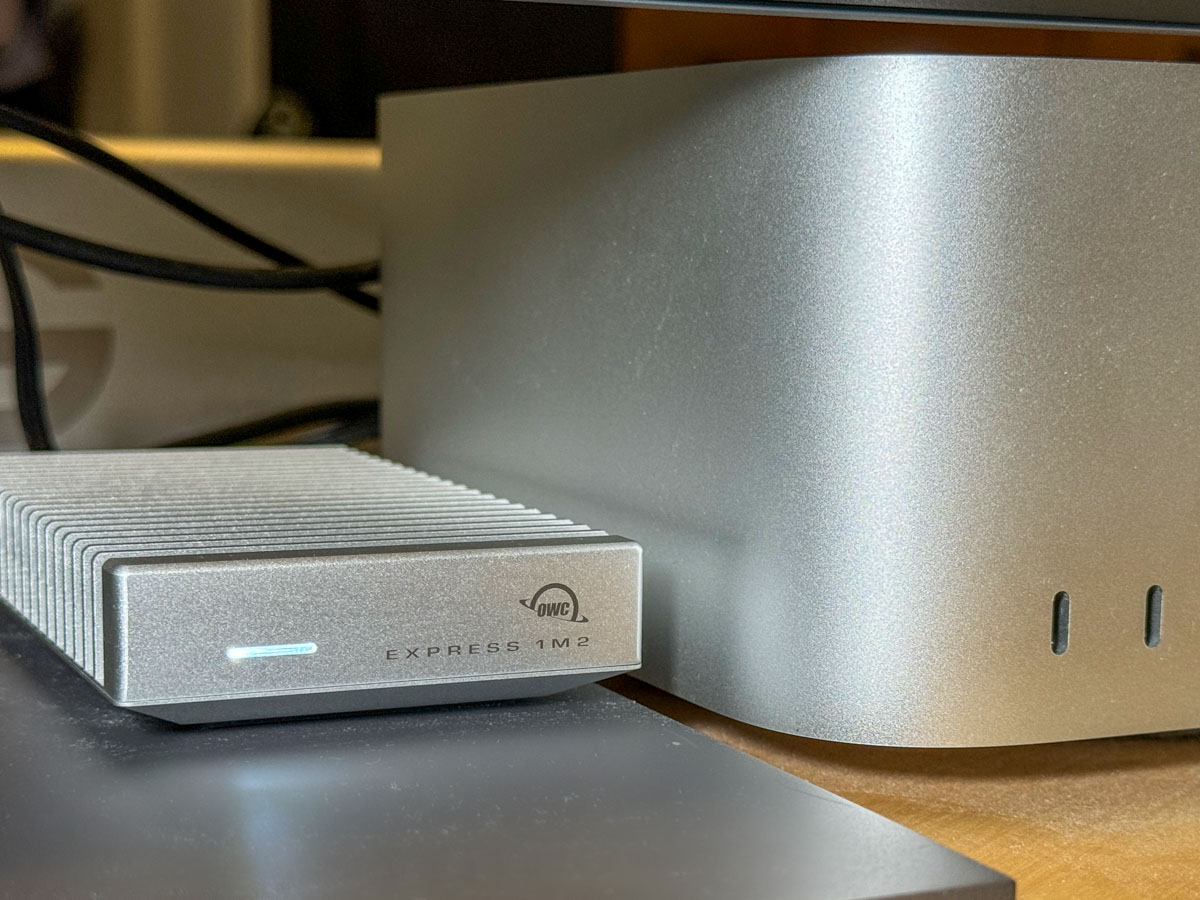 This Express 1M2 is blazing-fast, boasting 3200MB/s. It gets positive reviews, it’s compact and so far… it’s working great for me.
The Price for Performance and Peace of Mind
No, it’s not exactly cheap. (Remember, SSD technology is pricy.)
- The OWC Express 1M2 with its 4TB SSD is pretty expensive at $629.99.
(But it’s still a deal compared to Apple’s internal SSD pricing.)
Yes, I could have saved more and bought a less expensive NVMe separately and popped it in an empty OWC 1M2 enclosure. But… I’m a baby.
Really, I just want this thing to work out of the box. Sure, plenty of you may chide me for being so ‘tech-timid.’ But hey… I’m not ‘Mr. At Home with IT.’ I know my limits. I’m not building my drives. I’ll buy them pre-built, thank you very much.
I just want some peace of mind. (Sure, I back up my files, but that’s also a complex equation.)
So, yes, I’m willing to pay a little more.
Build a Big Enough Home for your Files
Let’s review:
- I bought a new Mac that had 50% of the internal storage of my old Mac
- I inevitably ran out of space
- A year later, I spent more money to buy a companion OWC drive for my Mac
- I plugged it into my Mac Studio via a Thunderbolt 4 port, and I’m back in business
Yes, my story has a happy ending, but I’m not that happy.
Sure, maybe I have more media storage needs than the average bear, but not by that much.
I think today’s new computers simply need more internal storage. The fact that Apple sells its base-level computers with only a 256GB SSD is absolutely silly. (I could choose a stronger word.)
The lesson here is over the years, you’re going to need a bigger hard drive for your computer. And you’re going to pay for it one way or another.
So, plan for the future.
 At Home with Tech