At Home with Tech

Unlock the power of all your technology and learn how to master your photography, computers and smartphone.

Tag: photography

Slowing Down in New York City on a Sunday
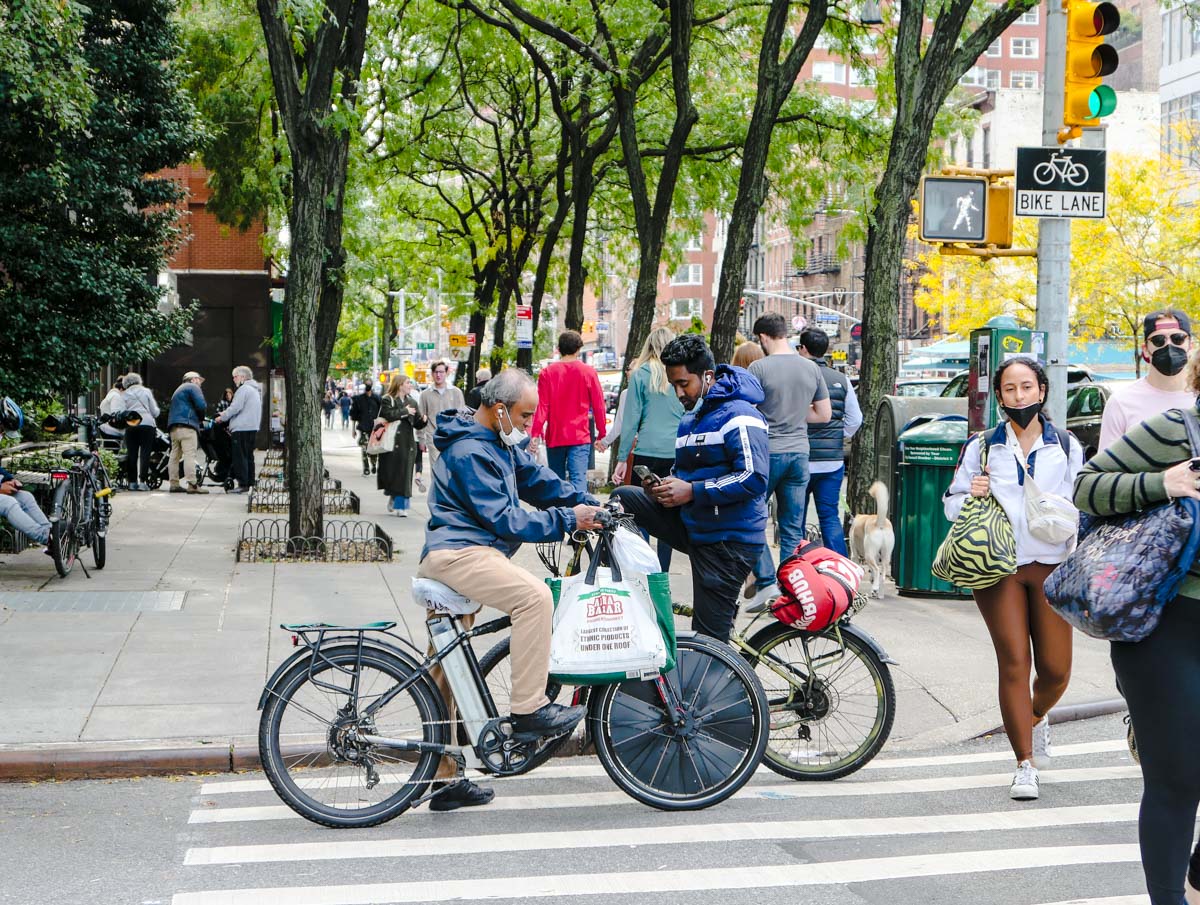
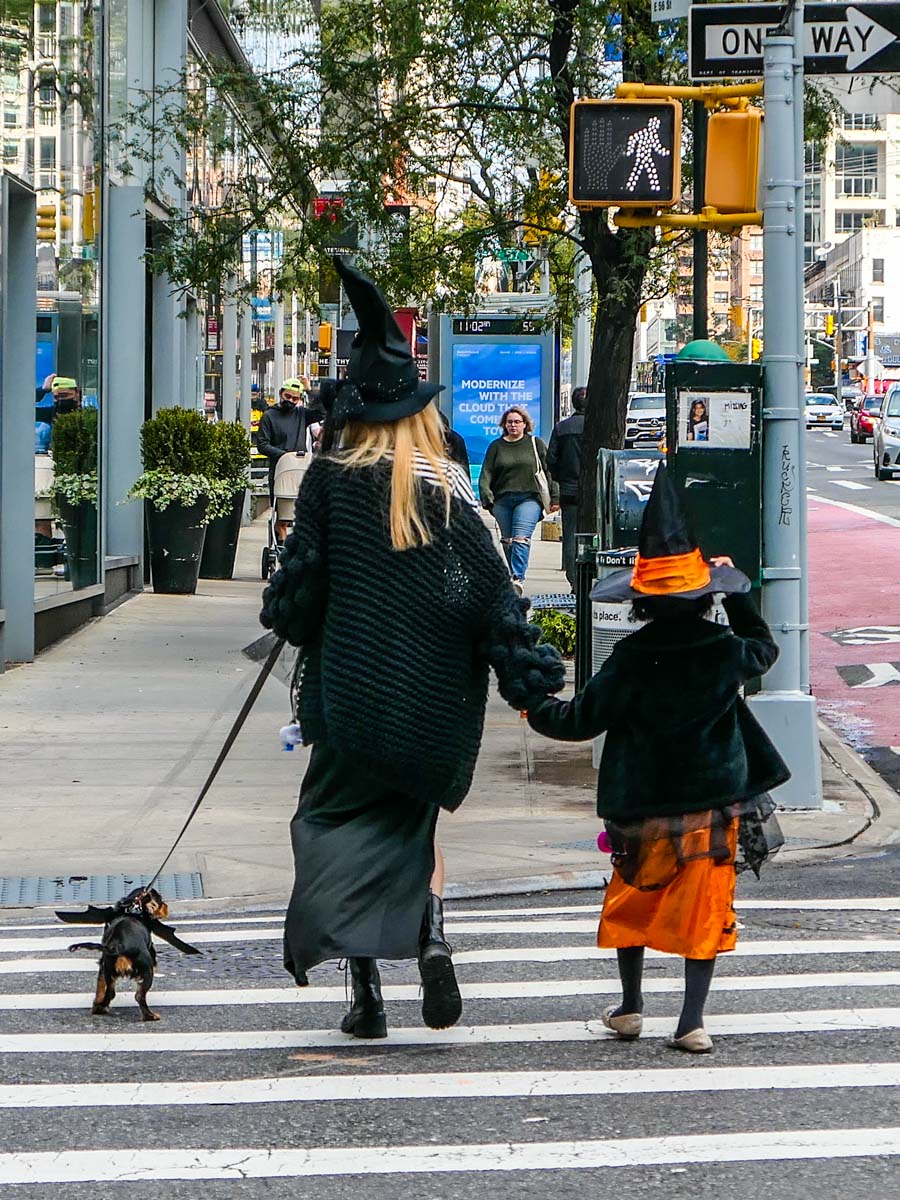
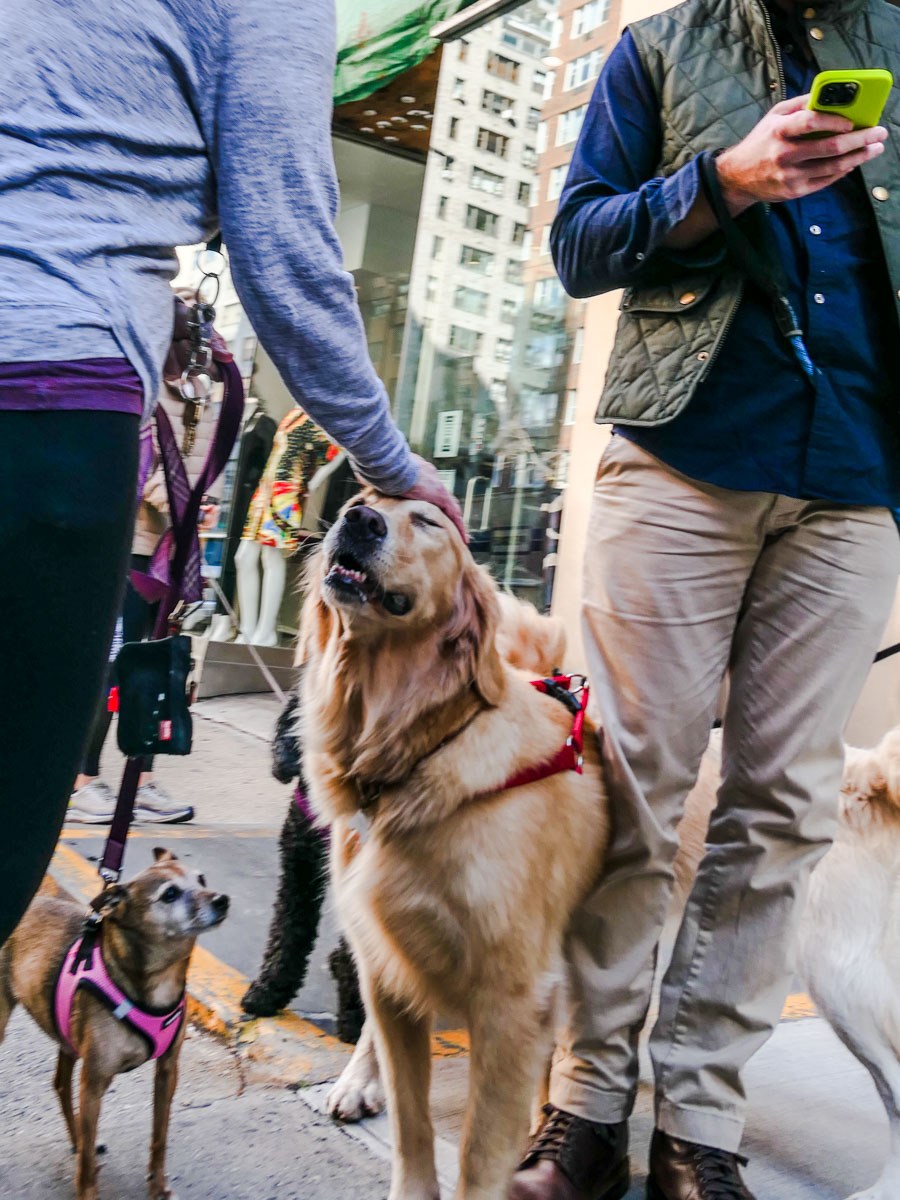
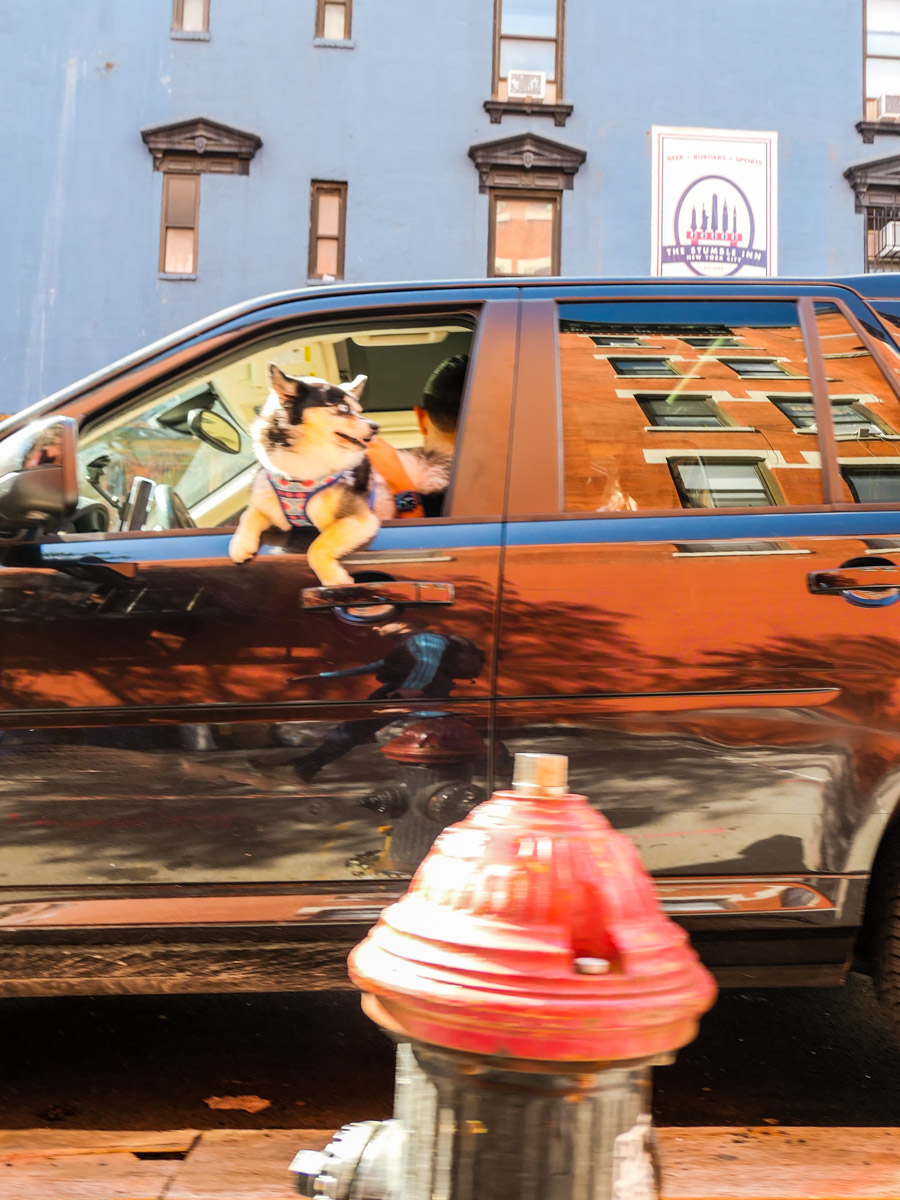
Moving through Manhattan doesn’t always have to be a huge rush. If you take a moment to slow down while you walk the streets, you can actually take in some relaxed weekend energies. Here are a few New York moments I spotted.

When I visit my father on a Sunday afternoon for lunch, I’ve gotten used to walking from Grand Central Terminal to the Upper East Side. Of course, taking the Lexington Avenue subway is faster, but during the pandemic I’ve preferred outdoor spaces. I usually do a power walk to minimize the extra time required for my two-mile trek. But more recently, I’ve tried something new…

I just don’t walk so fast, and I pay more attention to my immediate surroundings. And I keep my Panasonic Lumix LX-10 camera in my right hand as I go.

Don’t Look Away
I know it’s not a revolutionary idea, but having grown up in Manhattan and spent many adult years walking its streets as part of my commute, I’ve learned to tune out much of the dynamic and sometimes chaotic environment.

But on a Sunday, life on the streets of New York is a bit less intense. And there’s more of an opportunity to enjoy the moment. Everyone seems to have slowed down, if just a bit.

So, I recently traded in my speed-walking strategy for the opportunity to stroll to the Upper East Side and look around for moments that might be interesting to photograph.

Here are a few that I spotted.
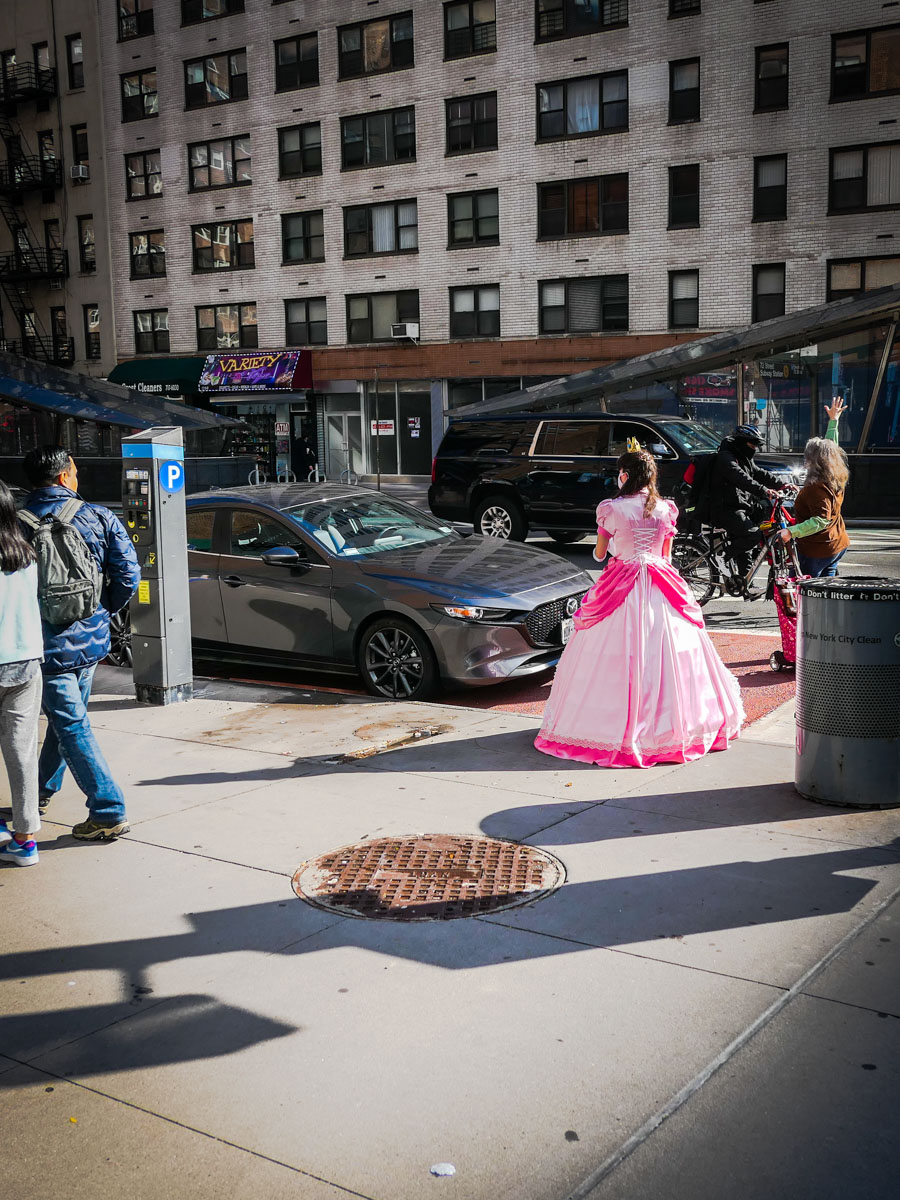
Sunday Joy
Beyond my little photographic exercise, I think some might say that I was also being more ‘present’ in my surroundings. It felt good.

Plus, add in a nice lunch with my 88-year-old father, and I’d call that a really good Sunday in New York City!

Take your Camera on your Next Drive and Turn Off your GPS App

Spending an extra hour on a road less traveled will often reveal new imagery for you to capture with your camera.

My GPS navigation apps have been pointing the way while I drive for years. Whether I’m using Waze, Google Maps, Apple Maps or my ancient Garmin, technology has been mapping my ‘fastest’ routes to my destinations. Of course, I sometimes wonder if the AI algorithms are actually sending me the longer way. That’s why I often run two apps simultaneously to see if I can generate directional consensus.

Yes, it feels imperfect, but it usually gets the job done for this city boy, who grew up in the easy-to-navigate box grid of Manhattan’s Upper East Side. (Complicated navigation challenges on the road have always been solved by my wife.)

The Value of Adding an Extra Hour to your Trip
I usually prioritize the shortest travel time when I’m in the car, but if you turn off your navigation app and take a little more time on the road less traveled, you might be pleasantly surprised by what you come across. I know this is not a revolutionary idea, but I’ve found that applying it for an hour or so on drives you’ve previously taken can expose you to new scenery, while not dramatically sacrificing your planned arrival time.

No, you’re not going off the grid for the day. You’re just taking the other route your GPS has shunned, possibly due to just a few extra driving minutes.

Taking my Time Driving through Connecticut
I recently applied this visual exploration strategy on a drive back from northwestern Connecticut with the hopes of finding some quintessential New England fall scenery to photograph.

I was not disappointed.

Kent Falls
Connecticut Fall Vista Timelapse
Bulls Bridge

Something New is Just Around the Corner
If you’re in search of new imagery to capture but don’t have a whole day to explore, turning off your GPS app for an hour or so while driving and sticking to local roads can offer the perfect solution.

How to Use an Apple Watch as a Remote to Snap a Better iPhone Photo

If you should come upon an amazing vista and desire a picture of yourself using your iPhone’s rear-facing camera, you can use your Apple Watch as a remote viewfinder to frame the shot. Here’s how.

I’ve often found when using my iPhone’s camera that one of my biggest challenges has been framing enough of the environment into a selfie pic. This has been especially difficult when I’m also trying to jam several people in. Sure, capturing all of the faces is hard enough, but if you can’t see where everyone is, the picture has limited value.

Of course, the solution is to move the iPhone to a distance beyond your arm’s length, which will get you the wider shot. But then, it’s not a selfie anymore. Well, not exactly. Let’s call it an ‘extended selfie.’

But how do you take the picture if you can’t touch your iPhone?

Camera Remote App
If you also have an Apple Watch, you can use it as a remote for your iPhone’s camera. The Apple Watch’s native Camera Remote app essentially controls your iPhone’s camera and offers a convenient 3-second countdown after you tap the shutter button. That should give you plenty of time after your look down at your Apple Watch and tap it to then look up at your iPhone’s camera in the distance.

Easy Activation
To turn on your Apple Watch’s Camera Remote app, you can simply proclaim to your iPhone, “Hey Siri, take a picture.” Or if it’s too noisy around you, you can also tap the app’s icon on your Apple Watch’s screen.

The Value of Using a Remote Viewfinder
This Apple Watch app can control the front or rear-facing iPhone camera. So that means you can take advantage of the better quality of your rear-facing camera for your extended selfie. That’s because even though you can’t see your iPhone’s screen when using the rear camera, you can still frame the shot using your Apple Watch. It effectively becomes a remote viewfinder.

Removing Yourself from the Picture
Using the Camera Remote app also opens up plenty of photographic options beyond selfies. If you’re able to position yourself far from your iPhone (but close enough to maintain the Bluetooth connection), you can erase your presence from the environment. And that should allow you to capture more natural moments.

Bring Along a Tripod
All of these options will give your iPhone photography a lot more flexibility. That said, you should also bring along a tripod. Propping your iPhone up against an object to get the right angle can be a really difficult and potentially risky exercise for your iPhone.

I know that using a tripod doesn’t exactly match up with the spontaneity of pulling your iPhone out of your pocket to take a quick shot. But a little Joby tripod with an iPhone grip should fit easily enough into any bag or backpack.

Shooting Beyond the Distance of a Selfie Stick
Yes, using a selfie stick can also help to get the shot you want. But performing this remote Apple Watch trick will offer even more opportunity to create a really great photo.

Just be careful not to put your iPhone in harm’s way… now that you no longer maintain physical contact with it. (I’ve have a tendency to do that with my cameras.)

To date, I’ve been successful protecting my iPhone while using it as a camera and found that using my Apple Watch as a remote viewfinder is a nifty tool to enhance my iPhone’s photos.