
Consider Adding in Blur when Editing your Photos
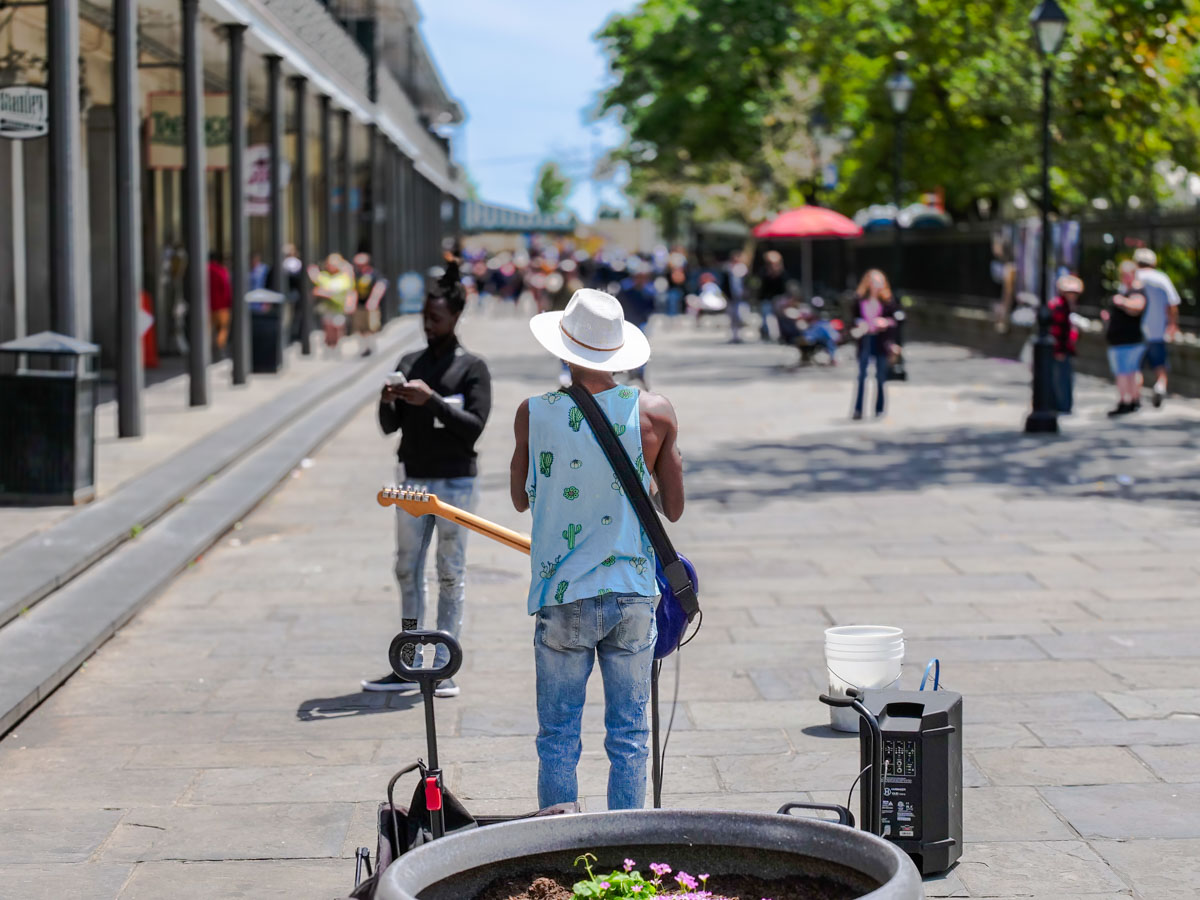
Where once you could only find your background blur when you snapped a photo, now you have the luxury to create and position it later when you edit the image. I did that with this photo I took in New Orleans.
Unwanted blur in my photography was always my kryptonite. Getting a clean freeze of any motion drove my creative process. Finding background blur (what the pros call ‘bokeh’) was always a ‘nice to have’ upgrade.
But when Apple added ‘portrait photo’ mode to its iPhone cameras, that commoditized bokeh to the point where anyone could easily create background blur. It’s a nifty software trick that generates a narrower focus point on just the subject in your photo’s foreground.
And this type of software muscle can help you control the focus point in your photos even further. In fact, it gives you an amazing amount of creative control after you’ve snapped your photos.
It’s also a tool for me to fix or hide a problem in plain sight within a photo. Here are a few examples.
Blur Out the Background
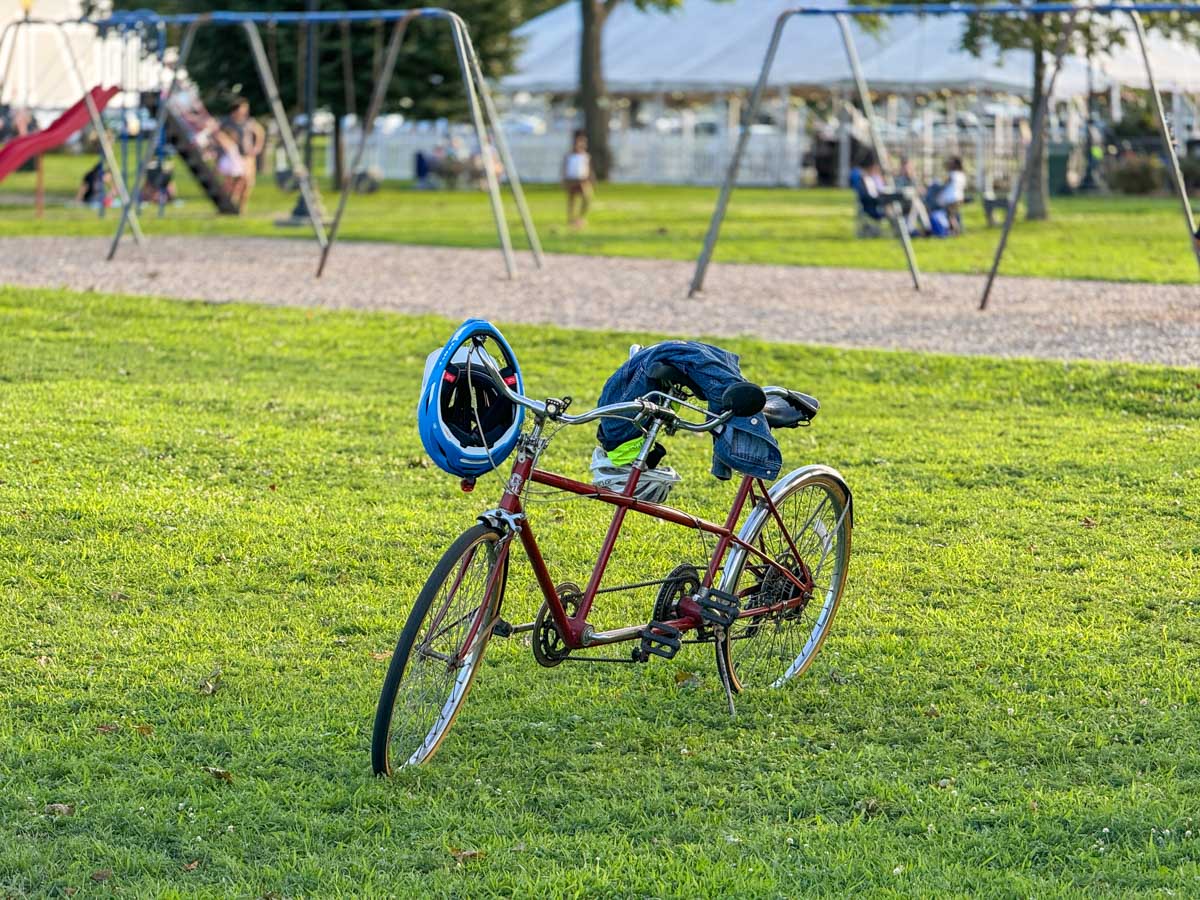
My family and I were taking a walk at Calf Pasture Beach in Norwalk recently, and we passed by this tandem bicycle. Something about it appealed to me. So, I pulled out my iPhone and got the shot. It wasn’t in portrait mode. So, my iPhone couldn’t quickly blur out all the people in the background. But it was easy to do that in post using Adobe Lightroom.
Blur Out the Foreground
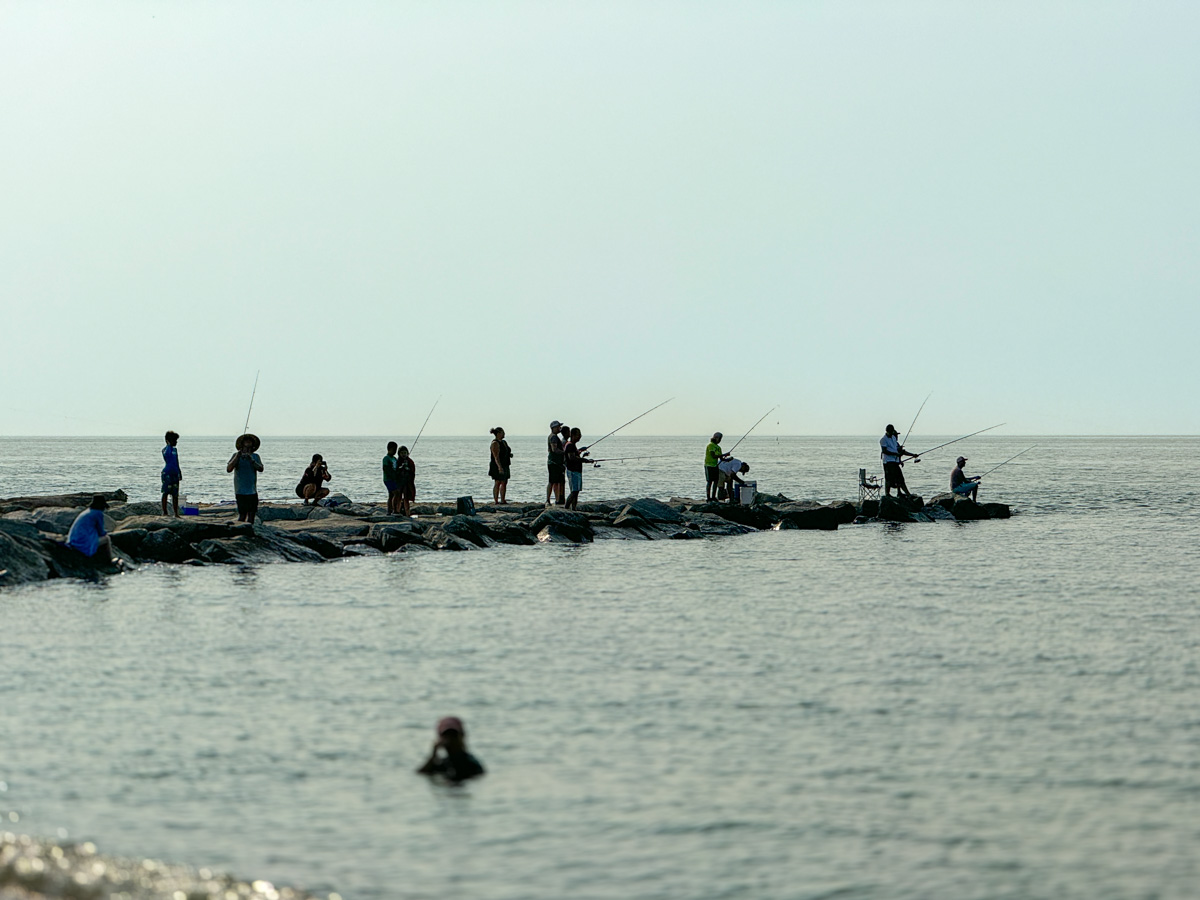
I didn’t like the person swimming in the foreground of this shot, because I want the viewer to focus on all the people fishing on the jetty. So, I simply adjusted the focus towards the background.
Blur Out an Unwanted Element in the Middle
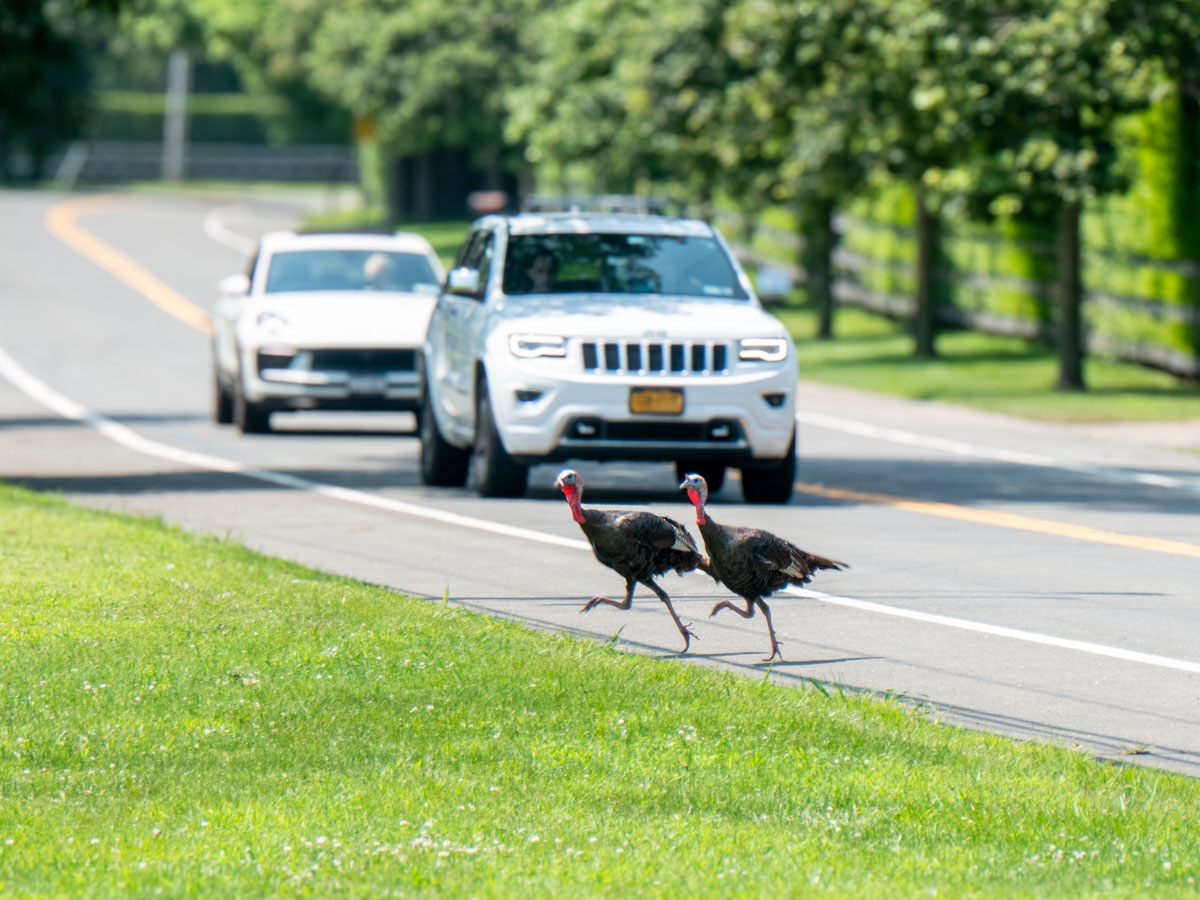
I snapped this shot while on vacation near Orient, NY. I found the two turkeys crossing the road right in front of a car. (Silly turkeys!) I love the moment, but I didn’t like the license plate detail being so prominent. Sure, there are ways to mask it, but the plate would never look totally natural. Here, I avoided the problem entirely by simply narrowing the photo’s focus point and blurring the entire car.
Direct your Viewer’s Attention
If you’re not just trying to fix a problem, you can be free to get creative and add in some blur to help define what’s most important in the shot.
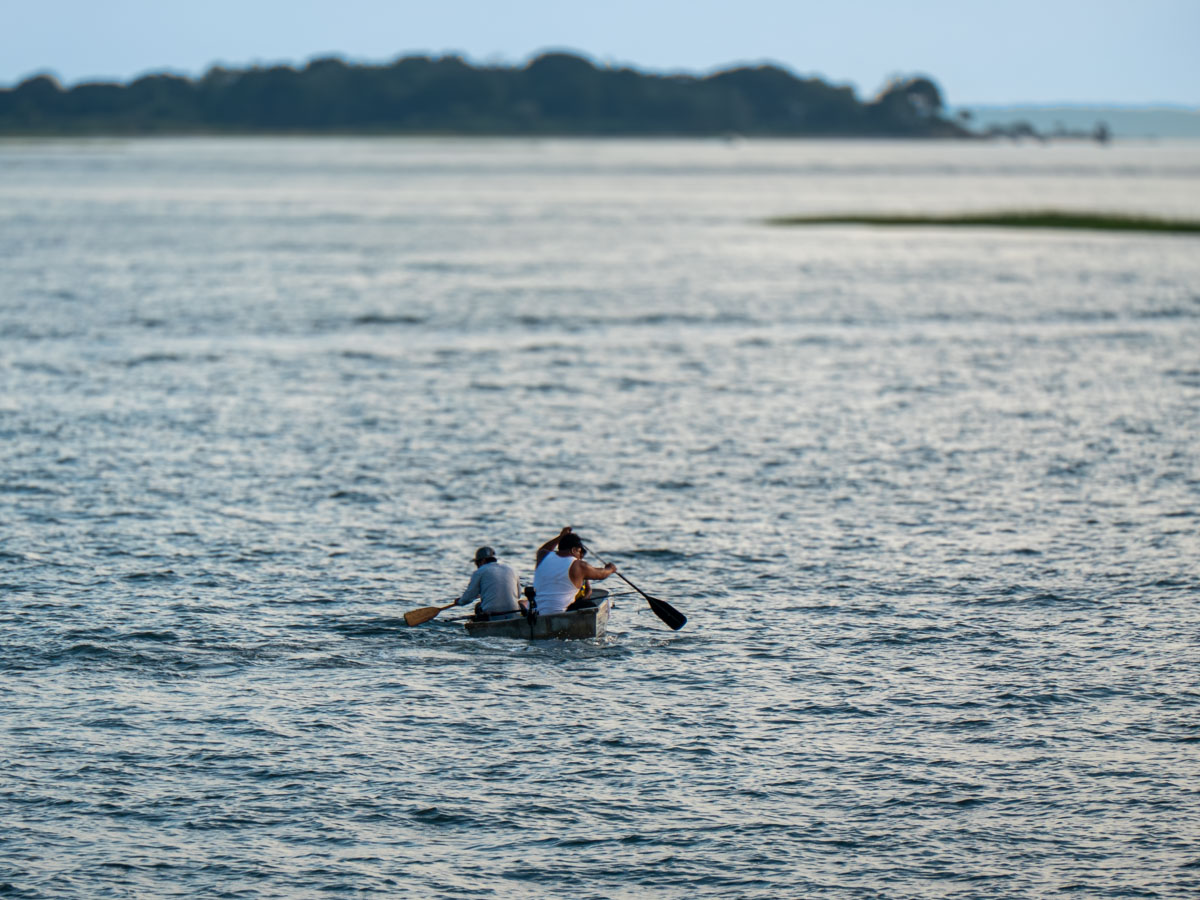
I liked adding blur to the background of this shot to help you focus more on this tiny rowboat heading out into the enormous ocean.
How to Adjust the Focus Point in your Photos
I add in my photo blur using Adobe Lightroom’s appropriately named ‘Lens Blur’ feature. I prefer using the ‘Cat Eye’ Bokeh setting. Then, you simply use the ‘Focus Range’ slider to adjust. (Note: You don’t have to be working with a ‘portrait’ photo.)
You can also adjust the focus point of an iPhone’s portrait photo. In the Photos app, go into edit mode. Then, simply tap on the subject you want to focus on. (Note: You don’t get the same kind of control as Adobe Lightroom offers.)
Use Blur to Give your Photos more Clarity
Don’t fear the blur. Use it!
Whether you want to add more creative flair to your photography or minimize an annoying element, generating some targeted blur can be just the solution you need.
 At Home with Tech