At Home with Tech

Unlock the power of all your technology and learn how to master your photography, computers and smartphone.

Tag: protecting your tech

How to Ensure a UPS will Protect your Computer during the Next Blackout

Do you know how old the support systems are that power your tech? Sometimes your backup plan needs an update. Here’s what happened to me.

Do I protect my home office computer from power surges? Well, of course I do. But I go further than a simple surge protector. I bathe the power flow through a UPS (Uninterruptible Power Supply) to provide a cleaner AC feed than my wall outlet can. Plus, my UPS offers some battery back-up juice to smooth over any brownouts or brief blackouts.

Think of it as ‘conditioning’ your power. Because no computer likes a dirty power feed.

I have a CyberPower UPS.
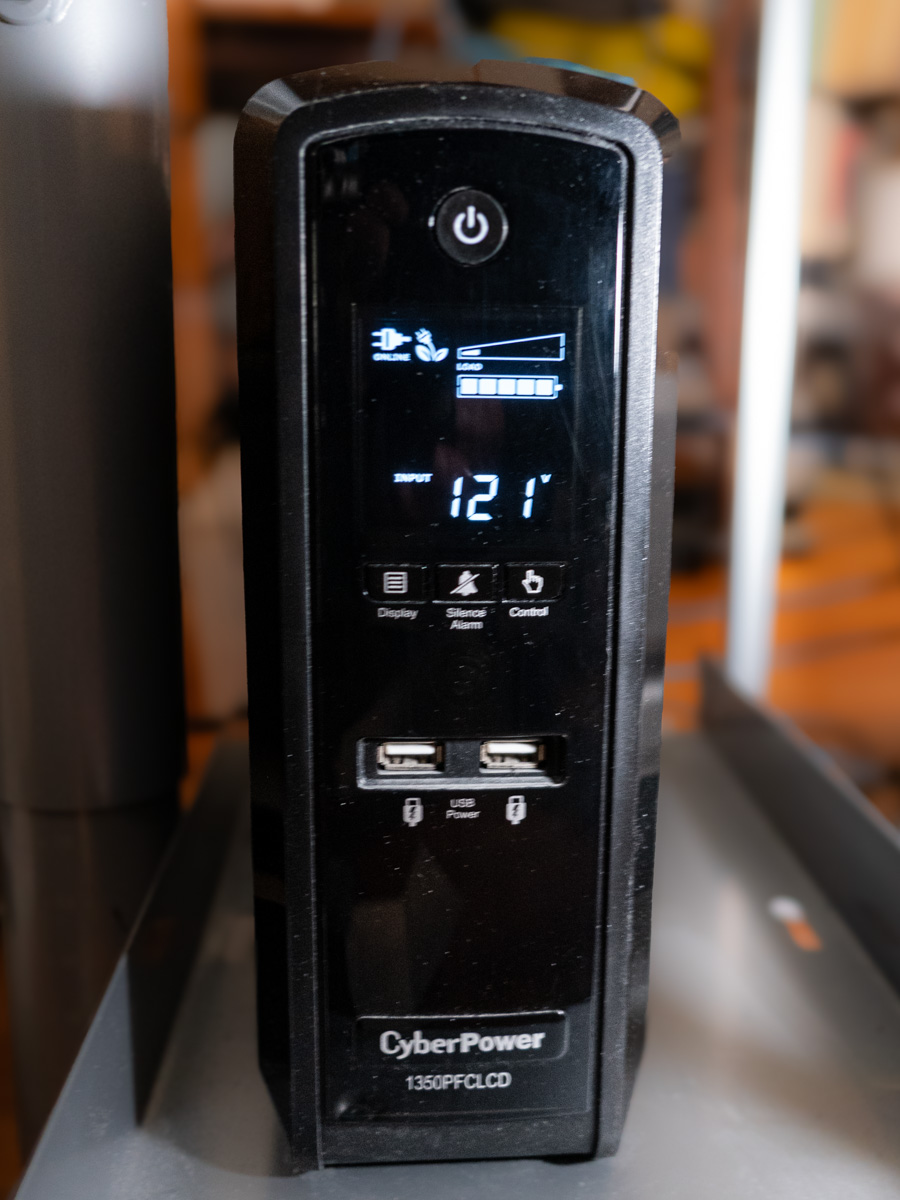
It’s the CyberPower PFC Sinewave Series CP1350PFCLCD, 1350VA/810W Pure Sine Wave UPS ($229.95).

Previously on At Home with Tech
I set up my CyberPower UPS years ago and then mostly forgot about it. Sure, there are ways to monitor the health of a UPS through a USB cable connection, but I stopped doing it after I upgraded to newer Macs (reasons unclear).

Across the years, my CyberPower UPS would occasionally kick into a self-check mode. So, I figured everything was okay.

But I’ve realized that wasn’t the case. In fact, after two recent ‘incidents,’ my UPS was clearly in trouble. And that meant my Mac Studio was flying with no net.

When your World Goes Dark
The first situation was a power outage on my street that coincidentally happened while my wife and I were out on a Sunday walk in our neighborhood. When we returned a half hour later, my Mac Studio was dark, and all signs of power on my desk had evaporated.

I turned to my UPS. It too was dark, though it projected a sickly clicking sound.

Huh… Well, maybe it just drained out after 15 minutes or so… That’s all it’s really rated for. Still, I had concerns. Fortunately, my Mac was not damaged by the incident.

Then, a week later, for no apparent reason my sleeping Mac Studio suddenly lost all power. (The comforting white dot had just disappeared.)

I was right there at my desk working on something else when I noticed my Mac’s condition. The lights in my office hadn’t flickered. Nothing else suggested a power brownout. And then I heard that eerie clicking sound coming from the UPS again.

Okay… something was definitely wrong.

I rebooted the UPS and then considered the facts. I took a moment to research when I had originally bought my CyberPower UPS.
(That was easy, because I wrote a blog post about it.)

Could my UPS really be a decade old? In fact… it was. Clearly, no battery lasts forever. Ten years is really pushing it.

I’m no engineer, but it seemed clear my UPS had simply reached its end of life.

Time to Replace the Battery
My first thought was to replace the whole unit, but it’s a higher-end model, providing a cleaner ‘pure’ Sine-wave power feed.

Perhaps I could just replace the massive battery for a fraction of the cost. It’s actually constructed that way. And in fact, Amazon sells the CyberPower replacement battery for 81 bucks.

That seemed like the better move, but it was going to take some installation work. I figured… how hard could it be?

So, I went for it… Click.

Mission Possible
The eight-pound package arrived.

Clunk.

I unpacked it and then unplugged the UPS to prep it for surgery. I felt like I was working in a Jefferies Tube on the Starship Enterprise. So, I embodied my inner Scotty and got to work.

With some force, I slid off the front cover of the UPS, revealing a nest of wires covering the battery in the back. As I tried to carefully move all the wires to the side, the main wire connector dislodged and popped away. D’oh! Now, I was in a scene from “Mission Impossible.” (Fortunately, a countdown timer did not activate.)

I pulled out the old battery and slid in the new one. Then I tried to reattach the wire connector. Yes, it felt a bit like a ‘cut-the-red-or-black-cable’ choice. That’s because I didn’t know whether ‘up’ or ‘down’ was the correct orientation. But it all clicked in. (I heard that satisfying ‘snap.’)

Then, I slid on the front cover, screwed it in, and put the UPS back in place. I powered it up and let it charge. I brought my computer and monitor back online, and everything seemed to be… okay.

Tether Your Mac via a USB Cable
I also connected a USB cable from the CyberPower’s USB port to my Mac Studio. (I’d never done it for this particular Mac.)

This important data tether enables your Mac to share the status of a connected UPS. (Brilliant!)

Plus, once a UPS is connected this way, you can then instruct your Mac to safely power down in the early moments of a blackout while your UPS is still capable of feeding backup power. Here’s how to do that:

Go to:

  • Go to System Settings
  • Click on Energy Saver

If your UPS is connected via USB, the ‘UPS Options’ button will suddenly appear. From there, you can select from several choices on when to safely shut down your Mac.

I instructed my Mac to automatically power down when my UPS reached 25% capacity. (There’s also the option for battery-time remaining and UPS-time used.)

For more advanced control, you can also download CyberPower software, but this simplified data feed was enough for me.

Returning to Warp Speed
Now, I can also see a power icon on the right top bar on my Mac’s desktop. It reports that the UPS is connected and I’m at 100%.

Warp power has been restored, and this episode has a happy ending.

It’s also a cautionary reminder that a set-it-and-forget-it mentality is never the best strategy for maintaining your home tech’s health.

Replacing the battery may seem like an obvious solve. You just need to remember where they all live and how old they are.

Do you?
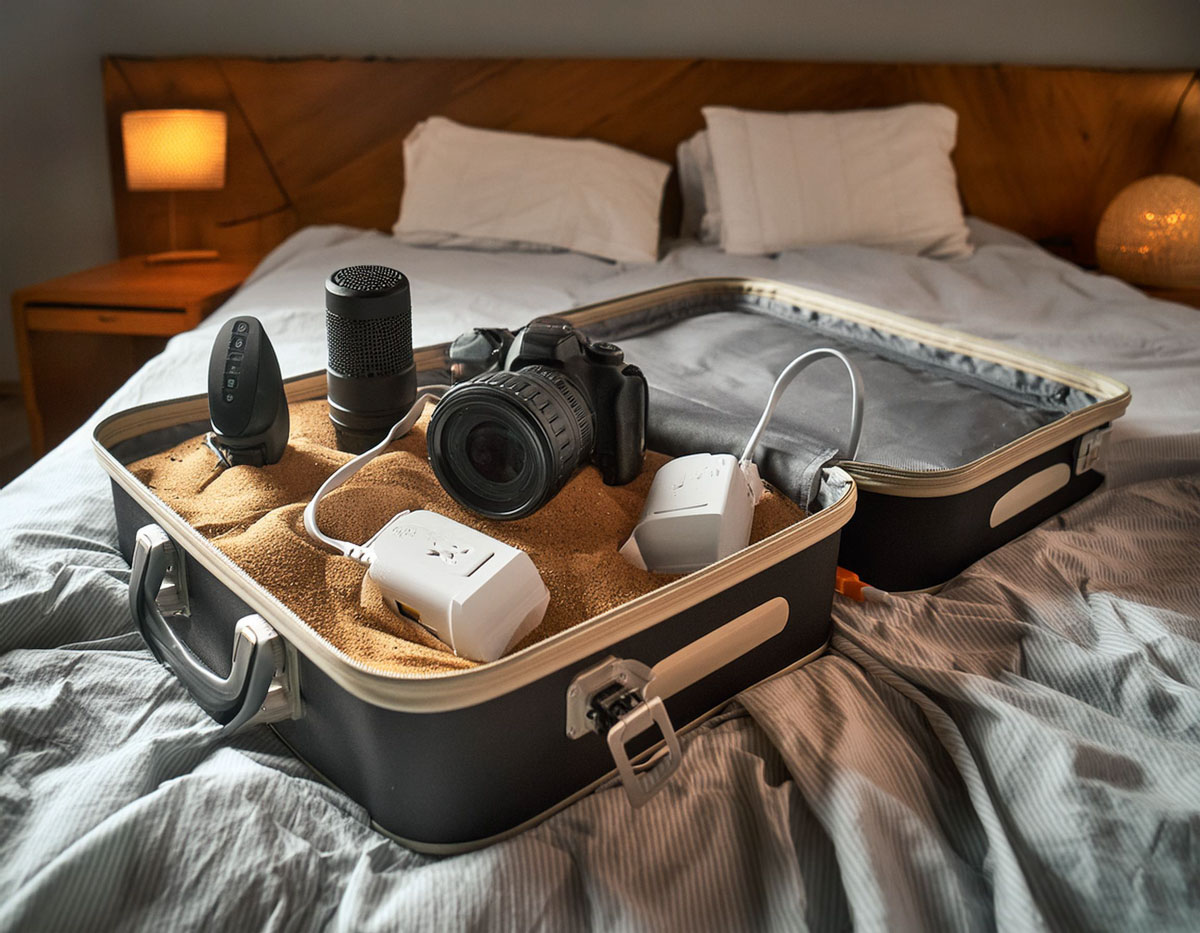
4 Helpful Tech Packing Hacks for Vacation

Here are a few ways to help ensure your tech stays safe, organized and fully functional throughout your trip for a more seamless travel experience.

Taking all your tech with you on vacation comes with inevitable risk. But if you’re committed to your decision, you should take these few extra steps while packing to help ensure both your gear’s safety and maximize its functionality during your trip.

Set up a Charging Station
Many hotel rooms don’t have enough convenient outlets or USB ports to charge all your gear. Instead of spreading your tech around the room to tether to the few available outlets, it’s much better to centralize and create an organized charging station of your own.

The trick is to bring your own mini power strip. Make sure it has a long cord so you can snake it from a wall plug to a table or dresser where you can construct your charging station for your hungry tech.

Yes, it may seem counterintuitive to weigh down your luggage with a power strip, but there are a variety of travel-worthy models out there that are relatively light.

Believe me… It’s a game changer.

Bring a Dedicated Camera Bag
If you’re a photographer with a larger-profile camera and lenses, you don’t want to throw all that delicate gear randomly into a piece of luggage. You need a dedicated bag to properly protect it.

A few years back, my family and I took a vacation to New Orleans, and I purchased a Peak Design Everyday Backpack 30L for my camera gear. I carried it onboard the plane with me. Its dimensions are right on the edge of being too big, but I did successfully squeeze it under the seat in front of mine. That said, it would have easily fit in the overhead bin, but I already had my suitcase there. (My family and I had challenged ourselves to not check any luggage on that trip.)

My Peak Design backpack performed absolutely great during our time in The Big Easy. It even housed my little Manfrotto travel tripod.

Pack your Apple TV
If you‘d like your hotel room television to have the same streaming options as your home TV, packing your little Apple TV puck could be your solution. Just connect it to the hotel’s Wi-Fi and the TV’s HDMI cable. (You may need to bring your own HDMI cable.)

This type of MacGyvering works best with less advanced hotel Wi-Fi systems that don’t require signing in with anything more than a password. If you need to first navigate through a hotel’s web portal to sign in, your Apple TV won’t activate.

If it all works, it’s a nifty trick.

Stash a Portable Bluetooth Speaker
Sure, you can play your tunes from your smartphone’s speaker, but it you want to really bathe yourself in the goodness of your playlists, you’ll need to bring along a dedicated portable Bluetooth speaker.

They’re so small these days. Why not throw one in your bag?

Travel Ready
By incorporating these simple packing hacks into your vacation-planning routine, you can ensure that your tech remains safer, organized, and fully functional throughout your trip. From setting up an efficient charging station to protecting your camera gear and enjoying your favorite media, these strategies can enhance your vacation experience and keep your tech running smoothly.

Happy travels!

Why Your Tech May Not Survive Your Next Vacation

‘Fun in the sun’ is not a phrase fit for many of your gadgets. If you’re not careful, the punishing summertime elements can really do a doozy on your tech…

Your gadgets are supposed to work hard while you’re having fun in the sun. There’s no ethical dilemma here. No “Westworld” to concern yourself with.

But you should remind yourself that all of your gear may not be designed to easily handle your next vacation’s itinerary. In fact, your personal tech can be as delicate as your skin without any SPF protection…

Here are five pieces of Kryptonite your gadgets have to contend with…

#1
Sunlight
Direct sunlight can be a real problem for your camera lens…

  • Strong sunlight facing your subject can wash out or over expose your shot.
  • Sun from the rear can make your subject’s face look too dark.

Softer light or shade is usually easier for your camera lens to handle.
(Or just hope for a cloudy day)

#2
The Beach
The sandy beach is an especially dangerous place for your camera…

And I’m not just talking about that large body of water.
(I once saw a friend’s DSLR camera lens accidentally drop into a lake, because it wasn’t securely locked into place on its camera body. Oops!)

It’s that sand.
Those tiny granules can really kill your tech.
Even a single poorly placed speck of sand wedged into a retractable camera lens can immobilize your camera from ever taking another shot.

One simple solution is to use a waterproof camera without an exposed lens…

Another option is to only take photos with your smartphone. No exposed camera parts to worry about.

#3
Heat
Don’t overheat your tech… as in… don’t leave it in your car at high noon.
Enough said.

#4
Summer Fun
Just having a good time in the great outdoors can spell doom for your tech.
‘Cause if you’re not paying attention… Whoops… Plop…. Crack.
(That’s the sound of your camera or smartphone shattering on the sidewalk.)

#5
Travel Can Be a Losing Proposition
Let’s face it. It can be hard to keep track of all your stuff when you’re on vacation.
But if you leave a pair of socks behind or a t-shirt, that’s not such a big deal. If any of your tech doesn’t it make it back, that’s obviously a much bigger issue.

My solution: Don’t bring it!
If you don’t absolutely need it, I say you can do without…

And that goes for your car too.
Because when you least expect it, a wild turkey will fly into it!
(Yes, it’s happened to me.)

So you might want to consider becoming a public transportation Weekend Road Warrior.

The Terminator Vs. WALL-E
Look, I know this cautionary musing is mostly common sense.

And in fact, your fancy tech can actually enhance summertime fun… or at least feed you with lots of ‘comfort data.’

Heck, a solar-charging watch actually thrives during the summer months!

But the truth is your tech isn’t built like the Terminator.
If you want it to be back for your next vacation adventure, you’d better start treating it like your personal WALL-E.

Even though your gadgets don’t need to outlast all robotics on the planet, it also wouldn’t hurt to offer your tech a little more love.
(Or at least the protection it needs to survive while you’re having fun!)