At Home with Tech

Unlock the power of all your technology and learn how to master your photography, computers and smartphone.

Tag: Time Machine

Cure the Cause of Your Computer’s Crippling Coma

Does your Mac get a headache keeping up with all the programs you’re running? It’s time to dial it back. Activity Monitor can help you decide which programs to close down.

Does your Mac get a headache keeping up with all the programs you’re running? It’s time to dial it back. Activity Monitor can help you decide which programs to shut down.

My iMac has been slowing down lately.
Slowwwwww…

Its spinning beach ball shows up whenever you click on the simplest task…
And then you’ve got to wait around like it’s 1999.
You look up…stare into space.
Yup…
The moon’s still there.

Suddenly, you hear the whir of the computer’s fan grow louder.
It really shouldn’t be working this hard.

Hmmm.
Well, my Mac is a few years old…

So I wondered if it was time to think about a new one.
But it’s got 4 GB of RAM and the i7 processor.
It shouldn’t be hurting that badly.

Doctor Barrett… what’s the problem?!

Activate Repair Disk Permissions
One good maintenance check is to run ‘Repair Disk Permissions’ in Disk Utility.
That can speed things up a bit.

Unfortunately, that fix didn’t improve the health of my panting processor this time.

Of course, the big question is…

  • How much software do you have running simultaneously?

No computer is a bottomless bottle of beer.
So I sat down with my Mac and we began some self-reflection.

Billions and Billions of Programs
Well, first off… I often use Adobe Lightroom to edit and organize all my photos.
(Everyone talks about what a memory hog that program is.)

Then, you might recall I added Backblaze a while back for automatic cloud backup, in addition to my Time Machine drive.
(You can never be too careful.)

Do I have lots of Safari windows open?
Guilty as charged.

Plus I see, Dropbox, Word, Outlook….

Already, it’s getting to be a pretty large list.

Maybe I’ve been maxing out my Mac after all.
(And I haven’t even mentioned iTunes or Final Cut Pro.)

So how are you supposed to know how much weight your Mac can bench press?

X-ray Vision into Your Computer
Yes, Apple has, of course, thought of that.
The answer comes in the form of a little utility called Activity Monitor.

It lists all of your open programs, charts the drain and graphically displays the ‘memory pressure’ your poor computer is enduring.

There’s lots tech jargon to consume, but it’s immediately clear which programs are depleting your digital companion.

And then you can close down the particular offenders directly in Activity Monitor.

Time to Tidy Up
I’ve opened Activity Monitor before, but it was more out of curiosity than need.

This time, I went in and saw some Safari pages ‘not responding’ and putting a pretty big drain on the system.

Click…. See you guys later!

That seemed to do the trick… but then I didn’t close out of my nifty new window into my Mac’s brain.

I left it open and positioned it in the top left corner of my screen.
And that was a few weeks ago…

Now, it’s always there to help me see what’s going on and which hungry programs are grabbing more than their fair share.

Yes, a newer Mac or more RAM would also solve the problem, but really, how many programs do you need to have open simultaneously?

When I was a kid at home, my mom always pestered me to turn off all the lights in the room I just left.

“That’s just wasting electricity,” she’d say knowingly.

Decades later, I finally get it…

Happy Computer, Happy Human
…What’s that, you say?
And how much memory does it taken to run Activity Monitor 24/7?
Good question…

Could this reveal a circular logic flaw…?

As I write this, Activity Monitor is sipping a miniscule 14.7 MB.
By comparison, Word is consuming 148.3 MB.
And my cloud backup is gulping 698.3 MB.

The price we sometimes pay for peace of mind…

By comparison, Activity Monitor is a welcome dose of aspirin to clear up your headache and keep your computer focused on what really matters in the moment.
A Glitchy Drive Can Ruin Your Trip Back in Time

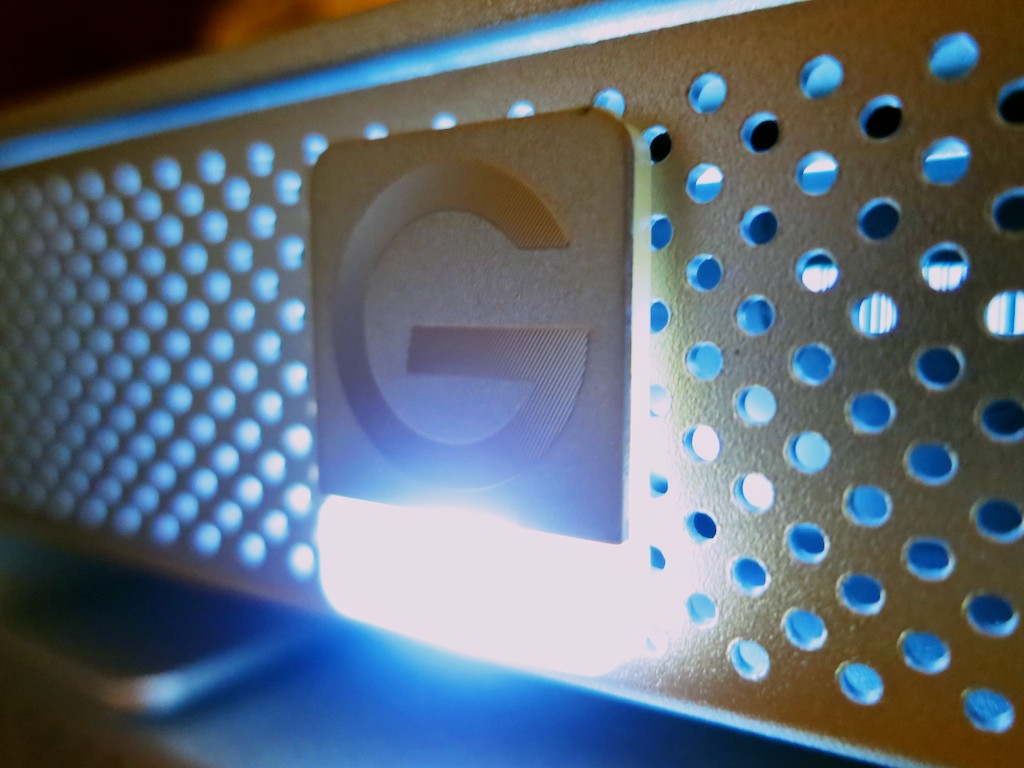
This is the steady glow of your digital life. If it starts to flicker, you’d better be paying attention! It contains Time Machine, the portal to your digital past!

This is the steady glow of your digital life. If it starts to flicker, you’d better be paying attention! It contains Time Machine, the portal to your digital past!

Face it: You can’t go back in time if your gear gets glitchy.

Time Machine is wonderful software to back up all your precious content on your Mac, but you also need healthy tech to support it.

Last month, my G-Technology external hard drive was running its regular Time Machine backup, and something very odd happened.

The 2TB G-Drive ‘quit’ unexpectedly, and of course the backup failed on my iMac.  I stared at my tech companion, unaccustomed to this kind of problem.
Hmmm….

So I rebooted the drive and tried again.
This time, the silver box behaved, and the backup completed without incident.

Was this a one-time glitch or a sign of things to come?
I tried to erase the unpleasant episode from my head.

But as we all know, little tech glitches rarely just go away…
(and eventually, they turn into “The Terminator!”)

Last week the glitch came back.
Twice.
And this time my failing G-Drive did a number on my Mac and froze it up quicker than you can say ‘Flux Capacitor.’

I couldn’t bring my stunned iMac back to life without performing a hard power shut down via a Vulcan neck pinch to the back power button.
(It doesn’t get much worse unless you yank the power cord out of the wall!)

Yes, the third time was the charm, and Time Machine completed its backup.
But it was clear I had a problem with my external back-up drive…

Countdown to Disaster
I mentioned my little story to a couple of colleagues last week, and I swear their faces turned slightly white. It was like I was holding a time bomb in my hand.

In a manner of speaking, I was.

After a few moments of uncomfortable since, one whispered, “You’d better do something about that.”

The other one simply looked away as if I was a Morlock…

I’ve talked before about the importance of backing up your data.

Yes, I’ve got both local and cloud-based backup solutions in place.
But you can never be too careful when you’re talking about your digital life.

Now it was clearly time to practice what I preach…

I’m a big fan of G-Technology drives.
(I’ve been running this particular G-Drive for over 3 years.)
But no drive lasts forever.

So let me repeat this a different way…

Every drive you own will eventually fail.
It’s just a matter of when.

And when that happens, your personal portal to your past disappears…

The fix:
Time to buy a new backup drive…
Pronto!

How Big a Backup Drive Does Your Computer Need?
So another problem with my failing G-Drive drive is its storage capacity.
I’ve got a 2TB hard drive sitting in my iMac, and my G-Drive is also 2TB.

Common logic says your Time Machine drive should be at least 1.5 to 2 times the size of your computer’s internal drive.
That’s because Time Machine is capturing more than what’s on your computer right now. The whole point is to save older versions of your existing content in case you need to go back to it…

I’ve always known that when I got through more than 50% of my iMac’s internal drive, I would start to stretch the limits of my G-Drive.

I’ve already crossed that threshold, and even though I haven’t specifically run out of space yet, that problem is waiting in the wings… ready to pounce.

I’d rather avoid that little fire drill all together…

So as I started shopping for a new Time Machine drive, I focused on 3TB and 4TB sizes.

Checking Out Glyph
Even though I’m a longtime fan of G-Technology, it’s always a good idea to review the competition when buying anything, right?

Remember those colleagues who treated me like the plague after they heard about my tech woes…?  They both suggested Glyph drives as a well-regarded (though expensive) solution.
Glyph also offers a generous warranty as well as a limited data recovery service when you buy one of their drives.

All very nice!

I took a look online, and Glyph has a new 4TB GPT50 coming out with USB 3.0.  But it’s not being released until later this month…

Sticking with G-Drive
The new Glyph GPT50 looks interesting, but I really needed to address my Time Machine crisis right now.
(It’s not wise to tempt the Fates of Tech.)

So it was back to another G-Drive for me.

Their 4TB model with USB 3.0/FireWire is listing for $320, but you can pick in up from Amazon closer to the $300 mark.
(I don’t need the pricier Thunderbolt model, since I have an older iMac without Thunderbolt.)

Yes, $300 is expensive compared to the competition… but this is your digital life we’re talking about…
(“Don’t cross the streams,” and never skimp on your drives!)

Click.

Should You Transfer Old Backups to Your New Drive?
So my new tech pal showed up on Friday via Amazon Prime, and I quickly introduced it to my computer.

Then I faced a choice.

Should I start from scratch and do a full backup with the new G-Drive or first transfer over the old backups from my failing drive?

My first instinct was to transfer all the files over from the old drive, but I ran across a dissenting opinion online from pondini.org.
(This website from James Pond is a treasure trove of Time Machine goodness.)

He suggests that first transferring the old backups would take a “very long time.”

And with my old drive in its weakened condition, perhaps an extended transfer session would be too much of a stressor…

I figured the time spent saving my precious data was better focused towards completing a brand new backup…

(Granted, I wouldn’t have access to my old backups… but I’m thinking/hoping I don’t need them…)

Let the Massive Backup Session Begin!
So I powered up my hungry 4TB protector, selected it as my new Time Machine drive, and then I went to bed.
(Initial backups also take a wicked long time.)

I quickly slipped off to sleep, because my mind was clear.
My soul was cozy, believing all my beloved personal digital content was again protected…

  • My hundreds of home movies, thousands of family photos,
    and my future blog ideas (all three of them)

Is it all a dream?
Maybe.
(I’ve only got two ideas in the cue.)

When I awoke the next morning, I checked out the progress of my backup.
My iMac glowed wearily, ‘About 19 hours’ to go.

What?!

$300 and 19 more hours?!
This part was definitely not a dream.

But if you want to keep your personal time portal to the past operational, and you don’t happen to have access to an Omega 13 device from another galaxy,
that’s the price you pay to protect your digital life.