At Home with Tech

Unlock the power of all your technology and learn how to master your photography, computers and smartphone.

Tag: webcam

How to Master your Zoom Meetings to Increase your Impact at Work
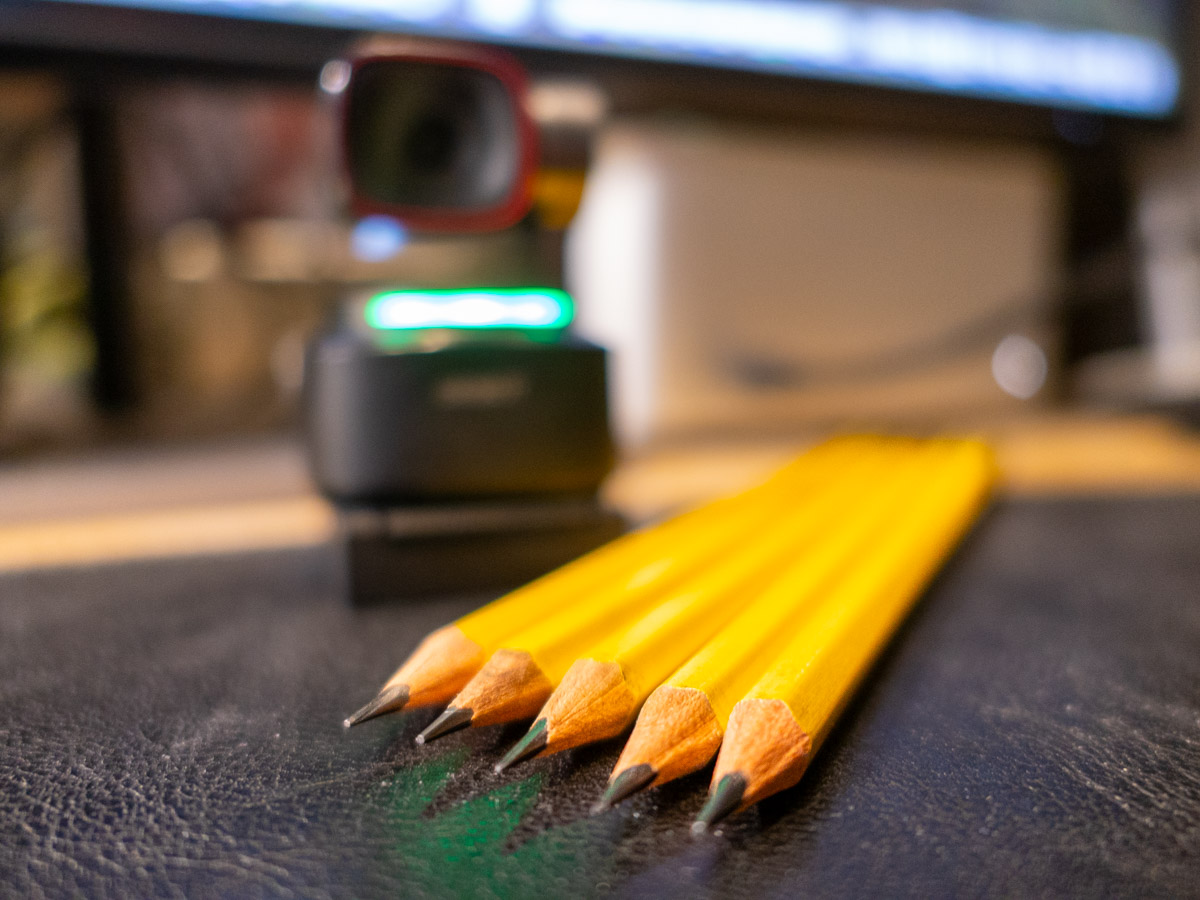
Your webcam can be the most important tool to help you maximize your success at your job. Here’s how to sharpen your pencils for your next remote meeting.

The beginning of the new school year has always held that ‘fresh start’ feel for me. Sure, it’s been a few decades, but now I’m experiencing that vicariously through our son, who’s already in high school. (I just can’t believe it.) During these weeks, I also love the early hints of the cool, crisp feel of New England’s fall season.

It’s all stimuli that activates a deeply encoded message in my brain I learned as a child: “Summer’s over. Now, it’s time to get to work.”

Well, it’s not like I haven’t been working hard over these summer months. Sure, I took some vacation time with the family. (First to Cape Porpoise, Maine. And then to the North Fork of Long Island.) But now… the ramp-up to the end of the calendar year is undeniable.

Winter’s coming. You’d better sharpen your pencils.

Remote Meetings are Important
If you’ve been working from home more during this post-pandemic reality, one way to dust off your lunch box is to tighten up how you show up during your remote meetings on Zoom or Teams. These moments are critical tethers to your work community.

I know we’ve been at this for a few years, but I’ve noticed that some Zoom best-practices haven’t yet become second nature for many of us.

So, here are a few reminders. They will help you master the opportunity to maximize your impact at your job.

You’ve Got to Show Up for your Close Up
If you want to play an active role during a remote meeting, you really need to turn your webcam on. Visual communication is everything.

Sure, your voice is important, but offering all your important visual cues is the best way to connect with everyone else. That’s how to master those moments.

Follow Video Production Best Practices
I know by now you understand the basics of good video production and how they directly correlate to a strong webcam shot.

  • Be sure to have a front-facing light source. (The light from a window works great as long as the sun isn’t directly shining through.)
  • Your webcam should be positioned close to the same level as your face vs. pointing towards the ceiling and looking up your nose. (Yes, that may mean propping your laptop up on a few hardcover books.)
  • Frame your shot to fill the screen with your full head and shoulders. Pointing your webcam too high to just reveal your eyes and the top of your head is silly. (Only showing this incomplete body fragment at the very bottom of your screen is worse than not using your webcam at all.)

Put on a Clean Shirt
Look, I get it. It’s so much easier to keep your pajamas on all day. You may feel that nobody really needs to ‘see’ you. If you’re successfully doing your work, what’s the problem?

The concern is the risk to you slowing devolving into some kind of disconnected ‘chat-bot.’ You’re a human being! That’s supposed to carry some advantages. So, you should really consider showing up as one as much as possible.

Pay for Faster Internet
This has been a tough pill for me to swallow, but your standard internet plan may not offer enough speed for you to properly stream yourself into your Zoom meetings. How many times have you seen others freeze up or their audio feed begin to stutter? That’s because their internet speed is too slow.

It’s happened to me, even though on paper, my internet plan was plenty fast enough. So, I ended up doubling it to a ludicrous speed to fix the problem. What else can you do? (I currently pay for 500 Mbps.)

If you want to show up for your close up, yes… you may have to spend more to do it. I suppose that’s the price you pay for not having to show up in person at the office.

Don’t Disappear
I think success in any career requires staying connected with others. Connection used to be primarily based on in-person interactions. As we drift further away from those norms, I think it’s really easy to eventually disappear in plain sight.

So yes, this is a friendly reminder… and a word of caution. As your new school year begins, remember the importance of your webcam and don’t forget to hang out with your friends.

They really want to SEE you.
How to Fix your Ceiling Shot Problem during Zoom Meetings

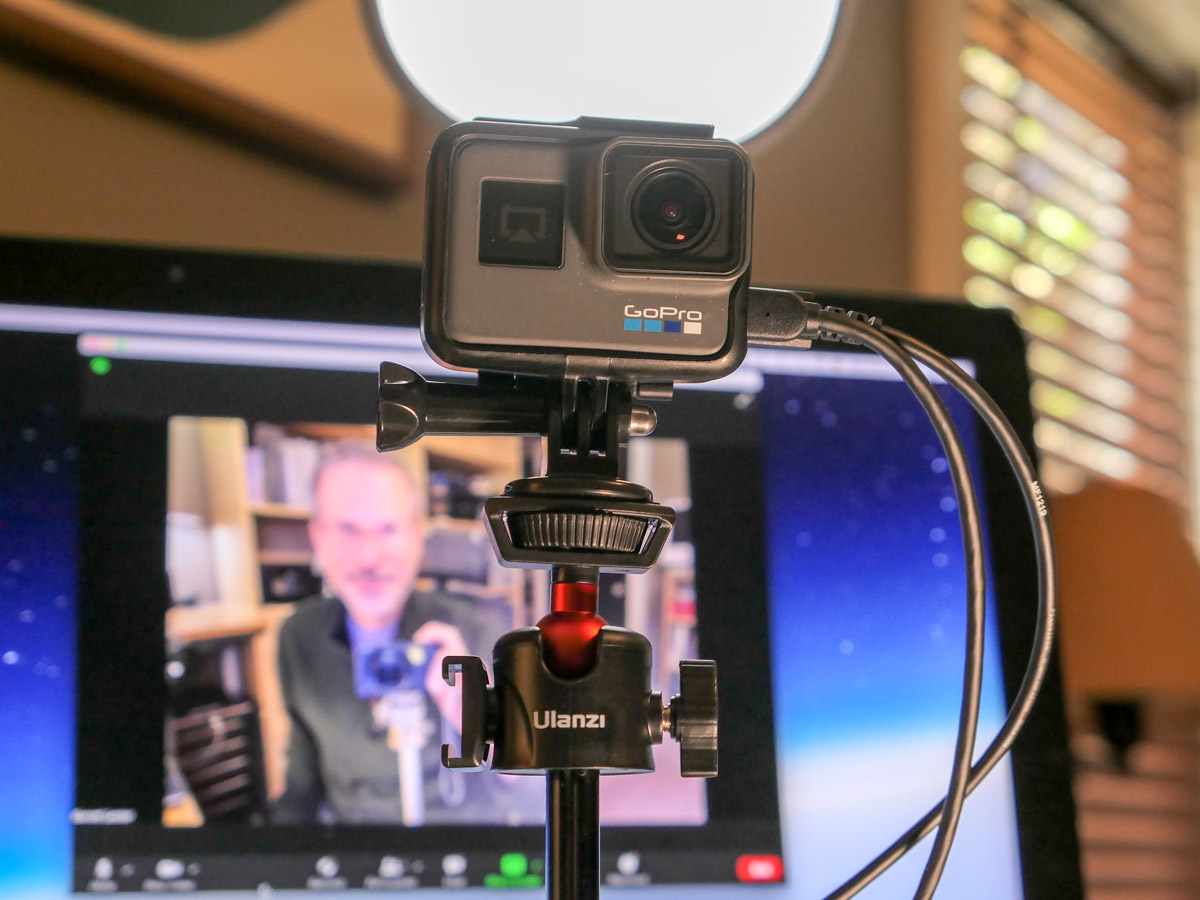
Using a tabletop tripod to elevate your webcam shot is a great way to help your Zoom viewers experience you eye to eye.

It’s been over a year since the Zoom revolution took over so many parts of our lives. The good news is many of us have mastered the basics of video production while video conferencing from home. But there’s one mistake I see plenty of people still struggling with. To be fair, it’s not entirely their fault. Some blame has to be shared with laptop manufacturers who insist on putting webcams down at the bottom of the laptop screen.

The Evil Ceiling Shot
The resulting problem is your webcam pointing up at your face with the ceiling as the background. The shot is incredibly unflattering. Who wants their viewers staring at their chin or peering up their nostrils?

The fix is not an easy one. You’ve got to find a way to bring your webcam up to a more level position with your eyes. That will create the balanced visual you need.

Stacking a few hardcover books under your laptop can help. If you’ve got a standing desk, it’s time to raise it up all the way. Anything you can do to elevate your webcam will reduce the evil ceiling shot.

You also might want to consider investing in a little more gear to improve the Zoom experience for both you and your viewers.

Time to Buy a Tabletop Tripod
To move your shot high enough to make your webcam parallel with your eyes, you may need to invest in a standalone webcam. And then, most critically, you absolutely have to perch that webcam on a tabletop tripod.

A good tripod that can fit on your desk will be your unsung hero to help create a great video shot for your next Zoom.

The trick is making sure the mini tripod is tall enough to meet your eyes.

There are plenty of inexpensive tabletop tripods out there for webcams and portable LED lights. The problem is many of them are too short, only coming up a few inches. You really need a mini tripod that telescopes up 15 inches or more.

And you should also make sure you don’t choose a model that will take over your desk. It needs to be compact.

In looking to improve my own desk setup with a new tabletop tripod, I found these options to consider:

  • Lume Cube Desktop Light Stand
    30” max height
    $34.95 on Amazon
    The tallest option if you need it, but it’s also more expensive.
  • OrangeMonkie Tripod50
    19.7” max height
    $44.99 on Amazon Prime
    I love this little tripod. Even though it’s the most expensive of the group, it’s a great value. Unfortunately it’s overkill, made for heavier gear. The design will also take up more space on your desk.
  • Neewer Photography Mini Table Top Stands (2)
    20” max height
    $19.99 on Amazon Prime
    The price is right, but you can’t tilt the mount.
  • Ulanzi MT-16 Tripod
    15” max height
    $22.95 on Amazon Prime
    Just tall enough. Comes with a standard 1/4” screw mount and a GoPro mount.

Ulanzi MT-16
So, I ended up going with the Ulanzi MT-16 tripod. It’s great to support my portable Genaray Powerbank 96 Pocket LED light. It’s also a perfect choice to hold up my GoPro when using it as a webcam.

Yes, GoPros can be repurposed as webcams. To do that trick, you just need an HDMI-out to USB 3.0-in adapter. That interface will connect your GoPro’s video feed to your computer. (I use the Elgato Cam Link 4K.) Once attached, your GoPro is ready to live stream.

Elevate your Zoom Game
Remember, to create your best video shot for your next Zoom, you have to bring your webcam up high enough to meet your eyes. And stacking books under your laptop can only take you so far.

A separate webcam on a desktop tripod can really elevate your Zoom game. (The same goes for portable LED lights. You want your soft light source hitting your face at eye level.)

Using a little tripod will make a big difference!

How to Use Microsoft Word as a Teleprompter for your Next Zoom

This easy reformatting trick in Microsoft Word will help you present better when reading your notes during your next Zoom meeting.

It’s always important to establish eye contact with your audience if you want to create a strong connection. The same is especially true when talking via Zoom and other video conferencing platforms. And the only way to do that is to stare directly at your little webcam. That can be difficult when you’re also trying to pay attention to all of those little boxes of faces on your screen.

There’s also the reality that many of us have had to Frankenstein together more advanced work stations at home with multiple monitors, creating even more eyeline complexities.

In short, a lot of people aren’t following the best practice of looking directly at their webcams these days. If you’re even close, I think most folks on the receiving end are relatively forgiving.

Now, I’m not saying that’s okay. I’m saying that’s what I’ve seen happening. And because it’s generally become acceptable to look slightly off camera while Zooming, there’s a huge opportunity to exploit in that little space between where you should look and where your eyes are likely focusing .

Create your own Teleprompter
If you’re presenting to your Zoom audience, and you’ve got notes or perhaps a full script to read, you should position them on your screen right under your webcam to reduce the effect that you’re reading. A physical page of notes taped under your webcam can work, but I’m not talking about an analog solution. Move that Microsoft Word window up. Keep it all digital.

The closer you can get your Word doc to your webcam the better. It’s like activating your own little teleprompter. The result will be remarkably close to the appearance that you’re effortlessly talking to your audience and not reading your script. And because your audience has been conditioned to seeing others look off screen, they likely won’t notice your visual trick.

Don’t Let your Eyes Ruin your Illusion
That said, they will see you reading your notes if your Word window is still at its normal width. Your eyes will clearly be moving left to right and from line to line. (Then, the jig will be up!)

You need to make your Word window thinner… only 8-10 words across to correct the problem.

But then how are you supposed to see a complete line of your script if only part of it is now visible?

Here’s the fix:

Use Web Layout
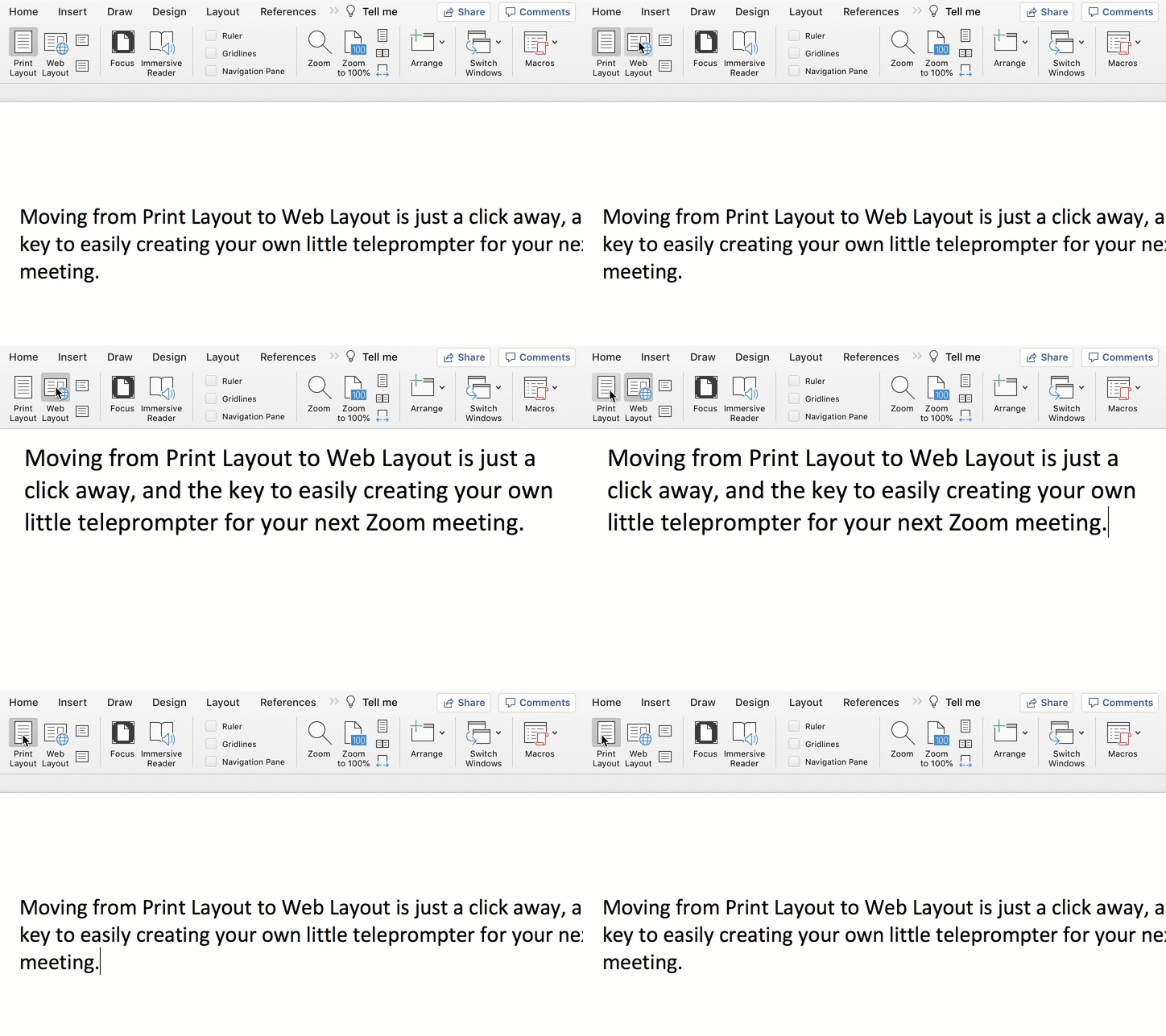
Change the view in Word from Print Layout to Web Layout.

Once you do that, you can shrink the width of your page, and the text will automatically wrap to fit your thinner Word window.

Then, all you need to do is scroll down the page using your mouse or trackpad as you’re reading.

Congratulations, you’ve effectively created your personal teleprompter!

How to Adjust the Default Settings
Here are the easy steps to make the change to your Word doc:


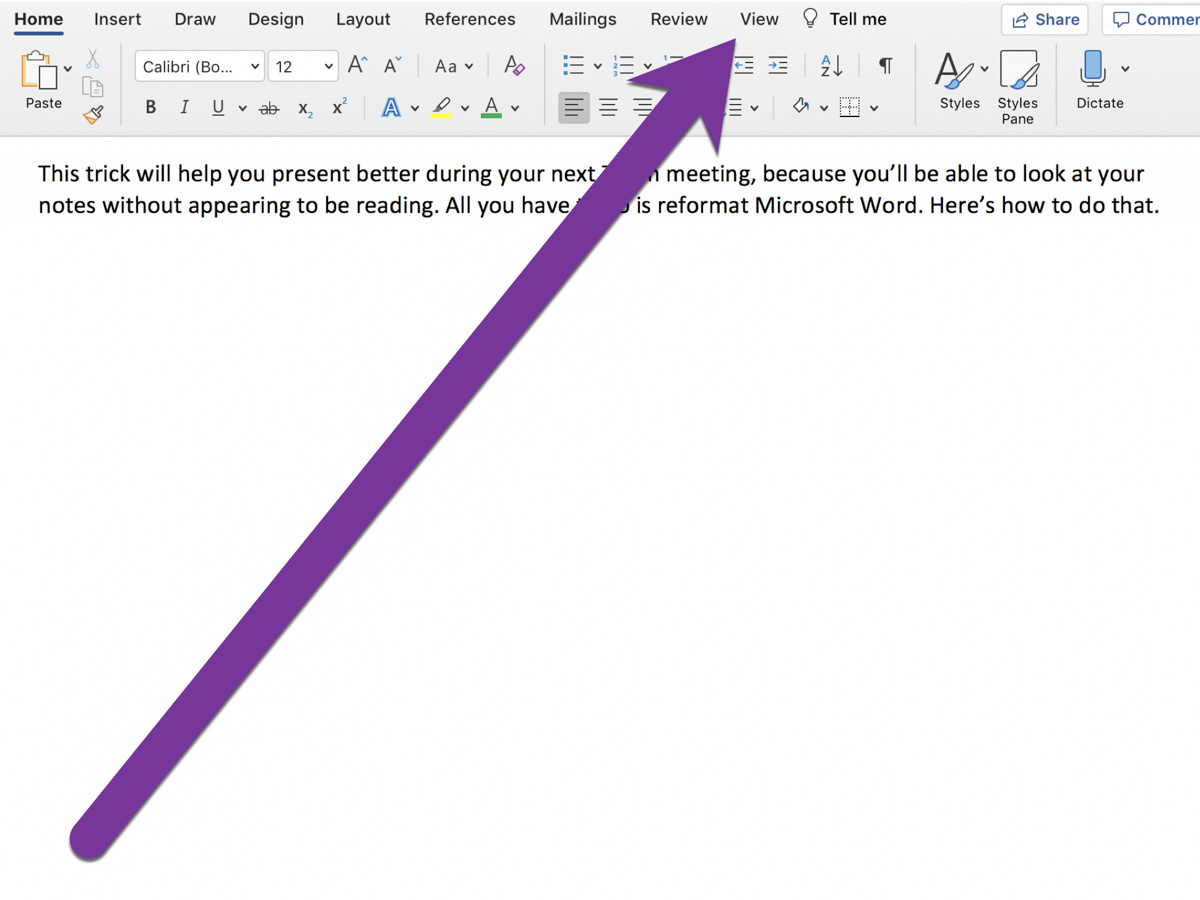
On Word’s top menu bar, click on View from the Home menu.


On the left, you’ll see Print Layout and Web Layout. Click Web Layout.


Then, click on Zoom to adjust the size of your text so you can easily read it.

That’s it!


Advanced Tip: Minimize the Ribbon
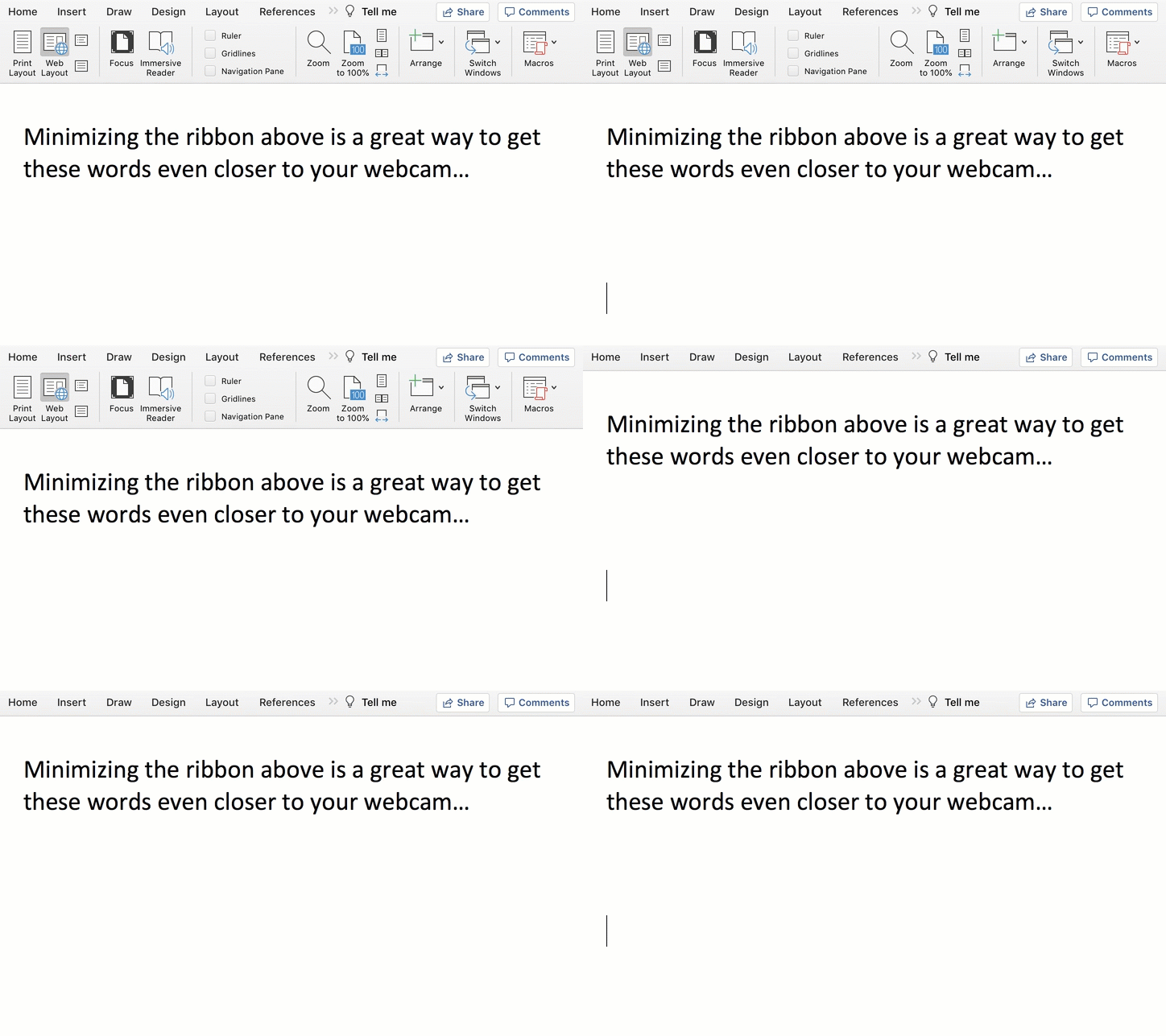
To get your notes even closer to your webcam, collapse Word’s top ribbon.

On a Mac, press Command + Option + R.
On a PC, press Control + F1.

Another Tool for your Virtual World
Living life on Zoom during these many pandemic months has been draining for all of us. Reformatting Microsoft Word to serve as your pseudo-teleprompter is one way to make your Zoom presentations a lot easier.