At Home with Tech

Unlock the power of all your technology and learn how to master your photography, computers and smartphone.

Tag: Working from home

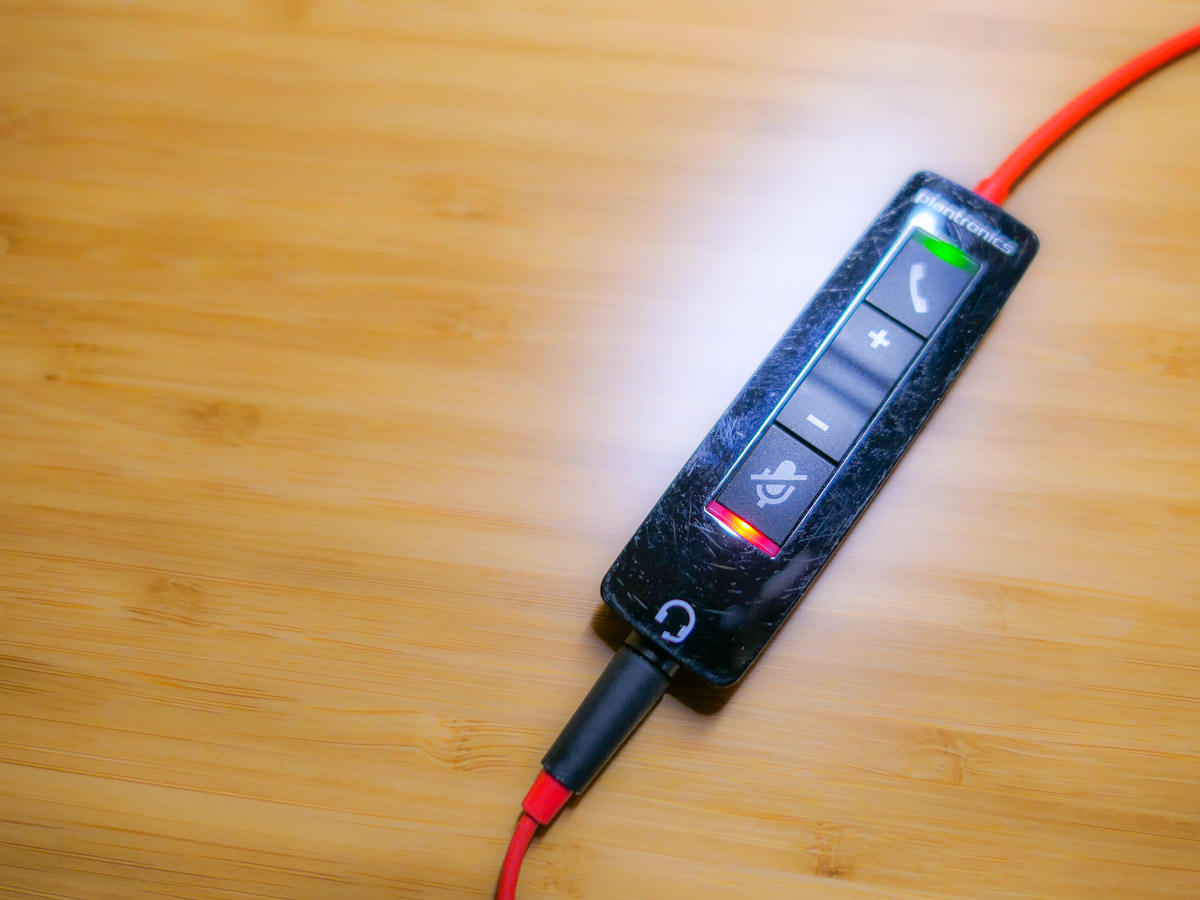
Why Your Zoom Viewers Can’t Hear You

Mismanaging the mute button may seem like a rookie mistake during Zoom calls, but it’s a more frequent problem than you’d expect. Here’s why…

This ‘golden’ age of Zoom has redefined what to expect from daily video communications. Sure, throughout these ongoing months of isolation, there have been any number of ways to improve the quality of our Zoom calls.

And in the Zoom meetings I’ve attended, I’ve observed a growing awareness of video production best practices. That said, there’s one skill that many people still seem to struggle with… handling the mute button.

We Can’t Hear You!
How many times have you heard someone say to a Zoom speaker, “Are you on mute? We can’t hear you! (pause) We still can’t hear you. You’re on mute!”

This epidemic of awkward Zoom silence is partially the result of education campaigns during the early months of the pandemic to mute yourself if you’re not talking in a Zoom meeting.

Remember all of those Zooms that imploded because there were a couple of people who couldn’t mute themselves if their lives depended on it? And then they would jabber away as they talked to their household members, unaware that their microphones were unmuted.

Besides being an embarrassing oops to unknowingly allow everyone to eavesdrop on your life at home, this mistake will also effectively derail any Zoom meeting.

So by now, we’ve learned to mute ourselves to avoid becoming
Zoom Enemy #1.

Expect the Unexpected
It’s certainly better to try to talk on a Zoom while still muted rather than saying something that your Zoom world shouldn’t hear. But it’s still a mistake that anyone should strive to avoid.

At the end of the day, I think the solution comes back to maintaining enough focus on the live elements. For those of us who have tried to ‘master’ Zoom, we’ve instead put a lot of work into our preproduction.

  • The lighting
  • Your background
  • The right microphone

But when our imaginary on-air light pops on, I feel we’ve tended to let down our guard and assume the technology will handle itself.

Keep your Hands on the Virtual Steering Wheel
Live television used to take a whole control room of production experts to ensure success. It’s amazing that Zoom has boiled it down to just a few clicks of your mouse.

That said, someone really needs to pay attention to your Zoom stream while you’re talking. And that person is you.

Any number of problems can crop up.

  • Someone can unknowingly walk into your background, but this now happens so frequently that nobody cares anymore.
  • Your attention might get temporarily diverted, which could require you to first mute your video.
  • You may subsequently forget to unmute your video. That’s not usually a dealbreaker.

But if you lose track of your audio, you’re either the 800-pound gorilla in the virtual room or a Luddite who doesn’t know how to work your microphone.

Don’t Forget to Unmute Yourself
Zoom isn’t really a set-it-and-forget-it technology (well, not yet).

You simply need to train yourself to pay attention your video and especially your audio feeds throughout your personal and professional Zoom calls. And that requires a diligence to be constantly muting and unmuting yourself exactly when you need to focus on the content of what you’re saying.

If you feel like that’s an annoying juggling act, it is. But it’s a small price to pay to step up your Zoom game.

Can you hear me?

Practice your Magic
During this difficult time for so many of us, it’s certainly understandable that there may be tons of distracting elements in your environment that are urgently competing for your attention. Sometimes it can feel like you need a magic wand.

Zooming at home throughout the day brings new meaning to art of multitasking. There’s no perfect solution. But beefing up your Zoom muscle will certainly help you keep all of your balls in the air.

Happy juggling!

How I Listen to SiriusXM at Home

The sounds of your SiriusXM Satellite Radio subscription don’t have to be silenced, because you’re stuck at home. Here’s how I moved my SiriusXM stations from my car to my Sonos speakers…

I’m not driving nearly as much these days, because I’m fortunate to be able to work at home during these challenging times. While I don’t miss all of that traffic on I-95, I must admit that I actually do miss the visceral experience of driving.

  • That sensation of movement
  • Acceleration
  • Controlling the machine

I also miss listening to my SiriusXM Satellite Radio stations while driving
my Toyota RAV4.

I always considered my satellite radio subscription a luxury. But I rationalized its relatively expensive cost through daily use. When my car began hanging out next to my garage as a new norm, my SiriusXM value equation disintegrated.

Bringing SiriusXM Home
But of course, SiriusXM does offer the opportunity to stream its channels in your home. So, I decided it was time to do exactly that. But I didn’t want to spend more money on additional hardware.

The good news is there are a variety of ways to bring your SiriusXM subscription to your existing devices. The most direct approach is to listen on your computer, or through SiriusXM’s smartphone app.

Instead, my preference was to connect via my Wi-Fi speakers. (You may recall that I’ve been enjoying my Sonos devices.)

So here’s how I connected my SiriusXM stations to my Sonos wireless speakers at home.

SiriusXM on Sonos Play:1
First, I brought my SiriusXM world into my iPhone’s Sonos app, which controls my older Play:1 Sonos speakers. (They’re not voice-enabled.)

Here’s how to do that:

  • Open your Sonos app
  • Tap ‘Settings’ on the bottom right
  • Under ‘Music & Content’ tap ‘Add a Service’
  • Search and choose ‘SiriusXM’
  • Log in

You’re done!

SiriusXM on Sonos One Using Alexa
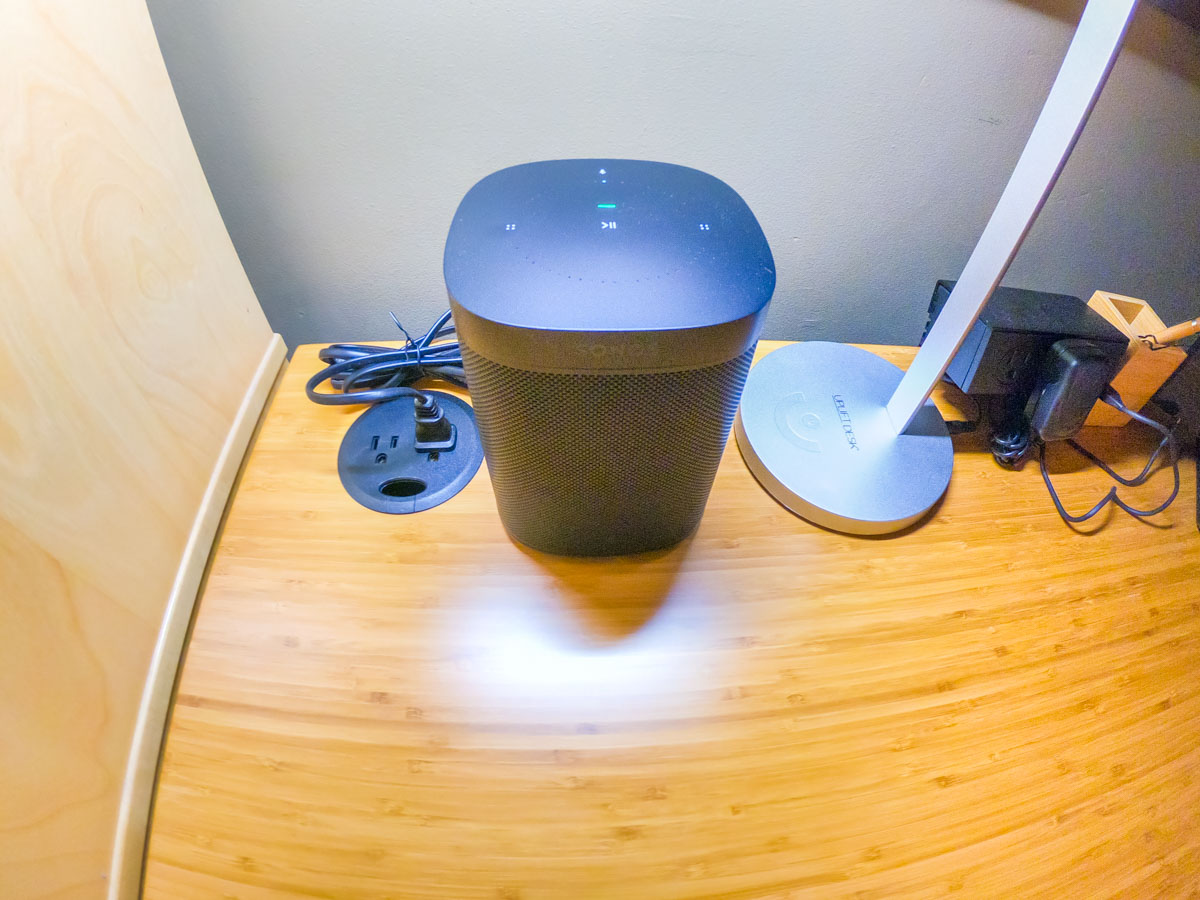
Next, I focused on connecting my Alexa-enabled Sonos One smart speaker.

To empower Alexa to play SiriusXM via voice command, you have to ‘enable the skill’ and link to your SiriusXM account.

Alexa sent me easy instructions via my Alexa iOS app.
(She’s so helpful.)

Keeping Up with the Times
While researching this little audio project, I realized there are actually numerous ways to bring SiriusXM into other devices in your home, including Apple TV, Google Nest speakers and Roku.

The SiriusXM value equation can easily be restored. It’s just about adjusting your mindset that SiriusXM is not only for car use.

That said, do I actually need satellite radio at home? There are already plenty of ways to stream other radio and music sources.

(pause)

Well, I hope that one day in the not too distant future, I’ll be spending at least a little more time in my car. Until then, I feel so much better knowing that I’m not burning money by entirely ignoring my SiriusXM subscription.

Control Restored
As I write this, I’ve got the sounds of SiriusXM gently playing in the background on my Sonos One speaker. Alexa awaits my next voice request for a station change.

I’m at home. And now, so is my SiriusXM subscription.

One more component in my life I’ve got back under control.

I’ll take it.

Don’t Skip these Steps when Sharing Video Clips during a Zoom Meeting

To prevent Zoom from dooming your day, here are three ways to help you successfully share video content during your next Zoom call.

How many Zoom meetings have you been in over these months? More than a few? I hope by now, you’ve decided that you need to show up for your close up and take the necessary steps to improve your video shot. But you’re not done. Not by a long shot.

That’s because you may decide that it’s time to attempt the more advanced step of “sharing your screen” with your audience. And that’s an even trickier task to do properly, especially because it looks so easy.

If you believe that brain-busting audio feedback caused by an unmuted microphone is the most likely culprit to sabotage a Zoom meeting, then welcome to the unstable art of sharing your screen.

That said, the basics of sharing your screen are indeed relatively simple. You click on the ‘Share Screen’ tab and then you choose the open window on your screen to share. Simple. Right?

I have found the complexity lies in properly sharing the content. And for me, that content is often video.

Here are three easy steps to take to help ensure your success the next time you want to share video content during a Zoom meeting.

#1
Don’t Forget to Also “Share Audio”
First off, the biggest challenge in sharing a video clip on a Zoom call is making sure that your viewers can hear the clip. That’s because you always have to remember to click that bleeping little box on the bottom left that says “Share computer sound” before you select the correct window with your video to share.

That should be easy, right? But let me tell you, it’s also really easy to forget, because you’re mostly focused on finding the right open window to share. And then you’re not aware of your gaffe until someone writes in the chat section that you’re a Luddite.

It’s a maddening experience, especially when you know to look out for the problem.

Note to Zoom:
Please make your “Share computer sound” box sound more prominent. Or at least capitalize the words! Right next to “Share computer sound,” there’s a little box that says, “Optimize Screen Share for Video Clip.” Those words all begin in caps… why not offer the same level of grammatical importance to the audio box?

Isn’t it clear by now that so many have a hard enough time remembering to mute and unmute themselves when talking on Zoom. Please don’t make it even harder to activate the audio from the video clips we’re trying to share.

(User rant is now complete.)

#2
Make Sure All of Your Audio is Balanced
You should test all of your audio sources before you show up for your Zoom meeting. You might find that the output from your microphone is louder than your video clips. Or the reverse could be true.

If you set up a test Zoom session ahead of time and use a second device to hear how it all sounds, then you’ll be able to preview your viewers’ experience. And if necessary, you can adjust your audio levels.

It’s just another example where audio can be your Achilles’ heel during your Zoom presentation.

#3
House All of Your Video Clips in One Window Using Google Slides
During your Zoom meeting, if you want to share more than one open video window, you’ll likely begin to feel like you’re spinning plates on sticks.

It’s not that straightforward to switch between multiple windows. (There’s a reason why in the TV studio production world there’s a professional technical director dedicated to quickly switching between multiple video sources.)

So, the simple fix is packaging everything you want to share into one window. You can try to jam all of your visual elements into Word or PowerPoint, but that can get clunky with video.

I’ve found that Google Slides is a much more efficient way to house video. It’s easy to create a new page in Google Slides and then insert a video file.

  • Click ‘Insert’
  • Choose ‘Video’

But there are two limitations:

  • You can only upload video from Google Drive or YouTube. (You’re actually linking to the video.)
    Other ecosystems are not allowed.
  • If you’re using Google Drive, you can’t change the default video freeze frame that Google chooses as the image in your slide deck. So, when you click on your Google Slides page that houses a video, what you see is what you get before you click it to play.

Be Prepared
If there’s one common thread here, it’s that you should begin your live presentation prepared. You want to feel confident that Zoom will support you and not doom your day.

You’re effectively running your own multi-source live shot. A little practice and testing will go a long way to help you hit it out of the park!