
Don’t Skip these Steps when Sharing Video Clips during a Zoom Meeting
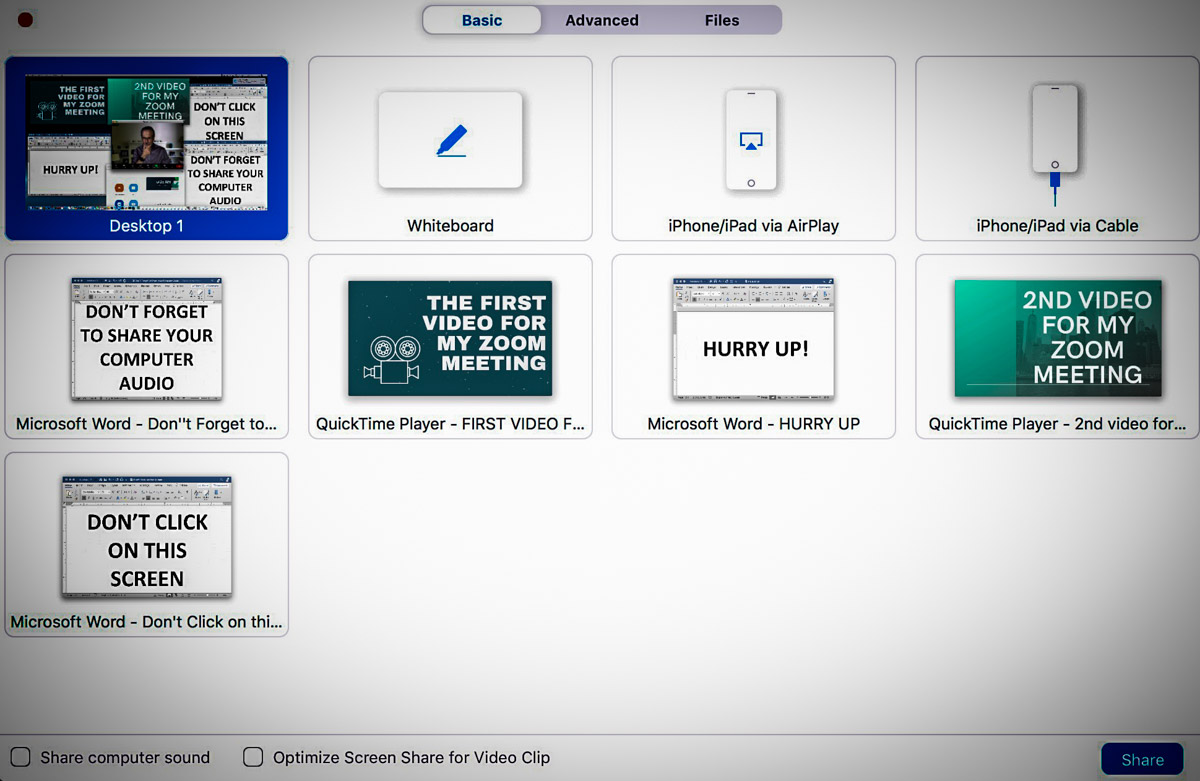
To prevent Zoom from dooming your day, here are three ways to help you successfully share video content during your next Zoom call.
How many Zoom meetings have you been in over these months? More than a few? I hope by now, you’ve decided that you need to show up for your close up and take the necessary steps to improve your video shot. But you’re not done. Not by a long shot.
That’s because you may decide that it’s time to attempt the more advanced step of “sharing your screen” with your audience. And that’s an even trickier task to do properly, especially because it looks so easy.
If you believe that brain-busting audio feedback caused by an unmuted microphone is the most likely culprit to sabotage a Zoom meeting, then welcome to the unstable art of sharing your screen.
That said, the basics of sharing your screen are indeed relatively simple. You click on the ‘Share Screen’ tab and then you choose the open window on your screen to share. Simple. Right?
I have found the complexity lies in properly sharing the content. And for me, that content is often video.
Here are three easy steps to take to help ensure your success the next time you want to share video content during a Zoom meeting.
#1
Don’t Forget to Also “Share Audio”
First off, the biggest challenge in sharing a video clip on a Zoom call is making sure that your viewers can hear the clip. That’s because you always have to remember to click that bleeping little box on the bottom left that says “Share computer sound” before you select the correct window with your video to share.
That should be easy, right? But let me tell you, it’s also really easy to forget, because you’re mostly focused on finding the right open window to share. And then you’re not aware of your gaffe until someone writes in the chat section that you’re a Luddite.
It’s a maddening experience, especially when you know to look out for the problem.
Note to Zoom:
Please make your “Share computer sound” box sound more prominent. Or at least capitalize the words! Right next to “Share computer sound,” there’s a little box that says, “Optimize Screen Share for Video Clip.” Those words all begin in caps… why not offer the same level of grammatical importance to the audio box?
Isn’t it clear by now that so many have a hard enough time remembering to mute and unmute themselves when talking on Zoom. Please don’t make it even harder to activate the audio from the video clips we’re trying to share.
(User rant is now complete.)
#2
Make Sure All of Your Audio is Balanced
You should test all of your audio sources before you show up for your Zoom meeting. You might find that the output from your microphone is louder than your video clips. Or the reverse could be true.
If you set up a test Zoom session ahead of time and use a second device to hear how it all sounds, then you’ll be able to preview your viewers’ experience. And if necessary, you can adjust your audio levels.
It’s just another example where audio can be your Achilles’ heel during your Zoom presentation.
#3
House All of Your Video Clips in One Window Using Google Slides
During your Zoom meeting, if you want to share more than one open video window, you’ll likely begin to feel like you’re spinning plates on sticks.
It’s not that straightforward to switch between multiple windows. (There’s a reason why in the TV studio production world there’s a professional technical director dedicated to quickly switching between multiple video sources.)
So, the simple fix is packaging everything you want to share into one window. You can try to jam all of your visual elements into Word or PowerPoint, but that can get clunky with video.
I’ve found that Google Slides is a much more efficient way to house video. It’s easy to create a new page in Google Slides and then insert a video file.
- Click ‘Insert’
- Choose ‘Video’
But there are two limitations:
- You can only upload video from Google Drive or YouTube. (You’re actually linking to the video.)
Other ecosystems are not allowed. - If you’re using Google Drive, you can’t change the default video freeze frame that Google chooses as the image in your slide deck. So, when you click on your Google Slides page that houses a video, what you see is what you get before you click it to play.
Be Prepared
If there’s one common thread here, it’s that you should begin your live presentation prepared. You want to feel confident that Zoom will support you and not doom your day.
You’re effectively running your own multi-source live shot. A little practice and testing will go a long way to help you hit it out of the park!

 At Home with Tech