At Home with Tech

Unlock the power of all your technology and learn how to master your photography, computers and smartphone.

Tag: Zoom audio

How to Hear Zoom Audio when Screen Mirroring to your TV

If you use a MacBook laptop and Apple TV, there’s one important setting to change if you want to hear your Zoom audio on your HDTV.

The Zoom app is mostly designed to be used on smartphones and computer screens as an interactive experience. But with Zoom having grown as a performance/presentation platform, sometimes it’s preferable to watch Zoom as a one-way experience. Then, it’s more enjoyable if you can experience it on your big-screen TV.

So how exactly do you get your Zoom feed to show up there? There are multiple ways to do it, but the gateway to my older (non-smart) HDTV is via my little (but mighty) Apple TV box.

Once I’m screen sharing in the Apple ecosystem to my Apple TV, it’s immediately available on my HDTV.

Apple makes screen mirroring (AirPlay) to its devices a snap. But getting Zoom’s audio to stream to your HDTV can be more tricky. Here are the ways to do it.

Use an iPhone and Zoom App
As long as you first activate screen mirroring from your iPhone to your Apple TV before joining your Zoom, you’ll be fine.

On your iPhone’s Control Center (open by swiping down from top-right corner of your screen), you’ll see the two layered rectangles icon for screen mirroring.

  • Tap it and select your Apple TV
  • Then join your Zoom presentation

Both video and audio will follow to your TV.

Use a MacBook’s Web Browser or Zoom App
Turn on Screen Mirroring via the Control Center icon on your laptop’s Menu Bar. Then choose the Apple TV.

Or a faster way to share your screen is just click on the Screen Mirroring icon on the Menu Bar. But you’ve first got to make sure that icon shows up on the top right. Here’s how to activate it.

  • Go to ‘System Preferences’
  • Click on ‘Screen Mirroring’ on the left panel
  • Click ‘Dock and Menu Bar’
  • Click Show in Menu Bar… ‘always’ (as opposed to ‘when active’)


Then proceed to your Zoom presentation.

What Happened to the Audio?
But I’ve found that one big problem can crop up when screen mirroring Zoom from my wife’s MacBook Air to our Apple TV…

The Zoom video projects fine onto the TV screen, but the audio doesn’t naturally follow. The Zoom audio remains tethered to the laptop’s speakers.

To fix that frustrating problem, there’s one additional step you’ve got to take.

Change your Zoom Audio Settings
By default, the Zoom audio output is the laptop’s speakers, even if you’re mirroring your screen. (Zoom doesn’t know that you’re practicing screen-mirroring magic.)

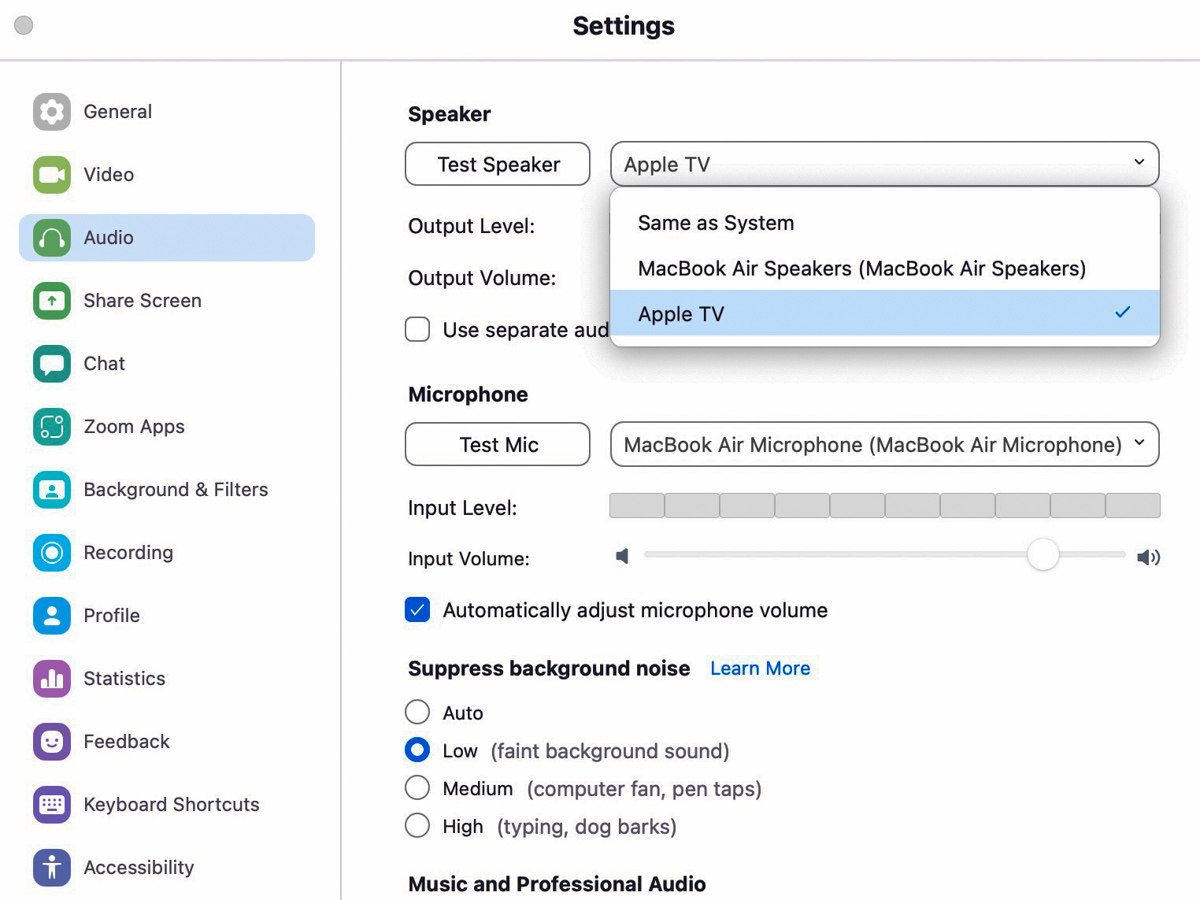
You’ve got to go into your Zoom settings and manually change the audio output to your Apple TV. Only then will the Zoom audio follow from your computer to your Apple TV.

In the Zoom app:

  • Click on ‘Home’
  • Click the Settings gear icon on the right
  • Click on ‘Audio’
  • Click on ‘Speaker’ drop down
  • Select ‘Apple TV’

And to be sure you’ve got it right, click on ‘Test Speaker’ and you should hear a happy melody coming from your TV’s speakers.
And voilà!

Turn Up the Volume
Zoom has proven to be a really powerful app over these past couple of years during the pandemic. But you’ve got to make sure the audio settings are right.

Once you do, you can finally sit back and enjoy the Zoom show on your TV!

The Best Way to Improve your Audio for your Next Zoom Meeting

As much as computers are designed today to handle many multimedia needs without added accessories, headsets aren’t really optional when you join a video conference.

When I coach people on how to improve their Zoom feeds, most of the time I focus on their webcam shots. I think by now most folks know the visual rules to create a good video-conference look, even if they still choose to ignore them.

And let’s face it, it’s a pain to set up your webcam properly with the right lighting and angle. I know that. And I get it when so many people choose to simply turn off their webcams. Why do all that work to create a professional-looking shot when you don’t have to?

Stop Hiding
Now, of course I feel you absolutely should turn on your webcam. If you’re not projecting your own visual, you’re not truly showing up. You’re just a disembodied voice. Granted, adding yourself to a sea of tiny faces in a stack of little boxes on the computer screen may not fit your definition of being ‘present.’ But it’s what the technology offers. Maybe in the future, we’ll be able to digitize our bodies into 3D holograms. (Then, you’ll really need to dress up again!)

The Importance of Clear Audio
Whether you choose to hide in the Zoom shadows or not, you do need to be heard. That much is not up for debate. And if you sound like you’re in an echo chamber or in a distant hallway, you’re simply not going to be an effective participant in your virtual meetings.

Ultimately, how you sound is more important than anything else. And that can be difficult to track on an ongoing basis. (You can always see your webcam shot, but unless you actively test your audio signal in your settings, you wouldn’t otherwise know.)

How to Improve your Sound
The simple rule you should follow to project clear audio is to always wear a headset or earbuds. Sure, you can rely on your onboard computer microphone, but that’s going to offer a more muffled and distant quality to your voice. So, wear your headset!

And you’ve got to make sure over time that your computer continues to recognize your headset and not default back to its own microphone. (Set-it-and-forget-it is a recipe for “I can’t hear you very well!”)

Headsets have become Invisible
And if you’ve taken the important step to turn on your webcam, you can’t then play the vanity card and leave your headsets behind. Sure, you can choose to wear wireless earbuds like AirPods, which minimize the hardware you’ve got attached to your head. But I think by now, everyone is used to seeing people wearing headsets on Zooms, even when formally presenting to an audience. Hey, TV sportscasters have been doing it for decades. It’s not dorky. It’s fine.

No, headsets aren’t really invisible, but they’re entirely expected under the circumstances.

Can You Hear Me?
If you don’t want to fully show up to your Zoom meetings by not turning on your webcam, that’s your choice. But if you’re projecting bad audio, you just can’t play in the Zoom sandbox with others.

So, please wear your computer headset!

Why Your Zoom Viewers Can’t Hear You

Mismanaging the mute button may seem like a rookie mistake during Zoom calls, but it’s a more frequent problem than you’d expect. Here’s why…

This ‘golden’ age of Zoom has redefined what to expect from daily video communications. Sure, throughout these ongoing months of isolation, there have been any number of ways to improve the quality of our Zoom calls.

And in the Zoom meetings I’ve attended, I’ve observed a growing awareness of video production best practices. That said, there’s one skill that many people still seem to struggle with… handling the mute button.

We Can’t Hear You!
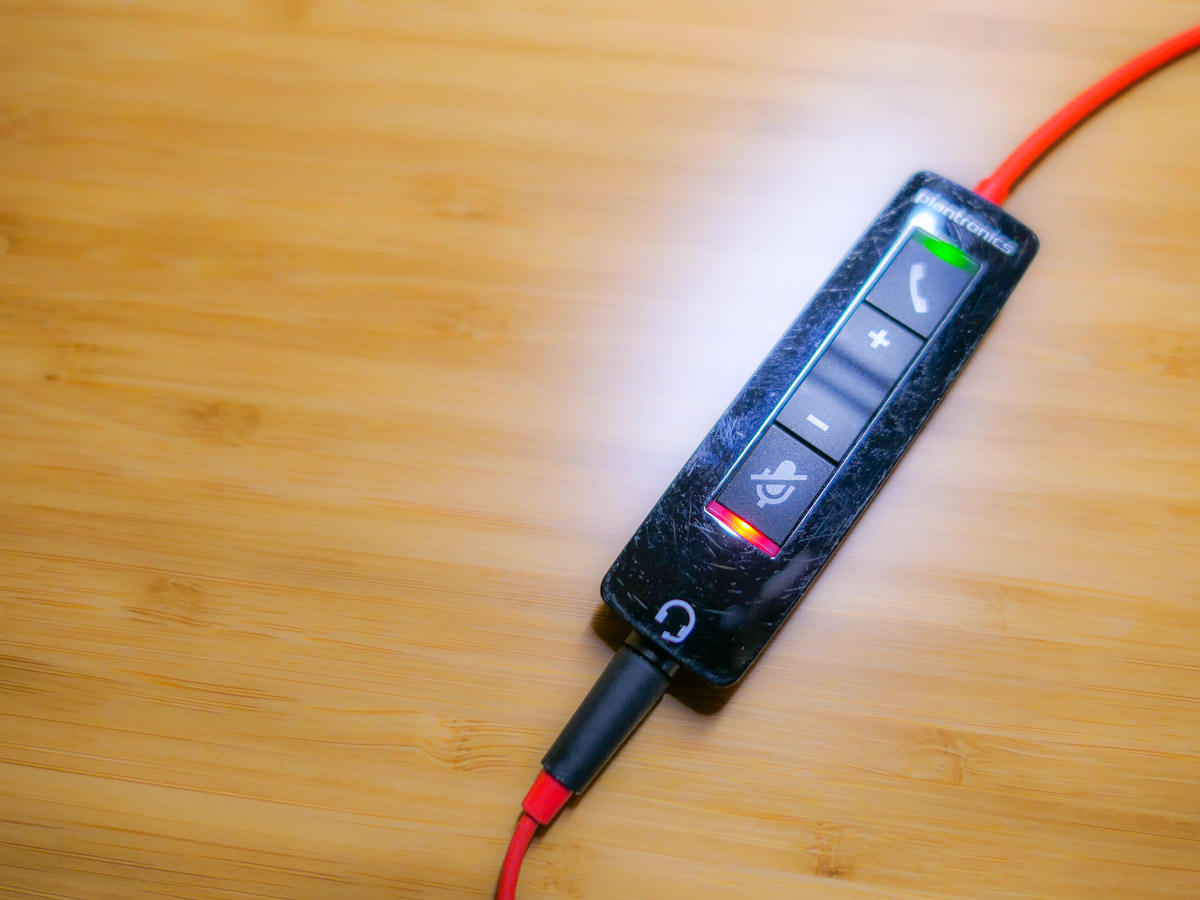
How many times have you heard someone say to a Zoom speaker, “Are you on mute? We can’t hear you! (pause) We still can’t hear you. You’re on mute!”

This epidemic of awkward Zoom silence is partially the result of education campaigns during the early months of the pandemic to mute yourself if you’re not talking in a Zoom meeting.

Remember all of those Zooms that imploded because there were a couple of people who couldn’t mute themselves if their lives depended on it? And then they would jabber away as they talked to their household members, unaware that their microphones were unmuted.

Besides being an embarrassing oops to unknowingly allow everyone to eavesdrop on your life at home, this mistake will also effectively derail any Zoom meeting.

So by now, we’ve learned to mute ourselves to avoid becoming
Zoom Enemy #1.

Expect the Unexpected
It’s certainly better to try to talk on a Zoom while still muted rather than saying something that your Zoom world shouldn’t hear. But it’s still a mistake that anyone should strive to avoid.

At the end of the day, I think the solution comes back to maintaining enough focus on the live elements. For those of us who have tried to ‘master’ Zoom, we’ve instead put a lot of work into our preproduction.

  • The lighting
  • Your background
  • The right microphone

But when our imaginary on-air light pops on, I feel we’ve tended to let down our guard and assume the technology will handle itself.

Keep your Hands on the Virtual Steering Wheel
Live television used to take a whole control room of production experts to ensure success. It’s amazing that Zoom has boiled it down to just a few clicks of your mouse.

That said, someone really needs to pay attention to your Zoom stream while you’re talking. And that person is you.

Any number of problems can crop up.

  • Someone can unknowingly walk into your background, but this now happens so frequently that nobody cares anymore.
  • Your attention might get temporarily diverted, which could require you to first mute your video.
  • You may subsequently forget to unmute your video. That’s not usually a dealbreaker.

But if you lose track of your audio, you’re either the 800-pound gorilla in the virtual room or a Luddite who doesn’t know how to work your microphone.

Don’t Forget to Unmute Yourself
Zoom isn’t really a set-it-and-forget-it technology (well, not yet).

You simply need to train yourself to pay attention your video and especially your audio feeds throughout your personal and professional Zoom calls. And that requires a diligence to be constantly muting and unmuting yourself exactly when you need to focus on the content of what you’re saying.

If you feel like that’s an annoying juggling act, it is. But it’s a small price to pay to step up your Zoom game.

Can you hear me?

Practice your Magic
During this difficult time for so many of us, it’s certainly understandable that there may be tons of distracting elements in your environment that are urgently competing for your attention. Sometimes it can feel like you need a magic wand.

Zooming at home throughout the day brings new meaning to art of multitasking. There’s no perfect solution. But beefing up your Zoom muscle will certainly help you keep all of your balls in the air.

Happy juggling!