At Home with Tech

Unlock the power of all your technology and learn how to master your photography, computers and smartphone.

Tag: Zoom meetings

Pair a Bluetooth Keyboard to your Smartphone for your Next Zoom Meeting

If you need to take copious notes on your smartphone during a Zoom meeting, here’s why you may want to add a physical keyboard to the equation.

It’s easy to forget the power and flexibility of our smartphones; often the only limiting factor is the compact size. Yes, the smaller screen is sometimes difficult to work with compared to a laptop. But for me, it’s the miniature keyboard that can be infuriating. It’s simply really hard to type fast.

Recently, I flew to the West Coast on a business trip, and for an hour on one evening, I needed to step away and jump on a personal Zoom call and take notes for the community group.

My first thought was to pack my personal laptop or iPad for the task. But then I looked at my iPhone and wondered if it could actually handle the exercise.

Of course, the Zoom meeting part was easy. It was the simultaneous note taking that would be the challenge. So I tested it out…

Working with Zoom and Microsoft OneNote Simultaneously
I used the Microsoft OneNote app on my iPhone for the note-taking part, and it interfaced just fine with the Zoom app. I simply swiped out of the Zoom meeting and then worked in OneNote. (The Zoom meeting still shows up in a small window.)

Yes, I could tap…tap…tap my notes. But it was not nearly as fast as I knew I would need.

I required a real keyboard. And then it came to me… What about a Bluetooth keyboard?

A Multiversal Solution?
Using a Bluetooth keyboard with an iPad is common, but trying the same trick with a tiny iPhone feels somewhat absurd. Who have you ever seen do that???

Though you might have spotted it while traveling through some other part of the multiverse, some crazy old-school blogger in this reality was now going to give it a try.

Logitech Keys-to-Go Bluetooth Keyboard
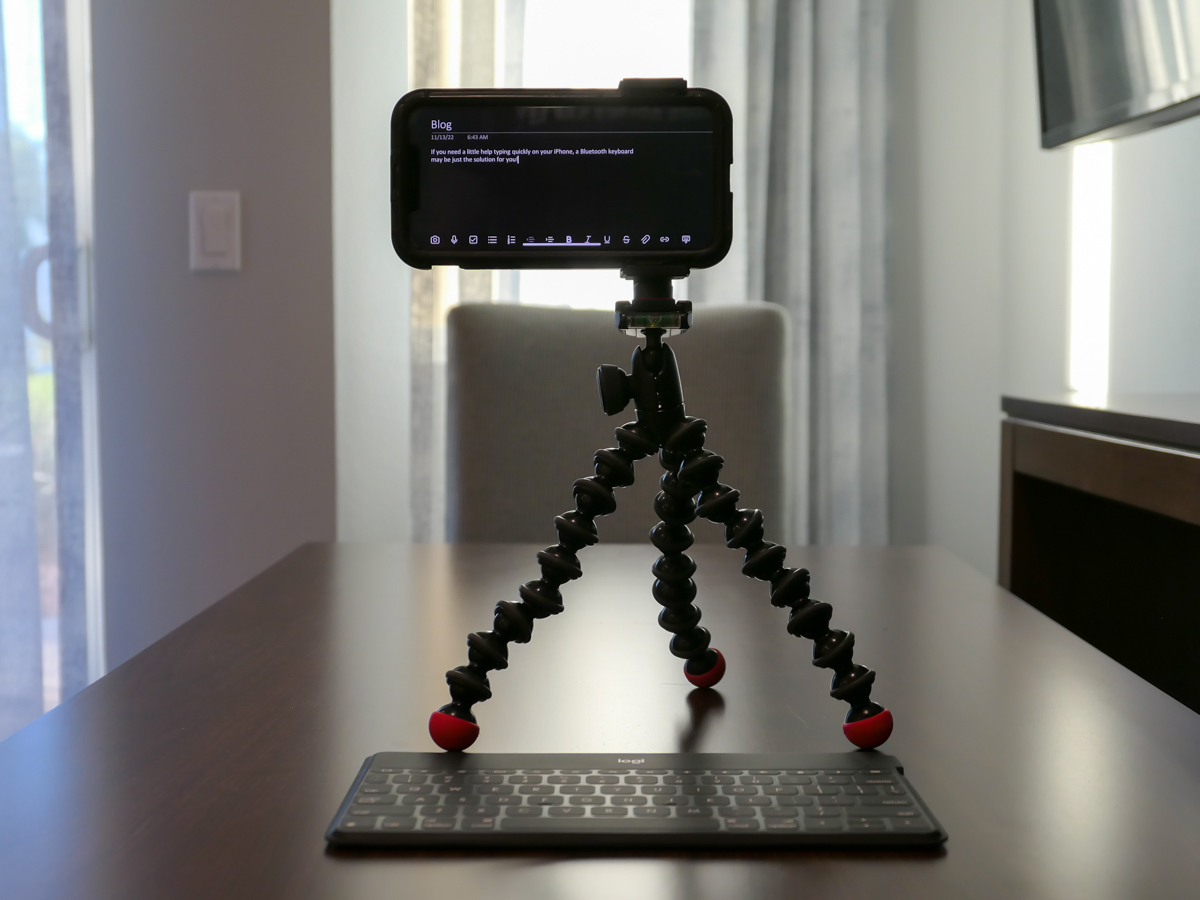
While there are a few choices out there, I ended up going with the Logitech Keys-to-Go Bluetooth Keyboard… mostly because it’s featured on Apple’s website. I figured it must work properly if Apple is pushing it, right? (Spoiler alert: The two devices pair just fine, though you do have to push a little harder on the Logitech’s keys.)

At the time of this post, this keyboard was on sale
at Logitech’s website for $49.99.

It’s also on Amazon for the same price.

Click.

A Few Optional Accessories
When it was time to do my Zoom meeting in the field with my new keyboard, I must admit, I had also brought along a little more gear to facilitate a smoother experience.

  • I had my small Joby tripod with smartphone grip to mount my iPhone a little higher up. ( I didn’t want the shot pointing up my nose.) The taller positioning also made it easier to read the screen as I typed away.
  • To ensure I wouldn’t run out of juice, I plugged my iPhone into a little portable power (my Anker battery), as a wall plug wasn’t nearby.
  • And of course, I wore my Apple AirPods.
  • My multitasking iPhone stunt went off without a hitch, but if you strip away the optional tech, just the iPhone and Bluetooth keyboard will certainly get the job done.

Add this Technological Distinctiveness to your Own
Not having to pack an extra computer when flying is a game changer. A slim Bluetooth keyboard is hardly a noticeable add to your carry-on luggage, and it’s not an expensive piece of tech you have to worry about being stolen.

It may not be an intuitive pairing, and the tech form factor certainly looks clunky and somewhat absurd (“Star Trek” Borg-like).

That said, adding a physical keyboard to the much smaller iPhone does facilitate much faster typing speeds. So give your thumbs a rest!

I have now happily assimilated this technological distinctiveness.

Borg Barrett transmission ends now.

How to Improve your Zoom Background at Home

Making sure you’re properly lit in your Zoom shot isn’t always enough. What about the supporting cast in your webcam’s view?

It’s clear we’re at a point where participating in Zoom meetings is a permanent part of home life and a necessary tool to communicate with our world. So, it’s important to create a ‘remote video communications’ home set-up that really works for you and your viewers.

I hope most of us are beyond the chaotic experience of working from home and participating in meetings all day. During those early pandemic months, simply finding a quiet spot to open up your laptop for a Zoom, Skype or Teams meeting was a challenge.

How your shot looked understandably may not have been your priority.

Keeping it Real
But as we’ve settled into our new routines, many of us have improved our Zoom look.

I’m sure you know the basics by now:

  • Make sure you’ve got enough light on your face.
  • Don’t sit with a window behind you.
  • Position your webcam perpendicular to your eyes, not looking up your nose.
  • Declutter your background.

I know many folks are fond of using virtual backgrounds. While that’s okay, I like to keep my shot as authentic as possible.

I’ve tried digital and blurred backgrounds, but I always felt like I was in a science fiction movie.

Can you See my Robots?
So, even though my home office is hardly an ideal space to create the perfect video shot for my Zoom meetings, I’ve continued to tinker with my background throughout these many months.

Recently, I moved the furniture around in my home office, and to a certain extent I’ve created something of a blank canvas to work with.

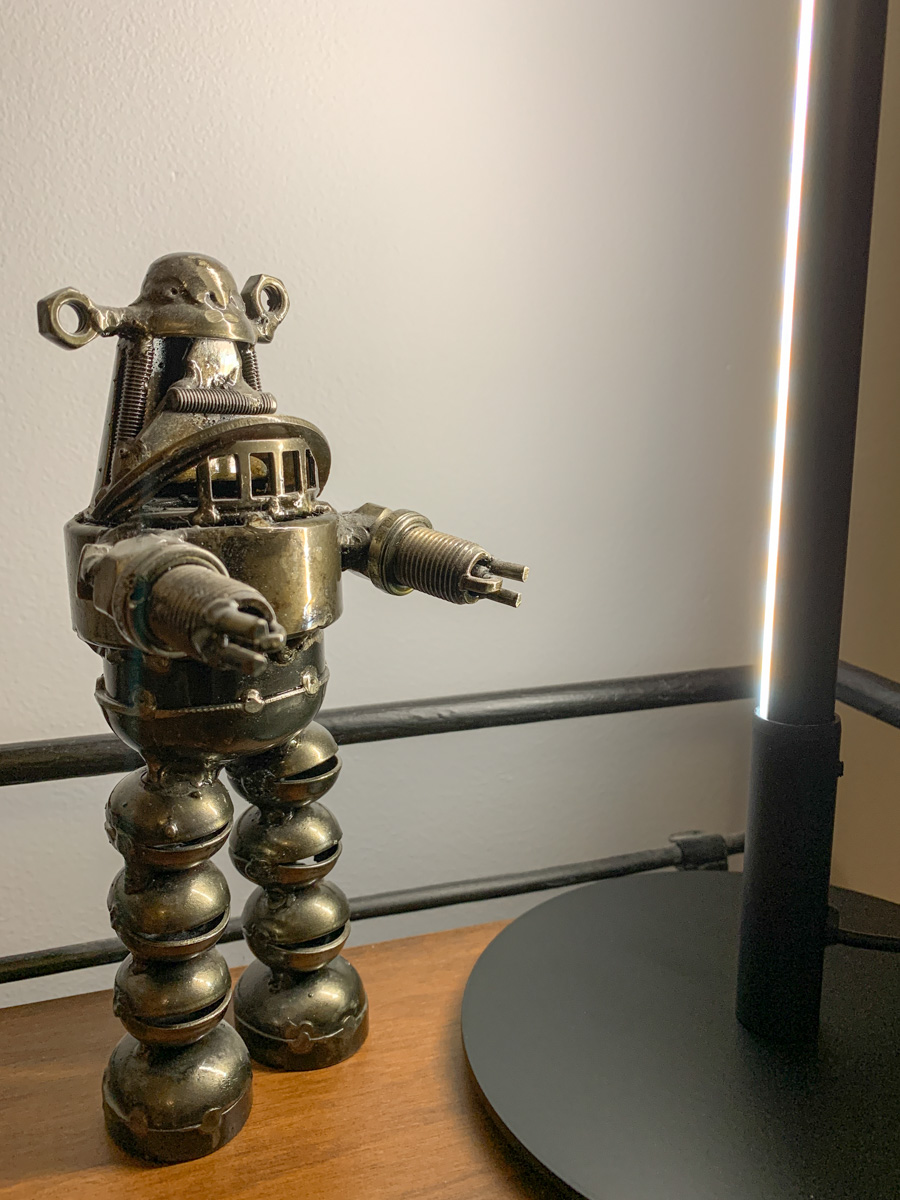
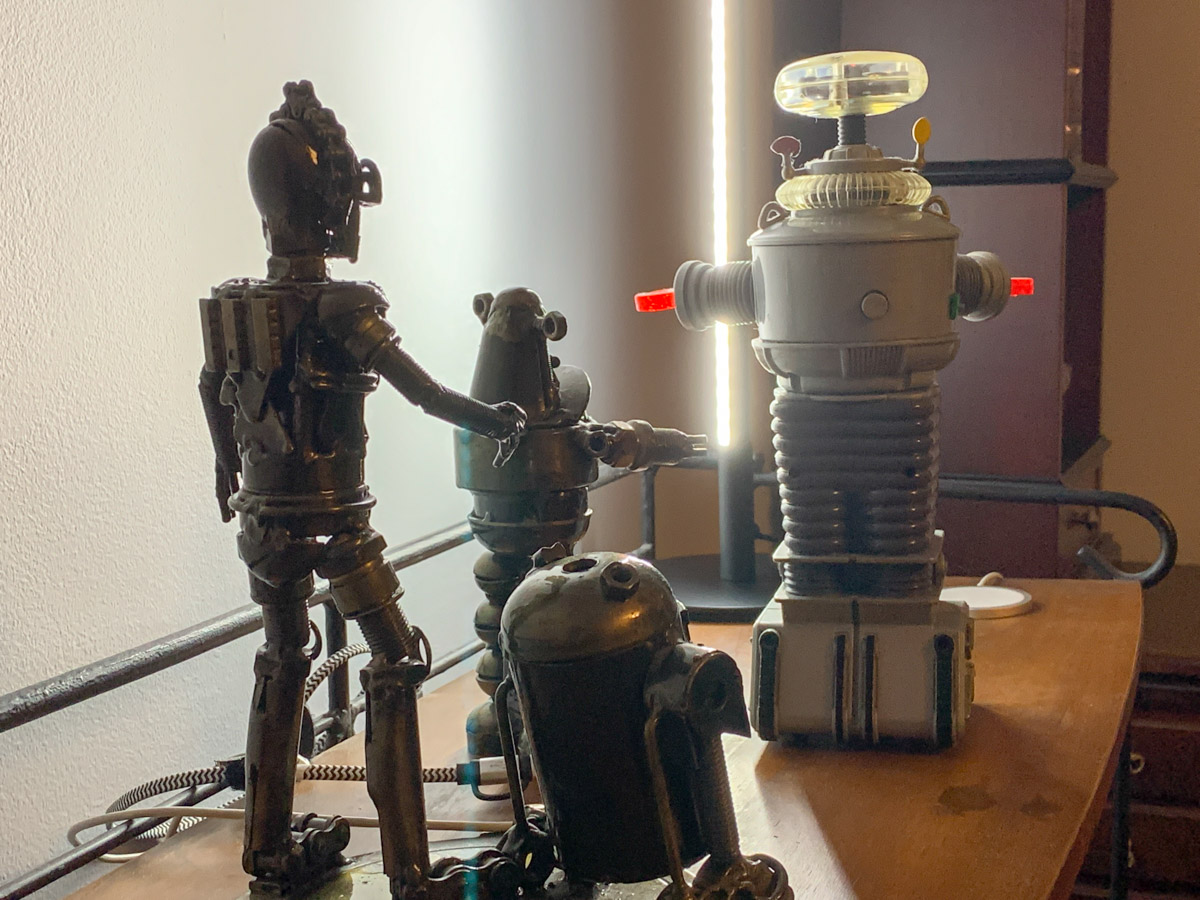
I repositioned a short bookshelf into my Zoom background, and I used the top shelf to display a few robot statues I’ve collected over the years. (R2D2, C3PO, Robby the Robot and Robot from the original “Lost in Space”)

They’re also nice ice breakers as people sometimes ask about them when they spot my metal robots in my Zoom shot.

The only problem is my robots looked like shadows in my background. That’s because my back wall didn’t have a lot of light hitting it.

Time to Add More Light
Like any professional studio TV set, you’ve got to properly light your entire space, and that includes the background. Otherwise your environment will look drab, no matter what it contains.

And webcams are usually happier if your lighting is more even throughout the entire shot. That means you’ll look better and not over exposed.

So, I needed to figure out how to throw more light on that back wall and my little robot display.

Vertical LED Table Lamp
There are any number of ways to do that. A floor lamp next to the bookshelf would be an easy solution. That said, I didn’t want to clutter my background (or my home office). Instead, I looked for a lighting solution with a smaller footprint: some sort of lamp that could sit on the end of the book shelf just outside of my Zoom frame.

I found a small vertical LED table lamp made by Edishine on Amazon.
It was the perfect solution. It added the background fill light I needed without overwhelming my shelf. The lamp’s cold, minimalistic look also blended nicely with my little metal companions.

Think of it more like an under-cabinet lighting solution, but designed as a self-standing vertical glow.

Now, my robots are easy to spot in my Zoom background. Plus the extra light also helps my back wall pop.

Zoom-Optimized Rooms
If you want to really show up for your close up during Zoom meetings from home, you’ve got to do more than light your face and wear a nice shirt. Your environment is an extension of you, and it’s important to give it the same attention as you set up your webcam shot.

That means your whole room (or at least the part people see) needs enough light.

I know we don’t live in TV studios (well, most of us don’t). But I think it’s fair to say that when you think about how to decorate your living spaces moving forward, it’s not crazy to plan for the creation of Zoom-optimized rooms.

It’s not science fiction. Yes, reality has caught up.

Why It may be Time to Upgrade your Webcam

If you still look like a shadow of your true self in Zoom meetings, you should consider using a more powerful camera.

It’s fair to say we’ll be needing our webcams, well… forever. If video conference meetings from home weren’t already part of our daily lives before the pandemic, well, now they certainly are. And no matter what the future holds, virtual meetings are here to stay.

We’ve had two years to figure out how to set up a decent Zoom shot. If you’re still not happy with it, the problem may be your computer’s mediocre webcam. If so, it’s time to upgrade and buy a dedicated external USB camera for your computer.

Can Another Camera You Own do the Job?
But before you start shopping for a new webcam, make sure you don’t already own another device that you can repurpose such as a camcorder or DSLR-style camera.

You just need to make sure that your higher-end camera can offer a ‘clean’ video output via a HDMI connector. Then you’ll need a HDMI to USB converter like the ‘Cam Link 4K’ to integrate the video feed into your computer.

My New Lumix GH5 II
Recently, I bought myself a Panasonic Lumix GH5 II
with a Panasonic 12-35 mm/f2.8 II lens.
(“Why Barrett, you shouldn’t have!”)

And of course, I immediately wanted to jack this Micro Four Thirds, mirrorless camera into my iMac to see what would happen.

Sure, using a higher-end camera with a serious lens as a basic webcam is way overkill, but it works just fine. And the look is beautiful. In fact, it’s ridiculous.

The webcam on my iMac is perfectly adequate, but when I changed over to my GH5 II, the visual difference was dramatic.

Don’t Buy More than You Need
Now, I’m not saying you should run out and spend ten times the cost of a typical webcam to upgrade your Zoom look.

But if you’ve already got a more powerful camera that can also be used as a webcam, then why not? (Previously, I had been repurposing my old GoPro as a webcam via my Cam Link 4K.)

Your Desk will get Messy
Now here comes the big disclaimer…

Yes, integrating a ‘real’ camera into your desktop computer or laptop will creating an amazing image, but functionally, the process is not elegant. You’ve got to put a tripod on your desk and position it right next to your computer screen, so you’re not looking too far off camera when you take a peek at the other folks in your Zoom window.

Then, you’ve got the HDMI and power cables coiling in front of your screen to contend with. It’s a mess. (You start to feel like a battery person trapped in “The Matrix,” even though the cables aren’t actually coming out of your body.)

Even attaching a tiny new webcam to your laptop involves an extra cable and a webcam mount, and it takes a couple more steps every time you prepare for a video conference. Plus, you’ve got to adjust your webcam and test your shot to make sure you’re framed correctly.

That’s takes work… sometimes a lot of work. One might say it’s an absurd effort. And for what?

Nothing beats the ease of simply clicking on ‘join’ and letting your integrated webcam do its job. Whatever your viewers see, they see. If you’re only partially in the shot, that’s better than nothing, right?

What’s so bad with that approach? (And if you really feel that way, please continue taking your blue pills. Your next Zoom meeting in the Matrix is in ten minutes!)

Can You See Me Now?
Frankensteining any camera into your computer is a bit messy… sometimes very messy. But the good news is it’s not really that complicated.

Do you still make an effort to put on a nice shirt for your Zoom meetings, and have you spent more than a few minutes trying to adjust the lighting on your face? Are you still unsatisfied with your shot?

If so, then you’re a prime candidate to consider upgrading your webcam. (And if you’re already in the market for a nice camera to handle your photography and video projects, you can free two birds with one key, like I did.)

I expect you will not be disappointed with your decision to improve your Zoom look. It’s actually a great New Year’s resolution, and one that you’ll continue reaping benefits from throughout the entire year!