At Home with Tech

Unlock the power of all your technology and learn how to master your photography, computers and smartphone.

Tag: Zoom meetings

Be Careful what You Say Around your Tech

When your voice-activated tech misbehaves, the problem may be caused by something you said. Here’s a fix to consider.

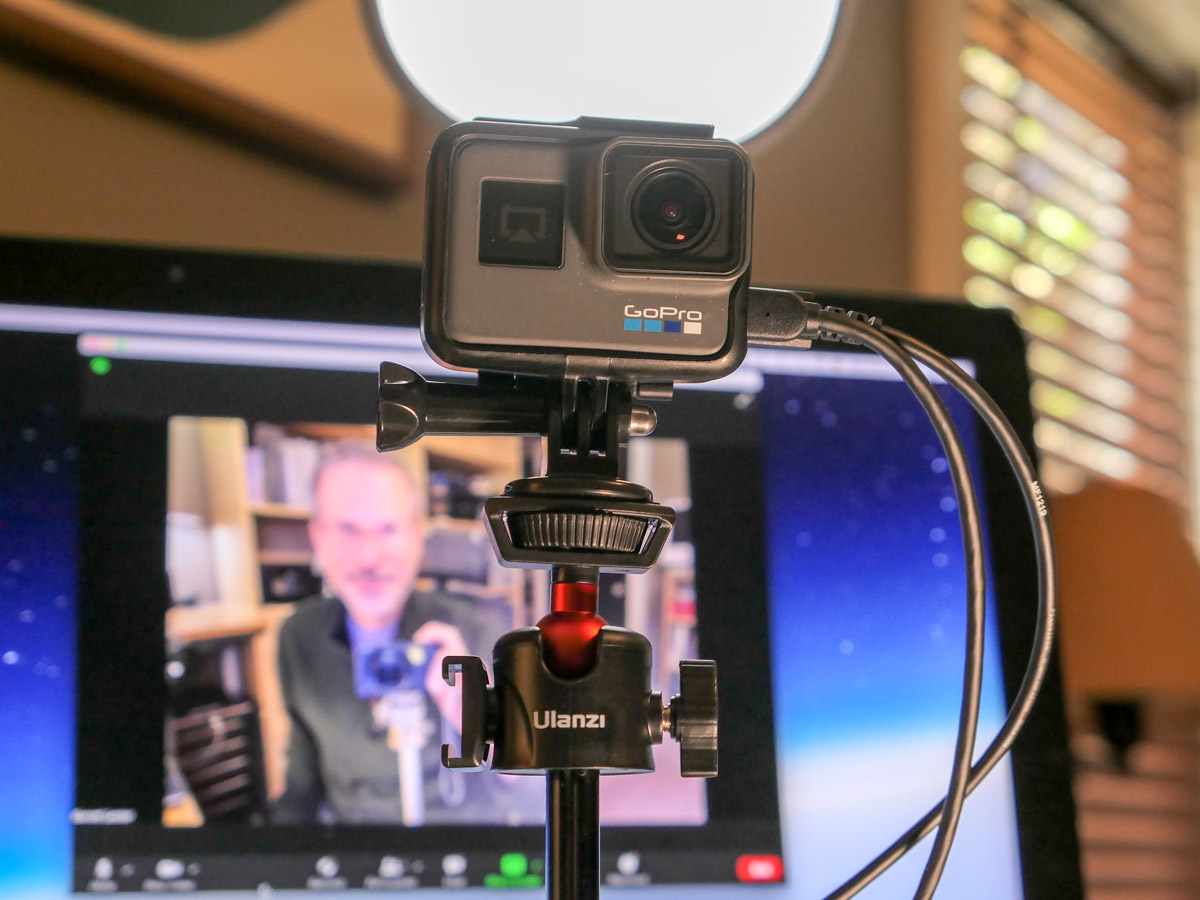
I’ve just put my old GoPro to work as a webcam, tethered to my PC laptop that I’m using for my job. Wearing my MacGyver hat, I easily connected the GoPro to my computer with an Elgato Cam Link 4K video converter. This adapter can transform many cameras with a HDMI output into a simple USB webcam.

I prefer my GoPro’s shot to my laptop’s built-in webcam, because the GoPro offers a wider-angle view. That framing gives me more room to use my body language when I talk to colleagues on Zoom. And I’ve found that can help me better connect with people I’ve never met in person.

But there was a problem.

Who’s Controlling your GoPro?
A couple days into its new mission as a webcam, my GoPro inexplicably began glitching out. One day it magically kicked into video mode and began recording my conversation. The next morning, it snapped a burst of pictures during a Zoom meeting. Its little blinking red light was the dead giveaway that there was a gremlin in the system.

Or was there?

I put on my diagnostic lab coat to see if there might be a GoPro setting that was causing the problem. I first upgraded the GoPro’s operating system and then poked around the menu. I eventually came to the voice control option. It was set to ‘on.’

Hmmm….

Is your GoPro Simply Following Orders?
“GoPro, take a photo!”

That’s the fun phrase my eleven-year-old son and I love to blurt out when taking GoPro selfie shots during weekend hikes with friends.

Yes… my GoPro can be voice activated. And it has been reliably obedient for selfie shots during our weekend hiking adventures.

So why wouldn’t its audio parlor trick also be in play during its weekday duties? Of course my GoPro was listening to me during my Zoom meetings! I must have said something that resembled, “GoPro start recording,” or “GoPro shoot burst.”

After my big ‘aha,’ I simply deactivated my GoPro’s voice-control mode, and thankfully, my GoPro started behaving again.

Problem solved.

But my reestablished tech Zen was short lived.

What Did You Say?
Uncovering my mistake brought up a larger question. How much of my tech is always listening to me, and how often is it misinterpreting my words and reacting in ways that it shouldn’t?

My Alexa-enabled Sonos speaker in my home office occasionally interrupts me when I’m on the phone or doing a Zoom meeting, because it thinks it heard me summon it. I usually shrug it off and shake my head, both slightly amused and a tad irritated.

Even Siri on my Apple Watch has awkwardly tried to jump into my conversations.

User Error
I’m not exactly sure what to make of all this, except to accept that voice-activated tech can sometimes react in ways we don’t want. Its skills may be imperfect. But then again, so are humans. That combination can easily lead to unexpected and imperfect results.

As more components of our smart homes begin to possess voice control, it will become increasingly important not to forget what we’ve set up to listen to our lives. (And I’m not talking about the whole privacy question. We’ll leave that topic for another day.)

Sure, it’s cool to control your surroundings with your voice. That said, I hope you talk clearly and remember the right command phrases. It would be a shame if your future tech misinterprets your intent and ruins your day… or worse.

But don’t worry. It’s probably just ‘user error.’

Time for an upgrade?

Desk-Friendly Gear to Create Better Zoom Shots

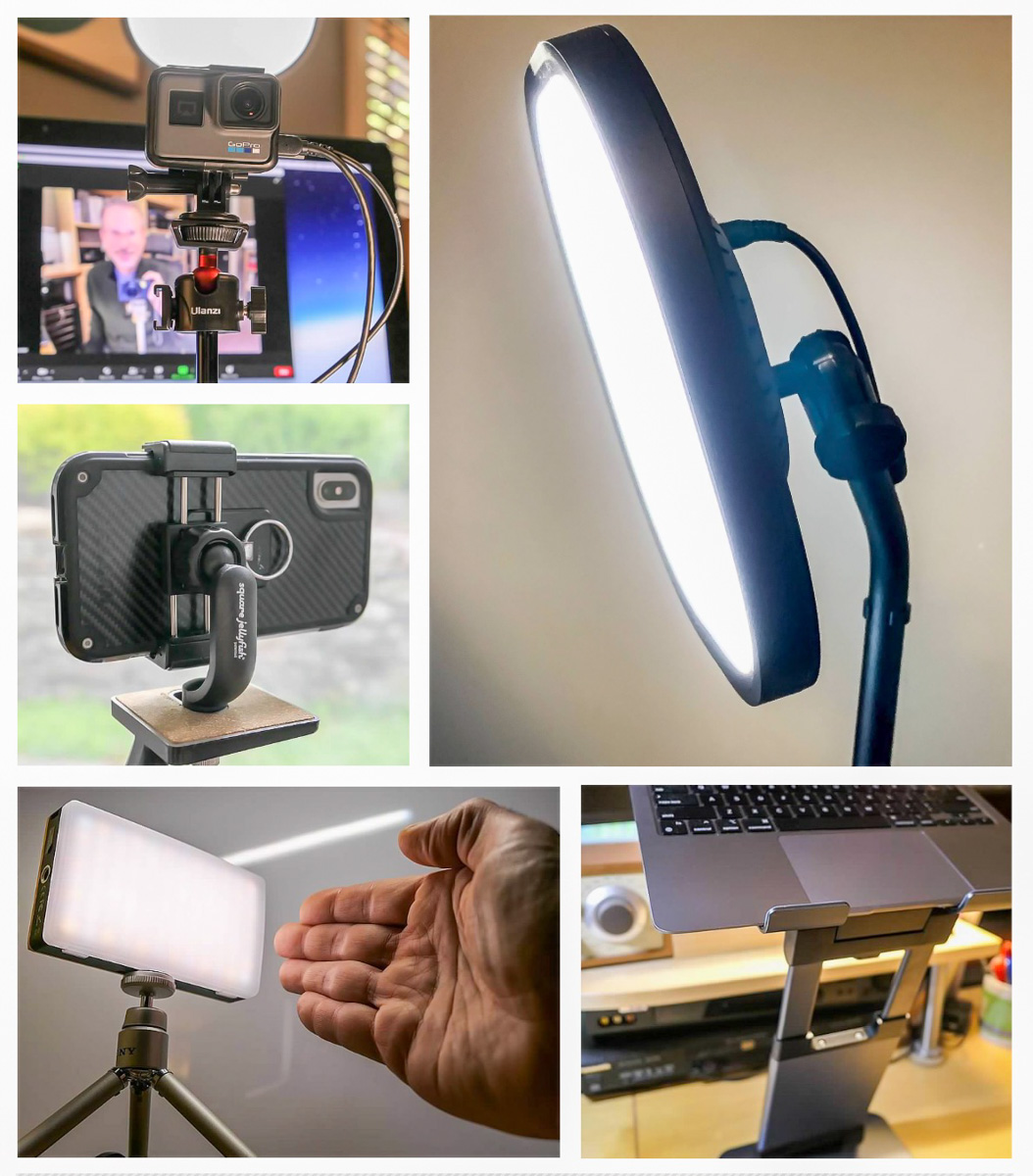
If you’d like to improve your look during Zoom meetings, here’s my list of support gear I’ve added to my home office during the past year.

I’ve blogged frequently throughout the pandemic about Zoom meetings from home. I’ve found that applying my knowledge of video production best practices has been useful in maximizing my own Zoom shots. However, miniaturizing the standard gear of a TV studio to use in a home office environment can be tricky proposition.

That said, there’s plenty of compact consumer gear out there that can help improve the look of your video conferencing feeds without overwhelming your desk.

Here are five key pieces of relatively affordable gear I’ve put in place to help with my own Zoom shots:

1.
Key Light

Sometimes, there’s not a window nearby to offer illumination for your face. Instead, you need to provide your own front-facing light.

I use this soft LED as my main lighting positioned behind my iMac. It’s been performing great for over a year now.

2.
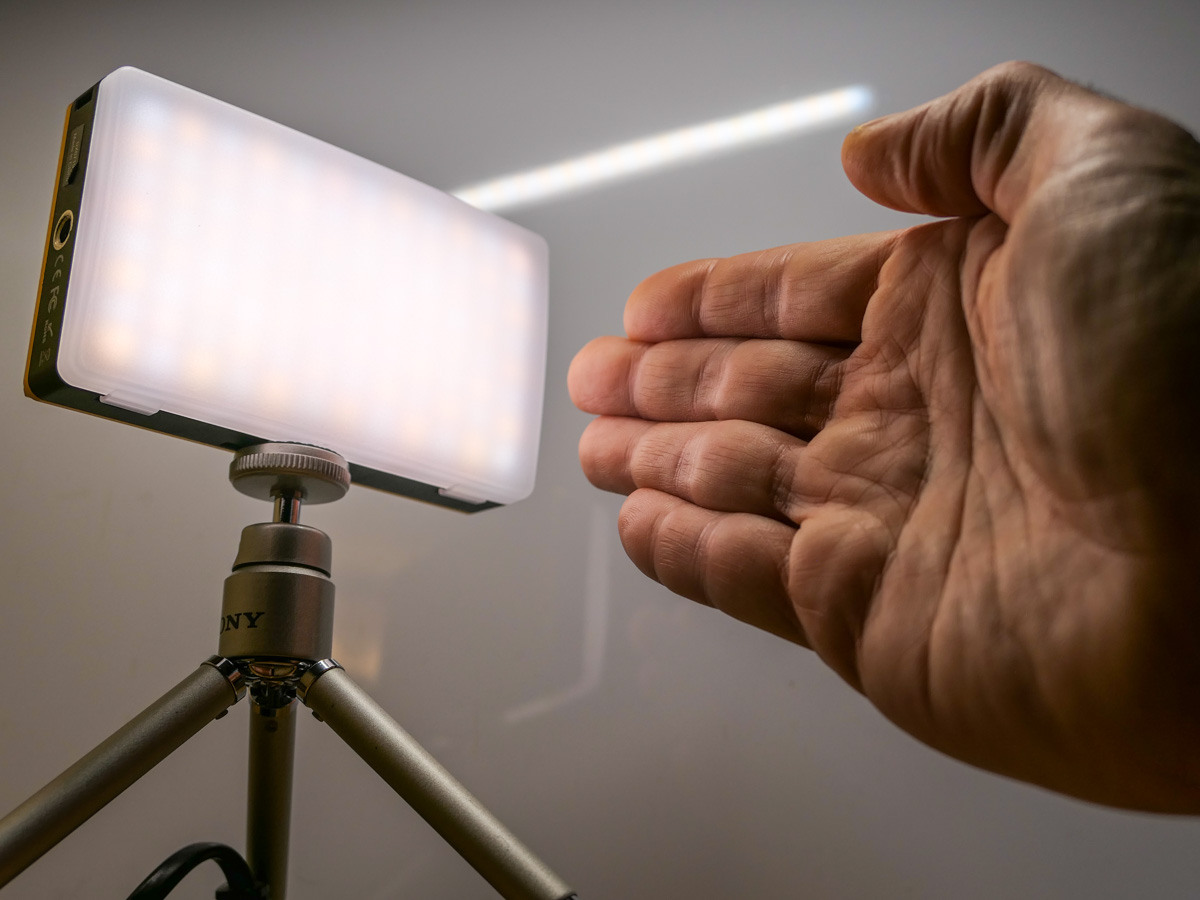
Fill Light

This battery-driven LED is perfect as a side light or for a more portable lighting solution.

It’s more expensive than other pocket LEDs, but it’s powerful and the light output levels are adjustable.

3.
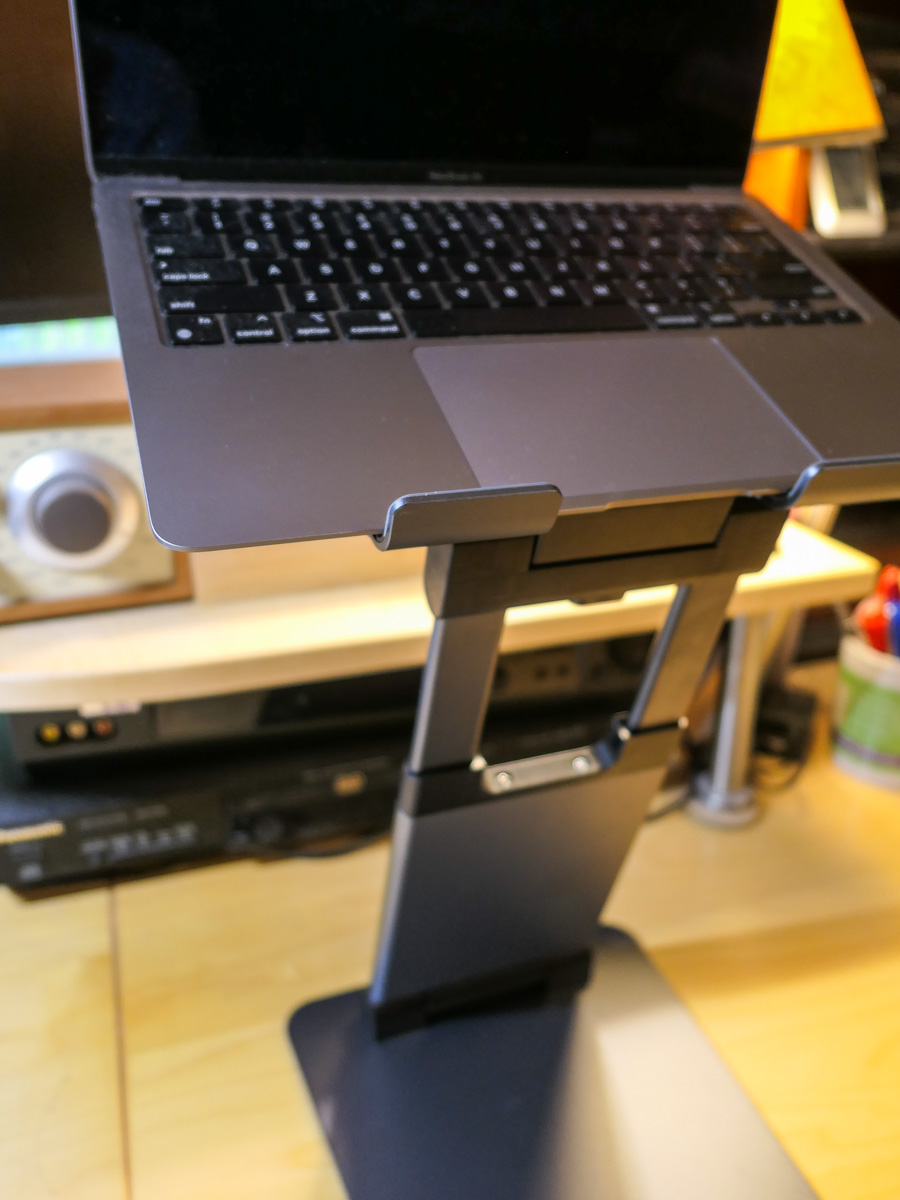
Desk Stand to Elevate Laptop Webcam

This stand almost magically levitates your laptop, bringing the computer’s webcam closer to eye level.

The resulting height adjustment for your laptop will prevent the dreaded Zoom ceiling shot that looks up your nose!

4.
Tabletop Tripod for your External Webcam

It’s sturdy, but small enough to not take over your desk!

You can pop any webcam onto this baby tripod as long as it uses a standard 1/4” screw mount or GoPro mount.

5.
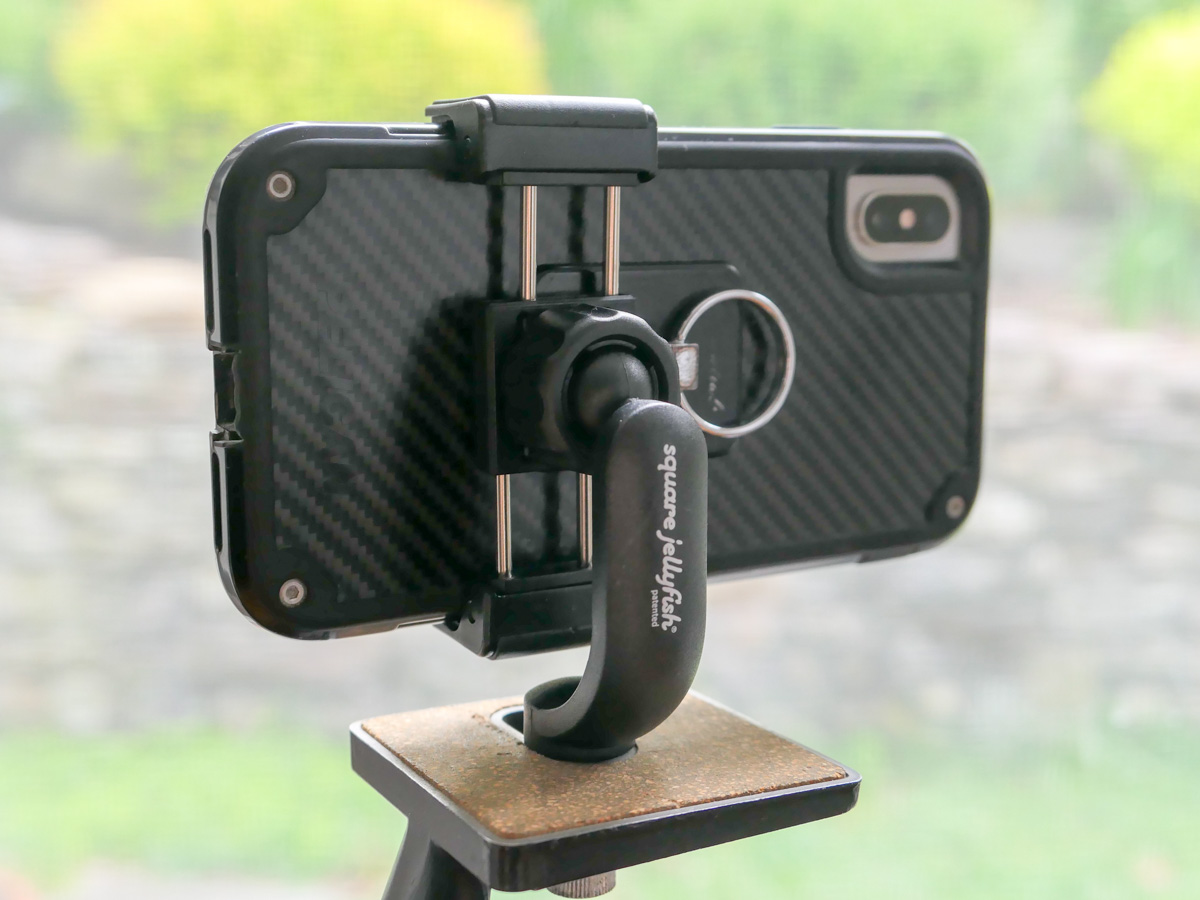
Smartphone Tripod Adapter

Sometimes, you may have to unexpectedly take your Zoom meeting to another room. A simple way to accomplish that is by using your smartphone.

Mounting your device to a tripod using this grip adaptor will negate the need to hold your phone throughout your meeting.

Zoom Away
Putting in place a few pieces of valuable support gear will go a long way to help improve your image for your next Zoom meeting.

It’s worth the effort.

How to Fix your Ceiling Shot Problem during Zoom Meetings

Using a tabletop tripod to elevate your webcam shot is a great way to help your Zoom viewers experience you eye to eye.

It’s been over a year since the Zoom revolution took over so many parts of our lives. The good news is many of us have mastered the basics of video production while video conferencing from home. But there’s one mistake I see plenty of people still struggling with. To be fair, it’s not entirely their fault. Some blame has to be shared with laptop manufacturers who insist on putting webcams down at the bottom of the laptop screen.

The Evil Ceiling Shot
The resulting problem is your webcam pointing up at your face with the ceiling as the background. The shot is incredibly unflattering. Who wants their viewers staring at their chin or peering up their nostrils?

The fix is not an easy one. You’ve got to find a way to bring your webcam up to a more level position with your eyes. That will create the balanced visual you need.

Stacking a few hardcover books under your laptop can help. If you’ve got a standing desk, it’s time to raise it up all the way. Anything you can do to elevate your webcam will reduce the evil ceiling shot.

You also might want to consider investing in a little more gear to improve the Zoom experience for both you and your viewers.

Time to Buy a Tabletop Tripod
To move your shot high enough to make your webcam parallel with your eyes, you may need to invest in a standalone webcam. And then, most critically, you absolutely have to perch that webcam on a tabletop tripod.

A good tripod that can fit on your desk will be your unsung hero to help create a great video shot for your next Zoom.

The trick is making sure the mini tripod is tall enough to meet your eyes.

There are plenty of inexpensive tabletop tripods out there for webcams and portable LED lights. The problem is many of them are too short, only coming up a few inches. You really need a mini tripod that telescopes up 15 inches or more.

And you should also make sure you don’t choose a model that will take over your desk. It needs to be compact.

In looking to improve my own desk setup with a new tabletop tripod, I found these options to consider:

  • Lume Cube Desktop Light Stand
    30” max height
    $34.95 on Amazon
    The tallest option if you need it, but it’s also more expensive.
  • OrangeMonkie Tripod50
    19.7” max height
    $44.99 on Amazon Prime
    I love this little tripod. Even though it’s the most expensive of the group, it’s a great value. Unfortunately it’s overkill, made for heavier gear. The design will also take up more space on your desk.
  • Neewer Photography Mini Table Top Stands (2)
    20” max height
    $19.99 on Amazon Prime
    The price is right, but you can’t tilt the mount.
  • Ulanzi MT-16 Tripod
    15” max height
    $22.95 on Amazon Prime
    Just tall enough. Comes with a standard 1/4” screw mount and a GoPro mount.

Ulanzi MT-16
So, I ended up going with the Ulanzi MT-16 tripod. It’s great to support my portable Genaray Powerbank 96 Pocket LED light. It’s also a perfect choice to hold up my GoPro when using it as a webcam.

Yes, GoPros can be repurposed as webcams. To do that trick, you just need an HDMI-out to USB 3.0-in adapter. That interface will connect your GoPro’s video feed to your computer. (I use the Elgato Cam Link 4K.) Once attached, your GoPro is ready to live stream.

Elevate your Zoom Game
Remember, to create your best video shot for your next Zoom, you have to bring your webcam up high enough to meet your eyes. And stacking books under your laptop can only take you so far.

A separate webcam on a desktop tripod can really elevate your Zoom game. (The same goes for portable LED lights. You want your soft light source hitting your face at eye level.)

Using a little tripod will make a big difference!