At Home with Tech

Unlock the power of all your technology and learn how to master your photography, computers and smartphone.

Tag: Zoom

How to Use Microsoft Word as a Teleprompter for your Next Zoom

This easy reformatting trick in Microsoft Word will help you present better when reading your notes during your next Zoom meeting.

It’s always important to establish eye contact with your audience if you want to create a strong connection. The same is especially true when talking via Zoom and other video conferencing platforms. And the only way to do that is to stare directly at your little webcam. That can be difficult when you’re also trying to pay attention to all of those little boxes of faces on your screen.

There’s also the reality that many of us have had to Frankenstein together more advanced work stations at home with multiple monitors, creating even more eyeline complexities.

In short, a lot of people aren’t following the best practice of looking directly at their webcams these days. If you’re even close, I think most folks on the receiving end are relatively forgiving.

Now, I’m not saying that’s okay. I’m saying that’s what I’ve seen happening. And because it’s generally become acceptable to look slightly off camera while Zooming, there’s a huge opportunity to exploit in that little space between where you should look and where your eyes are likely focusing .

Create your own Teleprompter
If you’re presenting to your Zoom audience, and you’ve got notes or perhaps a full script to read, you should position them on your screen right under your webcam to reduce the effect that you’re reading. A physical page of notes taped under your webcam can work, but I’m not talking about an analog solution. Move that Microsoft Word window up. Keep it all digital.

The closer you can get your Word doc to your webcam the better. It’s like activating your own little teleprompter. The result will be remarkably close to the appearance that you’re effortlessly talking to your audience and not reading your script. And because your audience has been conditioned to seeing others look off screen, they likely won’t notice your visual trick.

Don’t Let your Eyes Ruin your Illusion
That said, they will see you reading your notes if your Word window is still at its normal width. Your eyes will clearly be moving left to right and from line to line. (Then, the jig will be up!)

You need to make your Word window thinner… only 8-10 words across to correct the problem.

But then how are you supposed to see a complete line of your script if only part of it is now visible?

Here’s the fix:

Use Web Layout
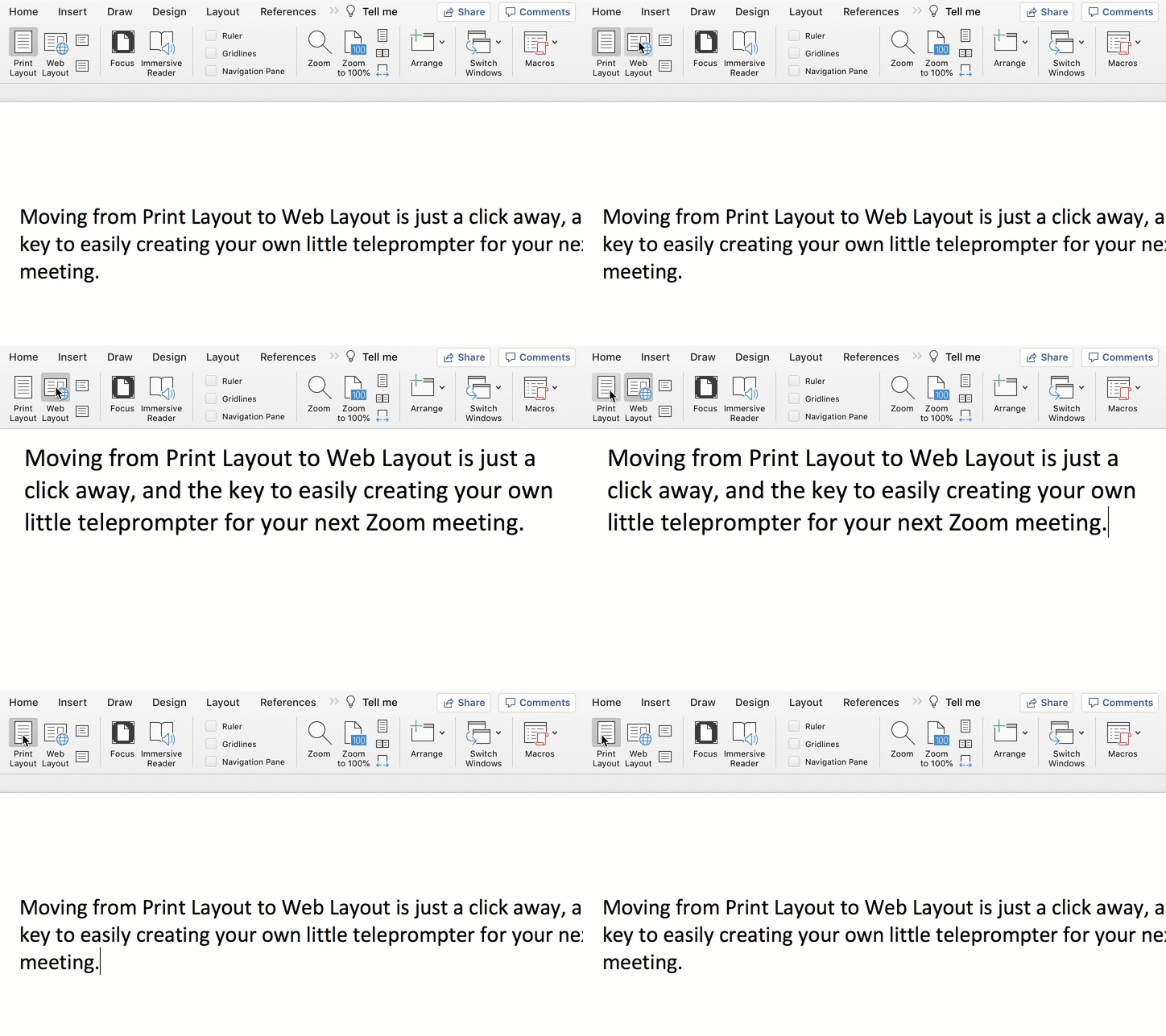
Change the view in Word from Print Layout to Web Layout.

Once you do that, you can shrink the width of your page, and the text will automatically wrap to fit your thinner Word window.

Then, all you need to do is scroll down the page using your mouse or trackpad as you’re reading.

Congratulations, you’ve effectively created your personal teleprompter!

How to Adjust the Default Settings
Here are the easy steps to make the change to your Word doc:
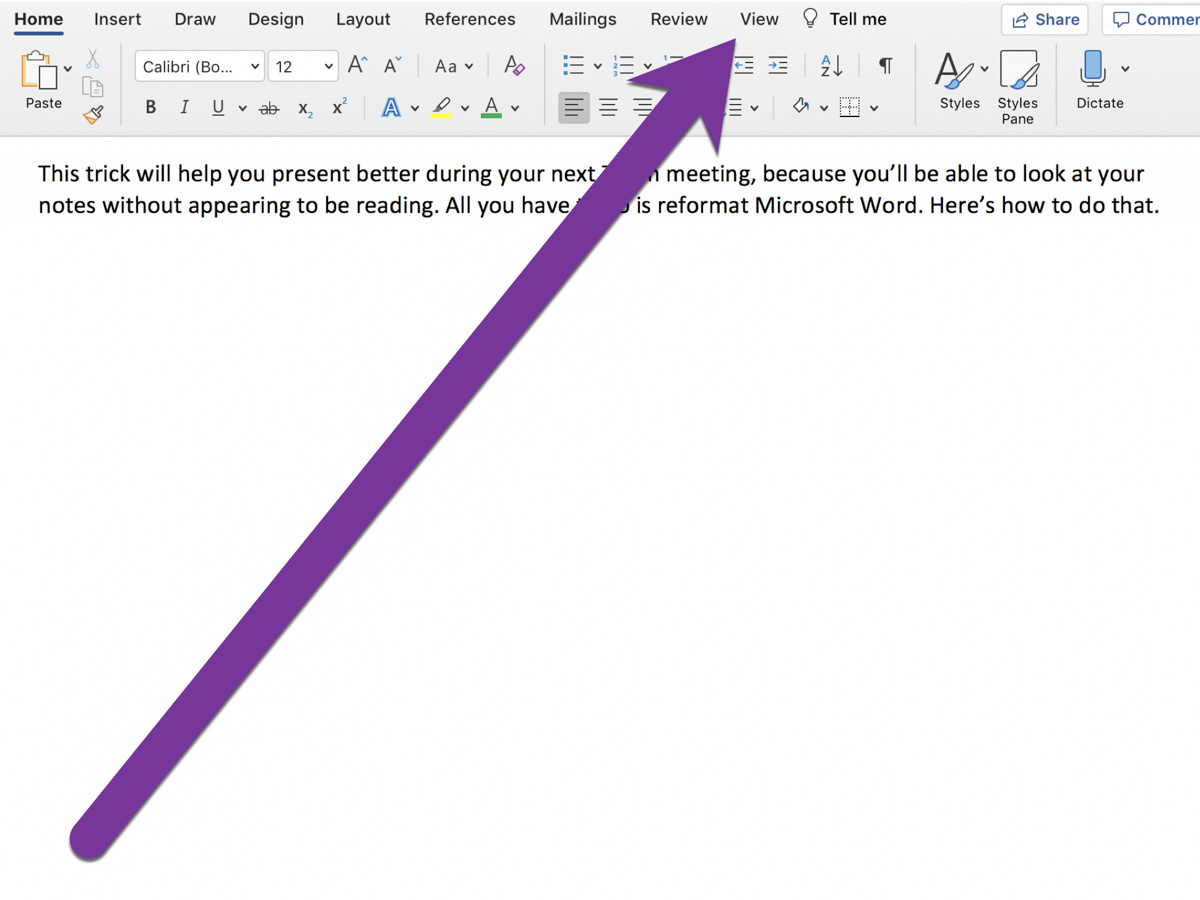

On Word’s top menu bar, click on View from the Home menu.


On the left, you’ll see Print Layout and Web Layout. Click Web Layout.


Then, click on Zoom to adjust the size of your text so you can easily read it.

That’s it!
 

Advanced Tip: Minimize the Ribbon
To get your notes even closer to your webcam, collapse Word’s top ribbon.
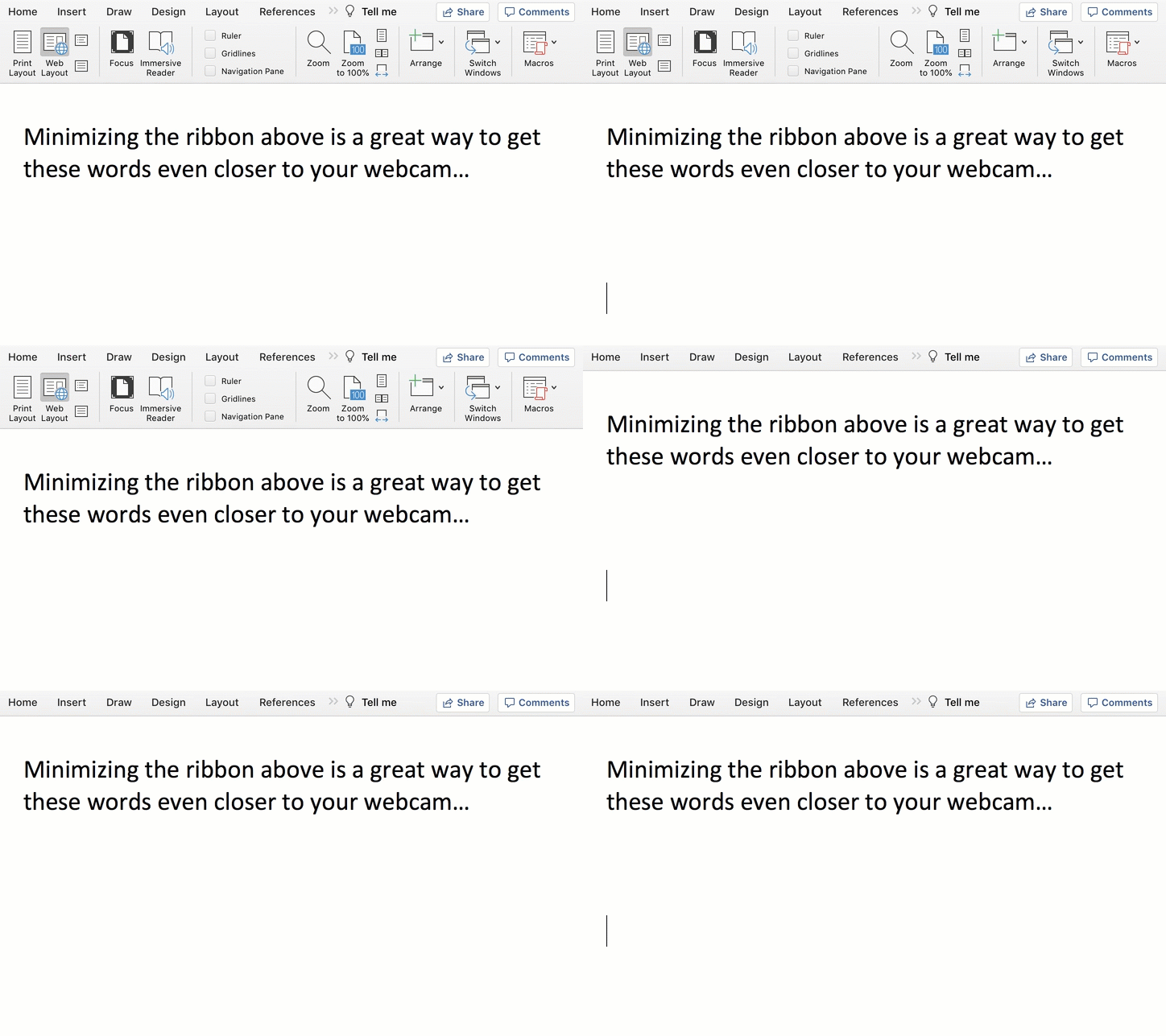
On a Mac, press Command + Option + R.
On a PC, press Control + F1.

Another Tool for your Virtual World
Living life on Zoom during these many pandemic months has been draining for all of us. Reformatting Microsoft Word to serve as your pseudo-teleprompter is one way to make your Zoom presentations a lot easier.


Nature, Technology, and the New Year

This photomosaic is my homage to the opposing elements that have helped to maintain my balance throughout the pandemic.

I don’t usually think of nature and technology as being cut from the same cosmic cloth. But together, they’ve done so much to help me endure all of the disconnection caused by the pandemic. Over the past year, I’ve found it remarkable to see how much these opposite elements have been able to fuel both the spirit as well as some simple daily essentials.

For me, there’s been a huge need to rebuild connection points that have been shattered throughout all of the disruptions.

Too Much Zoom?
I don’t have to tell you how much Zoom and other video conference platforms have helped to maintain face-to-face communication throughout all parts of our lives.

But unrestricted by life’s former patterns, our computers have also beckoned for our extended attention without regard to former boundaries. Zoom fatigue was the term we gave to the resulting drain on our life force.

Choosing to break away from the digital siren’s glow and step outside for a simple walk has been critical to maintaining sanity. Doing a nature walk is even better. For me, it’s been a great way to refresh and remember what’s really important in life.

Back to the Future
Leaning on both nature and technology helped me to keep it together in 2020. It’s about maintaining balance. And for me, I did that by better balancing my time between the two.

There were also ways to positively engage with both simultaneously. I found that snapping more nature photos and time-lapse sunrise videos was a joyous connective tether.

As we look to a better 2021, we should continue to weave together the impact of these two contrary forces. Eventually, there will be a next new normal after the pandemic ends. That life should continue to reflect our healthier balance with both technology and nature. (That’s my New Year’s resolution.)

And if your harmony isn’t quite there yet, now’s a great time to get started!

I wish you a safe and healthy 2021.

Cancel your Deal with Zoom’s Virtual Background Devil

Fabricating the illusion of a faux background for your Zoom calls may seem like a good idea, until you realize what you’re giving up. Here’s why it may be a bad deal.

I once believed the goal for Zoom backgrounds was to try to mimic a uniform environment, like walking into an average conference room. Or even better… attempt to mimic that clean, all-white background that Apple is famous for.

That would be so much better than revealing the cluttered background of my home office.

The Lure of Using Fake Zoom Backgrounds
So, I bought white and green pop-up screens and tried squeezing them into the space behind my desk.

But most of us don’t live in an empty 30’x30’ TV studio where this type of staging is easier to pull off.

I eventually succumbed to the reality that using a big enough green screen to pull off a full-shot chroma key during my iMac’s Zooms rendered my home office unusable. There just wasn’t enough space!

The only reasonable choice was to use the standard Zoom keying option that doesn’t take advantage of a green-screen background. And though it’s pretty amazing that Zoom can pull a key at all without using a green screen, the trick just doesn’t work as well.

As a result, you can almost always tell when someone is using a virtual background on Zoom. You can see that eerie black glow around someone’s head. And there’s that sudden, momentary disappearance of a hand. You’re not really fooling anyone when using a digital background. By now, I think we’ve all gotten used to that fake Zoom look.

Some of us even flaunt it when they place nature shots or outer space behind them. Yes, it’s a neat trick… once or twice, but eventually you need to come back to earth. I think you should have an image behind you that doesn’t make you look like you’re in a video game.

In Search of the Almost Real
I experimented with using photos of other rooms in my house as my Zoom background in the attempt to maintain some sense of visual authenticity that’s true to my real environment. I eventually landed on a reasonable shot of my living room.

Yes, you could still tell I was using a virtual background, but at least I wasn’t hanging out in someone else’s home!

Offer More of Your True World
While using a photo of my living room did meet my bar for authenticity, I still felt restricted Zooming in a virtual space. Ultimately, I just wasn’t comfortable. The tradeoff wasn’t worth it.

So I cleaned up the clutter of my home office the best I could and turned off my virtual background.

Yes, I went cold turkey on virtual backgrounds. And you know what? It’s felt so much better. The shot represents more of my true life, warts and all.

So here’s a radical suggestion:

  • Even if you believe your space is a disaster and unfit for your video conference viewers, if you do some preproduction staging, I think you can create a look that you’ll be comfortable with.

Unless you’re stuck Zooming in your bathroom, there’s probably a corner in your home that you can make work. Yes, any number of disturbances from your life may be only a few feet away. And we all want to minimize visual and audio interference that may prevent us from communicating clearly.

That’s different than trying to hide from your own environment.

By now, everyone expects visual imperfections on Zooms. The opportunity is to turn your world’s imperfections into an authentic experience. And that can ultimately be such a refreshing change up for your viewers.

Maximize your Reality Instead of Fabricating an Illusion
Showing it like it is means you’re sharing a more personal experience. And I think your Zoom viewers will really appreciate that.

Unclick the virtual box and stop the illusion. You don’t have to hide anymore.

It feels wonderful.