
How 3 Computer Screens can Enhance your Work at Home
by Barrett

If you’re struggling to manage multiple windows on your computer screen while working from home, then it’s time to get yourself more screen real estate. It’s okay to admit it. Six monitors might be too many, but here’s what I did to get to three.
How many programs or apps do you juggle on your computer screen during your work day? Several Microsoft Word docs? Perhaps a Google Slides deck? Emails? Multiple web pages? Texting program? If you’re a creative, maybe you’ve also got Adobe Premiere or After Effects running. Where can you possibly put all that? Sure, you can minimize and hide windows, but you know… out of sight… out of mind.
It’s a constant struggle to keep your desktop organized and quickly find what you need. And you can never see everything simultaneously. You’d need a massive screen for that.
Well, of course they make larger screens for your computer. And if paired with a laptop, you also get the extra benefit of having a second screen. But some people keep their laptop closed and just use their external monitor. I think that’s a missed opportunity.
Stop Looking through a Pinhole
I know. Lots of folks do just fine using their tiny 13” laptop screen. Heck, 15” laptop screens are considered massive by comparison. But I know I’m not alone in feeling even that’s not enough room to do your work if you spend most of your day on a computer.
An office environment can often accommodate for this need with multi-screen stations you can easily plug into. But if you’re working from home, you’re usually on your own to figure it out.
Well, I’ve got a bold message to share: It’s really time to stop struggling.
Stop ‘making do’ with your tiny laptop uncomfortably crammed in the corner of your home. Why not reprioritize your existence and acknowledge your reality? It’s not temporary anymore.
So go ahead and redesign your space to set up a larger monitor for your laptop. If you’ve already got one monitor, consider buying a second one!
Yes, you really need it! It’s okay to admit that you do.
And let me tell you, when you allow your field of computer-screen vision to spread out more, it’s like putting on glasses for the first time…. Simply glorious.
Adding a 24” Screen to a 27” Monitor on my Standing Desk
I’ve been using a 27” LG monitor for the past few years with my laptop. They sit on my 42” wide standing desk in my home office. But I finally decided it just wasn’t enough. I really wanted a three-screen setup.
My standing desk is positioned in front of a window across from a separate V-shaped desk that houses my personal Mac Studio and a 32” HP ‘Z’ monitor.
Years ago, I chose to separate my work and play spaces in my home office. Perhaps that’s unnecessary, but it feels right for me. So, on the days when I work from home, my commute is a simple 150° swivel of my chair, and I’ve arrived.
No, I didn’t have a ton of extra room on my standing desk, certainly not enough for another 27” monitor. But I believed I could squeeze in a 24” monitor to help me gain additional screen real estate.
I knew it wouldn’t look pretty. I wouldn’t win any home-office feng shui awards. It would be a “Matrix”- like clutter vs. an airy starship design. And that’s okay. You go with what you’ve got.
So, with holiday sales swirling about, I finally allowed myself the freedom to buy a second additional screen for my laptop.
My New 24” Dell Monitor
I went with a 24” Dell UltraSharp USB-C Hub Monitor (U2424HE). The ‘hub’ functionality made it easier to tether to my existing set up without having to buy a separate hub device.
The USB-C connection to my laptop also feeds power to my laptop, which is a nice bonus, reducing cable clutter.
The IT Guy Finds a Challenge
The setup mostly was plug and play, but you really must know where to plug everything in. There were no directions in the box. (The quick setup sheet didn’t talk about multi-screens.)
I eventually found the 116-page manual online. The PDF was crammed with every possible detail. It described 14 connection options, each pin designation for the RJ45 plug and the emergency steps to take if you have to quickly dump the warp core (Trekkie joke). I scoured though this manual nobody ever wants to read and finally found page 55.
MST on Page 55
It’s titled, “Connecting the Monitor for USB Type-C Multi-Stream Transport (MST) Function.” (MST? Are we supposed to know that acronym?)
In short, page 55 told me to connect the Dell to my laptop with the USB-C cable and then tether the two monitors with the DisplayPort (DP) cable. (easy)
And then it simply worked. All my screens began to glow, and so did I. But please take note that you really do need to bring your inner IT Guy for this.
The Power of 3 Monitors
I think the irony and the truth behind this story is my secret desire to ultimately surround myself with 360° screens. Well, I’m on my way…
For now, I’ve got my laptop screen, my 27” LG and my adorably mismatched 24” Dell. Everything fits. And the extra monitor really makes a big difference. (Barrett is happy.)
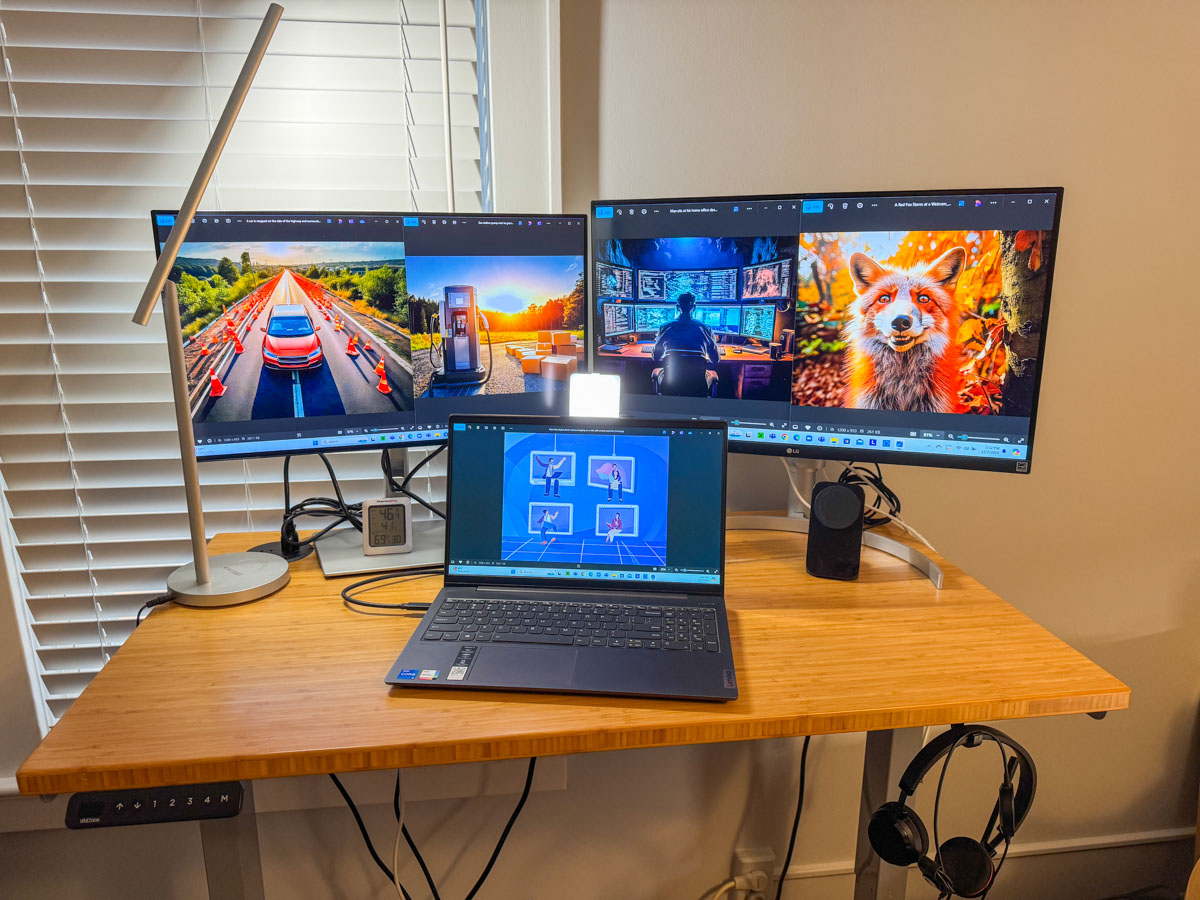 Here’s my upgraded standing desk setup with my personal laptop displaying Adobe Firefly images I’ve created for my blog.
Maybe one day, a less expensive next-generation Apple Vision Pro will transport me into a more evolved virtual workspace environment and better serve my needs.
For now, all that matters is I’ve successfully expanded my access and visual connection to the many details constantly flowing through my computer.
More clarity through working smarter. I highly recommend it.
Discover more from At Home with Tech
Subscribe to get the latest posts sent to your email.
 At Home with Tech