At Home with Tech

Unlock the power of all your technology and learn how to master your photography, computers and smartphone.

Category: apple

How to Text your iPhone’s Video Clip if the File is Too Big

Your only hope to successfully share your video via text is to compress it into a smaller version. Here’s how I did that to a video of my son practicing the piano.

If you shoot a 4K video on your iPhone and then attempt to text it to someone, you’ll likely run into the problem of a file-size limit. That happened to me recently when I was asked to capture my fifth-grade son practicing a piece of music for his piano teacher to review.

Fortunately, my son’s piano lessons have been proceeding just fine over the past year of Covid as a virtual learning experience, courtesy of FaceTime and two iPhones. Unfortunately, this recording ended up running six-minutes long, and I had forgotten to reset my iPhone to shoot video at a lower quality. The result was the creation of a massive 2 GB file.

That’s way bigger than what you can text or email from an iPhone. And as it turned out, my clip would still have been too large to send even if it was recorded at my iPhone’s lowest quality setting of 720p.

Compression Required
Sure, there are ways to upload a large video file to the cloud and then create a download link to send to your recipient. Apple offers iCloud Mail Drop (5 GB file-size limit). And of course, there are other cloud solutions.

But you’re still sending over a massive file for someone else to download. I would suggest that’s not good digital etiquette. Unless your recipient specifically needs your video at its original quality, the decent thing for you to do is to first compress the file into a smaller version for viewing.

Unless you trim your video’s length, you’ve got to find a way to shrink your file before sending it along.

AirDrop
So, my solution was to use Apple’s AirDrop tool to wirelessly send my video from my iPhone to my iMac (There’s no file-size limit.)

Then, I opened up the video clip on my iMac in QuickTime and simply exported a copy in a smaller size from the drop-down menu (480p).

Finally, I dragged the new, compact file into the Messages app on my iMac and ‘texted’ the video to my son’s piano teacher. This kept our video sharing in the same digital ecosystem as we’ve previously been using.

There are other video compression tools available for a Mac (such as the Compressor app), but QuickTime will usually do the trick.

iMovie
If you don’t want to move your file over to a computer and instead prefer to do the compression work on your iPhone, you can easily use iMovie.

Just bring your original video into the iMovie app and then immediately move to export a new file (unless you first want to perform some editing tweaks).

  • Click the blue “Options” tab and select either 360p or 540p resolution.

And then, voilà! You can send your smaller file along.

There are also third-party video compression apps for an iPhone in the App Store, but I suggest you simply stick with iMovie for your basic compression needs.

Less is More
None of this guarantees that your new file will be small enough to text or email. But if the length of your original video is just a couple of minutes, you should be in good shape.

Unless you’re using a cloud-sharing solution, a best practice for any video recording plan that requires sharing your clip is to limit the length. Everyone has space limitations on their smartphones and nobody will enjoy having to manage a huge video file.

Keep it short. Keep it small. And don’t forget to compress it!

How to Use Microsoft Word as a Teleprompter for your Next Zoom

This easy reformatting trick in Microsoft Word will help you present better when reading your notes during your next Zoom meeting.

It’s always important to establish eye contact with your audience if you want to create a strong connection. The same is especially true when talking via Zoom and other video conferencing platforms. And the only way to do that is to stare directly at your little webcam. That can be difficult when you’re also trying to pay attention to all of those little boxes of faces on your screen.

There’s also the reality that many of us have had to Frankenstein together more advanced work stations at home with multiple monitors, creating even more eyeline complexities.

In short, a lot of people aren’t following the best practice of looking directly at their webcams these days. If you’re even close, I think most folks on the receiving end are relatively forgiving.

Now, I’m not saying that’s okay. I’m saying that’s what I’ve seen happening. And because it’s generally become acceptable to look slightly off camera while Zooming, there’s a huge opportunity to exploit in that little space between where you should look and where your eyes are likely focusing .

Create your own Teleprompter
If you’re presenting to your Zoom audience, and you’ve got notes or perhaps a full script to read, you should position them on your screen right under your webcam to reduce the effect that you’re reading. A physical page of notes taped under your webcam can work, but I’m not talking about an analog solution. Move that Microsoft Word window up. Keep it all digital.

The closer you can get your Word doc to your webcam the better. It’s like activating your own little teleprompter. The result will be remarkably close to the appearance that you’re effortlessly talking to your audience and not reading your script. And because your audience has been conditioned to seeing others look off screen, they likely won’t notice your visual trick.

Don’t Let your Eyes Ruin your Illusion
That said, they will see you reading your notes if your Word window is still at its normal width. Your eyes will clearly be moving left to right and from line to line. (Then, the jig will be up!)

You need to make your Word window thinner… only 8-10 words across to correct the problem.

But then how are you supposed to see a complete line of your script if only part of it is now visible?

Here’s the fix:

Use Web Layout
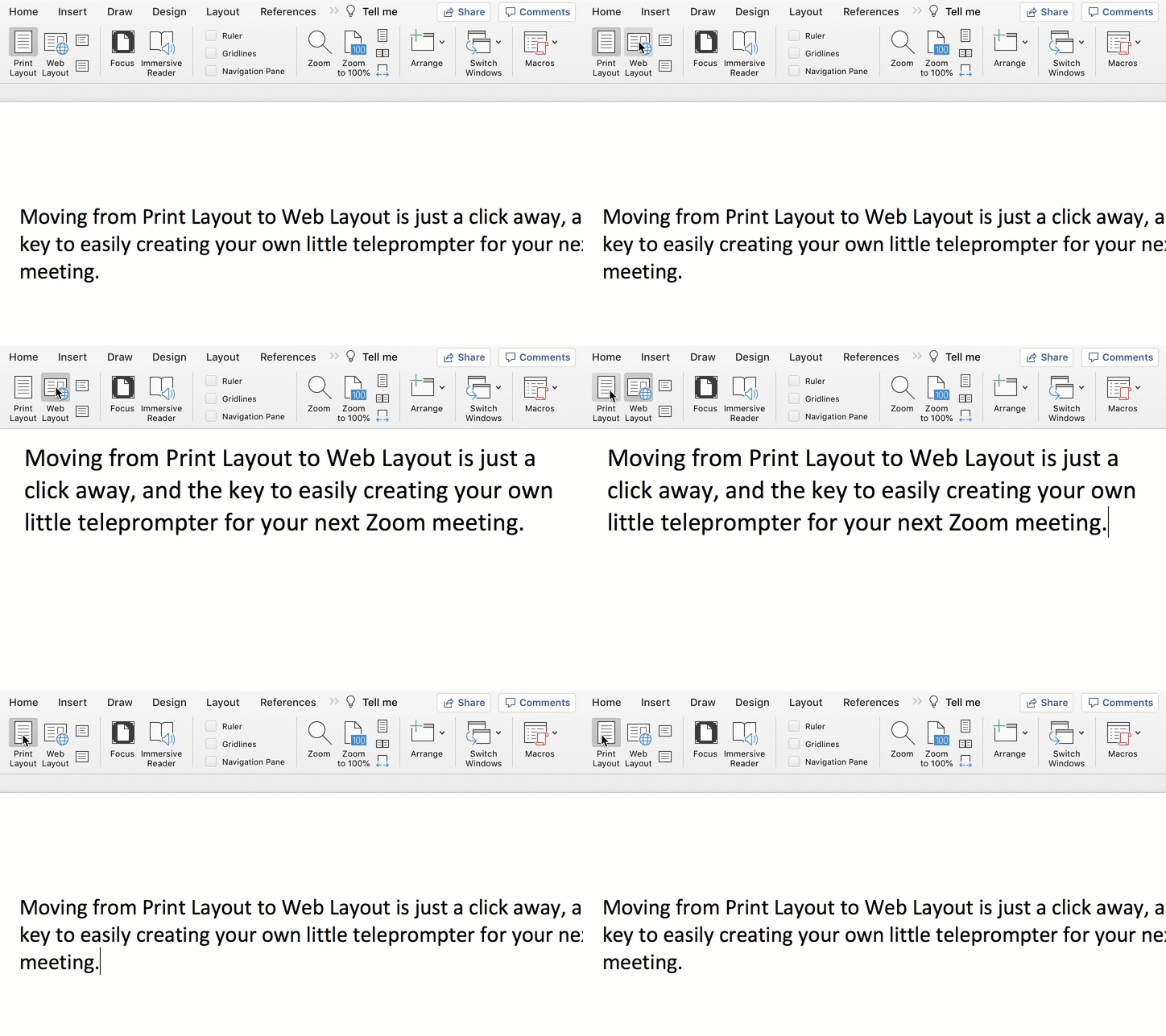
Change the view in Word from Print Layout to Web Layout.

Once you do that, you can shrink the width of your page, and the text will automatically wrap to fit your thinner Word window.

Then, all you need to do is scroll down the page using your mouse or trackpad as you’re reading.

Congratulations, you’ve effectively created your personal teleprompter!

How to Adjust the Default Settings
Here are the easy steps to make the change to your Word doc:


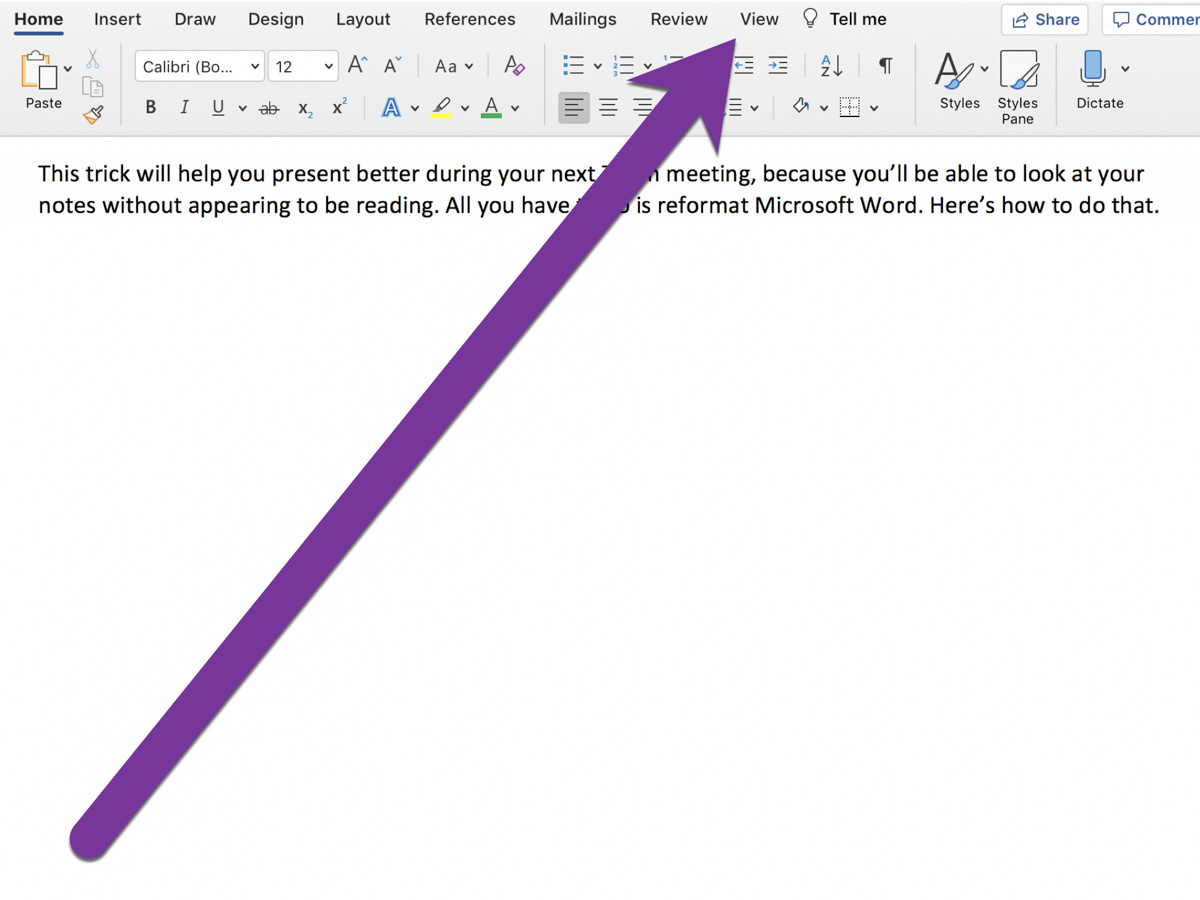
On Word’s top menu bar, click on View from the Home menu.


On the left, you’ll see Print Layout and Web Layout. Click Web Layout.


Then, click on Zoom to adjust the size of your text so you can easily read it.

That’s it!


Advanced Tip: Minimize the Ribbon
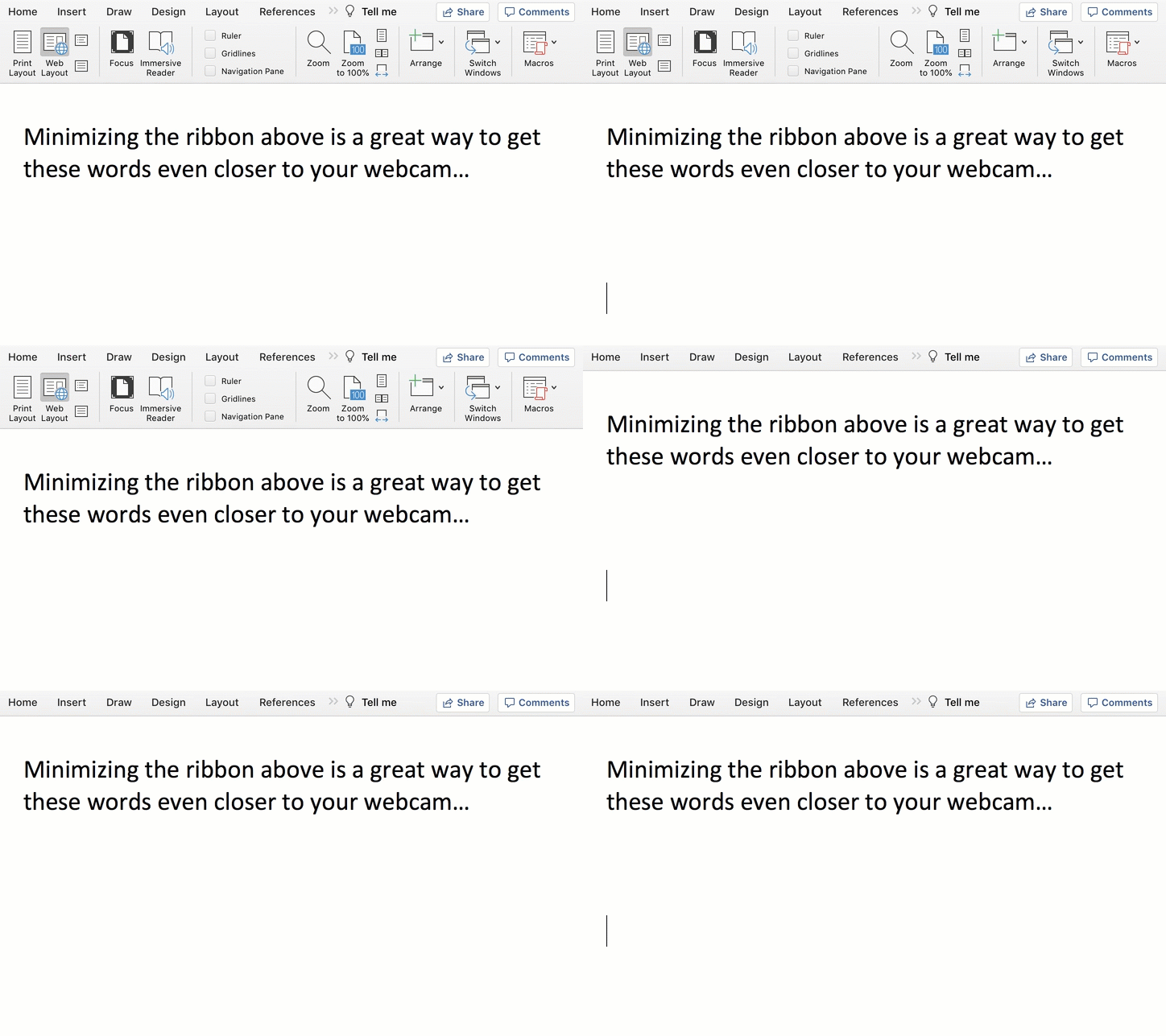
To get your notes even closer to your webcam, collapse Word’s top ribbon.

On a Mac, press Command + Option + R.
On a PC, press Control + F1.

Another Tool for your Virtual World
Living life on Zoom during these many pandemic months has been draining for all of us. Reformatting Microsoft Word to serve as your pseudo-teleprompter is one way to make your Zoom presentations a lot easier.


6 Ways to Protect your Data and Tech at Home

If you’re looking to beef up the reliability of your digital resources, here’s a list of the gear behind my tech.

With so many daily norms shattered as a result of COVID-19, I’ve discovered the act of online holiday shopping to be a comforting activity. Of course, it’s no less frustrating trying to find the actual deals. But that’s always been a part of the challenge, right?

Right now though, what’s most important to me isn’t what shiny new tech to buy. It’s how to make sure the gear I own continues to work properly. And that’s often about the tech behind the tech.

I thought it could be helpful to share some detail on the support gear that helps to keep my tech going every day. This list isn’t about the coolest hardware. It’s simply about what helps maintain order with my tech at home as well as a sense of stability for my (digital) existence. 

It all about protection and reliability.

1. Backup Drive for your Computer

Cloud storage should now be a major player in your backup plan, but having dependable external drives is still a good strategy. I’m a big fan of G-Technology Drives (owned by Western Digital).

The G-Technology 4TB G-Drive USB 3.0 goes for $129.95 on Amazon.

It’s what I use for my iMac’s Time Machine backups.

2. Portable Backup Drive

Yes, I’m sticking with G-Technology for the portable choice. My go-to drive is the G-Drive Mobile USB-C.

The 4 TB version costs $139 on Amazon.

3. Wireless Mesh Router

If you’re like me, your home WiFi is now tasked with supporting multiple family members throughout the day…and in every corner of your home. To help make sure that your WiFi reaches your entire family perimeter, you need a mesh WiFi system in place.

When I replaced my old Apple AirPort Extreme WiFi router, I went with the two-unit RBK50 mesh WiFi system made by Netgear Orbi. Next to my Sonos speaker in the photo above, it costs $295.19 on Amazon.

4. Smartphone Case

Holding Pelican Shield Case for iPhone XS Max

You really don’t want to deal with a cracked smartphone screen if you can avoid it. I’ve always felt that a solid case is critical to maintaining your smartphone’s structural integrity. 

I’m partial to Pelican cases. The company is best known for its equipment cases that protect gear worth many thousands of dollars. Its smartphone cases are also tough, and the “Shield” model looks like it comes from the alternate universe in the TV series, “Fringe.” 

5. Portable Power Bank for your Smartphone or iPad

You know what happens when one of your portable screens runs out of juice, and a power outlet is nowhere to be found. A little portable power can really save your day.

RAVPower 16,750mAh Power Bank USB External Battery Pack is
$27.99 on Amazon
(This model also comes with a built-in flashlight.)

6. Cloud Backup

I’ve been using Backblaze after CrashPlan broke up with me. So far, so good.

As I mentioned, cloud backup should always be a part of your data protection strategy.

Maintaining Comfort
As we enter this season that promotes comfort and joy, it’s always a useful reminder to have some boring supports in place for your important tech. I’m not sure that will specifically generate joy, but it certainly will maintain comfort.

That’s always on the top of my list.