
The Best Way to Fix the Lighting for your Next Zoom Call
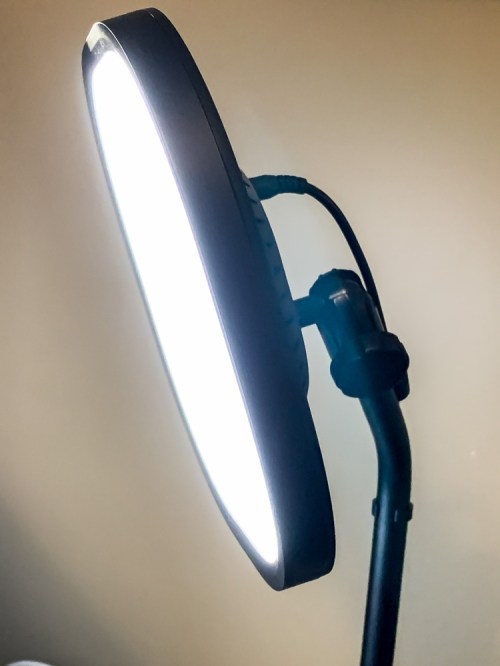
If video conferencing has become part of your daily life at home, you’re likely going to need additional gear to light your shot. Here’s what I did…
It seems like everyone has discovered Zoom (or a similar video-conferencing app) to stay socially connected in our new age of physical disconnection.
I think the big leap forward here is its sudden use at home and how every generation has almost instantly needed to figure it out to integrate it into their lives while they’re sheltering in place.
- My son has been staying connected to his teacher and fourth grade class on Zoom while his school is closed.
My wife and I have been keeping in touch with family and friends on group Zoom calls with the participants ranging from Millennials to the Greatest Generation. - Yes, it’s taken a few weeks, but by now, everyone’s pretty much figured it out.
(Just make sure your audio and video icons aren’t muted!)
But just because you’ve got the technology working doesn’t mean you’ve optimized it.
Follow the Basic Rules of Video Production
Of course, the key part to video conferencing is… video. And so you should really pay attention to how you show up.
Usually, that takes a certain amount of ‘preproduction’ work to set up a shot and background that creates a clear and ‘pleasing’ image of you. And if you think that shouldn’t matter, well it does.
(Come on… everyone wants to look good when a photo gets snapped. So why would video be any different?)
You should always follow these important prep tips to create a flattering video image:
- Your webcam should be level to your face and not peering up at you.
- Your background should be relatively uncluttered.
- You need to have light in front of you to properly illuminate your face.
(Never sit with windows behind you, because the daylight will silhouette you.)
Avoid the Common Lighting Mistakes
Now, I know that many folks have already figured much of this out on their own over the past few weeks.
But the lighting factor requires more effort than you’d think. If you really want to look great on your next video conference call, you need pay more attention to the kind of light that’s hitting your face and how harsh it is.
Simply pointing a desk lamp with a 800-lumen bulb at your face will likely overwhelm your webcam and make you look like you’re on the surface of the sun.
The key is finding a softer light source to gently bathe your image.
One trick is to use daylight from your window as long as the sun is not directly shining on you. (Again, that would be too harsh.)
But I know that moving your home office around to get you closer to a window may not be practical. So, you’re left with the option of adding in artificial light.
Using a ceiling light may be helpful as long as it’s not directly over your head. If it is, the lighting will create some really deep and unflattering shadows on your face.
Trying to split the difference between an overhead light and a window is also a bad idea, because the two types of light have different color temperatures. Combining both in your video shot will likely confuse your webcam, creating unnatural coloring on your face.
So don’t do that.
Buy a Webcasting Light
I actually had that exact problem with the way my home office was set up, trying to use my ceiling light on one side of my face, a window on the other side, and the glow from my iMac hitting me directly from the front.
(I looked like I was on the dark bridge of an evil Romulan ship on “Star Trek: Picard.”)
So, I finally decided that it was time to buy a soft ‘webcasting’ light that would become my main light source for video conferencing.
Of course, I went through my usual rabbit-hole experience of online research where I couldn’t find exactly what I wanted across dozens of options. Much of what I found used traditional light stands that were simply too cumbersome and couldn’t easily integrate into my limited home-office desk area.
Elgato Key Light Air
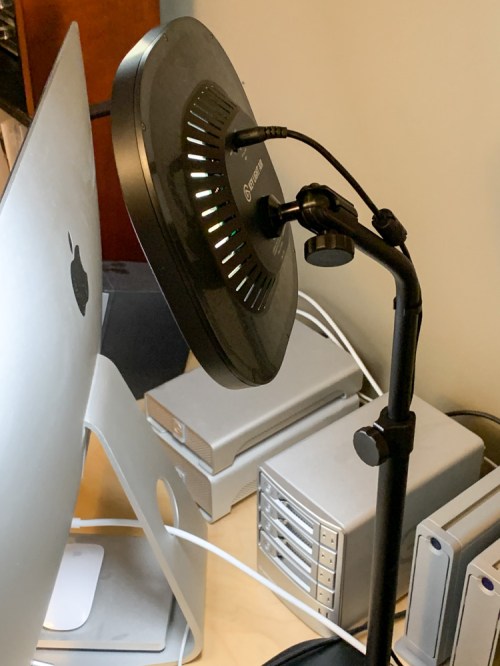
Then, I came upon the Elgato Key Light Air. It was exactly what I was looking for. It stands on your desk like a small lamp with a telescopic pole and offers multi-layer diffusion for it’s 80 little LEDs.
- 1,400-lumen output (more than you’ll likely need)
- 2,900-7,000 K color range
You control the Key Light Air entirely through its smartphone Elgato Control Center app, and you can easily tweak its light output and color temperature to help you look your best!
The Key Light Air costs $129.99 on Amazon Prime.
It was perfect.
Click.
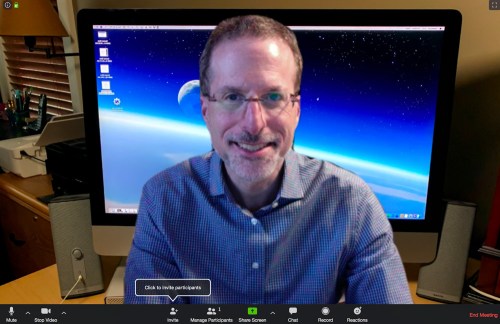
Here’s what I look like on Zoom with just my overhead light and window:
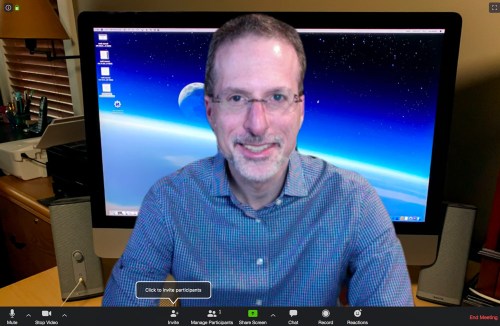
And here’s the big visual upgrade using my new Key Light Air:
Just like Scotty on “Star Trek” used to say… “The right tool for right the job!”
Another Elgato Option
If for some reason the Key Light Air isn’t powerful enough for your needs, it’s got a bigger sibling. The original Elgato “Key Light” ($199.99 on Amazon Prime) is larger and brighter, but it’s entirely overkill for my set up and little iMac webcam.
Plus, the Key Light’s desk-grip mount makes it less functional if I want to move it around to another surface.
Lume Cube
The Elgato Key Light Air not an inexpensive solution, but it certainly gets the job done. That said, there are cheaper choices out there that will still improve the lighting of your shot…
My friend recently bought the little Lume Cube 2.0.
($89.95 on Amazon)
The Lume Cube’s strength is its portability. You can easily throw it into your laptop bag.
(Not that you’re probably going anywhere right now.)
My friend tested it with me on Zoom using his laptop, and I thought it worked relatively well, although it definitely needed its little diffusion attachment.
LumeCube also offers a softer-throw Video Conference Lighting Kit.
($69.95 on Amazon)
Illuminate Properly
Face it… no room in your home was designed to serve as a video-streaming studio. Sure, following some basic rules of video production will help improve how you look on your next Zoom call.
But to really step it up, you’ve got to add in the right kind of light as your ‘key’ light source. And that means buying a specific light made for the job.
For me, it’s my new Elgato Key Light Air.




 At Home with Tech