At Home with Tech

Unlock the power of all your technology and learn how to master your photography, computers and smartphone.

Category: Tech Fixes

Cancel your Deal with Zoom’s Virtual Background Devil

Fabricating the illusion of a faux background for your Zoom calls may seem like a good idea, until you realize what you’re giving up. Here’s why it may be a bad deal.

I once believed the goal for Zoom backgrounds was to try to mimic a uniform environment, like walking into an average conference room. Or even better… attempt to mimic that clean, all-white background that Apple is famous for.

That would be so much better than revealing the cluttered background of my home office.

The Lure of Using Fake Zoom Backgrounds
So, I bought white and green pop-up screens and tried squeezing them into the space behind my desk.

But most of us don’t live in an empty 30’x30’ TV studio where this type of staging is easier to pull off.

I eventually succumbed to the reality that using a big enough green screen to pull off a full-shot chroma key during my iMac’s Zooms rendered my home office unusable. There just wasn’t enough space!

The only reasonable choice was to use the standard Zoom keying option that doesn’t take advantage of a green-screen background. And though it’s pretty amazing that Zoom can pull a key at all without using a green screen, the trick just doesn’t work as well.

As a result, you can almost always tell when someone is using a virtual background on Zoom. You can see that eerie black glow around someone’s head. And there’s that sudden, momentary disappearance of a hand. You’re not really fooling anyone when using a digital background. By now, I think we’ve all gotten used to that fake Zoom look.

Some of us even flaunt it when they place nature shots or outer space behind them. Yes, it’s a neat trick… once or twice, but eventually you need to come back to earth. I think you should have an image behind you that doesn’t make you look like you’re in a video game.

In Search of the Almost Real
I experimented with using photos of other rooms in my house as my Zoom background in the attempt to maintain some sense of visual authenticity that’s true to my real environment. I eventually landed on a reasonable shot of my living room.

Yes, you could still tell I was using a virtual background, but at least I wasn’t hanging out in someone else’s home!

Offer More of Your True World
While using a photo of my living room did meet my bar for authenticity, I still felt restricted Zooming in a virtual space. Ultimately, I just wasn’t comfortable. The tradeoff wasn’t worth it.

So I cleaned up the clutter of my home office the best I could and turned off my virtual background.

Yes, I went cold turkey on virtual backgrounds. And you know what? It’s felt so much better. The shot represents more of my true life, warts and all.

So here’s a radical suggestion:

  • Even if you believe your space is a disaster and unfit for your video conference viewers, if you do some preproduction staging, I think you can create a look that you’ll be comfortable with.

Unless you’re stuck Zooming in your bathroom, there’s probably a corner in your home that you can make work. Yes, any number of disturbances from your life may be only a few feet away. And we all want to minimize visual and audio interference that may prevent us from communicating clearly.

That’s different than trying to hide from your own environment.

By now, everyone expects visual imperfections on Zooms. The opportunity is to turn your world’s imperfections into an authentic experience. And that can ultimately be such a refreshing change up for your viewers.

Maximize your Reality Instead of Fabricating an Illusion
Showing it like it is means you’re sharing a more personal experience. And I think your Zoom viewers will really appreciate that.

Unclick the virtual box and stop the illusion. You don’t have to hide anymore.

It feels wonderful.

6 Ways to Protect your Data and Tech at Home

If you’re looking to beef up the reliability of your digital resources, here’s a list of the gear behind my tech.

With so many daily norms shattered as a result of COVID-19, I’ve discovered the act of online holiday shopping to be a comforting activity. Of course, it’s no less frustrating trying to find the actual deals. But that’s always been a part of the challenge, right?

Right now though, what’s most important to me isn’t what shiny new tech to buy. It’s how to make sure the gear I own continues to work properly. And that’s often about the tech behind the tech.

I thought it could be helpful to share some detail on the support gear that helps to keep my tech going every day. This list isn’t about the coolest hardware. It’s simply about what helps maintain order with my tech at home as well as a sense of stability for my (digital) existence. 

It all about protection and reliability.

1. Backup Drive for your Computer

Cloud storage should now be a major player in your backup plan, but having dependable external drives is still a good strategy. I’m a big fan of G-Technology Drives (owned by Western Digital).

The G-Technology 4TB G-Drive USB 3.0 goes for $129.95 on Amazon.

It’s what I use for my iMac’s Time Machine backups.

2. Portable Backup Drive

Yes, I’m sticking with G-Technology for the portable choice. My go-to drive is the G-Drive Mobile USB-C.

The 4 TB version costs $139 on Amazon.

3. Wireless Mesh Router

If you’re like me, your home WiFi is now tasked with supporting multiple family members throughout the day…and in every corner of your home. To help make sure that your WiFi reaches your entire family perimeter, you need a mesh WiFi system in place.

When I replaced my old Apple AirPort Extreme WiFi router, I went with the two-unit RBK50 mesh WiFi system made by Netgear Orbi. Next to my Sonos speaker in the photo above, it costs $295.19 on Amazon.

4. Smartphone Case

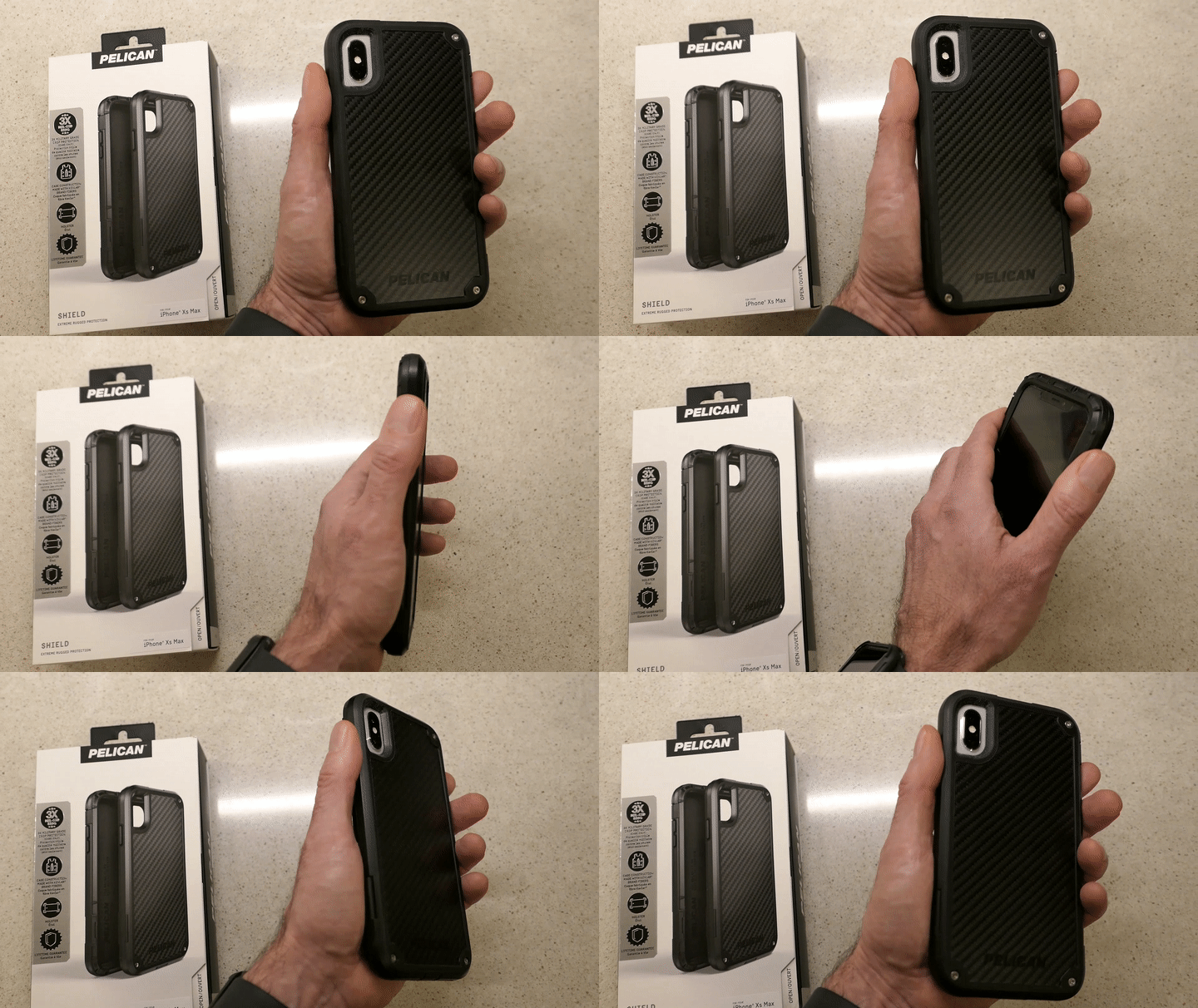
Holding Pelican Shield Case for iPhone XS Max

You really don’t want to deal with a cracked smartphone screen if you can avoid it. I’ve always felt that a solid case is critical to maintaining your smartphone’s structural integrity. 

I’m partial to Pelican cases. The company is best known for its equipment cases that protect gear worth many thousands of dollars. Its smartphone cases are also tough, and the “Shield” model looks like it comes from the alternate universe in the TV series, “Fringe.” 

5. Portable Power Bank for your Smartphone or iPad

You know what happens when one of your portable screens runs out of juice, and a power outlet is nowhere to be found. A little portable power can really save your day.

RAVPower 16,750mAh Power Bank USB External Battery Pack is
$27.99 on Amazon
(This model also comes with a built-in flashlight.)

6. Cloud Backup

I’ve been using Backblaze after CrashPlan broke up with me. So far, so good.

As I mentioned, cloud backup should always be a part of your data protection strategy.

Maintaining Comfort
As we enter this season that promotes comfort and joy, it’s always a useful reminder to have some boring supports in place for your important tech. I’m not sure that will specifically generate joy, but it certainly will maintain comfort.

That’s always on the top of my list.

Why Your Zoom Viewers Can’t Hear You

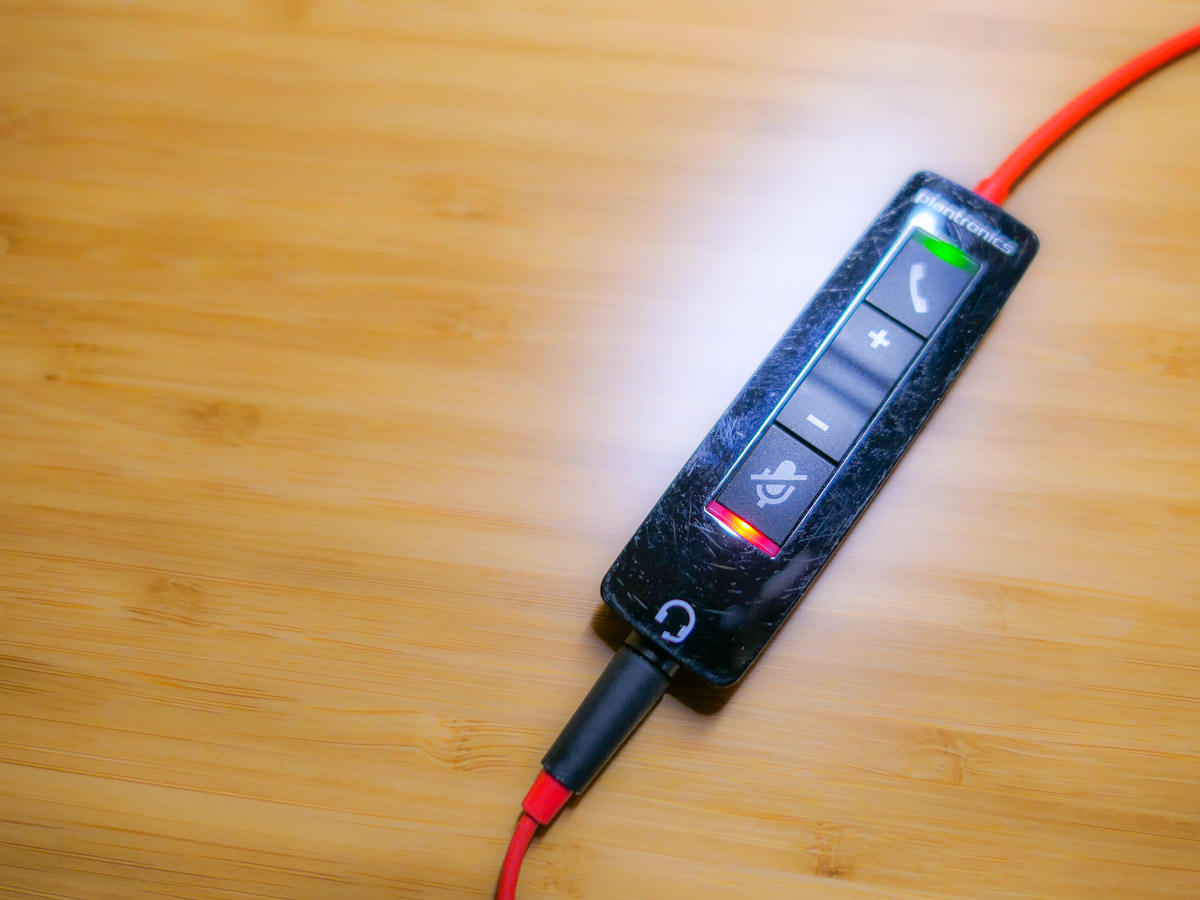
Mismanaging the mute button may seem like a rookie mistake during Zoom calls, but it’s a more frequent problem than you’d expect. Here’s why…

This ‘golden’ age of Zoom has redefined what to expect from daily video communications. Sure, throughout these ongoing months of isolation, there have been any number of ways to improve the quality of our Zoom calls.

And in the Zoom meetings I’ve attended, I’ve observed a growing awareness of video production best practices. That said, there’s one skill that many people still seem to struggle with… handling the mute button.

We Can’t Hear You!
How many times have you heard someone say to a Zoom speaker, “Are you on mute? We can’t hear you! (pause) We still can’t hear you. You’re on mute!”

This epidemic of awkward Zoom silence is partially the result of education campaigns during the early months of the pandemic to mute yourself if you’re not talking in a Zoom meeting.

Remember all of those Zooms that imploded because there were a couple of people who couldn’t mute themselves if their lives depended on it? And then they would jabber away as they talked to their household members, unaware that their microphones were unmuted.

Besides being an embarrassing oops to unknowingly allow everyone to eavesdrop on your life at home, this mistake will also effectively derail any Zoom meeting.

So by now, we’ve learned to mute ourselves to avoid becoming
Zoom Enemy #1.

Expect the Unexpected
It’s certainly better to try to talk on a Zoom while still muted rather than saying something that your Zoom world shouldn’t hear. But it’s still a mistake that anyone should strive to avoid.

At the end of the day, I think the solution comes back to maintaining enough focus on the live elements. For those of us who have tried to ‘master’ Zoom, we’ve instead put a lot of work into our preproduction.

  • The lighting
  • Your background
  • The right microphone

But when our imaginary on-air light pops on, I feel we’ve tended to let down our guard and assume the technology will handle itself.

Keep your Hands on the Virtual Steering Wheel
Live television used to take a whole control room of production experts to ensure success. It’s amazing that Zoom has boiled it down to just a few clicks of your mouse.

That said, someone really needs to pay attention to your Zoom stream while you’re talking. And that person is you.

Any number of problems can crop up.

  • Someone can unknowingly walk into your background, but this now happens so frequently that nobody cares anymore.
  • Your attention might get temporarily diverted, which could require you to first mute your video.
  • You may subsequently forget to unmute your video. That’s not usually a dealbreaker.

But if you lose track of your audio, you’re either the 800-pound gorilla in the virtual room or a Luddite who doesn’t know how to work your microphone.

Don’t Forget to Unmute Yourself
Zoom isn’t really a set-it-and-forget-it technology (well, not yet).

You simply need to train yourself to pay attention your video and especially your audio feeds throughout your personal and professional Zoom calls. And that requires a diligence to be constantly muting and unmuting yourself exactly when you need to focus on the content of what you’re saying.

If you feel like that’s an annoying juggling act, it is. But it’s a small price to pay to step up your Zoom game.

Can you hear me?

Practice your Magic
During this difficult time for so many of us, it’s certainly understandable that there may be tons of distracting elements in your environment that are urgently competing for your attention. Sometimes it can feel like you need a magic wand.

Zooming at home throughout the day brings new meaning to art of multitasking. There’s no perfect solution. But beefing up your Zoom muscle will certainly help you keep all of your balls in the air.

Happy juggling!