At Home with Tech

Unlock the power of all your technology and learn how to master your photography, computers and smartphone.

Category: Tech Fixes

This Innovative HP Model Solved my Home Printer Issues
If you’re looking for a new printer with a fresh take on an old-and-boring technology, this could be the one for you…

Ten years ago, a former work colleague who was ridiculously tech savvy said to me that he didn’t own a home printer. Why? Because he simply didn’t need to print anymore. It was a functionality that his digital day-to-day no longer required.

That’s stuck with me over the years. And I’ve thought about it many times as I’ve watched much of the world around me go paperless.

I’ve tried to drink the Kool-Aid. 
Believe me, I have.
And I’ve made some progress.
Some.

But essentially, I’m still at home with paper.
There, I’ve said it.

I’m suddenly feeling freakishly analog.
Is everyone staring at me?

Looking for Less to Find More
Perhaps, I should be kinder to myself. If Barrett wants a little printer in his home office to feed his paper habit, what’s the problem?

Well, they don’t make “little printers” anymore.

No, they make multifunction/all-in-one monstrosities.
(I exaggerate only slightly.)

Most printers can do it all… copy/print/scan/fax. Some specialize in certain areas like printing out higher-quality photos. But most share one quality… they’re big.

I want small.

If you’re like me, you don’t have a lot of extra space in your home office. So, the goal is always to find compact tech solutions, especially as working from home has taken on a more permanent status of late.

So, when my old one-trick-pony Canon Pixma printer started misbehaving, my search for an equally small replacement was on!

The Tango is my New Dance
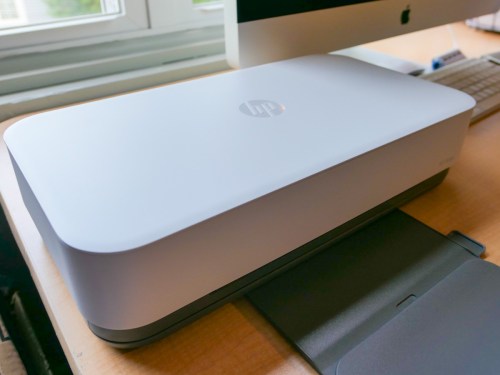
There’s not really a lot of choice out there for a simple printer in a tight space. It so often feels like a complex dance to find your ‘perfect’ tech solution. That said, I think I found my partner with the HP Tango.

The HP Tango costs $149.99, which is not the cheapest printer out there, but it’s got the small footprint I wanted and also has a few innovative tricks up its sleeve that I like.

  • You can print directly from your smartphone using the HP Smart app.
    (Printing from your computer is also a snap.)
  • You can save money on ink using HP’s Instant Ink Program.
  • Though not a scanner, you can scan docs via your smartphone.
  • Printing photos via your smartphone is free!
    (You still pay for the photo paper.)

Easy Set Up
Bringing my new HP Tango into the Lester ecosystem took about ten minutes.

  • I downloaded the HP Smart app from the App Store on my iPhone.
  • Then, my iPhone did the work to get my wireless Tango up and running. 
  • I created my HP account.
  • I signed up for HP’s Instant Ink program with two free months (more on this in a moment).

The HP Tango is definitely not designed to look like your old, clunky printer. It sports cool undercarriage LED lighting that’s reminiscent of a Cylon’s head from “Battlestar Galactica.” Fortunately, it’s a friendlier effect here.

Overall, the Tango strives to give you that elegant Apple-like experience.  I think it says a lot that the Apple Store sells the Tango X (a more expensive model).

HP Instant Ink Program
HP has reinvented how you buy printer ink with its Instant Ink program. 

Here’s the deal: You no longer buy ink cartridges when you run out of ink. Instead, you pay HP for each page you print.  Since the Tango is Wi-Fi connected, HP knows every time the Tango prints a page or photo.

The Instant Ink program offers you:

  • 50 pages/month for $2.99/month
  • 100 pages/month for $4.99/month
  • 300 pages/month for $9.99/month

When your Tango needs more ink, HP automatically mails you more cartridges.

I signed up for the $4.99/month plan. No, I don’t think I’ll really be printing out 100 pages monthly, but I also don’t want to feel like I’m rationing paper in the fear that I’ll go over my limit.

Plus, there’s always that amount of inevitable paper waste where an extra page or two gets printed out with a couple periods or dashes. Yes, those are pages that HP counts too. I imagine you might feel that HP is nickel and diming you when they charge for a page with a dot on it. But a page is a page. That’s the deal.

A Tango’s replacement HPXL 64 ink cartridge costs more than forty bucks. If you replace both the color and black cartridges only once a year, that’s going to set you back $88. 

My plan costs less than $60/year. So this program looks like a good deal to me.

Tango is Music to my Ears 
I went looking for a boring solution to maintain my legacy connection to paper.  Instead, I found a small and smart printer that actually upgraded my home-office experience and spits out photos from my iPhone for free!

I’m happy to report that I’m entirely enjoying my dance with my HP Tango.
Why Now’s the Time to Go Mobile with Zoom

Do you feel like you’ve exhausted all options to improve your Zoom video set up at home? Here’s a new angle to help solve your problem.

If you’re experiencing a general sense of malaise while using video conference apps like Zoom to maintain your tether to the outside world, it may be due to your mediocre home-office arrangement.

You could be responding to the suboptimal visual conditions of your Zoom shot. Or perhaps your background reveals the current state of messiness in your home (not judging).

I’ve shared best practices that will minimize these challenges for you. Still there are probably only so many places where you can safely and comfortably relocate your computer or laptop.

To access that perfect location for your Zoom shot that’s probably out of reach for your computer, you need a mobile solution.

And that right there… is your answer.

Use the Zoom app on your smartphone!

Don’t Make Zoom a Balancing Act
By untethering myself from my iMac and instead using Zoom on my iPhone, I immediately opened up several new shot possibilities for my video communications.

But you can’t simply hold your smartphone for thirty minutes in the perfect location for your next Zoom call. Instead, you need a way to safely mount it.

In one of my less inspired moments, I tried carefully placing my iPhone on the top ledge of a living room window. The lighting was glorious, and the framing was perfect. But using that plan for any extended period would be begging for disaster.
(Our cat would certainly find an interest in ruining that scenario!)

So, the only reasonable way to get the shot is to securely mount my iPhone onto a tripod.

Many of us may already have access to a tripod at home, but you also need a way to attach your smartphone to your tripod.

That’s the situation I found myself in.

How to Mount your Smartphone to a Tripod
I needed to buy a smartphone tripod mount for my iPhone. There are a variety of options on the market and fortunately not that expensive.

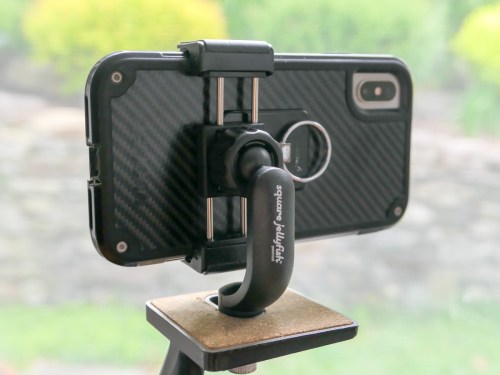
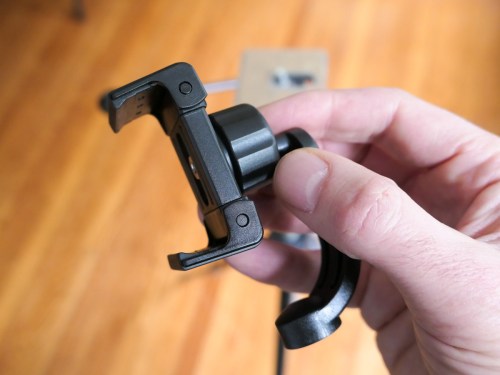
I went with a Square Jellyfish Jelly Grip Tripod Mount for smartphones.

It’s $12.95 on Amazon Prime.

Click.

Break Free from your Desk
Now, I’m free to Zoom around my house! And a huge added benefit is the option to stand in my tripod-enabled shot. Believe me, that’s so great when you feel like you’ve been glued to your chair for the past nine weeks.

So, go ahead and take your next Zoom call on the road… or at least to the next room.

A change of scenery may be just the adjustment you need!

The Secret to Finding your Zen in Zoom

You don’t need to suffer with the mess behind you on your next Zoom video call. It’s time to ‘virtually’ relocate to another part of your home. Here’s how…

Remember when once upon a time, you’d show up for an in-person meeting feeling fabulous? Maybe you had a presentation to do, and you hit it out of the park. After your diligent preparation, your success would ultimately rely on psychology and mindset. To help get you in your ‘zone,’ maybe you’d show up wearing your favorite shirt or shoes. Perhaps you’d arrive at the room early to center yourself and visualize the next hour. Or whatever to get your game face on.

But now, all of that has clearly changed. The good news is Zoom and other video conferencing apps have done some heaving lifting filling in the resulting gaps.

Sure, Zoom has been remarkable at keeping us together, but it can’t entirely replace the in-person experience you may be craving.
(Who knows when any of us will physically walk into a conference room again with other people.)

And as amazing as Zoom has been for many of us, perhaps you’ve been unable to get yourself entirely comfortable with Zoom.

Why is that?

Virtual Backgrounds to the Rescue?
It might be because you’re secretly a little frustrated with how your image has appeared on your recent Zoom calls. I’m certainly not thrilled with how I’ve been showing up.

Sure, I’ve worked hard to improve my lighting in my home office by taking advantage of a nearby window and adding in an Elgato Key Light Air light for soft fill on my face.

I’ve also tidied up my background to help ensure there’s nothing too distracting. I want people to pay attention to me, not my mug collection on the shelf behind my head!

But try as I may, I must accept that my home office background isn’t designed for prime time.

So, in moments of frustration, I’ve sometimes activated Zoom’s ‘Virtual Background’ mode to try to quickly solve the problem.

Assuming your computer or smartphone has the horsepower to switch in a virtual background, the result may seem like a neat parlor trick. However, you’ve got to admit it’s a little hokey using someone else’s picturesque background.

Reality Check
Maybe this isn’t actually a problem for most folks living on Zoom these days. Perhaps their backgrounds are the least of their concerns during the altered reality of COVID-19.

And I must concede this excellent point. Our priorities should probably focus elsewhere.

That said…

If you do have some extra bandwidth to improve your Zoom shot, I’ve got an insight to share about your background that could be a gamechanger.

It’s worked great for me!

Choose an Authentic Virtual Background
As much as I just dissed using virtual backgrounds, I feel they’re actually vitally important to solving the challenge of your Zoom shot from home. But your virtual background can’t be some vacation destination or cartoon image like the Minecraft universe.

That just screams…. VIRTUAL BACKGROUND!

Your background should represent your own reality. And that means some part of your home that you’d enjoy sharing with others. And it’s not important exactly where it is. It matters how that background makes you feel.

Forget all preconceptions about some perfect home-office setting that you don’t have. Instead think about your favorite part of your pad… that’s the place you want behind you!

Bring your Happy Space to your Next Zoom Meeting
But that space may or may not be available to you for your next Zoom meeting. (Others may already be occupying it!) That’s why it’s time to make it your virtual happy space!

Simply take a picture of this favorite spot at home and then use it as your virtual background.

It’s authentic; it’s real; it represents a part of you!

This is my home office via Zoom.

And this is my virtual happy space in Zoom courtesy of our living room.

See?

You’re in your Zoom Zone!
Now, when you show up for your next Zoom meeting, you should feel awesome being exactly where you want to be (at least virtually).

Of course, it’s ironic that your fabulous virtual background will likely fade into the background for your viewers, but that’s exactly what you want.

Because, then you can focus forward on what matters most… Forming a real connection with your Zoom participants.

So go find your Zoom Zen!