At Home with Tech

Unlock the power of all your technology and learn how to master your photography, computers and smartphone.

Category: Tech Fixes

What To Do When Adobe Lightroom 6 Randomly Crashes

When your tenuous photo management process hits a wall, because your software gets glitchy, sometimes an obvious solution actually works. Let’s begin…

I’ll be honest… digital photo management has been a challenge for me since my 7-year-old son was born. I’m the kind of parent who takes way too many family photos and then struggles to organize them, quickly share the best ones and eventually create photo books.
(Sound familiar?)

But I’m trying.

The truth is you’ve just got to put in the time, have an organized plan, and use photo management software that’s right for you.

I switched to Adobe Photoshop Lightroom 6 from Apple’s Aperture a couple years back after Apple retired Aperture and launched the Photos app.

I wanted software that was more powerful than Photos, and Lightroom has indeed proven itself to be a rock star.

At the time, I made the choice to buy a standalone Lightroom 6 license for $149, instead of Lightroom CC, which requires you to pay into a $10/month Adobe Creative Cloud ecosystem.

I figured my one-time DVD purchase would be more economical than the pay-as-you-go model, as long as I used Lightroom for more than 15 months. That was the plan, and I’ve already passed the two year mark. So, yay Barrett.

But I know it’s just a matter of time until I’ll be joining Adobe’s Creative Cloud. It will eventually become unavoidable. For now though, I’ve been enjoying my Lightroom 6.

Until something went very wrong…

Random Crash Alert!
A few weeks back, my Lightroom began randomly crashing. It happened mostly when I wasn’t actually working with it. Lightroom would be open in the background, and then ‘pop,’ it would suddenly disappear. My iMac rushed to create a report to send to both Apple and Adobe, but I didn’t expect any engineers to be calling anytime soon.

I ignored the problem for a while. (Silly me.) But then, it began happening when I was actively using the program. And finally, it crashed while I was importing photos.

So, it was clearly time to do some troubleshooting…

The only recent change to my iMac’s ecosystem was an update to my iMac’s OS High Sierra. (And you know, that seemed to be about the time my troubles began.)

I did some Googling and ran across an insanely obvious question…
Was I running the most up-to-date version of Lightroom 6?

Uhhh…
What?

Huh.

Well, actually… No.
I hadn’t been receiving any notices about updates.
(I’m so used to Apple’s incessant reminders to update my software.)

So, no… I haven’t (ever) updated Lightroom 6.
(Maybe I did right after I installed it.)

Please don’t expel me from the Island of Misfit Toys.

All right…. So guess what I decided to do?

How to Update Adobe Lightroom
If you too are trying to figure this out, you’ll find your Lightroom software updates in the Adobe Application Manager program.
And here’s how to get there…

Go to the ‘Help’ drop down and click on ‘Updates…’
The Adobe Application Manager will open, and this is what you will see…
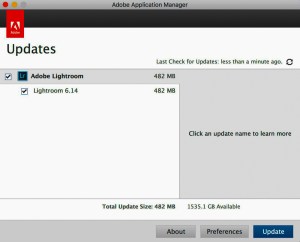


If you’ve got an update waiting, it’s time to take the blue pill.
From here, it’s straight forward!

Always Backup First
Updating Lightroom is a painless process, although it’s always good to do a backup before you update any important software.

For me, I simply ran Time Machine on my external G-Drive. And I also saved a backup Lightroom catalog file to the G-Drive.
(The catalog houses all the work you do to your photos.)

And guess what? Now that I’m running Lightroom 6.14… everything is…
Just… fine… again.

Yup.
Updating Lightroom did the trick.

Software Conundrum
I know my report ultimately falls under the category of “DUH!”

But can you tell me you’ve never dragged your feet on doing software updates, because you feared unexpected glitches and compatibility issues?

Well, if you wait long enough and do nothing, that’s clearly a problem too.
(And I’m not even talking about security patches.)

Choose your poison.

Lightroom stability: Restored!

#LovingMyDigitalLife

The Perfect Portable Night Light for Children

Putting your kids to sleep on the road can have its particular set of challenges. If being able to create dim lighting for the perfect sleeping conditions is important to you, then you no longer need to look beyond the moon for your solution…

My seven-year-old son is a great sleeper. One variable that’s contributed to this happy state (For him as well as my wife and me) has been the use of a night light in his room over the years. It just helps him go to sleep. We’ve used different night lights and currently have one from Pottery Barn Kids that’s constructed into the ‘Rowan Base’ of his bedroom lamp. So, the lamp has two light bulbs… one regular… the other a night light.
(Clever)

But as you might imagine, sleeping elsewhere can create something of a challenge to create the same dim-light ambiance for him.

Of course, you can always take the same night light with you on your travels, but that’s not always a practical choice.

More often than not, I’ve had to figure it out in the moment whenever we’ve entered a hotel room.
(It’s not been beyond me to do a little redecorating.)

I should also mention that the whole night-light equation has become less of a critical issue of late. A slightly cracked door to the bathroom with its light on is now just fine for him.

Of course, it is… now, that I’ve found the perfect solution.
So, for those of you parents out there who are still trying to figure out an ideal portable night light to take with you, here it is…

Moonbase Alpha
It’s called ‘Moonlight,’ and it’s a battery-driven illuminated plastic moon the size of large grapefruit.

It’s not exactly cylindrical since it’s got a flat bottom, but that allows you to safely place it anywhere.
(As you can see in the photo at the top of the page)

Made by a British company called Paladone, it’s constructed of a rubbery material that makes it a little squishy. And it quickly ‘reinflates’ after being squeezed by curious hands.
(My son has demonstrated this ‘trick’ to me several times.)

The Moonlight weighs almost nothing.
It runs on three LR44 button batteries.
It fits easily into a suitcase.
And It throws off just enough light.

It’s seemingly indestructible.
It’s perfect.

And It’s $13.63 on Amazon Prime.

Q.E.D.
(Quite easily done!)

Click.

Next Generation
My son’s Moonlight showed up as a gift, and as I marveled at the little orb, I decided to do a little more research on this great concept. Of course, I found some competitors on the market…

The primary difference is rechargeable technology that allows you to plug in your moon instead of having to replace the batteries. That’s obviously a more environmentally friendly choice.

These rechargeable models appear to all be created with ‘3D printing’ technology. So, they’re not going to be squishy like my son’s Moonlight.
Also, they’re completely cylindrical, which requires you to use the included stand if you don’t want them to roll off their night table.

And they have different brightness and color settings, which is nifty.

LOL is No Joke
All of those enhancements of course make them more expensive.

For example:

LOL claims you’ll get 4-20 hours of illumination on one charge depending on the brightness setting.

Goodnight Moon
So, for occasional use, I think that any of these wonderful little orbs will get the job done. But if it becomes an often-used item in the bedroom, you’re going to have to consider the convenience of having to regularly recharge or replacing the batteries.

Unless…
…Your child’s moon also goes to sleep during your check-in before you hit the sack.
(Turning the Moonlight off after my son has entered dreamland has worked just fine for me…and him, and it really cuts down on battery drain.)

But for one-off uses as a portable night light on the road… these glowing moons are perfect!

Happy ZZZs.

Best Ways to Quickly Compress a Video File

Video files are notoriously large. Now with HD and 4K… whoa! If you’re editing your home movies on your computer, you’ll quickly realize your final masterpiece is going to need some squeezing before you can share it. Here’s how…

If you happen to find yourself hyperventilating while trying to compress a video file, this post should offer you a shortcut to the finish line. The key word in today’s title is quickly. To be clear… For those of you who practice the craft at the professional level, I guarantee you know more about this task than I do, and I’ll let you lead the way on what is actually ‘best.’

This space is reserved for everyone else on planet Earth who may have shot or edited a family video into an extraordinarily-large file. And then you need to magically shrink the size to email the file or post it somewhere online.

And, I’ll be working in an Apple ecosystem on my 2017 iMac.

Still here?
All right then.
After that rather lengthy disclaimer, let’s begin…

It Was a Dark and Stormy Night…of Editing
The universe of video file compression can be unpredictable and sometimes stormy. It’s a place where even pros can encounter stiff winds. It’s also something of an art form that I guarantee you don’t want to explore if you don’t have to.

So, here are a few simple solutions to easily chop down your video file size…

Final Cut Pro X
If you want access to a more advanced editing tool, you’ll want to invest in Apple’s Final Cut Pro X, which costs $299.99. Sure, that’s a hefty investment, but a fraction of the cost of what Pro editing software used to run.
(Professional editors – Please hold your boos about FCPX.
Hey, you’re not even supposed to be here!)

Final Cut Pro X also offers you some decent file compression choices when it’s time to export your video. Here’s how to find them:

  • First go to ‘File’
  • Then ‘Share’
  • And ‘Master File’

Then select your Video Codec:

  • ‘H.264 for Faster Encoding’ or ‘H.264 for Better Quality’
    (‘Faster’ usually creates a smaller file.)

Then, select ‘Computer’ under ‘Format’
And choose your resolution:

  • 1920 x 1080
  • 1280 x 720
  • 960 x 540
  • 854 x 480

Of course, the smaller the resolution, the smaller the resulting file size.

If you want to shrink it more, I think you’re out of luck.
Unless…

Apple Compressor
…Unless you also buy Compressor, Apple’s separate file-compressing software.

This is FCPX’s companion ($49.99) that’s designed to create just about any size or flavor of video file you’ll ever think of.
(Plus, it can create multiple versions as one job.)

You can bring the resolution down to whatever you want.
(With some practice)
Plus, you’ll quickly see there’s a prebaked option that creates a wicked-small file.
(428 x 240)

Compressor is probably more than you need, but for fifty bucks, you’ll never complain about this topic again.

The Cost for Getting It Done ‘the Right Way’
So, for a total of $350, you’re set to edit, encode and compress like a professional.
(Sure, there are pros out there who walked away from Final Cut Pro platform after the 2011 FCPX redesign made it unrecognizable to long-time fans of FCP7. But others made the transition and have been satisfied with the ongoing free upgrades FCPX has received over the years.)

But you need not worry about this particular controversy as FCPX is plenty powerful for all of your personal editing/compression needs.
(It is for me!)

I should also mention that if you’re spending some money, there are great non-Apple options out there to consider like Adobe Premiere Pro CC and Adobe Media Encoder CC.

But what if you’d really prefer not to invest any money at all to get the job done?
Are there free options?
There are sure are!
(Though you won’t have as much flexibility.)

QuickTime Player
You can shrink your video file in the QuickTime Player application just by creating a new version with different settings:

  • Go to ‘File’
  • Then, ‘Export’
  • And click on ‘480P’
    (That’s the smallest file size option. It actually squeezed a test MOV file for me down to 640 x 360.)

iMovie
Using Apple’s iMovie editing software is another great choice.
Once you get your video file into the program-

  • Go to ‘File’
  • ‘Share’
  • ‘Resolution 540p 60’
  • ‘Quality: Low’
  • ‘Compress: Faster’

iMovie was able to create a smaller file size than QuickTime by automatically reducing the data rate.
(Yes, that’s another variable. No, don’t ask.)

And iMovie was also able to beat QuickTime at the compression game while still keeping the frame size a little larger.
(It’s really nice when your friends and family don’t need a magnifying glass to watch one of your videos.)

Getting the Job Done for Free
So, if you have to choose between QuickTime and iMovie as the free applications that Apple gives you, iMovie is the better choice.

That said, QuickTime is the easier choice.
(Unless you’ve already been editing your video in iMovie.)

Tech Inner Peace
If you’re beginning to get the feeling that there are no truly ‘simple’ solutions in the video editing and compression world, congratulations… You’ve begun your journey to knowing what you’re talking about.

But the really good news is you don’t have to feel like an amateur either when playing in this pond of complexity.

If you want to spend some money to get the job done… good choice.
If you want to MacGyver the solution for free, Apple gives you tools for that too.

And if you’ve got some other ideas to offer, do share!
…Like creating and sharing an animated GIF from your video.

Hold your applause.
Applause

All right, don’t.