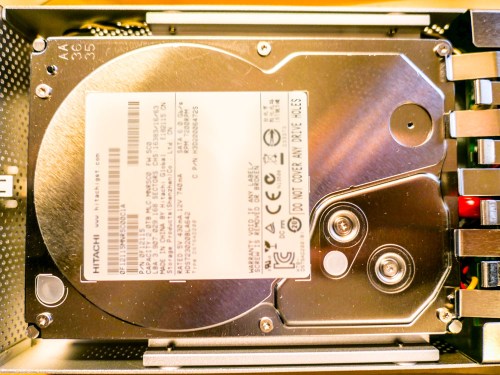
Click on your computer’s hard drive and select ‘Get Info.’ If the percentage for remaining space shocks or worries you… (Other negative emotions also apply) Read on!
Is two terabytes enough space to house the digital contents of your family life? (That’s the size of my iMac’s hard drive.) Well, I certainly thought so. I mean… how much space do you really need to capture and archive the important moments?
The truth is your final archived files for posterity probably shouldn’t take up terabytes of space. (How much media do you really want to carry forward into future decades…?)
The real problem is housing all of your raw content that you’re regularly capturing… and then just letting it pile up, because other priorities tend to get in the way of your little personal archiving plan.
The Digital Math Doesn’t Lie
For me, that constant digital flow of incoming family-related media looks something like this:
- Weekly family photos that document the day to day: 25 pics x 4MB each = 100MB
- Three video clips a week averaging 90 seconds each: 3 x 400MB = 1.2GB
- And let’s throw in one larger ‘event’ a month that generates 50 more pics (200MB)
- Plus, four vacation zones each year that bring in 250 photos and 10 video clips each. (5GB)
Let’s tally that up…
Roughly, we’re talking about taking in 75GB of photos and videos each year… and that’s without even trying.
You can imagine if you add in a few more one-off events and other kinds of files that you’ll also acquire throughout a year, that number can easily jump to 100GB.
But even at that rate, it would take you twenty years to fill up a 2TB hard drive.
What Happened?
But last week, I realized my iMac was almost out of hard drive space.
(Yes, this disturbing moment shouldn’t come as a complete surprise to anyone ‘at home with tech,’ but that’s another story.)
So what was taking up all of that space?!
Before I allowed myself to descend into a ‘digi-tizzy,’ I realized that I am indeed working on my second decade of digital media collection.
(I’ve owned iMacs since 2004.)
Still, twelve years in should only have pushed me to about 60% of my current hard drive’s capacity.
(Also, photo and video file sizes weren’t nearly as large back then in our pre-HD days.)
But the truth is I’ve captured a whole lot more video than my above equation entirely accounts for.
(One example is a family history video project I’ve been doing with my dad over the past few years. He tells great stories, but he certainly takes his time.)
So now, I’ve got to finally deal with it!!!
Time to Help Out Your Computer’s Overstuffed Hard Drive
Sure, I can consider upgrading my computer and simply getting a bigger internal hard drive. But that’s not really the fix. That’s just ignoring the larger problem…
You can offload much of your media inventory to external drives.
(In fact, that’s a best practice anyway when editing video.)
But without an organized plan, that’s not going to be much help when you rediscover the drives a decade later, and you’re confronted with hundreds of unlabeled files.
(Assuming the drives even boots up)
Much like my philosophy when it comes to sharing your photos quickly, you should be regularly going through your video files to organize/edit/share.
But today it’s not about what you should be doing… it’s about what you must do! You may want to check… because much like me, your computer’s hard drive may already be just out of space…
It’s time to do some file organizing/deleting/moving…
Eight Ways to Reclaim Hard Drive Space
#1
Review Your Biggest Files First
You’ll move the needle fastest if you can move/delete some really huge files. So begin your file search there. Addressing those offenders first will have the greatest impact on freeing up hard drive space.
(Obvious, though always worth mentioning!)
#2
Don’t Ignore Your Videos. They Can Sink You!
Pay attention to all of those videos you’ve been capturing with your smartphone and camera. Video files are HUGE! You should label them and regularly move them to an external drive.
(Actually… two drives. Media always needs to live in at least two locations for back up.)
I’m especially partial to drives made by G-Technology.
I’m currently using the G-Drive Mobile USB 3.0 to house my raw family video files.
#3
Clean Up Your Email
Your email can be sucking up a whole lot of space.
(How many messages from long ago are you still hanging on to? I’m embarrassed to reveal my number.)
And lose all of those damn unread marketing messages from companies you willingly gave your email address to.
(And to some you didn’t)
#4
Find and Move Those Emailed Photos
Don’t forget your family and friends are sending you photos too. Don’t let those pics languish, lost in your hundreds of disorganized email messages.
(Thousands?)
#5
Delete the Photos that aren’t ‘Great’
Face it. Most of your photos stink.
(All right… mine do.)
But that’s my secret to success. I take lots of photos and hope that one in a collection is ‘the one.’
So especially if you have a ‘best version’ of a photo sequence… you need to delete the rest!
#6
Reorganize Your Folder Structure
Go back and review all of those folders you’ve created over the years. You’ll be surprised to discover what you left behind, forgotten and just don’t need anymore.
#7
Delete Old Software
Enough said.
#8
Make the Time
You may be asking yourself, “Who’s got time for all of this?”
Exactly.
(I certainly don’t.)
My response: “You don’t have a choice.”
I’m happy to report my computer is on its way to recovery. But it’s going to take some time to fully complete my hard drive review.
The trick is to keep going…every week.
A little at a time…
Clean Up Your Digital Sock Drawer
If these tips feel like I’m telling you to simply clean up your house… you’re right. It is, in fact… your digital house. And life is going to mess it up just like everywhere else.
You’ve got take some time to tidy up every so often.
(And it’s really much bigger than just organizing your sock drawer!)
People don’t move to a bigger house simply because they’ve got too much stuff.
(Do they?)
So you’re left with living in the boundaries of the digital space you’ve got…
…Or one day, you’ll discover that you won’t be able to open the front door.
You can avoid that day if you start right now…



 At Home with Tech