At Home with Tech

Unlock the power of all your technology and learn how to master your photography, computers and smartphone.

Category: Tech Fixes

In Search of Power

When going away on a camping trip, don’t forget to pack some portable power. Otherwise, your tech will quickly go dark…

When going away on a camping trip, don’t forget to pack some portable power. Otherwise, your tech will quickly go dark…

If you haven’t figured it out yet, I crave power. Pure power. And sustainable power.
Okay… not absolute power…
I’m just talking about the energy needed to power my lowly, but hungry tech.
(What did you think I meant?)

A big part of my story to date has been figuring out how to keep my iPhone going after it runs through a full charge.

And to be fair, my iPhone 6 Plus can get through a busy day on one charge. But I’m the kind of nervous tech guy who starts to worry once my smartphone dips below 20%.

So I typically want some extra juice nearby…
…just in case.
(My son used to prefer a juice box or two.)

Power Sticks
A couple of years back, I picked up an Innergie PocketCell, which is essentially a power stick the size of a pack of gum. It has 3,000mAh of power, which isn’t bad, because an iPhone 6 Plus requires 2915mAh for a full charge.
Today, I’m partial to Anker, which makes the PowerCore 10,000, packing a really big punch.
($24.99 on Amazon Prime)

Swag Power
And if you’re not into dropping any money on a power stick right now, you might be able to find one for free. They’re popular these days as giveaways… Though usually with less power.
(I came across one recently with 2600mAh.)

iPhone Case with Built-in Battery
Another good idea is to pick up a Mophie Juice Pack Plus, which is a smartphone case with a battery baked into it.
The 2,600 mAh model that wraps around the current iPhone 6 Plus costs $99.95.
(I had a Mophie for my old iPhone 4S, but I’ve held out so far with my 6 Plus due to size concerns.)

Preparing for the Family Camping Trip
All these cool power solutions go a long way towards feeding your smartphone the necessary extra energy it might need.

But then I had a new challenge.
Go where no Barrett has gone before…

  • Two nights of family camping.
    (Which meant three days away with my iPhone, camera, and my wife’s iPhone…and no power)

I needed to bring a more powerful and flexible solution to ensure I would stay on the grid….

Goal Zero Sherpa 50
Goal Zero makes a variety of portable, solar and battery-driven power solutions.
I came across the Sherpa 50 Power Pack at REI, a rare moment of brick and mortar shopping for me.

The Sherpa 50 carries 5200mAh of power, which isn’t quite as beefy as the newer Innergie. But the Sherpa is more flexible. And even though it’s not as slim as a stick of gum, it’s only 1.2 lbs and is smaller than your typical paperback book.

  • It’s got a USB port to plug in your iPhone
  • An onboard flashlight
  • A separate output to power laptops… its big selling point
    (Though not for Macs)
  • A 12v cable that powers a tent light… the ‘Light-A-Life 350’
    (Which came bundled in the REI box)
  • And a 100W AC inverter to charge up any other gear you may have
    (Also bundled in the REI box)

It goes for $179.95 on Amazon Prime.

Field Test
On our camping trip’s second night, I proudly broke out my new Sherpa 50. After sunset, I easily illuminated our tent with the Goal Zero light.
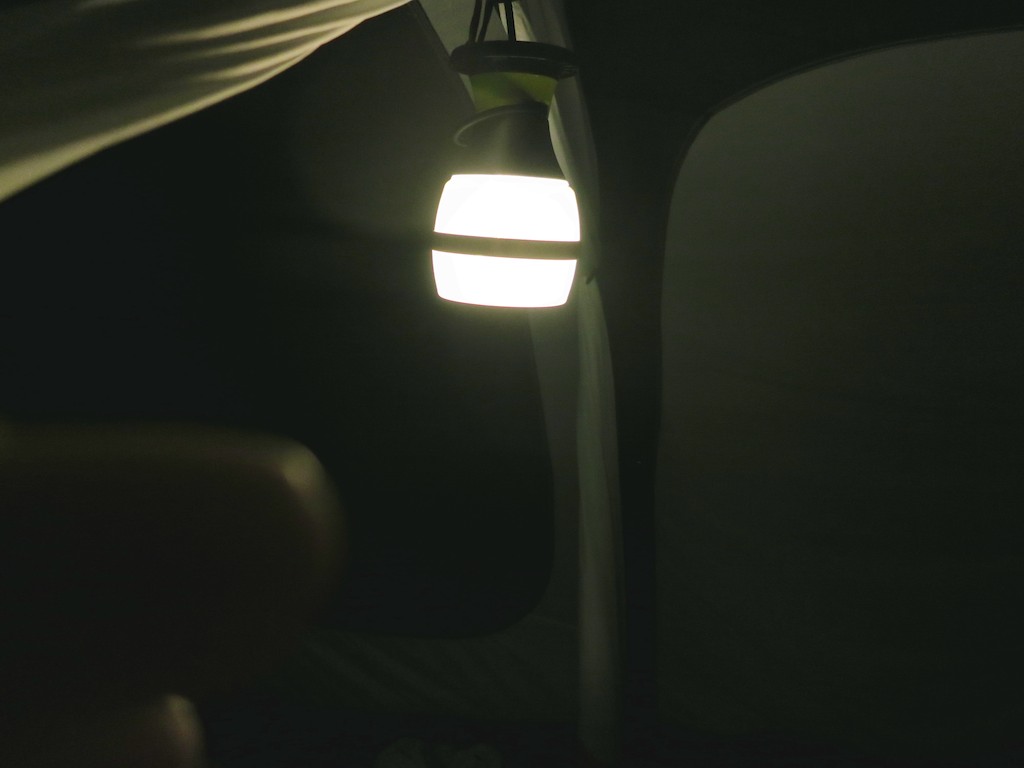
Goal Zero Light-A-Life 350 in Action


And as my family turned in for the night, I plugged in my iPhone to the Sherpa 50 and began charging it up from 36%.
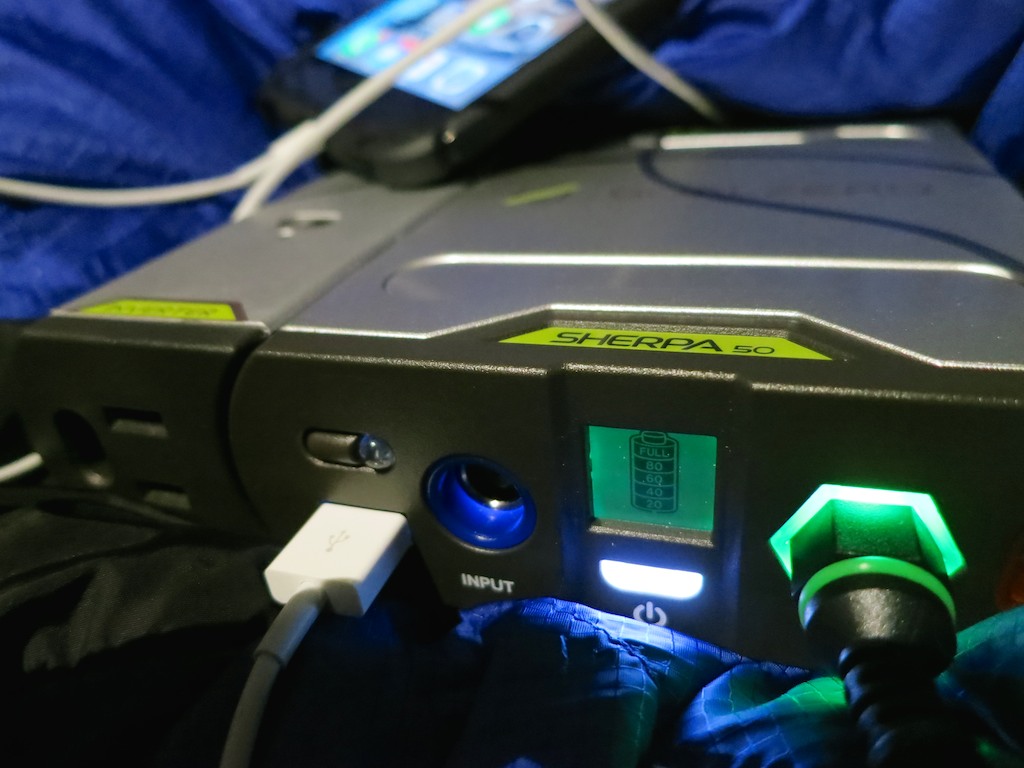
Sherpa 50 in action


I turned off the light and felt ‘Tech Zen’ surge throughout my body.
And then I drifted off to sleep…

The next morning, I awoke and immediately turned to my iPhone.

47%.

What?!

I picked up my Sherpa 50.
(Yes, it had been fully charged.)
Perhaps it had somehow prematurely turned off.

Nope.
It was totally dead.
Well, not entirely. The universal empty-battery signal still blinked momentarily when I pushed the power button.
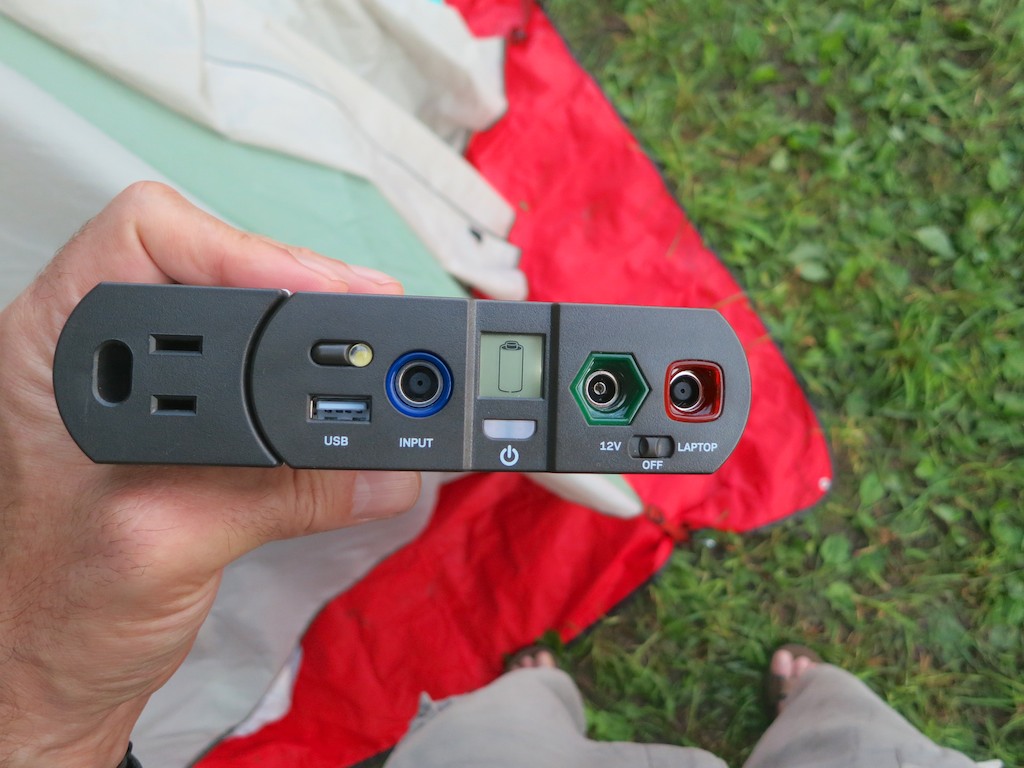
Dead Sherpa 50 battery


After a couple hours of light and an 11% boost to my iPhone, my new Sherpa 50 had promptly failed me.
(It’s rated to charge a smartphone seven times!)

Innergie to the Rescue
As I realized my ‘dire’ predicament, I took three deep breaths and turned to my back up plan… My old Innergie PowerCell.
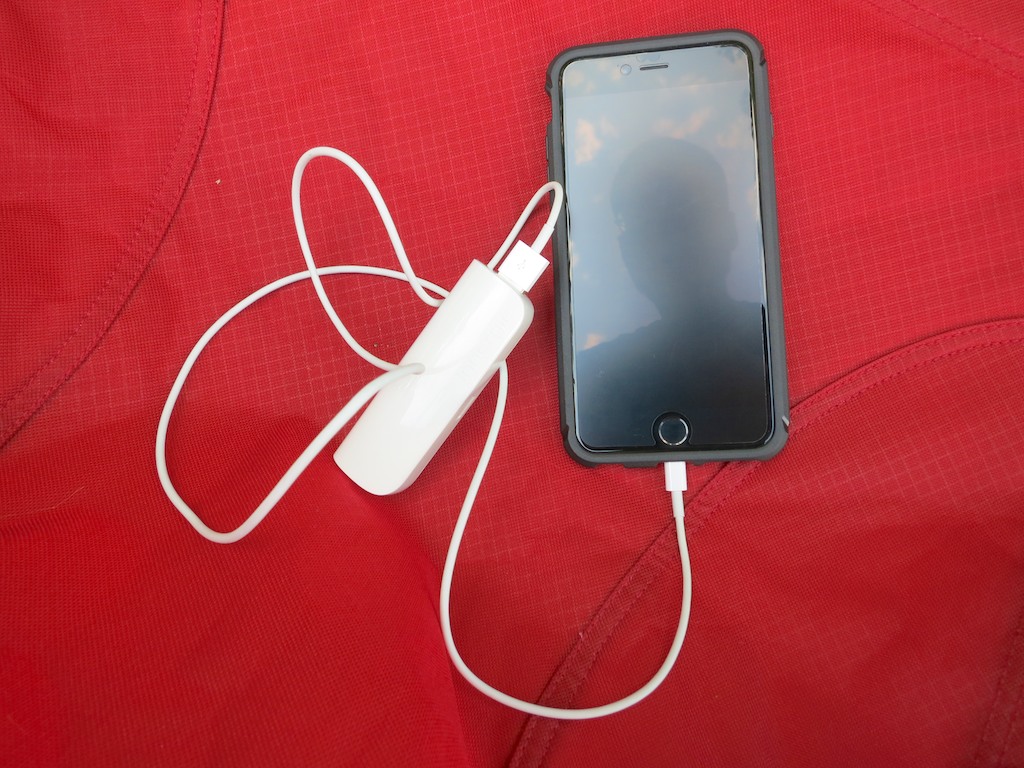
Innergie to the rescue


I attached it to my iPhone, and a little over an hour later; I was back to full charge.
(The Innergie was exhausted, but it had done its job.)

Then, I assigned my ‘swag’ power stick to rescue my wife’s limping iPhone battery.

By the time breakfast at the tent was finished, we were prepared to face the day with our tech.
(Good thing I had an extra camera battery… )

REI is Your Friend
REI is well known for standing by its products. That’s important, because I’ll be certainly returning my faulty Sherpa 50.

The good news is my family camping trip was a big success…. Even if I didn’t have all the power I thought I’d need.

Perhaps that’s just Mother Nature reminding me that technology can’t always tame the wild. And also that 47% should be plenty enough to get through your day in the great outdoors…

Message received.

The Summertime Secret to a Happy Home

Are summer humidity levels getting you down and creating less than ideal sleeping conditions for your family? Knowing when to crank up the air conditioning at night can make all the difference, and a good indoor/outdoor home weather station can really help…

Are summer humidity levels getting you down and creating less than ideal sleeping conditions for your family? Knowing when to crank up the air conditioning at night can make all the difference, and a good indoor/outdoor home weather station can really help…

How hard is it to know the temperature in your immediate vicinity? Arguably, not that difficult… Thermometers haven’t been cutting edge for four hundred years; and even today, smartphone weather apps are a dime a dozen.
(And when was the last time you checked with your local TV weatherperson?)

At home, your HVAC thermostat handles the job perfectly fine, whether you’ve got an old school version from the ‘50’s or a slick new Nest thermostat.

I Hate Humidity
But during the summertime, temperature is only half of the story. Humidity completes the equation, and I’ve got to tell you that humidity has always been my personal kryptonite.

I can usually handle the heat, but humidity levels during the dog days of summer make my life utterly miserable.

So while at home, I always want it to be less humid inside than on the other side of my open windows. Of course, that’s going to be practically impossible if my windows are open. So at some point, you’ve got to close them and turn on the air conditioning.

Yes, this is all about when to turn on the air conditioning….

Air Conditioning Roulette
This may not seem like a problem to some… But for my family, there’s a fine line between letting in the cool summer breezes at night, which will often chill down your bedrooms to create a comfy sleeping zone, and spreading about a more humid cocktail of outdoor air, which will envelop everyone to ensure a restless night.

And if you err on the side of caution and always run the AC, you’re going to likely create a cranky family that shivers through the wee hours of some summer nights.
(Guilty)

In Search of Four Numbers
To figure out my summer-long challenge of whether or not to invite in the outside weather…
I need to know four numbers:

  • Indoor temperature and humidity
  • Outdoor temperature and humidity

That’s it.

And it doesn’t hurt to have a little tech on your side to generate the necessary data. But I’m not talking about the kind of expensive gear that weather enthusiasts use to predict and measure the weather.
($100-$300 and up)

I just want to keep it simple.
Just the four numbers, please…

Goodbye Brookstone
I successfully used a Brookstone indoor/outdoor digital thermometer over the past seven years or so. It had an outside weather sensor tethered to the main unit, which lived on the outside of one my windows. Unfortunately, the unit finally froze up on me last week and wouldn’t reboot when I changed the batteries…

Goodbye Old Brookstone Thermometer


So it was time to search for a new Lester Weather Station!

Time to Shop
As I did my online research, I paid special attention to stay away from options that didn’t include both indoor and outdoor humidity levels. Some devices skimped and only evaluated one location.

To get all four numbers, you’ve got to spend somewhere close to the $50 zone…

Too Cool for Me

I eventually focused on Oregon Scientific, which offers a wide selection of digital thermometers.

Oregon Scientific’s newest line is the Weather@Home series, which has a built-in Bluetooth transmitter. That allows you to create a connection to your smartphone for monitoring your personal weather conditions from your mobile screen.

I think this would be a fine choice, but unfortunately, I would never use the Bluetooth functionality.
(Shocking as it may seem, I don’t need my iPhone to tell me the temperature and humidity levels in my home office, when I’m there… sitting right next to the thermometer display.)

My Runner-Up Choice

I then took a detour and looked at the competition from La Crosse Technology:

This one employs a nifty color LCD display, which really makes the unit pop.
(It could easily be at home on the bridge of the Starship Enterprise.)

As cool as it looks, it’s also kind of obtrusive. I don’t want it dominating my entire home office with its bright glow. I just want to know how humid it is…

Plus, all of that ‘display bling’ requires you to plug it in, which can be inconvenient. A battery-driven unit gives you more flexibility as to where to place it…

And the Winner Is…

So I returned my focus back to Oregon Scientific and finally found exactly what I was looking for:

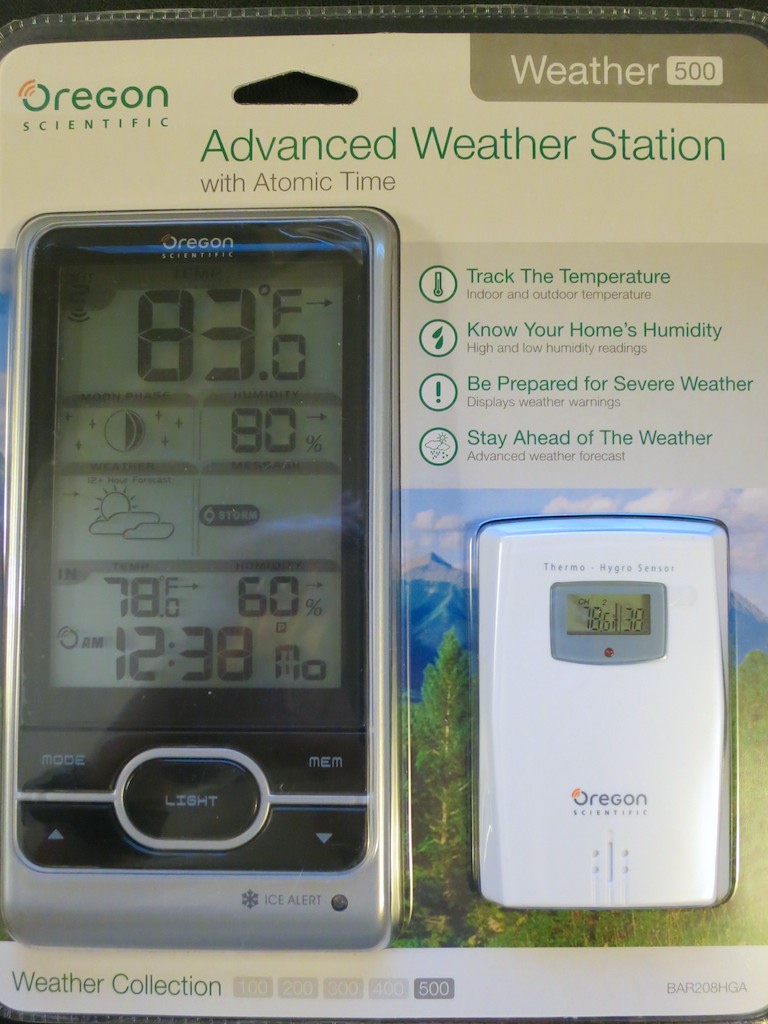
Oregon Scientific Weather Station 500


At Oregon Scientific’s website, this ‘Weather 500’ is listed under its ‘Classic Weather Station’ category. So that probably makes it something of an ‘Oldie, but Goodie.’
And that’s just fine by me…

Remember, I just want the four numbers. It doesn’t need to communicate with the International Space Station!

That said, you also get 75% accurate weather forecast (they say), moon phase, ice alert and atomic clock displays.

The main unit is powered by three AA batteries and its companion sensor requires two AAA batteries.  You can also purchase two additional sensors, if you’re interested in conditions elsewhere around your home.

Click.

Stability Regained
Mankind can’t control the weather yet, but here At Home With Tech, I’m happy to report, I have once again regained control of the temperature and humidity levels in my little kingdom.

Psst… It’s my secret to maintaining a happy home during summertime stickiness.
Pay it forward…

Repetitive Key Strokes Can Be Dangerous to Your Mental Health

If you hear your Mac laughing at you, it’s probably a clue you’re doing something wrong. For example, the ‘Option’ key on your keyboard can really ruin your day if used accidentally...

If you hear your Mac laughing at you, it’s probably a clue you’re doing something wrong. For example, the ‘Option’ key on your keyboard can really ruin your day if used accidentally…

How many times have you tried to erase a word or two while typing away on your Mac and repetitively hit your ‘Delete’ key? All the time, right? It’s almost like an autonomic gesture… where you barely think about it.

But have you ever tapped the wrong key and somehow disabled your keyboard?

I have.

In fact, it happens to me every six months or so.
That’s just long enough to forget the fix.

And it’s impossible to Google the ‘problem,’ because you’re keyboard is frozen!
D’OH!
(And then it’s time for your iPhone or iPad to come to the rescue…)

Disable Mouse Keys
So for quick reference, here’s the solution:

  • Tap your ‘Option’ key five times

That’s it.
Your keyboard should come back to life.

It all has to do with an accessibility feature called ‘Mouse Keys’ which turns your keyboard off and morphs it into a pointer controller.

Every time you hit your Option key five times, it toggles this feature ‘on’ or ‘off.’

‘X’ Marks the Spot?
I often tap the ‘X’ key a few times as a placeholder for something I intend to write later.

If you look down at your keyboard, you’ll see that the Option key is rather close to the ‘X’… perfectly positioned to receive your slightly misaligned finger.

So chances are you’re eventually going to fall into the same trap…

Listen for It
A big clue you’ve made this infuriating mistake is an audio effect that announces Mouse Keys has just been enabled.
(It sounds like an amused robotic mouse scampering across your desk.)

Option to Resume
So the next time you hear the chuckle of a computerized rodent, you shouldn’t be confused why your Mac has suddenly stopped working.

No, it isn’t frozen with fear.
You just need to provide a gentle reminder five times with the ‘Option’ key to keep on going…