At Home with Tech

Unlock the power of all your technology and learn how to master your photography, computers and smartphone.

Category: Tech Fixes

An Embarrassing Reason to Supersize It to iPhone 6 Plus
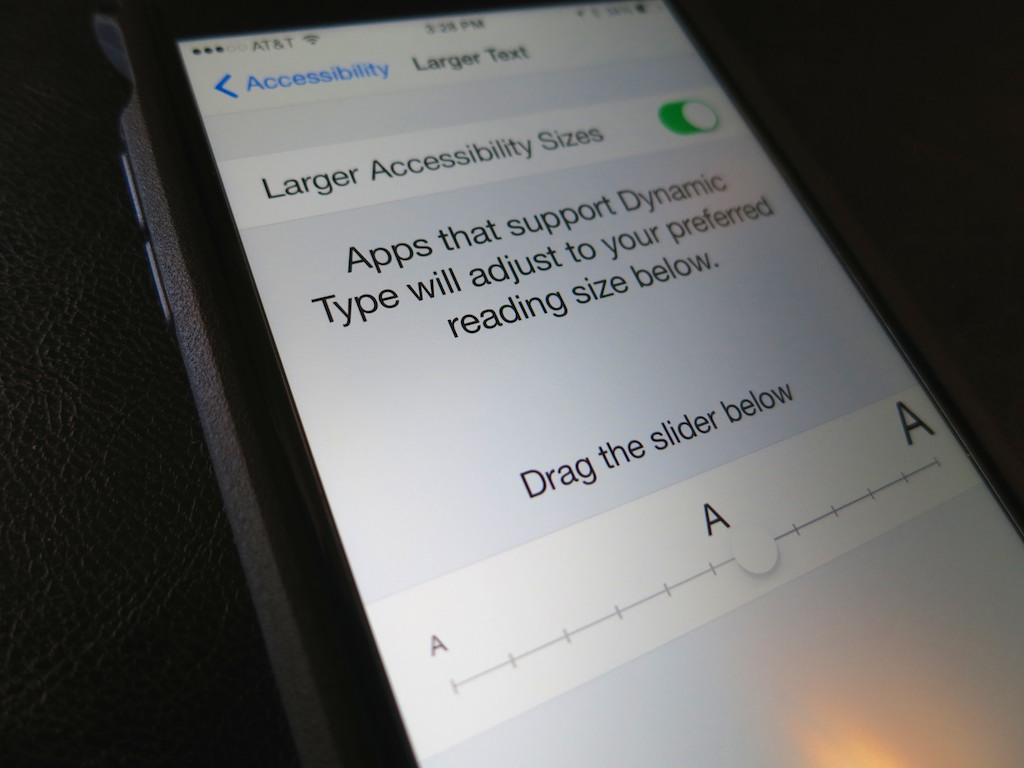
My new iPhone, sporting a black Tech21 case proudly displays how to increase its text size using iOS 8.  (Yes, some of us can’t pick out every period in a paragraph as accurately as we used to…)

My new iPhone, sporting a black Tech21 case proudly displays how to increase its text size using iOS 8. (Yes, some of us can’t pick out every period in a paragraph as accurately as we used to…)

I’m a newbie to the phablet world.
Just got myself my iPhone 6 Plus and so far… I’m a happy customer.

The slim giant hasn’t yet fallen out of my pocket or my hands, and I’ve really been digging the larger real estate of the 5.5” screen.

And all this, despite the fact that some of my friends who own older iPhones are making fun of that ‘huge thing’ I’ve got pressed up to my ear.
(Give them a little time… Big is clearly becoming the new small.)

But actually, all is not perfection in Florin. And I’ve got something to get off my chest…

I’m not sure if I should be embarrassed to admit this, but one of the major reasons I chose to supersize my iPhone 6 purchase has to do with the reality I’ve recently started wearing reading glasses.

How uncool is that?!
But hey, it happens to a lot of us at a ‘certain age’…

And to be honest, it stinks always having to schlep around your reading glasses everywhere you go.  But you kind of need them every time you make a move towards your smartphone’s home button.

Widen Your View
Life would be a lot easier if the screen’s displayed print could simply become a little larger, and Apple has good news here…

  • With iPhone 6 Plus and iOS 8, you can easily adjust the text size in ‘Settings’ under ‘Display & Brightness.’
  • There’s actually an entire ‘DISPLAY ZOOM’ section, which includes a ‘Text Size’ option.
  • You also get to goose the size of your app icons a bit if you select ‘Zoomed’ over ‘Standard’ when you tap on ‘View.’
    (Note that activating this setting nixes your iPhone’s ability to display your home screen in landscape mode. For me, that’s more of a parlor trick anyway.)

Sure, the DISPLAY ZOOM mode is also available on the standard iPhone 6, but you can’t see as much at one time on the smaller screen…
Thus, my reason for coveting my Plus.

More Zoom Options
Of course, Apple didn’t stop with only a couple of zoom settings. If you dig a little deeper in iOS 8, you’ll find a whole host of flexible options…

You can activate a ‘zoom mode,’ which allows you to zoom part of or the entire screen with a three-fingered double tap.

To set it up, go to:

  • Settings
  • General
  • Accessibility
  • Zoom

There, you’ll find other useful zoom choices, including ‘Follow Focus’ for your text cursor.

I Can See Again!
Apple has clearly put a lot of thought into text readability on iPhone screens…

Along the way, I’m sure someone at Apple said, “Hey, let’s market the Plus to all those millions of unfortunate middle-aged folks who can’t read the menu at the restaurant anymore.”
(happened to me again last Tuesday)

But Apple’s ‘culture police’ probably squashed that strategy quicker than Siri can say, “What?”
Instead, the glorious Retina HD display exists for more exciting uses:

  • To extend your gaming pleasure
  • To immerse you deeper in your movie viewing
  • To better display your magnificent photos

To be clear…
No one’s hiding the zoom functionality in iOS 8… but it’s not getting any real headlines either.

For me, regaining the ability to skim what’s on my iPhone without my reading glasses is news that goes above the fold.

And that’s not embarrassment…
It’s empowerment!
Saving the Sounds of Your Precious Voicemails

Are you tired of staring at your iPhone’s visual voicemails and wondering how to easily rescue them for your family history archiving needs?  You can MacGyver them out, but iExplorer has a better solution for you!

Are you tired of staring at your iPhone’s visual voicemails and wondering how to easily rescue them for your family history archiving needs? You can MacGyver them out, but iExplorer has a better solution for you!

My wife recently received her iPhone 6 Plus from UPS with great joy…
I bought it online a few hours after my 3am adventure to be among the first to preorder one.

So as a result, her Plus arrived a couple weeks after mine did.
(Actually, a few days earlier than Apple promised)

But this second Lester Plus was purchased in a much more civilized manner…
(No lengthy 3am digital dance during the first hours the new iPhone was ‘available.’)  It was just another calm 6:30am online transaction. Apple’s website was fully functioning by then, and I even had my cup of Joe within arm’s reach.

It was a snap and easily worth the extra wait for my wife’s iPhone to show up…
(I just didn’t want to chase stock availability and long lines for the next few months.)

Your Phone is a Time Machine
But before we activated my our second Plus, of course there were a few digital house-cleaning matters to attend to…

  • We eliminated the apps she wasn’t using any more on her old iPhone 4
  • Then deleted old voice mails, audio files and any mediocre photos
  • And did a full backup of her old iPhone’s data via iTunes
    (We’d use that backup to inject into her Plus.)

While going through some of the older media, we came across a few audio files that we definitely wanted to hold onto.
They were the sounds of our son my wife recorded when he was just a baby!
(carried over from her original iPhone 3GS)

Other precious moments to save were more recent voicemails from our now four-year-old ‘little man.’

And though the switchover to a new smartphone is supposed to be seamless, you really don’t want to play around with your priceless digital memories.
Especially around Halloween, you never know what horrors will appear
(or disappear)…

So I decided I’d better export those particular audio files before initiating the iPhone upgrade.

The Easy Way or The Hard Way?
Backing up the audio recordings was easy. They sync natively to iTunes.
But the voicemails were a different story. There’s no obvious way to save voicemails out of an iPhone’s visual voicemail ecosystem.

I’ve looked at this problem before and analyzed
three different ways to rescue iPhone voicemails.

During my initial research, I touched on third-party software to crack the voicemail code, but didn’t fully focus my attentions there, because I felt you shouldn’t have to pay someone else to release your own voicemails.

And the two do-it-yourself solutions suffered from the major problem of being really slow.

Now, as a father and a busy guy overall, I think I finally acknowledge that a faster solution is worth a few bucks.

iExplorer to the Rescue
So after a little more Googling, I took a closer look at iExplorer, a robust utility that allows you to easily export your files and media from your iPhone or iPad.
And yes, it also gives you easy access to those important voicemails and text messages you want to save…

So I proceeded to pony up $35 and downloaded the desktop software.

I plugged in my wife’s old iPhone…
Bam!
There were the voicemails we wanted.
Click.
Now, they’re in a new folder on my computer!
Click.
Next, I initiated a Time Machine backup.

And our precious voicemail files were speedily saved and backed up.
That was easy…

Now, to the task of activating my wife’s iPhone 6 Plus…!

Only Now, at the End, Do You Understand…
So is thirty-five bucks too much to shell out for a computer functionality you think should be free?

Yes, it’s a pretty penny, especially when you’re used to dropping only 99 cents on a new app.

But how much did you just spend on that new iPhone?
And look at all that time iExplorer just saved you.
And isn’t the price of dinner worth ensuring the safety of these priceless digital additions to your family history archive?

As my dad likes to say,
(which his father told him)
“You don’t get old for nothing!”

Thirty-five clams?
I’d pay twice as much…!

How to Boost Your Smartphone’s Signal Strength

Just because you’re on vacation doesn’t mean your smartphone is.  And even though you’re trying to get away from it all, you probably still want to receive that important phone call…

Just because you’re on vacation doesn’t mean your smartphone is. And even though you’re trying to get away from it all, you probably still want to receive that important phone call…

This past week, I’ve been adjusting to the sad reality that summer is behind us. All that’s left are the fun memories, a thousand photos that need organizing and a few cautionary tech tales.

Like what to do when you find yourself more disconnected than you originally planned…
(Cue “The Twilight Zone” music…)

Losing It at the Log Cabin
It was billed as the perfect vacation getaway…

  • A road trip up to the Berkshires
  • A little log cabin in the woods (with ‘most’ of the comforts of home)
  • A babbling brook nearby (okay… it was more like a roaring river)
  • Time set aside for a little R&R at a little lake in Great Barrington, MA

It was supposed to be perfect.

Until I asked the day before we left if there was decent cell phone coverage at the house.
(Granted, it was a little late in the game to be asking.)

The response:
“You can probably get one or two bars on the back deck.”

Hmmmm….
That sounded decidedly like code for a different answer…

When we arrived, I whipped out my iPhone and discovered the truth.
There wasn’t a morsel of a signal bar on my phone as I walked around the entire house, grounds and deck.

I was cut off!!

…and I started to panic.
Think.
Think. Think. THINK!…

Aha!
I spotted the broadband modem in the kitchen.
We were not entirely in the digital dark!

Skype to the Rescue?
Yes, at least there was Wi-Fi in the house.

So, we got the modem working,
(First, we needed to reboot the frozen box, downed by a recent power outage.)

I immediately tested my Skype app.
Success!

So now people could Skype me, but I was still concerned I couldn’t receive an old-fashioned phone call.

The irony here is I had forgotten all about my online Skype number for my iPhone’s Skype app.
I was so proud to acquire it a couple years back, but the reality is I’ve rarely used it.
(D’oh!!)

That would have solved the problem, as long as I stayed on my Wi-Fi tether.
(and if all my friends and family actually knew about my Skype number…)

Waiting for the Phone to Ring
So I kept searching for a solution to ‘MacGyver’ my phone to somehow access incoming calls to my mobile number.
(I could still receive texts via the Wi-Fi network.)

But if someone called me,
(like my 81-year-old father)
I really wanted to be able to pick up the call.

After a little Googling, I discovered the truth is out there.
You can actually create a few bars for your mobile phone using your Wi-Fi network.
But pulling the trigger on the solution would have to wait until I returned from my trip.

How to Generate Signal Strength
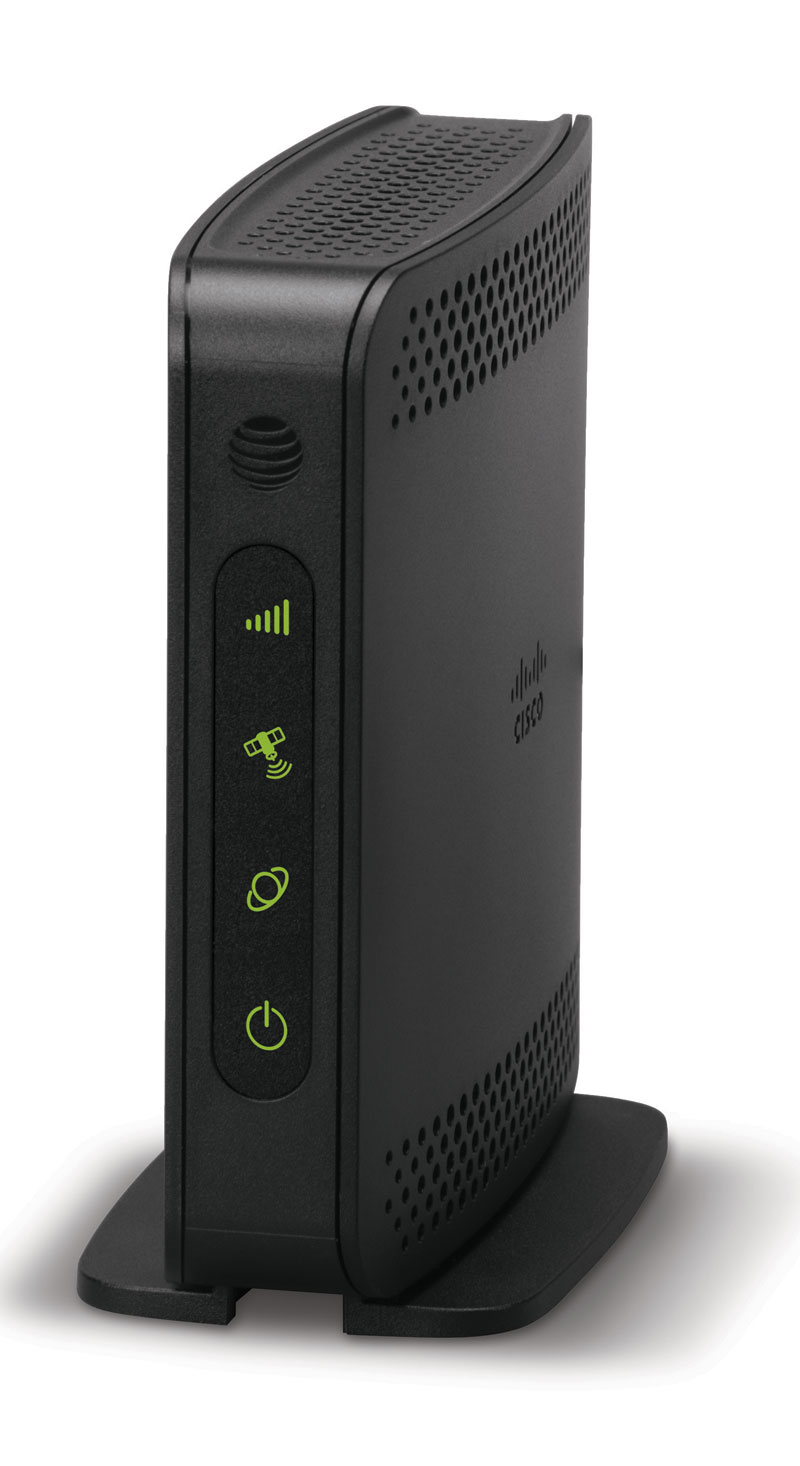
It’s called the AT&T MicroCell, and this little device acts like a mini cellular tower.
You simply plug it into a broadband modem via an Ethernet port and voila…!
You’ve got your very own cell bubble to use!!
(You do have to set it up first online, and you can register up to fifteen different AT&T Wireless cell phones.)

And how much for this slice of magic?
$150.00.
(Available at your local AT&T store… I couldn’t find it online.)

MicroCell

You can take the MicroCell with you wherever you go as long as you plug it into a broadband DSL or cable network and update your location change online.
(and as long as it’s within an AT&T wireless authorized service area)

And if you’re wondering, …
Yes, Verizon offers a similar product with its “Wireless Network Extender.”

Don’t Get Cut Off on Vacation
No, this isn’t a cheap solution, and I think the MicroCell probably is purchasd more to solve signal strength problems at home. But it certainly would have done the trick at our log cabin in the digital wilderness.

I’m not sure how many of you would want to pack a MicroCell with your socks every time you head out on vacation, but if you plan on receiving calls on your smartphone using your regular mobile number, you might need it!