At Home with Tech

Unlock the power of all your technology and learn how to master your photography, computers and smartphone.

Category: Tech Fixes

How Do You Fit the Whole Family into a Selfie?

I’ve listed a few tricks below to help jam everyone into a group picture, but it also doesn’t hurt to extend the arm’s reach of your camera.

I’ve listed a few tricks below to help jam everyone into a group picture, but it also doesn’t hurt to extend the arm’s reach of your camera.

One of the hardest pictures to snap is a simple group shot of your family.
Whether using your smartphone or pocket camera, it’s not that easy to stick your arm out, reverse the camera and blindly click a decent family selfie.

As a result, I’ve shot countless pictures of my son and wife over the past few years, but there are only a few dozen successful Team Lester portraits.

Sure, you could hand over your camera to a stranger, but that assumes there’s someone close by.
And somebody who can take a decent shot.
(The basics of ‘point and shoot’ inevitably take on new complexities when someone else is fumbling with your gear.)

And if you happen to be enjoying a little family hike, you’re probably out of luck, unless you want to train a nearby bear in the art of photography.

The Right Way
Of course you can create a more formal photo setup using a tripod and your camera’s countdown timer.
You can even pull out a little GuerrillaPod or Tiltpod from your pocket to steady the shot.

But that still requires you to run around like a mad hatter.
Then your little snapshot quickly devolves into a lengthy ‘production’ for everyone.

The Easy Way
It’s painless and zippy if you can just stick out your arm and magically get the shot, right?

So given the choice, you’re probably going to go for the selfie.

And if you’ve chosen that path, here are a few suggestions to help you get the entire family unit over the photo finish line with you.

5 Tips to Better Family Selfies

1.  Use a Wider Angle Lens
It helps a whole lot if you have a camera with a wider-angle lens.
That makes it easier for your camera to ‘see’ everyone from the short distance your arm provides.
(unless you’re the more flexible Mister Fantastic)

I know you can’t do anything about your lens specs when you’re trying snap a group selfie in the middle of Times Square.
But you should always keep your lens in mind when you’re shopping for your next camera.

Case in point:
The zoomed-out lens of a Canon PowerShot Elph 150 with its 24 mm focal length (35 mm film equivalent) will see a lot more up close using your outstretched arm than the field of view provided by the more expensive
Canon PowerShot G16 with its 28 mm focal length lens.

2.  Keep the Light in Front of You
Just because you feel all hip and cool shooting a ‘selfie’ doesn’t mean you should forget about the basic rules of good photography.
Make sure you’re facing the sun or your main light source.

You want everyone to look their best, right?

3.  Ignore Personal Space
Lens specs aside, everybody still really needs to scrunch in.
No matter what.
And I’m talking close!

I’ve crammed in up to 6-7 people and still got them all in the selfie.
And if done right, these can become your best pics of the day!

4.  Use a Real Button to Click
If you’re using your iPhone, it doesn’t help to have to guess where the red icon is on your screen when you’ve got it facing away from you. Plus if you don’t have the digital dexterity of Houdini, you have a pretty good chance of dropping your smartphone before you even get the shot.

The good news is the side volume button doubles as the camera’s trigger.
Use it!
(It’s really that much easier…)

5.  Extend Your Arm’s Reach with a Selfie Stick
If you arm just isn’t long enough to get the job done, it’s time to stretch your ability by using a little telescoping pole with a camera mount on the end.

This can be especially useful if you’re using your smartphone.
Its fixed lens likely offers a tighter field of view than your digital camera.

There are a lot of these mini poles on the market and some extend out more than others. I suggest buying only the length you need, simply because you don’t want to lug around extra weight.

A few choices out there include:

The QuikPod Pro
I finally decided on the $24.99 Digipower TP-QPPRO QuikPod Pro.
($21.48 on Amazon)
It seemed a little sturdier than the competition, and it extends 20 inches.
But that’s plenty for my basic selfie requirements.

You might have been wondering how useful this kind of contraption is if you can’t see the framing of your shot.
Well, you can.
(kind of)
It’s got a tiny mirror, which reflects your image back at you.
But you still have to make sure the camera tilt is appropriate and facing you.

More importantly, the QuikPod can mount digital cameras, the GoPro camera as well as your smartphone!

CLICK.

One caveat:
Using the QuikPod (or any other monopod assistance) does require you to use the timer on your camera or download a countdown app for your iPhone.
(I downloaded ProCam 2 from iTunes for 99 cents.)

Second caveat:
Extending the QuikPod out straight at a level angle will ensure the pole gets in the shot.
You’ve got to position the pole at a 45-degree angle to hide it from view.

Otherwise, you’re good to go…
Just don’t drop the camera when you’re unscrewing it from the QuikPod’s base, like I did!
(seriously)

Fortunately my stunned Canon Elph still had a heart beat.
(It just fell on my rug.)
And I didn’t have to rush to reread my own post,
“I Dropped my Camera. Now What?”

The Family Selfie is in the Palm of Your Hand
So now equipped with the power of a longer arm and these tips to follow, you’ve got a fighting chance to capture that group selfie you’ve been looking for!

And when you say you’ll go to any length to get your shot, I’ll know you’re not kidding!
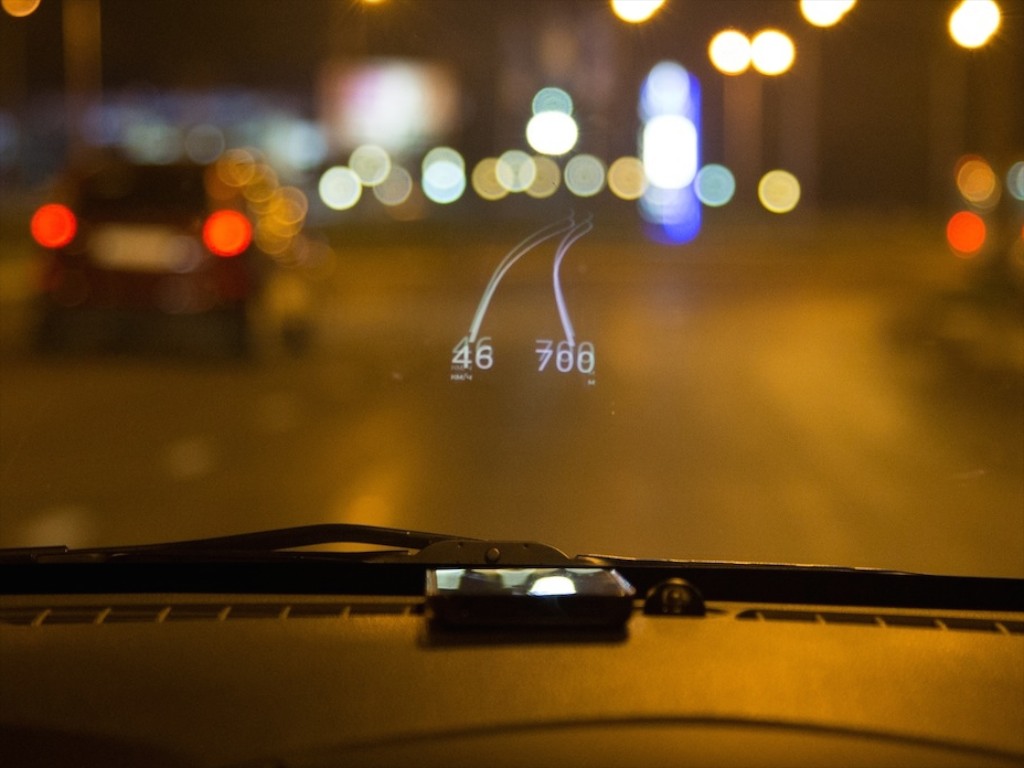
Your Mission: Find a Way to Drive with Head-Up Display

Apps like HUDWAY (seen here) can augment your view while driving in low visibility conditions. But is this tech ready for mass consumption?

Smartphone apps like HUDWAY (seen here) can augment your view while driving in low visibility conditions. But is this tech ready for mass consumption?

Some drivers like to navigate by memorizing street names.
Others rely on landmarks and a general feel of their surroundings.
(kind of like using the Force)

I prefer the latter.

The problem is the Force doesn’t always get me where I want to go, and as a result, my wife has long been anointed the family navigator.

So let’s just say, I’m always on the lookout for ways to enhance my navigational prowess…

Recently I was watching a Brian Cooley video on CNET about the best car apps for your smartphone.
And at the very end of the segment, the solution appeared before my eyes…

Seconds later, I was ready to add a little augmented reality to my windshield.

Heads Up: Here Comes HUD
I’m already taking full advantage of the GPS tech in my iPhone while driving.
The forward-looking arrow in the Google Maps app (or the native Maps app) is always a helpful buddy to keep me on course.
And Siri calmly reminds me when the next turn is coming.

But when I’m driving at night or in low-visibility conditions, it’s harder to maintain that symbiotic connection, because you can’t see as far ahead as your app can.

So the solution is to add a little HUD technology into your smartphone.

HUD, which stands for ‘Head-Up Display’ projects an image onto your windshield so you don’t have to look down at your smartphone.
(wherever it is you’ve got it perched)

Yes, you simply plop your smartphone on the dash near your windshield, and it illuminates useful car-centric data. The trick is the display uses a mirrored effect.
The image glows in reverse it and bounces off your windshield like a mirror to appear correctly for you to view.

Depending on the app you use, different sorts of data can be projected, but I think the coolest scenario is to see your digital directions and path on your windshield.

Sure, you’ve got to mount your smartphone onto your dash in a way that it doesn’t slide around.

I already had a dash mount with a tacky bottom for my iPhone to use.
So I was ready to begin my search for the perfect app to augment my reality while on the road…

Three Ways to Add HUD to Your Driving Experience

My first step was to watch the CNET video again.
But a problem immediately cropped up.
Brian didn’t actually mention the apps by name.

So I had to do the heavy lifting myself.
But after some intense Googling, all I could find were three options for this type of directional assistance.

1.  HUDWAY
The good news is this free app (99 cents for ad-free) displays the road ahead and your upcoming turns.

The bad news is there’s no voice assistance.
And it pre-maps your route, which is useful if you lose your cell connection, but not so great if you go off course and need the app to recalculate your route on the fly.

It’s also got some negative reviews on iTunes.
And it’s worth noting… a Russian company makes this app…
With the state of geopolitical affairs these days, it doesn’t feel like the time is quite right to download this app…

2.  Sygic
I think this is the app Brian was specifically referring to in his CNET video.

But Sygic is an offline navigation app, which means you’ve got to first download your maps information. And with all the content on my already bloated iPhone, I wasn’t too excited to start feeding it all the roads in the USA.

Plus, even though the app is free, the required map info is a $35 in-app purchase.
(on sale from $80)
And to add insult to injury, the HUD feature is another $8 on top of that.

So it’s a least $43 to give Sygic a test drive.
And that’s a little pricey when you’re used to spending a couple bucks on an app.

3.  ITEQ HUD
If you were wondering who makes a full-on, separate HUD device…. ITEQ makes one.
It’s the ITEQ GPS Car HUD, and it costs $52.99 on Amazon.

I think it’s fair to say this unit hasn’t gone mainstream yet…

Mission Impossible?
So the problem is the perfect HUD driving solution doesn’t exist.
At least, not yet…

You would think that the Google Maps app or Maps would simply have a HUD mode you can click into.

If I’m missing something, please let me know….
But in this particular instance, it would seem the future isn’t closer than you think.

This is still a concept ahead of its time.
(Unless you’re really willing to pay for it.)

Inhabitat.com_Mission Impossible 4 Head Up Display

And if price is really no object
The way to do HUD right is to drive the BMW i8 from
“Mission Impossible: Ghost Protocol.”
That’s only going to cost you $135,925.

No, thank you, Mr. Hunt.

How Easy is E-ZPass?

Using your E-ZPass tag is mostly mindless as long as you don’t totally ignore it.  Otherwise, years will pass by, and your E-ZPass will still think it’s living in the car you owned in a different decade.

Using your E-ZPass tag is mostly mindless as long as you don’t totally ignore it. Otherwise, years will pass by, and your E-ZPass will still think it’s living in the car you owned in a different decade.

A long time ago, in a state far, far away…
(not that far, really)
My wife introduced me to the wonders of E-ZPass.

I have to admit I was a bit skeptical.
I wondered whether technology was up to the challenge of accurately identifying, logging and billing the toll charges on each and every car moving through a toll plaza.

Yes, the century was still young, but my worries were, of course, unfounded.

Perhaps I was secretly mourning the loss of the opportunity to play coin hoops at unmanned tollbooths. After years of practice, I was still finessing my form to match my childhood memory of how my father did it.

He had this certain elegance in his coin toss technique that never compromised on speedy accuracy.
His quarters would hit their mark every time with a definitive ‘clunk!’
There was never a need for the coins to swirl around the basket, because they were always perfectly flung.

But now it was time for me to throw in the towel and stick a strange white cube to my windshield.

I’ve explained before that I usually hold the position of IT Guy in our family, but in this particular moment, I was just a stick-in-the-mud Luddite.
Thank goodness my wife was there to catch me in my tech stumble and keep us somewhat close to the bleeding edge of consumer tech.

Full Speed Ahead!
And the result was pure joy.
Especially back then, when most people didn’t have E-ZPass tags, and there was only one booth in a toll plaza dedicated to the technology.
We’d whisk through, leaving lines of cars in the dust waiting to hand over currency to a live human being.
We felt like we were adding ten to fifteen minutes back to our lives every time we’d pass a toll.

It was just wondrous.

Over the next few years, everyone else eventually got their own E-ZPass tags, and most of the toll lanes bid farewell to their biologic toll collectors.
So the E-ZPass lanes started filling up, and traversing them wasn’t quite as speedy.

But if you didn’t belong to the E-ZPass club, you had the displeasure of waiting in the last line dedicated for citizens with too much time on their hands.

Today, using E-ZPass is a standard way to travel the landscape for most cars.
The good news is you don’t really have to think about it.
(When was the last time you had to worry about exact change?)

It’s simply set it and forget it!
But sometimes, it still pays to check in….

It’s Time to Update Your E-ZPass Account
Recently, the equipment I need as a commuting road warrior has shifted from train to automobile.
Yes, if you were wondering, my recent, ‘fun’ car-buying experience was directly prompted by this development.

My new highway commute places my trek across one of our majestic bridges, and I decided to check out whether I could sign up online as a frequent traveler to receive a lower toll price.
(You can!)

But along the way on the E-ZPass website, I noticed my family’s two cars and their license plate numbers were not listed correctly. The data was years out of date.
In fact, it had not been updated since we opened up our account.
(d’oh!)

In my defense, we’d never had a reason to go to that section of the website to detect the problem.
(And thankfully, nobody else had either.)

Still, it didn’t seem as urgent a problem as the time the credit card on the account expired, (unbeknownst to us)
and we started receiving angry yellow warning flashes at every tollgate.

But the moment had clearly arrived to take some action or invite bad car karma….

If in Doubt, Click “Add Vehicle”
Feeling industrious, I clicked on the ‘Vehicles List’ tab and then clicked on the first of my two former cars.

But when I tried to update the license plate number, as well as the vehicle detail, I discovered that I could only adjust the vehicle information.
The license plate line was grayed out.

Scouring for my problem online did not bring up a solution.

So I decided all I could do was start from scratch and just add in the new car.
And guess what… I think that’s how you’re supposed to do it!

So I clicked- ‘Add Vehicle.’
And then I filled in everything, including the new license plate number.

Finally, I deleted the old car from the expanded vehicle list.

How to Update Your License Plate Number in E-ZPass
It’s extremely straightforward.
(I guess in the battle of Barrett vs. E-ZPass, I’m now 0 – 2.)

That said, I do have small bone to pick with the language used here-
For me it wasn’t really ‘Adding a Vehicle’ as much as it was
‘Adding a License Plate.’

I think the problem also was I was attempting to update both the license plate number and my car information.
(Maybe that would suggest a total do-over right there.)

But if you click on an existing vehicle to edit, the program automatically assumes you’re keeping your license plate and only updating your car.

What happens if you still have your car and just need to freshen up its license plate numbers?

Well, the new ‘Mr. E-ZPass Expert’ has the answer!
Yes, you’ve got to start from the beginning:

  • Click ‘Add a Vehicle’
  • Type in the new license plate number along with your existing car detail
  • Finally, delete the other listing with the old license plate number
  • Continue on with your life

No, I don’t think it’s perfect, but it works.
And that’s as reasonable a way to describe our government on a good day as any!

The Easy Commute Begins?
I’m happy to report, both our cars are now up to date in the E-ZPass system.
I wouldn’t exactly call it easy, but I correctly guessed my way across the finish line.

And I imagine my momentary bout with tech confusion will go a long way towards ensuring future ease every time I cross through an E-ZPass corridor.

Now that I’m a true road warrior, it’s all that really matters!