At Home with Tech

Unlock the power of all your technology and learn how to master your photography, computers and smartphone.

Category: Tech How To

How to Export a Great Photo from a Video Freeze

Why do video editing platforms offer the option to save a frame of video? Well, if you’re the family videographer who captured the video but missed the photo moment, a little video editing can generate the photo of your dreams. Here’s how…

Have you ever realized that you’ve recorded a great family moment on video, but you didn’t snap a single photo? Well, don’t despair! If you’re living in the world of 4K video, you can steal a frame from your video file to create a high-res image that you can frame!

Here’s how you do it on a Mac…

QuickTime
If you’re watching your video in QuickTime, there’s the quick-and-dirty way:

  • Simply find your desired frame and pause the video
  • Copy the specific section of your screen that contains the video window by pressing Apple/Shift/4 and then drag the crosshair pointer to create the appropriate box
  • That screenshot will pop onto your desktop as a PNG file
  • From there you can easily convert it to a JPEG or TIFF

iMovie
JPEG creation is really easy to do in iMovie:

  • In your timeline, simply scrub your playhead to a specific moment
  • Click on the ‘Share’ icon in the upper right corner
  • Click on ‘Image’
  • Then, select where you want to save your new JPEG

Final Cut Pro X
Note: ‘Save Current Frame’ isn’t a default option in FCPX. You’ve got to add it if you’re doing this for the first time:

  • In your timeline, scrub your playhead to your magic moment
  • Click on the ‘Share’ icon in the upper right corner
  • Click on ‘Add Destination’
  • Drag ‘Save Current Frame’ over to the left column to create this choice if necessary
  • Then, click out of Destinations and start your process again
  • The next time… choose ‘Save Current Frame’
  • Click Settings and choose your file format
    (There are more options here than what iMovie offers.)
  • Then, select where you want to save your new photo file

A Video Frame Can Create a Great Portrait
Surprisingly, this technique can also be quite useful when you’re trying to capture a more natural portrait of someone who has a difficult time posing for the camera.

Sure, it’s hard to choose a good freeze when someone’s talking, but the trick is to grab a frame immediately after a sentence. If it’s also at the end of a complete thought, there’s usually a second of a pause to select from.

Find Your Favorite Photo in Your Next Video
Other video editing platforms like Adobe Premiere Pro also have the same freeze frame capture capabilities. So, essentially you’re totally covered to create the photo of your dreams… as long as you can mine a good video clip.
(Yes, those pesky details)

Good luck!
Why Vertical Video is Here to Stay

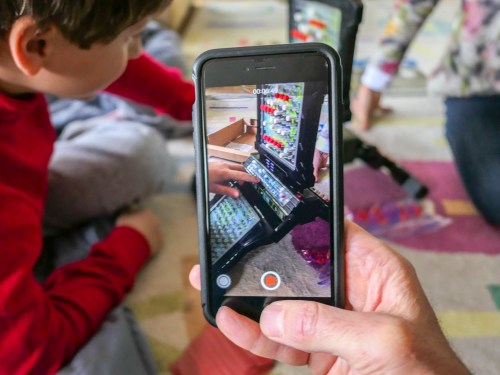
If you didn’t know, this is the “wrong” way to hold your smartphone when shooting video. Or is it? Figuring it out doesn’t have to feel like you’re playing a game of Battleship…

Pop quiz… When you pull out your smartphone to shoot a video clip, do you hold your smartphone vertically or horizontally? If you look around at any given moment, most of us are holding our devices oriented up and down.

And that will create vertical video… which is fine if the video file is later viewed on a smartphone. But if it’s exported and displayed on a horizontal TV screen, the vertical orientation jams awkwardly into the horizontal space.

That’s why for years I’ve been telling vertical video creators to turn their smartphones horizontally before recording their next home movie.

But something big just happened that has finally changed my unwavering commitment to horizontal video.

I’ve just shared my story in this LinkedIn article.
If you wouldn’t mind, please click through to find out what suddenly changed my perspective on video storytelling…

Best Lifetouch School Portrait Looks for 2018

If ordering your Lifetouch school photos feels a bit like the complexities of AP calculus, then I’ve got a few shortcuts to the best Portrait Looks…

It’s Picture Day! Your child is having his or her photo taken by Lifetouch at school. Congratulations. Now, it’s time to order your pictures. Are you overwhelmed with all of your Lifetouch photo choices? Well, join the party…

Last year, I rolled up my sleeves and tried to figure out which photo package was the best one to go with. If you’re interested, here’s my exceptionally detailed book report on the subject.

If you’d prefer to read the CliffsNotes version…
…Then, I say you should go with the Premium Package for $49.

You get:

  • Twelve 2×3
  • Four 3×5
  • Four 5×7
  • Two 8×10
  • One 8×10 Calendar
  • One 8×10 Class Picture
  • And the Portrait CD

No, you’re probably not going to be able to hand out all twelve of those 2×3” wallet photos, but you’ll get less value with the less expensive packages. Plus, none of the cheaper packages include the Portrait CD with all of your digital photo files. And for me, that’s the most important item!

In this digital age when thousands of pictures can be taken of your little darlings for free using your own tech, It does feel a little crazy to be spending this much money for one picture. But granted, it’s a ‘professional’ shot, and yes, you’re paying for some photo paper stock.

So let’s move on and figure out how to make the most of what you’re getting…

Choose a Variety of Portrait Looks
I think the hidden trick to the ordering process is to pick as many different backgrounds (Portrait Looks) as you can. It’s easy to do that by selecting a different background in each of the photo sizes. And then… they all show up on the Portrait CD!

So that’s where you’re getting additional value, because suddenly you’ve got eight different photos on the CD. Granted, they’re all using the same shot, but they feel different with the variety of all the digitally inserted backgrounds.

Now, you’ve got a wide range of choices when you want to print any additional pics yourself…

The other important detail to keep in mind is some of the Portrait Looks use a wider version of your child’s photo and others use a cropped version. I think it’s nice to include both.

You Can’t Copy Last Year’s Choices!
Since I did my exhaustive research on this last year, I figured I would just copy my choices and be quickly done with the ordering process this time. But guess what…?

They changed the numbering for the Photo Looks this year!
Argh!
(That’s worse than “my dog ate my homework!”)

So, I had to go through it all over again online at mylifetouch.com.
But that wasn’t necessarily a bad thing, because there’s been some evolution to my thinking on the best Portrait Looks…

Go with the School Backgrounds
I say the backgrounds for the Portrait Looks you choose should specifically reflect the fact that these are actually school photos. And you should include Photo Looks that reflect the year or grade. Generic-colored backgrounds are so… generic. They can be taken anywhere at any time.

Sure, a colored background doesn’t date as quickly, but then again… why would you really want someone to be looking at last year’s photo anyway?
(You know how I feel about sharing old pictures of your kid.)

Barrett’s 2018 Lifetouch Order

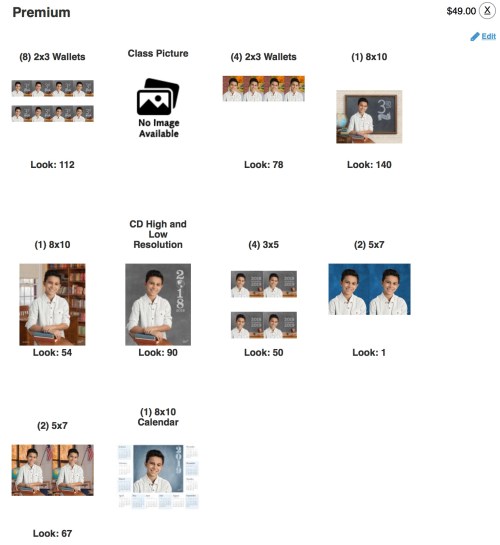
Here’s what I ordered in my Premium Package
to celebrate my son’s third-grade year.
Please feel free to copy my homework…


Eight 2×3 Wallets
Choose: Look #112 in ‘Pick Your Grade ‘
Blackboard with 3rd grade/Tight/Horizontal
(You need a tight shot of your child here, because these are so small.)

Four 2×3 Wallets
Choose: Look #78 in ‘Outdoor’
Edge of brick building/Sidewalk and tree/Tight/Vertical
(An outside shot is nice as long as it looks real!)

One 8×10
Choose: Look #140 in ‘Pick Your Grade’
Blackboard with 3rd grade/Wide/Horizontal
(This is the ‘money shot’ I like to frame at home. It says it all.)

The Other 8×10
Choose: Look #54 in ‘School Days’
Bookcase and window/Wide/Vertical
(Go with a vertical option, since the other 8×10 is horizontal.)

CD High and Low Resolution
Choose: Look #90 in ‘Special Edition’
Grey background/Wide/Vertical/2018/2019
(Go for a wide shot… that gives you the most flexibility in cropping.)

Four 3×5’s
Choose: Look #50 in ‘School Days’
Blackboard with year and apple/Tight/Horizontal
(Again, because it’s a small print.. go with a tight shot.)

Two 5×7’s
Choose: Look #1 in ‘Featured Looks’
Blue Background/Tight/Vertical
(Okay… for this one, I’m going with the classic blue background. You’ve got to have one, right?)

The Other Two 5×7’s
Choose: Look #67 in ‘School Days’
Classroom background with American flag and window/Wide/Vertical
(Go wider on this set.)

One 8×10 Calendar
They don’t give you a choice here. Please move on!

Pencils Down!
Phew! I hope that helped you get quickly through this complicated homework assignment. Enjoy your photos!