At Home with Tech

Unlock the power of all your technology and learn how to master your photography, computers and smartphone.

Category: Tech in the News

Six Ways to Improve your Recorded Zoom Videos

If you’re preparing to use Zoom to record a conversation or a group video message, welcome to the world of video directing. Here are a few tips on how to get the most from your recording session.

So you’ve decided to use Zoom or another video conferencing platform to handle your next video shoot due to social distancing. The quality won’t be as good as having an actual video crew on location, but it’s something, right?

And it’s remarkably simple. You just press the record button during your Zoom meeting to capture the content. Depending on your plan, your video files will get uploaded to the cloud or downloaded to your computer as soon as your meeting ends.

Welcome to the Director’s Chair
But what isn’t necessarily as intuitive is how to use Zoom as a live video production switcher if you’re handling multiple ‘live feeds.’ 

One example would be creating a virtual ‘talk show’ with an interviewer chatting with two guests.

Another is “The Brady Bunch” multi-box effect using Gallery View. It’s a great way to visualize that we’re all in this together during these difficult times.

If you’ve decided to go down this road, and you’ll be using Zoom as your virtual TV studio to switch between multiple video sources in a live environment, congratulations. Now, you’re a video director. 

Here are six tips to help ensure your success.

#1
Hide Self View

If you want to show multiple people in Gallery View but you don’t want your own shot to be included, then you need to activate ‘Hide Self View.’

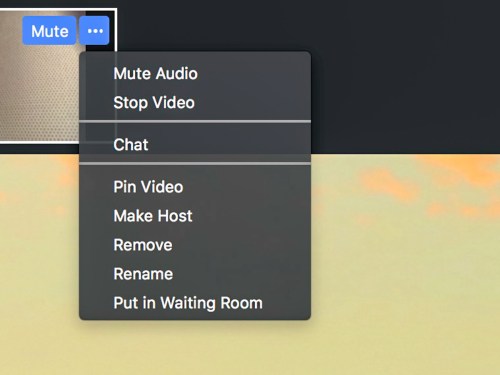
You’ll find this option in the drop down menu after you hover over your video box and then click on the three-little-periods icon in the upper right corner.

Hiding your shot will not mute your audio. So you can still talk with everyone to give them instructions as the director. You also might want to mute your audio while the others are being recorded.

#2
Use the Waiting Room

If you’re working with a large group of participants, and not all of them will be part of the same conversation, use the Waiting Room feature. It essentially puts them on hold. 

When you’re ready for them to contribute again, you simply bring them back in to the conversation.

#3
Pin Video

If you want to record a conversation in full screen as opposed to using Gallery View, Zoom’s Active Speaker View will choose the shots for you. But it’s not always perfect. So, if you want to control your shots manually, then you can ‘pin’ each shot you want as you go.
(Again, this only affects what you see and record.)

You’ll find Pin Video in the same three-period drop down in the upper right corner of the person’s box.

You’re not really working in HD
Let’s face it, even though you’re recording your Zoom clips in 720P HD video, a lot of the little boxes that pop up will look and sound like they’re from 1972.

Webcam frame rates are going to vary, and the audio quality may sound like it’s coming out of a tin can. You’re simply at the mercy of the ‘Gods of Bandwidth’ and the Internet in general.

You’ve just got to go with it.

#4
Get Multiple Takes to Capture Clean Audio

It’s ironic that the mediocre image quality will likely not be a problem for your viewers. They’ve come to expect glitchy-looking video as part of this webcam communications medium. 

Instead, it’s actually glitchy audio that will stand out like a sore thumb. If you can’t understand what someone just said, that’s a real problem. 

So, if you can, record the same lines a couple times. Then, you’ll have a higher likelihood of capturing ‘clear audio’ moments. Later, you can extract the cleanest-sounding audio fragments and then ‘Frankenstein’ it all together through audio dubbing during your editing process.

#5
Webcam Video Can Be Your Friend

Speaking of editing, bad-looking webcam video does have one upside. It’s much easier to edit together. You can easily combine two sections of someone talking without running afoul of the ‘jump-cut’ rule. 

Since webcam shots with low frame rates already look jittery, an actual jump cut will likely evaporate into the larger webcam ‘experience.’  

#6
Don’t Worry About…

The yellow outline that pops onto the person’s frame who’s speaking…

  • It’s not in the final recording.

People’s names in the boxes…

  • The words don’t show up in the actual video file either.

How I Learned to Love Terrible Webcam Video
Sure, there are multiple flaws inherent in this suddenly wildly popular communications tool. But using an app as a live TV studio with access to anyone around the world (with connectivity) is still a rather remarkable concept (even if the technical capability isn’t entirely new).

And the resulting raw moments you’ll get can be compelling, because they are truly genuine.

Imperfection is irrelevant as long as you’ve got your own video basics covered.

So just be sure that when you wear your Zoom director’s hat to bring it all together, you’re familiar with using the app as a multicamera switcher and recorder. 

You still need to be at your best.

How to Fix Four Home Video Conferencing Problems

If ever there was a time to make sure what you CAN control is under control… it’s now. Here are four ways to better handle your family’s growing live video streaming needs.

We’re clearly in the middle of a radical evolution when it comes to using video communication tools at home.

Sure, Skype, FaceTime and other personal video communication platforms have been around for years. Yet, most people haven’t been practicing video chatting and video conferencing as a daily activity.

That’s changed… and quite suddenly.

As we’re now sheltering at home, live video streaming has become a tool of necessity across any number of situations, including work, school and family communication.

So, if you’re the designated tech support rep for your family, you’d better make sure you’re addressing your family’s video streaming needs.

Here are four challenges I’ve already had to confront and the best ways to handle them.

#1
There’s not Enough Video Streaming Bandwidth
For your Entire Family

I thought we had plenty of bandwidth at home for all three of us to be on separate live video streams simultaneously. I found out last week that wasn’t necessarily the case. It was painful to experience our internet service sputtering throughout one afternoon.

Assuming you pay for an internet plan that ‘normally’ provides enough bandwidth, consider this when things still glitch out and turn your day into an episode of “The Twilight Zone.”

  • Move your video calls to cellular connectivity via your phone
    If your cellular plan can handle the data load, you can easily do video conference chats on your smartphone. I’ve done it on my iPhone using Zoom, Skype, Google Duo and, of course, FaceTime.
  • Activate the mobile hotspot plan for your phone
    Once you’ve got that in place, your phone can also rescue your stranded computer that needs an alternate tether to the world.

#2
You Don’t Own Enough Gear
To Handle Your Family’s Video Communication Needs

This issue can crop up with younger family members who don’t yet have their own dedicated computer or smartphone.

The good news is you probably have some retired gear lying around that you can put back into service. That’s exactly what I did.

I repurposed the camera in my old iPhone 6 Plus for my fourth grader to use. He had a virtual playdate over the weekend where he was challenged to play old-school ‘Battleship’ with a friend over FaceTime.

My old iPhone no longer works as a ‘cell phone.’ It had passed that baton to my newer iPhone years ago, but it’s still fully functional with FaceTime video over my home Wi-Fi.

Their virtual-Battleship execution using FaceTime on my old iPhone 6 Plus and two separate game boards worked perfectly!

#3
There are Wi-Fi Gaps in your Home

Since your entire family may be home now, they’ve probably had to spread out to create some privacy and not interfere with each other’s video calls. As a result, those Wi-Fi ‘dead zones’ may have become more of a problem.

If so, then it’s time to extend your home Wi-Fi signal with a “Mesh” system where you can use multiple nodes to create whole-home Wi-Fi coverage.

That’s what I did with Netgear’s Orbi system I bought on Amazon.

#4
Your Zoom Video Shot Looks Terrible

From what I’ve seen, Zoom is now the de facto tool for family and friends to maintain their connections. A phone call isn’t enough. People need to see each other. So, whether you like it or not, it’s time for your close up. And so you probably should pay attention to how you look.

If you’re not happy with your Zoom shot, there are two likely culprits:

  • Your webcam is peering up at your face
    Reposition it to be more level with your eyes. That will create a more flattering shot. If you’re using a laptop, that may mean placing it on a stack of hard-cover books to create the right angle.
  • Your face is too dark in the shot
    You need more light in front of you and less light behind you. A bright window that’s lurking in your background is a common framing error.

On the other hand, if you’re facing a window, the outdoor light can provide the illumination you need, assuming the sun is not hitting you directly.

Alternately, you may want to consider buying a soft light made for webcasting.
That’s the solution I recently went with.

At Home with Your Tech 24/7
If you’re like me, your role as the ‘Family IT Guy’ has just been thrust into the spotlight. Whether that’s a legacy title or you’re new to the position, you really need to keep your tech working right now.

You can do it. Just prepare for the unexpected and then work your streaming problems as they arise.

Good luck and stay safe.

Seven Tips for Online Food Shopping during COVID-19

The coronavirus has affected how we need to shop. I’ve got a few suggestions on how to get what you want delivered to your doorstep as quickly as possible.

I think it’s clear that if you’re able to stay at home during this COVID-19 pandemic, then you absolutely should. And for me, that includes an ongoing attempt NOT to go to the supermarket to buy food and supplies. I know you could debate whether my choice is too extreme, but it certainly isn’t hurting the larger problem. In fact, in my small way, I’m happy that I’m doing my part to help flatten the curve.

My wife and I successfully stocked up on our essential needs three weeks back before the coronavirus in the U.S. changed life as we knew it. And I felt great that we had enough food and toilet paper to keep us comfortable for over a month.

You may recall the original social distancing recommendation was for a two-week window. In hindsight, of course that was way too short.

Navigating the New Uncertainty of Online Shopping
Over the past days, I’ve come to the realization that since our new reality is going to last some number of months, the only way to access ongoing essential supplies without visiting brick-and-mortar stores is to buy your food online.

But I’m sure I don’t have to tell you that finding an open home delivery slot is really difficult and a lot of perishable inventory is sold out. I’ve also found this to be true for important non-perishable items that can simply be shipped out.

The other variable when shopping online is whether the items you’ve successfully ordered are still going to be available when it’s time to deliver them.

There are many unknowns, and the situation is likely to remain extremely fluid.

Extend your Supply Chain
So, it’s clear me after considering all of this, that you’ve really got to plan ahead! And that means rethinking how you’ll go about buying your food.

I’ve quickly come to the realization that this challenge is similar to how a company might source and manage its own supply chain. In fact, I think that’s exactly what it all boils down to… how to extend and maintain your own personal supply chain.

So, if you’re using online ordering as your primary method to bring in your home supplies, here are seven tips to help improve your haul.

#1
Set Up Several Home Delivery Choices for your Perishable Foods
I’ve put in place:

  • Peapod
  • FreshDirect
  • Instacart (a couple of markets I use rely on this service)
  • Whole Foods Market (Amazon)

#2
Maintain Multiple Website Vendors to Ship Non-Perishable Items
I’ve got:

  • Amazon
  • Jet
  • Costco
  • Boxed

#3
Snag Your Delivery Timeslot!
Finding an open delivery slot is the most important piece of the equation. You can usually adjust your order up until the day before your delivery. But if you can’t claim a specific day, your food will just sit in your cart.

#4
Expect Inventory to Vanish at the Last Minute
So, to avoid disappointment, you should order the same items across your different supply chains. The worst that can happen is you’ll receive more than you need. If it’s perishable and you can freeze your extra inventory, great. If not, then you’ll just need to figure it out. It’s a better problem to handle than not having enough food, right?

#5
Plan Out 2-4 Weeks
I’ve found that delivery windows are usually booked solid and only show availability 1-2 weeks out. So, to keep your supplies stocked, you’ve got to think further into the future than that. For me, it’s an entirely new way to ‘hunt and gather.’
(Yes, what’s old is new again.)

#6
Check Available Delivery Slots Several Times a Day
You’ve got to catch new slots shortly after they become available and before they’re scooped up. Keep trying!

#7
Remain Flexible and Tenacious
Today, I happen to be a bit annoyed with Fresh Direct, because I’ve not been able to find a delivery slot for two days. And I’m also pleasantly surprised that I was able to catch a same-day delivery opportunity from Whole Foods Market via Amazon. That said, I couldn’t find most of the produce I wanted. Still, I received part of what we needed in three hours, not two weeks.

It’s all relative. We’ve simply got to apply a different mindset to shopping now. Forget about ‘one-stop-shopping’ convenience. That’s so 2019.

When I was a kid, my mom would proudly talk about visiting several supermarkets in our New York City neighborhood until she was able to find everything she was looking for… exactly the way she liked it. I’m not sure I’m going to be getting anything exactly the way I like it, but applying my mother’s mindset of ‘tenacious search’ should serve me and my family well in the months to come.

Specialty Food Companies
Another supply-chain option is identifying online businesses that specialize in sourcing and selling specific foods direct to you.
(Think seafood or fresh produce.)

I’m still exploring this. More thoughts soon…

Ethics
So, I know there’s a ‘slight’ ethical snag to this whole system. It’s all based on someone else going shopping for me or working onsite at a company that’s shipping me my supplies. And that means they’re not at home protecting themselves and their families like I’m trying to do. By taking less risk, I’m necessarily transferring some of that to someone else.

It opens up huge economic and social questions. I’m doing my part to flatten the curve, but I know my actions will still create ripples into a much larger pond with endless repercussions I will never know about.

What’s for Dinner?
These are scary times, and there are few easy answers. Considering everything we’re dealing with, if we can take advantage of technology to help us put food on the table while keeping us and our loved ones away from the coronavirus, I think that’s essentially a good practice.

You’ve just got to put together a dependable supply chain online with multiple sources and keep track of it all!

And then stay tenacious… like my mom.

Now, it’s time to get to work.