At Home with Tech

Unlock the power of all your technology and learn how to master your photography, computers and smartphone.

Category: Tech in the News

Waiting for the iWatch
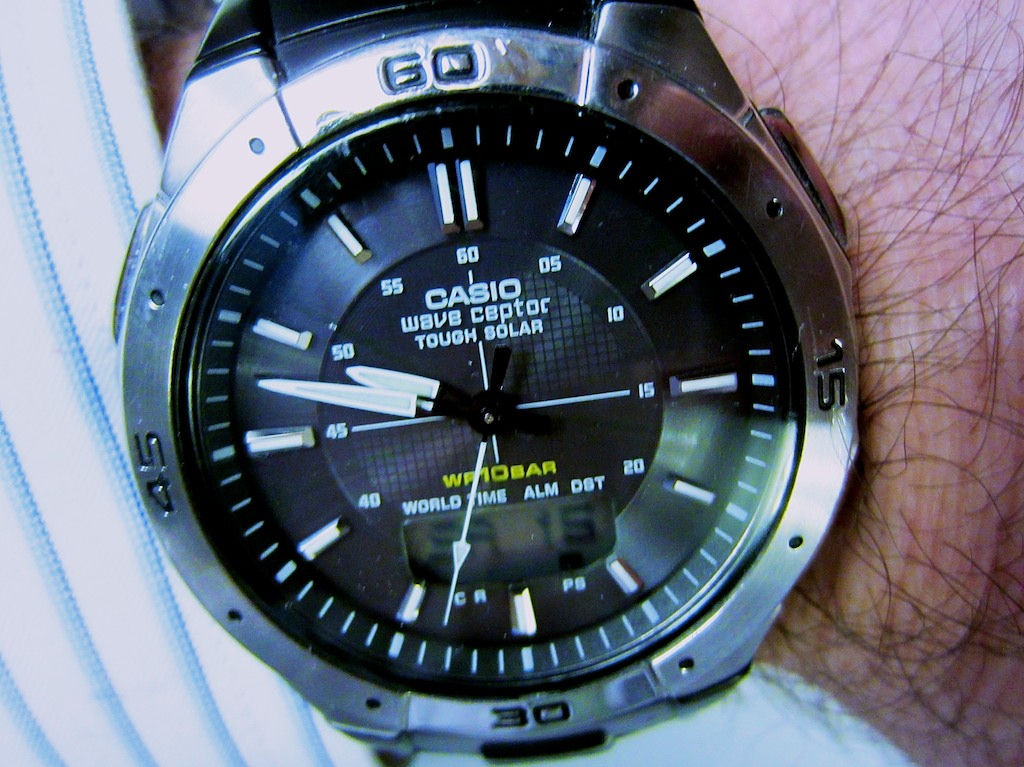
I’m a Casio Man. And it’s been great. (Thanks for the memories.) iWatch? See you later, Casio! My wrist awaits!!

I’m a Casio Man. And it’s been great. (Thanks for the memories.) iWatch? See you later, Casio! My wrist awaits!!

Poor Apple.
They’ve been having such a rough time of late.

It’s like we’re suddenly living in an alternate universe where Google and Samsung are the kings of tech innovation.

Not that Google hasn’t been a force for innovation for quite some time.
But their wearable Google Glass is really making headlines these days.
Soon, everyone may be walking around wearing eyeglasses that make Star Trek’s Geordi La Forge visor look like a clunky carburetor.

And Samsung’s Galaxy smartphone juggernaut has been stealing the spotlight from the iPhone.
(The Galaxy S4 was just announced to much fanfare.)

When was the last time Apple wowed the world with a new product?
(crickets)

Suddenly Apple is so yesterday.
Their stock price has tanked.
The shine is gone.
So it’s over, right?

Not so fast!
(People are so impatient!)

I Still Like Apple
As a typical consumer, I’m happy using their current tech line up.
I don’t always need the next best thing to integrate into my fragile home tech ecosystem.

So I don’t mind if Apple takes a little time with its next product launch.

It’s not like they’ve ever been like… say… Casio.
That company has thrown lots of spaghetti against the wall over the decades to see what sticks.
Yes, I’ve been watching… their watches.

The Watch that Casio Built
I’ve been a Casio watch man my entire adult life.
I bought my first digital wonder watch back in 1980 when I was in high school.

I remember how cool it was having a built-in stop watch and countdown timer on my wrist for critical moments… like when I needed to take a catnap in the library before pulling an all nighter to finish the big term paper.

Casio watches were never that expensive, and their bands wore out long before the guts of the watch. Replacement wristbands were never as stylish as the original…so I found myself upgrading to the next model watch every two years or so.

So I witnessed how Casio kept trying out new ideas for their watches…
They were clearly having fun with their ideas, but some were better than others…

  • Data bank that housed all your phone numbers-
    Great pre-smartphone concept, but it took forever to type in via micro buttons
  • Tone phone dialing-
    You pressed your watch against the phone receiver, and the Casio emitted a fast sequence of tones to trick your phone into thinking you’d dialed the number! Thank you, Mr. Bond!
  • Multiple alarm settings-
    You would never have an excuse be late ever again!
  • Solar charging sensor –
    Eco friendly… But I got tired holding my wrist up to the sun every chance I got to feed my hungry watch!

All right. Some of their ideas were more cool than practical. Others were just down dorky.

But remember, a lot of this was happening while Apple was in it’s own pre 21st century doghouse.

Today, my iPhone has largely taken over everything my Casio watches had ever hoped to do.

The one really useful feature Casio added several years back was their
Wave Ceptor technology, which they have dubbed “Atomic Timekeeping.”

No, your watch is not atomic, but it does connect to the atomic time calibration signal transmitted in Fort Collins, CO.

So theoretically, your Casio watch is always exactly on time.
You never have reset your watch ever again!

But last week, when we passed into daylight savings time, my trusty Casio failed to get the message. It didn’t spring ahead.

And then I had to figure out how to trick it to move forward manually.
Those four buttons on the side of the watch can activate about 3200 setting adjustments.
Unfortunately, changing the time isn’t among the first 700 or so!

The only task I demand of my Casio watch is to simply tell me exactly what time it is.
And at least twice a year, it can’t do that.

Plus it’s hard to see what time it is in the dark.
The old glow tech from the 20th century just doesn’t cut it anymore.

I think I’m done.

Anyone else want to strap some tech to my wrist?

Hello, Apple?

If all the rumors are true, the geniuses at Apple are saying…
“Aha… here’s an opportunity!”

I Want an iWatch
Wearable technology is today’s new tech frontier.

The rumors are flying that Apple’s working on their iWatch.

Bloomberg’s talking about it.

Apple Insider has uncovered some exciting Apple Flex Tech patent filings.

Not that any of this is proof, but you might be slapping on your flexible touchscreen smartwatch sometime soon!

Whether it’s really a smartwatch or just a tethered ‘slap wrap’ display to your other Apple tech, it’s hard to really know.
(though Apple Insider is leaning towards the latter)
But whatever it is, I want it!

The Shine Will Return!
I’ve grown accustomed to wearing tech on my wrist.
Casio isn’t cutting it anymore. They’ve had three decades to get it right.

Apple is really good at taking existing tech that’s rough around the edges and perfecting the user experience.

And sometimes that takes a little time.
That’s okay.

Just don’t take too long, or I might be wearing my new smartwatch on my head in my glasses!!

The Secret iPhone Setting to Save Your Emails to iCloud

A proud member of the Silent Generation enjoys a Vietnamese coffee with his baby boomer son.  What controversial topic will the boomer be defending today?  Emails are better than faxes.  (shocking!)

A proud member of the Silent Generation enjoys a Vietnamese coffee with his baby boomer son. What controversial topic will the boomer be defending today? Emails are better than faxes. (shocking!)

My father and I often go out to dinner on Thursday nights.
Usually, he hasn’t even put down the menu when he’s already got some important proclamation to make.
Last week, it had to do with his home tech.

He lowers the daily specials menu insert and out of the blue says to me,
“A fax is much better than email!”

I look at him.

“Come on Dad… really?
Sending an email is so much easier.”

“But a fax gives you a hard copy confirmation,” he replies.
“You have proof it’s been received. An email can get lost.”

“Dad…” I scoff…. “Emails don’t get lost.”

He stares with the assured look of an almost octogenarian.

I try not to roll my eyes as he tries to out-tech-talk me.

But even though my father may not be totally up to speed on current home tech, he does know a thing or two.
(Last week, he’d somehow heard about the latest Apple iWatch rumor before I did.)

Sure, he’s usually biased towards technology from the ‘good old days.’
(He still talks about the wonders of the telegram and the McCormick Reaper.)
And he’s certainly not comfortable with figuring out every tech upgrade that comes along.
But his opinion as a tech consumer is as relevant as anyone’s.

He sometimes quotes me a supposed German saying his father taught him-
Too soon, Old.
Too late, Smart.

And I’m old enough now to begin to recognize how true that is!

Dad Has a Point
Even though my father’s fax machine is wicked old tech, it’s still hanging onto its relevance.
You can’t dispute that gripping a fax report confirmation sheet still gives you a little chill of happiness.
It’s your analog security blanket.

The down side is your successfully sent fax may still never get read.
It may forever be buried in some basket brimming with unread faxes.
But you can remain heartened by the fact it still exists in corporeal form.
That’s got to count for something, right?

But come on Dad!
All of this is so yesterday.
(It’s a dated issue from twenty years ago!)

Email is how the world mostly communicates now, Dad.
Heck, even this is a decade-old conversation.
Maybe we should be talking about how texting is killing email.

Here’s what my father would simply say,
“With a fax, I’ve got my confirmation sheet.
What do you get when you send an email?”

And my dad has a point.

If You Send an Email and Nobody Gets It, Did It Ever Exist?
I recently sent out an email on my iPhone using my iCloud account.

A couple days passed, and I didn’t get a response.

Not that this kind of thing is so rare.
Some people take their time getting back to you.

So I sent a follow up email, also through my iPhone.

No bounce back.
Just nothing…

Then I got paranoid.
Did I dream sending the emails?

I suddenly wanted some proof…

In Search of Proof
So how do you know if any of your emails actually get to where they’re supposed to go?

Well, if you see a copy of your email message in your computer’s email program or your webmail account, you’ve got some evidence.

Of course, there’s any number of dangers confronting your fragile email while on its journey.
(Sometimes you’ll get a bounce back report if your email doesn’t make it. Sometimes not.)

But you really can’t protect your email once its leaves the nest.
All you can do is try to make sure it blasts off successfully.

And much like a fax confirmation page, a saved copy of your email message can offer some comfort.

So I sat down at my iMac to confirm my two emails were also showing up in my email program’s ‘Sent Items’ folder.
(I use Microsoft Outlook for Mac 2011, which I recently upgraded to from Entourage.)

I took a look, and my two emails in question…
…were…not…there.
(gulp)

But I didn’t panic.
(not yet)

So I did a little research into the email settings on my iPhone.

By Default, Your iPhone Doesn’t Save Your Sent Emails to iCloud
Did you know you’ve actually got to tell your iPhone to save your sent iCloud emails to Apple’s mighty mail server?

What?!
(yes)

Otherwise, your iPhone retains your only copy!
(It’s your iCloud account’s default setting.)

So unless you’ve been inclined to check out every iCloud nuance buried in your iPhone’s settings, there’s likely no secondary evidence your emails have ever made it out of your iPhone.

(The small brown paper bag is behind you. Continue reading after you’ve stopped hyperventilating!)

The Secret Setting to Save Your Emails to iCloud
Better?
Okay, here’s the simple fix:
The correct setting is buried seven levels down, deep in the IOS 6 Settings App dungeon.

First, click the Settings icon.
Then begin your multi-level journey down the this rabbit hole by clicking-

  1. Mail, Contacts, Calendars
  2. “Your iCloud email account”
  3. Account (at the top)
  4. Advanced- Mail (at the bottom)
  5. Advanced (at the bottom)
  6. Mailbox Behaviors- Sent Items

You’ve finally arrived at your destination.
You’ll see ‘On the Server’
Here is where you’ll need to check off a specific folder for your email to go in the iCloud mail server.
iPhone email settings

I selected “Sent Items,” which seemed like the obvious choice.

Then, I drafted a test email, and voila!
Ping.
There it was, also on the mail server.

PROOF!!
(I feel so much better.)

Apple makes it so easy to save everything else to iCloud.
Why not your emails?
It probably has to do with Apple’s iCloud storage limits
Remember, every saved email counts against your iCloud storage limit.

Too Many Email Addresses Clog Up Your Brain
You might be wondering how come it took me this long to realize I wasn’t saving my emails to iCloud?
I think it’s partly because I hadn’t thought to track down one of my emails lately.

And what further masked the problem is the complication of my multiple email accounts…

  • I’ve passively collected them over the years:
  • Apple gave me one when I bought my first iMac
  • Then another when I bought my old laptop
  • My Optimum service offered me its own branded email
  • Plus, who doesn’t have an extra Gmail or Yahoo address?
  • And the obligatory address for emails you don’t really want to go to die

At first I thought it was great having several email accounts.
I developed a logic years back on how I would use each account.
(Then I forgot what it was.)

The truth is I don’t send out iCloud emails with my iPhone too often.
So I just hadn’t run into the problem yet.

Read Receipt?
I’m sure someone out there is thinking, “If Barrett is so concerned about his emails, why not send them with the ‘Read Receipt’ setting activated?”

Well, I stopped using that Big Brother functionality in Outlook a long time ago, because I felt it was intrusive.
And both Apple’s Mail and Outlook for Mac don’t support it anyway.

Cancel Fax Vs. Email Smackdown
Dad, I can’t claim my emails are any more bulletproof than your faxes.
But at as long as I strong-arm my iPhone into saving my emails to the mail server, I feel my backup plan equals the value of your fax confirmation page.

Beyond that, there’s no way either technology can guarantee a recipient will receive your important communication, let alone read it.

Dessert?

But my father is never one to let one of our debates end in a draw.
I think I know what he would say…

“Telegram!”

(Ugh)

“Check, please!”

Thunderbolt or USB 3.0? Making the Choice.

Both Thunderbolt and USB 3.0 are faster than FireWire. So which way should you go when buying your next external hard drive? Let the shopping begin!

Both Thunderbolt and USB 3.0 are faster than FireWire. So which way should you go when buying your next external hard drive? Let the shopping begin!

I talked last time about the inevitable need to buy bigger external hard drives to handle the growing beast of media files you’re creating. Now, when you head to the store to upgrade your external storage, you’ll need to decide between two connection choices…

  • Thunderbolt
  • USB 3.0

Thunderbolt_logo

Thunderbolt is Apple’s blazing fast multifunction port that came out in 2011. (developed by Intel)

This format bundles data, video, audio, and power all together in one connection.
(That’s a lot of punch!)
Thunderbolt also supports high-resolution displays.
(Yes, of course there’s an Apple Thunderbolt Display!)

Thunderbolt is up to 12 times faster than the old FireWire 800.
(and up to 20 times faster than USB 2.0)

Thunderbolt Vs. USB 3.0
Sure, you can still buy a FireWire drive, but that’s really burying your head in the sand. You’ll want to be buying into the future, right?

So which way do you go?
Let’s take a look at how the two choices stack up:

Speed

  • Thunderbolt’s transfer speed is 10 Gbps
  • USB 3.0 is 5 Gbps
  • FireWire 800 drags by comparison at 800 Mbps
  • And USB 2.0 crawls along at only 480 Mbps

Actual performance may vary, depending on the speed of the drive you’re using.
Drives spin at either 7200rpm or 5400rpm. (rotations per minute)
7200 rpm is preferable for editing video.

(Faster SSD drives are a conversation for another day.
Drool.
Cha Ching!)

Watt Transfer
What?
No… watt.

  • Thunderbolt feeds up to 10 watts of power to peripherals
  • USB 3.0 only carries 4.8 watts

Daisy Chaining

  • Thunderbolt – Yes (up to 6)
  • USB 3.0 – Not really (need a USB hub)

Backwards Compatibility
Even if your current computer doesn’t have either port, no problem:

Achilles’ Heel

  • Thunderbolt is still wicked expensive
  • USB 3.0 transfers data in packet bursts vs. a continue stream. This could interfere with smooth video editing.

(More on both these points in a moment)

Thunderbolt Dominates. But…
Clearly, Thunderbolt has the advantage over USB 3.0.
But do you really NEED Thunderbolt?

If you’re an early adopter, sure.
But for most uses, you probably don’t.…
Not yet.

That said, you might be in the ‘future proof your tech’ camp.

G-Technology
Remember how much I gushed last time about G-Technology?
Well, their Thunderbolt drives are a little expensive….

Ouch!

Can’t Decide? LaCie Says You Don’t Have To!
LaCie is at the head of the pack with a robust fleet of Thunderbolt drive options.
(Maybe I shouldn’t have given them such a hard time.)

A great option is the LaCie d2 6 TB Thunderbolt 3 and USB 3.1 External Drive.
This drive combines both Thunderbolt 3 and USB 3.1, and gives you a healthy
6 terabytes of storage.

The price on Amazon: $349.94
(Remember… It’s 6 TB.)

Get Your Head Out of the Cloud
So how much are you willing to spend?
Unless you’re making a serious technology investment/upgrade,
you’re probably used to drawing the line somewhere south of $300 right?
(I know… you’re saying $200!!)

So that limit only leaves you with budget portable Thunderbolt drives out there that spin at a slower 5400 rpm.

Achilles 3.0 Wins Most of His Battles
But why all the stress over paying too much for Thunderbolt tech if you feel you really don’t need it?

For much of what you do on your computer, including basic home video editing, USB 3.0 will be just fine. And you shouldn’t really run into problems with the limitations of the dreaded ‘USB data burst’ syndrome.

When you move up to more demanding HD video workflows with higher data rates and multi-cam angles, then the Thunderbolt choice becomes clear.

Until then, let’s see how much softer USB 3.0 is on your wallet:

USB 3.0

USB 3.0 – The Drive for Tech Austerity

G-Technology offers its G-DRIVE USB 3.0

And you can easily drop lower than these already more manageable price points with other manufacturers.

USB 3.0 – Now and Not Forever
The choice is clear.
Go buy yourself a bigger external drive with USB 3.0.

Now don’t get me wrong.
I’m happy to live in the Thunderbolt world.
(That tech is clearly better than USB 3.0.)

Okay… are you already having USB 3.0 buyer’s remorse?
Don’t think of it as the budget-minded runner-up.
The upgrade from FireWire to USB 3.0 drives was such a huge step forward,
It’ll make you feel like you’ve bought a Flux Capacitor.

And if you still can’t make a decision, or if you want your cake and eat it too,
thank you LaCie for taking care of business!
(Will you ever forgive me, LaCie, mon amour?)