At Home with Tech

Unlock the power of all your technology and learn how to master your photography, computers and smartphone.

Category: Tech Trends

Did You Know NASA Has a Martian Prime Directive?

The walls of the Garni Crater on Mars have dark, narrow streaks that NASA says reveal liquid water. Terran scientists are jumping up and down with glee, but there’s a catch…

The walls of the Garni Crater on Mars have dark, narrow streaks that NASA says reveal liquid water. Terran scientists are jumping up and down with glee, but there’s a catch…

Remember the Prime Directive on “Star Trek?” You know, that pesky Federation law that Captain Kirk often had to ‘bend,’ which was supposed to prevent humans from altering the natural development of an alien civilization?

In case you missed it, NASA’s Mars Reconnaissance Orbiter has spotted ‘definitive evidence’ of liquid salty water on Mars… not from millions of years ago… but right now!

Reconnaissance snapped photos showing dark streaks ‘seeping’ down Martian slopes, and the streaks have been changing size depending on the surface temperature.

Well of course, you’d think we should now refocus all of our Martian exploration efforts where this water is. Right?

Wrong.

Unwanted Hitchhikers
Well, it turns out, NASA’s got it’s own Prime Directive, and it’s called the 1967 United Nations Outer Space Treaty.

This pesky treaty mostly talks about the peaceful exploration of space, but Article IX briefly addresses the protection of other planets:

“States Parties to the Treaty shall pursue studies of outer space, including the moon and other celestial bodies, and conduct exploration of them so as to avoid their harmful contamination…”

So it’s like we’ve got to wash our hands, before first sitting down to dinner with any Martians we might find.

And the problem is… we haven’t thoroughly washed our hands.

Article IX is a Bummer
When NASA’s Curiosity Mars rover landed on Mars back in 2012, it wasn’t totally sterilized from all Earth microbes. Turns out, that’s extremely difficult and ‘expensive’ to do.

Most likely, there are some tough Terran microbial hitchhikers cruising with Curiosity on Mars today.

And if Curiosity did come across any form of Martian life, we wouldn’t want to contaminate it with our own micro bugs.
(Note the ending from H.G. Wells’ “War of the Worlds.”)

So even if Curiosity could be redirected to check out this discovery,
(Which the rover can’t get to…the slopes are too steep.)
…Curiosity is banned from this new ‘forbidden zone,’ because of Article IX!

That’s right… We spent billions of dollars to send robots up there to look for life, and when we finally find a place that’s actually got some water, where there’s a stronger chance of finding life, we can’t… because we didn’t spend enough money to sterilize our gear to protect the Martians.

And guess what?
It looks like we’ve got the same problem with the next Mars rover mission in 2020.

Huh?

I think we 21st century humans needs a little dose of Captain Kirk’s 23rd century explorative ‘joie de vivre’ right about now…

Searching for Life… from Afar
I really don’t get it…
Isn’t there an inherent problem with the design of all this?

If we’re trying to find life on Mars, shouldn’t we be able to go to the places where there’s a greater chance of some actual life?

Yes, it’s lovely to see all of those nifty pictures from the surface of Mars, but come on!!

I don’t typically end my posts with more questions than answers, but I’m a little stumped.

Yes, I understand NASA doesn’t have the money or technology to send up a totally “clean” mission to Mars…but there’s got to be some way to figure this all out.

And haven’t we already contaminated the Red Planet with our Mars exploration to date?

What would the Prime Directive and Mr. Spock have to say about that…?
Pocket Lint Can Destroy Your iPhone

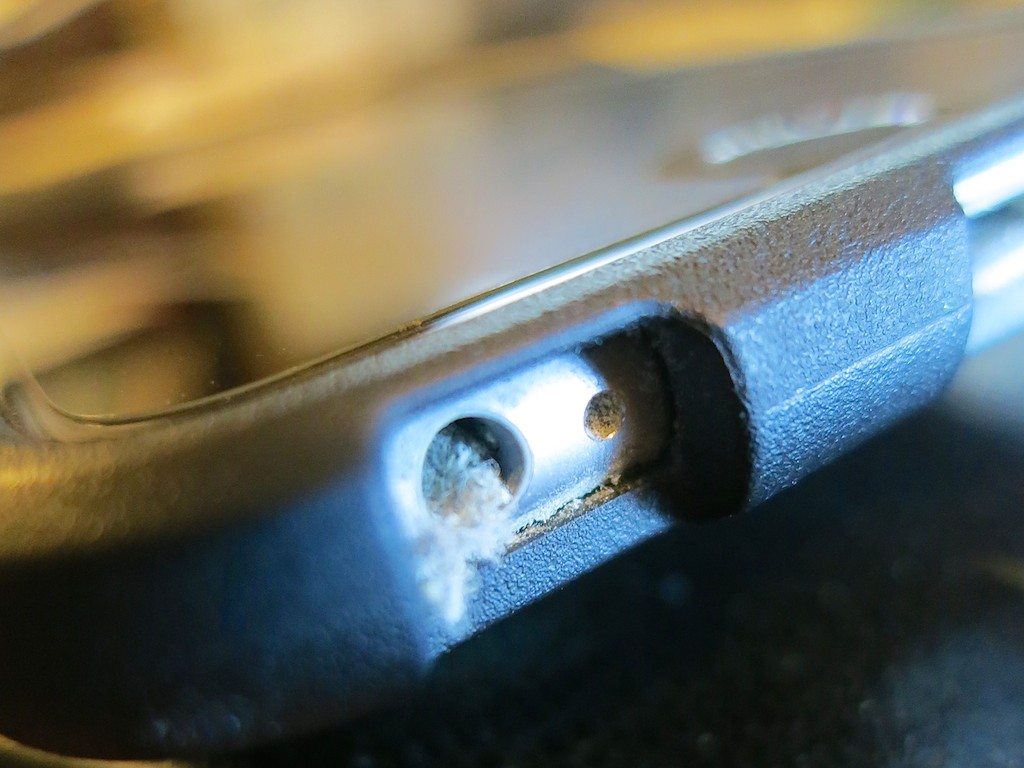
You may not know it, but this dusty mess is growing in your iPhone right now! It’s time to get rid of it…

You may not know it, but this dusty mess is growing in your iPhone right now! It’s time to get rid of it…

Recently, I noticed my year-old iPhone 6 Plus was acting quirky.
(Maybe it’s cranky that it’s no longer the latest and greatest with the new 6S line just released.)

I first started having problems a couple weeks back while using the EarPods. First, the onboard volume buttons on the cable stopped working. Then, the microphone started wigging out. So I figured the earphones had simply gone bad.

I pulled out my backup pair of EarPods.
Same problem.
Hmmm…

Cupertino, We Have a Problem
Then I considered a separate iPhone issue that was simultaneously annoying me. It had to do with my nightly ritual of charging up my trusty iPhone before I went to bed. I began to notice that inserting my Lighting charging cable didn’t create that confident ‘clicking’ sound anymore. The cable went in, but it felt like the connection wasn’t firm. On occasion, I had to push in the cable a second time to activate the charge. It was as if… the connection was failing. As if something was blocking it.

And in fact there was…

A Dusty Blob
I grabbed a flashlight and took a look inside the small opening of the Lightning connector port. I peered closer…

Perhaps not so surprisingly, the hole was partially filled up with pocket link and dust from the right front pocket in all of my pants. I guess it’s been building up over the past 11 months, and it finally grew to a large enough mini-mass, which had been crammed to the back end of the jack hole through my daily charging cycle. Would this prevent the connector from seating properly?

You betcha!

It was time for some emergency surgery.

Calling Dr. Lester!
So I took a pin and carefully extracted portions of the dusty mass until all was clear again.

Bingo!

A toothpick would work too, and I imagine occasionally blowing in some compressed air would be a deterrent to prevent dusty build up.
(I don’t know how durable the inside of the lightning port is to be… so I would tread lightly.)

The Operation Continues
Then I peered into the EarPod jack. Same issue?

It was harder to tell by visual inspection. It just appeared to be a bottomless black hole. So I took the pin and carefully dropped it down like I was a kid again playing my Milton Bradley game of ‘Operation.’

And then I felt it. The spongy muck.
Yep….identical problem… not a surprise.

So I carefully performed the same procedure.
And voilà… my EarPods suddenly worked again!

It’s Not Just Pocket Lint
Who knew pocket lint could be so destructive?

It makes sense that over the course of months, bits of dust and pocked lint will inevitably enter the holes in your iPhone. That said, I never had a problem with the earphone jacks of my older iPhones. Perhaps that’s because they weren’t located on the bottom of the iPhone next to the Lightning jack.
(And in fact, the bottom of my iPhone always touches the bottom of my pocket. So if there’s pocket link to be found, my iPhone will make contact…)

And as for the Lightning connector problem… I jumped from the 4S to the 6 Plus… so this is my first experience with a Lightning port.

Clean Up!
If your iPhone has been living in your pants or purse for a while, you might want to think about giving it a lint inspection.
(It’s probably a good idea to turn your iPhone off first before beginning the operation and don’t use any liquids.)

I guess the other choice is to vacuum your pockets…
(Hey… new tech gadget idea!)

The Best Way to Compress a PDF

Have you had the time to figure out how to squeeze your PDF to the perfect size in OS X? Here’s the good news… Now, you can check this nagging challenge off your ‘boring-tech-fix’ to-do list!

Have you had the time to figure out how to squeeze your PDF to the perfect size in OS X? Here’s the good news… Now, you can check this nagging challenge off your ‘boring-tech-fix’ to-do list!

Pop quiz: When was the last time you scanned a multipage document into a PDF on your home printer/scanner and then realized the file size was too large to use? It happens to me at least once a month… I find it’s often a problem when you want to upload the PDF online, and there are upload file limits.

Okay… so you just have to compress the file. No problem… right?
Right…..
(Please note touch of sarcasm.)

How to Compress a PDF in ‘Preview’

In the Apple ecosystem, I’ve found the native PDF compression solution remarkably… unintuitive.

That said, here’s how you do it:

Typically, when you click on your PDF, it opens up in ‘Preview.’ From there, you’ve got two choices:

Export
Go to ‘File’ on the top menu bar and look for ‘Export.’

  • Click on ‘Export.’
  • Make sure ‘Format’ is set to ‘PDF.’
  • Then under ‘Quartz Filter,’ choose ‘Reduce File Size.’
  • And then save as you normally would.

Easy… right?
Yes… but the new file that gets created looks… terrible… barely readable. Sure the file is certainly compressed, but if there’s any small text to read, it’s mostly unrecognizable.

The good news is Apple offers a second method…

Print
That’s right… you’re going to ‘print’ your PDF into a compressed file.
(Don’t ask questions!)

Go to ‘File’ on the top bar and look for ‘Print.’

  • Click on ‘Print.’
  • On the bottom left of the ‘Print’ menu, you’ll see a PDF drop-down box.
  • Click on ‘Compress PDF.’
  • Then save as you normally would.

This method creates a larger compressed file than the ‘Export’ route, and as it turns out… the resulting file looks really good.

So if the new PDF is small enough for your needs… you’re done.

For the record, this ‘Print’ method took a 5.7MB five-page PDF down to 1.5MB.
(The ‘Export’ method crunched my file all the way down to a mushy 451KB.)

But what if you want something in between the massive compression of ‘Export/Reduce File Size’ and the heftier PDFs created by ‘Print/Compress PDF?’

Use Adobe Only as a Paid Solution
If you think using Adobe Reader can help you, don’t bother. You’ve got to pay Adobe to help you with compression.
(Adobe Acrobat)

As it turns out, there are other third-party solutions… and some are free. But I’m not interested in MacGyvering this problem. I’m intentionally limiting today’s exercise to the native software that’s already living on my otherwise wonderful Mac.
(There’s got to be a way!)

ColorSync Utility to the Rescue
And, in fact, there is…

The trick is to create a new compression profile using your native ‘ColorSync’ utility. You can duplicate Apple’s standard ‘Reduce File Size’ filter there and easily tinker with the settings of your new filter.

Here’s how:

  • Open ‘ColorSync Utility,’ which typically lives in Applications/Utilities.
  • Click on ‘Reduce File Size.’
  • When you open up ‘Image Sampling’ and ‘Image Compression,’ you’ll see the main profile is all locked up.
  • So click on little upside-down triangle to the right and then click on ‘Duplicate Filter.’
  • This is the step that creates your own personal filter copy. Now you can monkey around to your heart’s content!

Here are the tweaks I added:
(Although there are an almost infinite number of variations you can apply)

  • I increased ‘Scale’ from 50% to 75%.
  • Then, I increased ‘Max Pixels’ from 512 to 1280.
    (I borrowed these setting suggestions from meyerweb.com.)

Voilà… you’ve just created your own custom Quartz filter!

  • Next, simply open up your original PDF with ColorSync.
    (Use the ‘Open With’ drop down.)
  • Go to the bottom left drop-down ‘Filter’ menu.
  • Select your new custom filter.
  • Click ‘Apply.’
  • Save as you normally would.

Bam!

This new ‘Barrett Compression Setting’ got my 5.7MB PDF down to 900KB…right in the sweet spot between the other two. And the compressed file looked almost as good as the 1.5MB compression…

And that’s all I really needed!

Don’t Forget
So there you have it… two prefab methods and a hidden path to cook up your own compression settings in the OS X environment.

It’s worth noting that much of the online chatter on this topic is years old… so I’m a little late to the party… But on the other hand, what average person is supposed to have this kind of detail readily accessible at their fingertips?
(I hope this post helps.)

In an age where your computer is getting smarter by the minute, shouldn’t a simple compress command with several size settings be readily accessible?

…Just saying.