At Home with Tech

Unlock the power of all your technology and learn how to master your photography, computers and smartphone.

Category: Tech Trends

I Don’t Know Why I Want Ultra HD

Behold the mighty 85” Samsung Ultra HD TV on the floor of this year’s Consumer Electronics Show.  What’s Ultra TV?  Exactly.

Behold the mighty 85” Samsung Ultra HD TV on the floor of this year’s Consumer Electronics Show. What’s Ultra TV? Exactly.

Another CES has come and gone.
If you were following the tech reports from Vegas, you know one of the big technologies on display was cutting edge HDTVs designed to turn the current TV market on its head.

More Star Treky than today’s glistening pinnacle of tech achievement-
The 1080P HDTV?

More Tron-alicious than the 3D technology that was supposed to revolutionize your home entertainment experience two years ago?

Why yes. Better than that.

It’s called Ultra HD.
(cue the angelic chorus)

Welcome Ultra HD
Ultra HD is four times better than regular HD.
Also called 4K, which refers to the number of horizontal pixels on the screen, this nascent TV format is designed to really knock your socks off.

And not to be outdone…
There’s already an 8K Ultra HD TV format designed to kill the 4K revolution before it even begins.

Sharp was the first out of the 8K gate, displaying their 85” proof of concept TV at CES.
Its 8K display was made up of a mere 33 million pixels.
(drool)

There’s one tiny problem.
Virtually no cameras shoot in 8K yet.
And there’s very little commercial TV content currently available in 4K.

But every revolution has to start from somewhere, right?
So today, the commercial evolution of the Ultra HD story is predominantly in the 4K space.

Cha-Ching!
Did you know that 4K Ultra HD TV sets have already been shipping to those of us with a little disposable income…
Sony and LG, respectively, sell their 84” 4K models for a mere $20K and $25K.

What?
You read it right.
That’s twenty thousand.
Dollars.
For a TV that’s sharper than your neighbors.
(And has a great picture)

All Hail Samsung – New King of Ultra HD
AT CES, Samsung introduced their 85″ Ultra HD whopper,
with their ‘S9’ 4K Timeless Gallery TV.
(The S9 UHD TV edges out its 84” competition by 1 inch.
95” and 110” Samsung models are due out by the end of the year.)

And how much does it cost to become the proud owner of the largest Ultra HDTV in the world?

$37,877
(preorder pricing from Korea)

You’re Going to Need a Bigger Piggy Bank
Face it. These massive Ultra HD TVs are going to cost you well into five figures.
And there’s no real programming out there yet in Ultra HDTV.

Hmmm…
(ring ring)
Hello, George Jetson? Is your used hover car still for sale?
(That might give you a bigger bang for your buck.)

Okay. So these first generation Ultra HDTVs aren’t ready for prime time.
But like all new tech, the pricing will eventually drop.

Should You Supersize Your TV?
Assuming you’re not going to spend a ludicrous amount of money on Ultra HD today, the Ultra HD price point will still be expensive in the future when you consider jumping in.

So the three questions you’ll want to ask yourself before going Ultra HD are –

  1. Why do I need to upgrade the size and pixel count of my current flat screen?
  2. Do I really want to pay for it?
  3. And will I be happy with a massive screen in my family room?

Technology is Evolving Faster than People’s Pocketbooks
One problem with the rapid advance of technology is the way it affects the life cycles of home technology.
By the time you get used to your new gadget, the next version is often already on the market!

This phenomenon is juiced by the mega marketing machines out there with their mission to drive you to replace your old, but perfectly functional tech.

Apple, of course, successfully cracked the code on this one.
Their must-have tech devices refresh themselves every year, and their older tech become obsolete within three years.
(Usually due to self-created software incompatibilities)

It’s like a scene out of “Blade Runner.”
Every time I retire an older Apple product into a drawer and look at it for the last time,
I think I see Rutger Hauer, hanging on for dear life as I push it coldly into the darkness of premature obsolescence.

For better or for worse, when I watch “Blade Runner” on my Apple TV,
Roy Batty always dies in the end.

But not every consumer tech company is an Apple.
Certainly no company today that’s known for making TVs.

Unless we’re still talking about Apple and its unannounced, but long rumored, Apple TV that’s actually a TV.
I’m drooling already, and I don’t even know what it can do.
(well, nobody does yet)
But I’m assuming it will be a game changer.

Goodbye Analog. Hello HDTV!
Being a game changer is one way to prompt a purchase.
Another is fear of obsolescence.
The HDTV revolution a few years back was propped up by that concern.

The government’s forced digital transition deadline back in 2009 chained your old analog TV to those crummy analog/digital converters. How humiliating.

That’s real pressure that would have sold the Brooklyn Bridge to anyone!

Plus, the wide screen/flat screen combo punch was hard to ignore.
And you got all that floor space back in your living room.

So in the end, HDTV was a welcome upgrade.

3D, Really?
I love 3D films in the movie theater.
Especially when the 3D is done right.
(“Avatar,” “Prometheus,” “Life of Pi.” )
But seriously, not every movie needs it.

For the past couple of years, I’ve resisted the pressure to buy a premium priced 3D HDTV for my living room.
Sure, 3D is cool, but I can get my fix at my local multiplex.

And those big, expensive, clunky glasses are just going to get lost when my toddler sees me wearing them.

Day 1: Dada, what are those?”
Day 2: “Dada, look at me!”
Day 3: 2D is cool too.

I’m not alone.

The success of 3D HDTVs is somewhat unclear.
Some reports put the technology at 20-30% market penetration.
That’s hardly a tipping point.

But now, the 3D voodoo has begun to trickle down to mid-level TV screens.
So 3D is becoming just another TV feature, vs. the big selling point that drives the TV set’s sole purpose.

A lot more 3D displays will be slipping into living rooms this way.

So 3D may be part of my next TV purchase after all-
As a passive upgrade.
But only after my current model sputters towards complete darkness.

Size Doesn’t Matter Anymore
What, if anything would get me to prematurely retire my beloved 42” Panasonic Plasma?

Yes, my plasma screen is a 720P dinosaur that I’ve owned for the past six years, but its picture looks just fine, thank you very much.

(Before that, I own a 25” Zenith tube monster for over a decade, which was still alive and kicking when I pulled its plug to make room for the HDTV.)

I’ve mused before about how much of my media consumption has recently been handled by my portable screens.
They’re so teeny-tiny by comparison to my plasma display.
So size hasn’t been driving my screens of choice lately.

And I don’t think I need four times the pixels of Ultra HD.
Heck, even now, I’m not even taking advantage of the 1080P standard of HD.

Something revolutionary really has to convince me to upgrade.
I’m sure Utra HD looks stunning.
But, Ultra HD still isn’t it.

How to Make Bigger Better
Now, don’t give up on me, oh mighty marketing machines.
Not so quickly.
Maybe, I’m just playing hard to get.
Maybe you just haven’t found the right hook yet.

Here’s an idea…

What if your Ultra HD TVs got so big, so massive, they become complete walls unto themselves in people’s living rooms?
(You’ve seen it sci-fi movies, where the screens rotate changing window vistas.)

And make them interactive.
And affordable.

Suddenly, it’s something else. Something different. Something I’d really crave.

Parlor Walls – The Must Have Tech for 2023
You can quote me now. I must have one of these.

I’ll gladly ditch all my bookcases and their contents to make space.
(except for my tattered copy of Fahrenheit 451)

If you haven’t already made the connection, I’m salivating over a tech vision that’s sixty years old.

Remember the parlor TV walls in Ray Bradbury’s dystopian novel?
(Yes, the parlor walls represented the addictive and isolating effect of technology, but that’s a conversation for another day.)

My point is… there are plenty as-yet unrealized applications for the evolution of Ultra HD imagery.

Some related ideas have already been conceived by Corning, the glassmaker that brought you Gorilla Glass for your smartphones and tablets.

Their forward thinkers have envisioned quite the future partnering their intelligent glass with companion technologies.

Corning Screen_docsLast year Corning produced their viral YouTube video (almost three-million-views) called –
A Day Made of Glass 2.

This way-cool video imagines the everyday uses for their architectural display, wall format display, and 3D TV display glass technologies.

It’s a remarkable vision.

My credit card is already on the table.
But there’s no one to call.
Yet.

If one little YouTube video can get me this excited, it shouldn’t be that hard to convince me to buy my next TV.

Note to Ultra HD Coalition
There’s a new TV in my future.
That’s better than the one I have.
In ways I care about.
That I can afford.
And I really want.

Now please go make it.

I’ll be waiting in my parlor…

Printing Photos: How to Match the Look on Your Screen

Quick… What are these six colors? Now print them. If you can’t make your home photo printer spit out a matching copy, you’re not alone. But don’t throw out your printer just yet. There’s still hope.

Quick… What are these six colors? Now print them. If you can’t make your home photo printer spit out a matching copy, you’re not alone. But don’t throw out your printer just yet. There’s still hope.

A friend of mine complained to me recently she finds it impossible to print a picture from her computer and match what’s on her screen.

Whether it’s from the original JPEG photo on your camera or a slightly enhanced version that you’ve tweaked in your photo editing software…
The hard copy never looks the same!

How hard can it be?!
Difficult enough for this home-tech everyman to struggle with the same problem.

I usually avoid the issue by boosting the chroma and brightness of the photo I’m about to create, because my Epson Artisan 837 typically prints it looking a little flat by comparison.

But it’s still never perfect.

Shouldn’t this seemingly simple task be WYSIWYG?
(What-You-See-Is-What-You-Get)

Then, we could move on to the next home tech challenge.
So what’s the problem?

$99 Can’t Buy a Window to the Soul
First off, reproducing color is complicated.
And it turns out the sensors in our eyes are really hard to replicate.

All of today’s remarkable technology that displays or prints a photograph can’t reproduce every shade of color Mother Nature gave the puny human race to enjoy.
(especially if it’s a $99 photo printer)

Each device has its own limited range of color representation or “gamut.”

Even Apple says it’s a hard trick to pull off.
Here’s a little quote I found buried in one of Apple’s printing support pages-
“Because computer displays are illuminated, images displayed on computers will tend to look more luminous than when printed.”

So my friend and I aren’t alone in our quest for a printed photo that actually looks the way we want it to.

(I feel so much better.)

Why Your Photo Prints Don’t Look Right

There are three main factors that contribute to this pesky problem:

#1 – RGB Vs. CMYK
Today, much of your home technology puts color together using two very different color models.

  • Your computer screen uses an RGB color model:
    Red/Green/Blue
  • Many home printers use inks that follow the CMYK color model:
    Cyan/Magenta/Yellow/Key (black)

So how does one color language talk to the other?
Through translation, of course.
(more on this in a moment)

My Epson Artisan has four CMYK ink cartridges, plus a light cyan and a light magenta cartridge
(which would seem to make the color translation from my computer to printer even more confusing!)

And to further complicate matters, many CMYK ink printers actually operate in RGB mode.

So how many levels of color translation do you have to get through before your printer even starts its dance?
(That’s a rhetorical question.)

#2 – Your Monitor Is Part of the Problem
Yes, it may not be your printer’s fault at all.

Your monitor may not be perfectly adjusted.
In fact, it probably isn’t.

So if that’s the case, your fabulous looking picture will always look different everywhere else in the universe, including on your prints.
(And what good is that?)

All computer monitors and TVs natively display their images with slight or sometimes significant differences.
And to make the problem worse, their base color and luminance levels will drift over time as they age.

Unsupervised, your computer screen will continue to display its own evolving versions of reality.
So it’s up to you to teach your display how it should look.
(more on that in a moment)

#3 – Your Computer Is From Venus. Your Printer Is from Mars.
Back to the translation question…
How does your computer translate its RGB color road map to your CMYK photo printer?

ICC Profiles
Back in 1993, some big-brain folks tackled the translation problem.
They created the ICC, which stands for International Color Consortium.
(Sounds a bit like S.H.I.E.L.D. from “The Avengers.”
Keeping the world safe from out-of-control color. Ooooh!!)

The ICC developed a vendor-neutral color management system (CMS) that would work across operating systems and software.
The resulting ICC profiles allow for matching colors when moving between applications, operating systems and devices.

And this system is supposed to match the colors between your monitor and printer.
This sounds really complicated, right?

Apple Simplifies with ColorSync
So Apple, of course, came up with its own color management system and called it “ColorSync.”

This is how Apple explains it:
“Devices such as scanners, displays, digital cameras, and printers each handle color differently. Matching color from one device to another can be extremely difficult and time-consuming. ColorSync takes care of color matching automatically.”

Automatically?
Now, that’s not so hard to understand, is it?

So ColorSync is Apple’s own color management system that interprets the different ICC profiles assigned to your devices.

Perfection Is an Art, Not a Science
So arithmetically, the translation piece is handled behind the scenes by your friends from S.H.I.E.L.D. (I mean Apple)
…while you go about your life happily printing out photos of your cat.

But as we all know, in reality, nothing is ever truly automatic.
You’ve got to help the process along if you want it to work exactly right.

Here’s What You Can Do to Help:

#1 – Calibrate Your Display
Even Apple admits, “You should calibrate your display regularly to ensure accurate color.”

There are two ways to whip your computer monitor into shape.
Control it with software tweaks or hit it hard with hardware.

Display Calibrator Assistant
Apple’s OS X offers a calibration assistant utility that can be found buried in:
System Preferences/Displays/Color
Click the ‘Calibrate’ button, which then opens up the utility.

And how good is this software ‘assistant?’
Invoking a little Jekyll and Hyde, I decided to take a dose of my own medicine and tried out the Display Calibrator Assistant on my 2010 iMac.

The experience felt uncomfortably like a recent trip to the eye doctor.
(“Does this lens make you see sharper and blacker, or blurrier and more confused about your home tech?”)

But in a few minutes, I had easily created a new display profile that was slightly different that my default iMac screen profile.
It was a bit warmer with a tad more chroma.
Voila!

But was this an improvement, or simply a color shift in the wrong direction?
Who really knows?!

And that’s the problem.

I suppose if your monitor looked way off, this utility would be more helpful.
But if you’re looking for minute improvements, there’s really no way to confirm the veracity of your results.

So ‘eye-balling it’ can only get you so far.

Spin the Web of Control with a Spyder
Your other choice is to buy a third-party software/hardware solution.
Typically, you place a sensor device over your monitor and then do the adjustments from your computer.
(Kind of like forcing your computer screen to comply via an
“Alien” facehugger.)

A friend of mine, who is a graphic designer and animator, bought
the Spyder by Datacolor a year ago, and swears by it.
Currently, there are three flavors of Spyder display calibrators on the market:

If you only need to calibrate one monitor, the Express version seems perfectly adequate. (I may splurge on this cool device in the future, if I want to explore further down this rabbit hole.)

But unless your monitor is clearly the smoking gun, you should also focus on other solutions to the printing dilemma…

#2 – Use ColorSync Utility
This is another native color adjustment utility in your Mac that checks and adjusts the ColorSync profiles automatically assigned to your devices.

I’d never opened up this utility before, and I took a peak in researching this post.
If your photo printing capabilities have really imploded, this is a good place to do some research.
But unless you’re really in trouble, I would steer clear of messing with this utility.
(It looks like a huge time suck!)

#3 – Choose Your Printing Presets
This is where you should focus your efforts after you’re done dealing with your monitor.
You may not know this, but the limited powers you yield as a mere tech mortal suddenly reveal themselves after you select ‘Print.’
Here, you’ll find the more pedestrian adjustments that you may or may not be applying correctly.

The ‘Presets’ dropdown allows you to choose the type of paper you’re using.
Your choices will depend on the printer driver you’re using.

Most importantly, select the exact type of paper you’re using.
If you have the option of buying your printer’s branded paper product-
Just do it! (Different brands of paper absorb ink in their distinct ways.)
It can make a huge difference if you’re hoping for exact results.

#4 – The Holy Grail of Color Matching
Color Matching allows you to select between two important choices:

• Whether your printer should use the color profile assigned by your Mac’s ColorSync settings
• Or a generic color profile assigned by your printer, which you can then adjust

If you’re a believer in what your monitor is showing you, go with ColorSync and don’t look back!

Otherwise, you can go with your printer’s brain.
But be prepared to suffer the fate of endless tweaking.
(You’d better have extra ink and paper on hand.)

You can locate the Color Matching option in the third or fourth drop-down in the Print menu. (depending on what program you’re printing from)
Choose your ColorSync profile that includes your printer model and paper type.

From there, all that voodoo digital translation takes place that hopefully creates an accurate hard-copy replica of what’s on your screen.

Misinformation Courtesy of Your Friendly Luddite?
I know a bunch of big brains out there are shaking their heads right about now after reading my woefully inadequate diatribe on the world of color photo printing at home.

Hey, I’m just trying to get along here.
I’m not seeing the button that says
“Click here to print the perfect photo.”

Because it’s not there.
And there’s no official manual out there to follow.

That said, if anyone out there knows an easier way out of this prickly digital forest, I’m all ears!

The Quest for the Perfect Print: Don’t Forget to Pack a Lunch
How are you doing? Any of this making any sense?
(I barely understand it!)
I feel like I just consumed an eight course meal, and I’m still hungry!

After 1703 words, I’m not sure how much closer we are to creating the perfect photo print.

But we are closer.
(And don’t you feel better knowing S.H.I.E.L.D. is on your side?)

Remember, reproducing color is complicated.

So it’s okay if this is all digital voodoo to you.
Just rely on the automated ColorSync system,
plus your few manual (but important) tweaks in the Print menu to improve your photo’s look.

For the intrepid tech rebels out there, you are free to dig deeper down the rabbit hole in search of the truth to set your printer free.

But be warned:
The Spyder4 may not be enough to help your find your Tech Zen.
For starters, you’ll need to better understand the language of color.
Like what the word Gamma refers to.

Heck, you might even have to ignore everything I’ve said and instead begin a long and rewarding journey to other blogs containing their own
tried-and-true recipes for correct monitor color calibration.

Which will in turn will reveal little known
websites that display LCD reference images
you can use to perfect your calibration process even further.

Second Warning:
Be prepared for this quest to be a long and hazardous one.
Before you know it, the year could be 2019.

Let me know when you return from your deep space voyage.
I’m sticking with the digital voodoo.

My photo prints won’t be perfect.
But they’ll be close.

And At Home with Tech,
Close is often just perfect.

Nonplussed with Hulu Plus

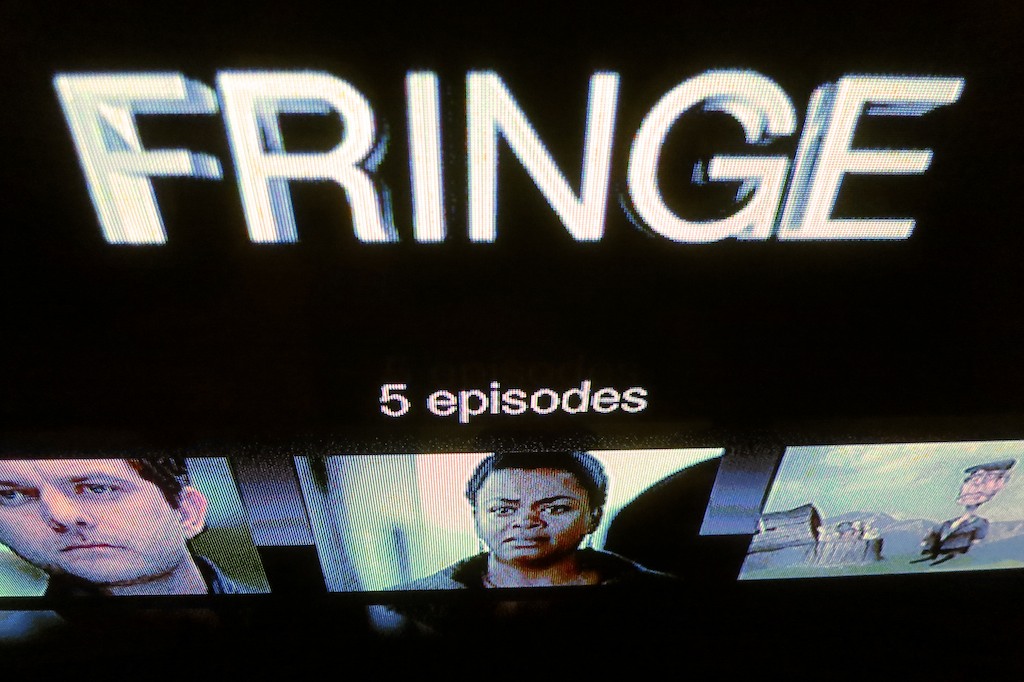
Don’t ask why Fox only gives you five streaming episodes of “Fringe” to watch on Hulu Plus. Just consider it another unexplained Fringe event.

Don’t ask why Fox only gives you five streaming episodes of “Fringe” to watch on Hulu Plus. Just consider it another unexplained Fringe event.

New Year’s Resolution #479:
(been a busy week)
Catch up on my favorite television shows I’ve neglected watching.

Always on the Fringe of “Fringe”
One series I’ve stuck with over the past four years is “Fringe.”
Created by J.J. Abrams who brought us “Lost,” this series, inspired by
“The X Files,” has also taken its time unveiling its complex truths.

It’s really been a roller coaster ride since last season.
I barely understood the confusing ‘altered universe’ as opposed to the cool ‘alternate universe.’ (the slickest part of the show to date)
Still, I’ve wanted to hang in through this fifth and already jarring final season.

Don’t Blink
Once upon a time, I was exceptionally diligent in time shifting my broadcast/cable viewing through my trusty DVR.
But I’ve been running out of memory of late.
(as has my DVR)
Plus, I haven’t been consuming enough episodes to relieve my DVR’s bulging hard drive.
(Life is busy!)

And as with “Fringe,” as soon as you miss an episode or two of your favorite TV show these days, you’re stuck.
Many series evolve a common storyline across multiple episodes.
So it’s difficult to jump back in even if you’ve been briefly absent.

Spend a Doubloon on iTunes
One catch-up solution is to simply suck it up and pay for the missed episodes on iTunes.
Two or three bucks per episode (SD or HD) isn’t a terrible loss, but shelling out anything really annoys me.
I know I could have had it for free, if I were only a bit more organized with my media management.

Hulu to the Rescue
Another option is to take advantage of the fact that many series stream some of their episodes for free on the networks’ websites or on Hulu.

Hulu has been around since 2008.
It’s a joint venture between NBCUniversal, Fox, and Disney/ABC with free programming from over 410 content companies.

I’ve found Hulu a great convenience for my emergency catch-up viewing as well as quickly checking out popular clips from shows like
“Saturday Night Live.”

Last year, I took advantage of this ad-supported streaming lifeline to keep up with “Fringe.”

Unfortunately, this season, I quickly fell too far behind the five-episode streaming limit imposed by Fox. So Hulu wasn’t able to help.

And then I had an epiphany.
What about Hulu Plus?

All the Fuss with Hulu Plus
Free is always nice, but the paid subscription model of Hulu Plus gives you ‘more.’
And that’s what I needed! (I thought.)

Hulu Plus launched in 2010 and hosts over three million subscribers, more than doubling its membership over the past year.
(It’s currently available only in the U.S. and Japan.)

There are five reasons to go with Hulu Plus:

  • The big hook with Hulu Plus is “generally,” you can watch the entire current season of a TV series.
    (plus multiple episode or full back-season content from many TV shows)
  • With Hulu Plus, you can now stream content beyond your computer to devices like Apple TV and Roku.
    So this returns your viewing experience to the big screen in your living room.
  • Hulu Plus also works with mobile devices like your iPad.
    And you can also use the same subscription for your multiple devices.
    (but only one simultaneous stream at a time, please)
  • Hulu Plus streams in HD, when available.
    (Hulu only gives you SD.)
  • And there are movies too.
    That said, there’s a clear consensus out there you shouldn’t go to Hulu Plus for its flicks.
    Stick with Netflix for that.

The enhanced Hulu Plus costs $7.99/month. (There are still ads.)
On the upside, they give you the first week for free.
(Happy New Year!)

Stormy Waters Ahead
All these ‘enhancements’ and incentives to go Plus is clearly a marketing power play, but I suppose everyone’s got to make a buck.

The more successful Hulu Plus becomes, the more disruptive it will be to the traditional broadcast/cable revenue model.
And that could spell future trouble for Hulu.
(Fast and Slate have been discussing that side of the story recently…)

And the newest indicator that Hulu’s non-traditional approach has really irritated its media giant owners is the big news from January 4th that both
Hulu CEO Jason Kilar and CTO Rich Tom are resigning.

That’s quite a shake up!

Netflix Streaming – The Sacrificial Lamb
So I really needed to resolve my micro-conundrum sometime before Fringe signs off!
But should I be buying into yet another scheme to pay for free TV?

And then I thought about Netflix Streaming and how difficult it’s been recently to find a good movie for both my wife and me to watch together.
And coincidentally, that’s also $7.99/month.

Time for a swap? Why not?!
(I’ll still keep my Netflix DVD plan.)

Click.
Hello Hulu Plus!
And just like that, I had my first month for free.
(I half expected Alec Baldwin to swing by and congratulate me.)

My Digital Quest Became a Fringe Event
After signing up, I immediately went to the “Fringe” page on Hulu Plus to begin my catch-up journey through season 5.
Suddenly, time slowed to a halt as my eyes struggled to look beyond the five listed episodes. My eyes were frozen!

Was there an alien force preventing me from viewing my prize?

No, there simply weren’t any more episodes on the page.
Only the same five episodes already available for free on Hulu.

“KHAAAAANNN!!!!!”

What’s the point of paying for Hulu Plus to have access to the complete current season of a series if it was never there to begin with?
(Maybe the Observers from “Fringe” have secretly taken over Hulu.)

Generally…
Remember when I mentioned earlier that Hulu Plus is supposed to give you the entire current season of a show to date?

I included that pesky little word- ‘generally.’
Not ‘always.’

Hulu’s website says-
“For most major network series available on our service, Hulu Plus offers every episode of the current season.”

‘Most’ is also not the same as ‘always.’

So like my mother always told me, you should always read the fine print.
Buyer beware.

All right. So I had a little bad luck on my first try.
There are hundreds of other series to choose from.

“Revolution” is Mostly Dark
I’ve also wanted to start watching NBC’s “Revolution,” which has generated some great buzz this season.
So I quickly navigated to that page.
Nope.
All the lights weren’t on there either.
Yep…
Just the last five episodes.

Uh huh.

Can’t Get to “Sesame Street”
My wife and I have been thinking it’s time to introduce our boy to the wonders of “Sesame Street.”
Perfect.
Click.
Full episodes? Hold on there, cowboy.
You can watch some short clips, but that’s it.

Nice.

Three Strikes?
But it’s not all bad news for Hulu Plus.

  • CBS Joins the Party
    CBS has been a notable holdout since Hulu launched, but beginning this month, that logjam has finally been broken with a freshly inked deal.
    Look to see more CBS programming on Hulu Plus over the next few months.
    And it should be noted that all this new goodness is apparently not coming to the free Hulu service.
    (surprised?)
  • Fox Throws Plus a Bone
    Fox has its own set of arbitrary rules that hold back new episodes on Hulu for eight days. (unless you’re a DISH, Verizon, or Cable One subscriber)
    Hulu Plus unlocks it for you the day after air!

Digital Smorgasbord
Hulu Plus has a lot going for it, but it’s limited by some really frustrating, quirky rules.

There’s no way to know for sure what you’re able to watch until you actually look for it.
(Even all of the content on Hulu is not always available on Hulu Plus because of licensing limitations.)

The Truth for $5.98
So after a frustrating trip down yet another digital rabbit hole, I’m back where I started.

Well, the truth has always been out there.
It just costs $5.98 and a slap to my pride.

Yep… It’s iTunes.
I just have to buy the freaking two episodes of “Fringe” on iTunes, and I’ll immediately be back within the cozy five-episode Hulu Plus bubble!

Click. Click.
Done.
(sigh)

Can We Fix it?  Yes We Can!
So that’s the end to my disappointing and brief Hulu Plus journey.
Well, not exactly.

I’ve got the free month.
Why not use it!?
So I’ve been taking Hulu Plus out for a test drive.

It’s only been a few days, but there are already some promising developments:

The Dysfunction of “Modern Family” Works Great
Last week, my wife and I happily watched a couple of episodes of “Modern Family.”
This series isn’t available on Netflix Streaming, and I gave up on the Netflix DVD we received, because holding onto half a season’s worth of episodes backed up the flow of other Netflix DVDs standing by to ship.

“Bob the Builder” Fixed It
Big Bird will have to wait, but “Bob The Builder” has quickly become a huge hit with my son.
I fired up this toddler-friendly series onto my Apple MacBook Pro laptop, and my boy now happily sits with me at my desk watching Bob, Wendy, Rolley, Dizzy, Scoop, Lofty, and Muck, while I’m putting the finishing touches onto my blog’s next post on my iMac.

Suddenly, I’ve found myself very close to Digital Zen.
How unexpected.

Stay Tuned
So the jury is still out.
If Hulu Plus continues to help me and my family find and watch our ever-growing backlog of TV episodes, maybe there’s room for a little more Plus in our digital lives.

Just like watching “Fringe,” it’s been confusing and not without frustration.
But it has also offered up some rewards.

I’ll continue to “observe.”