At Home with Tech

Unlock the power of all your technology and learn how to master your photography, computers and smartphone.

Category: Technology

4 Ways to Get the Most Out of Your GoPro
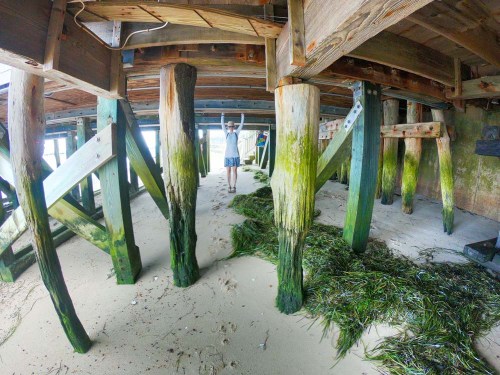
I’ve enjoyed carrying my GoPro around in my pocket on vacation to capture the moments my other cameras wouldn’t be ready for. Here are a few tips I’ve discovered to help ensure your GoPro gets it done!

I recently returned from a week’s vacation on Cape Cod where I put my new GoPro HERO6 Black to work documenting my family’s beach and lake adventures. I especially enjoyed capturing my 8-year-old boy underwater.



But there was one problem…
A crack somehow showed up on the back LCD screen!
(There was no moment of impact that I was aware of.)

Previously, I had attached a plastic screen protector to the LCD in anticipation of this kind of unsettling moment.

The question was whether the top-to-bottom crack was on the plastic protector…
…or on the screen.
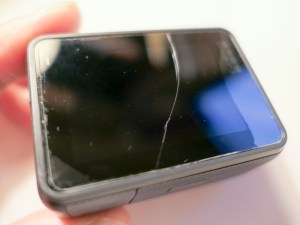



Phew!

Protect Your LCD
I think it clearly makes sense that if you’re going to put your GoPro in harm’s way, you have to give it some additional ‘armor.’
(They’re not tanks.)

I originally went with a lens and LCD protection kit made by GoPole. It comes with a lens cap and two clear covers for the lens and LCD. These near-invisible shields are made out of ‘shatterproof, tempered glass.’

But, clearly, they’re not ‘crack proof.’

Not that anything is… but I still decided to choose a different manufacturer for my second attempt at GoPro protection.

I landed on a similar kit made by Deyard.



It’s received good reviews on Amazon and costs less than half of the GoPole kit. Plus, it comes with two sets of screen and lens protectors and two lens caps.

$8.99 on Amazon
Click.
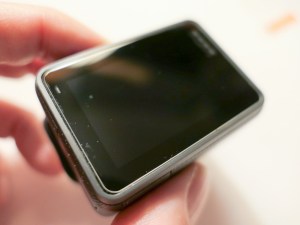


The Deyard protection plan may not necessarily be any better than GoPole’s. The fact that there are backup items in the Deyard kit perhaps reflects the reality that any screen protector is not impervious to in-the-field abuse.

As for having multiple lens caps… that’s a super idea, because lens caps have their own special way of disappearing…

If you want to avoid risking unnecessary damage to the glass on your GoPro, you’ll probably need to spend a few bucks every so often replacing these protectors, no matter which manufacturer you go with…

Minimize Ghosting by Turning Off HDR
In a portion of my vacation photos showing people, I ran into the problem of ghosting, where certain body parts displayed echoes. It was as if my GoPro had trouble locking in the action.



It’s so weird, because this happened in bright sunlight where most cameras don’t have this kind of problem.

So, I had originally turned on the HDR mode when I set up my GoPro. I figured… “Why not?”
HDR quickly takes several photos at different exposures and stitches them all together to create the best image possible.

But that extended sequence can lead to the ghosting problem… which makes total sense.

So, turn off HDR if you’re having issues freezing the action in your GoPro photos.
(And don’t forget to hold the camera steady!)

If you continue to use HDR, you’ve also got to pay attention to whether you’re moving!

Did I mention you might want to turn off HDR?

Keep People Towards the Center of Your Shot
I’ve previously mentioned my infatuation with my GoPro’s wide angle lens and how it reveals so much more of an image’s story.

The challenge is keeping your subjects out of the distorted fringes of the wide angle. Otherwise, they’ll look like aliens with warped heads.

This can be especially challenging when you’re snapping a photo with multiple people crammed in. Those on the ends will be at risk.

The good news is the wide angle lens should naturally provide plenty of safe space around everyone in your shot unless you intentionally try to fill the frame by walking up really close.

Even if you’re going for a group selfie, you should be fine as long as you keep the shot centered.

Download a QuikStory Video
I’ve also talked about how impressed I am with GoPro’s QuikStories video-editing smartphone app, which quickly throws together and shares a short music video using your GoPro’s action videos and photos.

The only glitch you may experience when sending out web links of your Quikstories to your family and friends is that they may not know how to ‘save’ them.

Your videos will play back online embedded in a GoPro web page, which I believe will eventually disappear when you delete the specific QuikStory project from your smartphone.

So, the web link is not forever…
Some folks may want to save your video file for their ‘happiness’ archive.

To do that, they need to click on three really tiny dots on the bottom right of the page with the video. Doing that will reveal the download option.

Not that all of your GoPro QuikStories are forever masterpieces… but it could be important for someone to know how to save one of them…

The Human Factor Still Matters
My GoPro HERO6 Black has proven it has many tricks up its sleeve. But like any piece of tech, it’s not magic.
(Nor indestructible)

A little human care and operating knowledge can really make all the difference when you take it on your next family adventure!
Use these Batteries in Your Nest Protect or Else

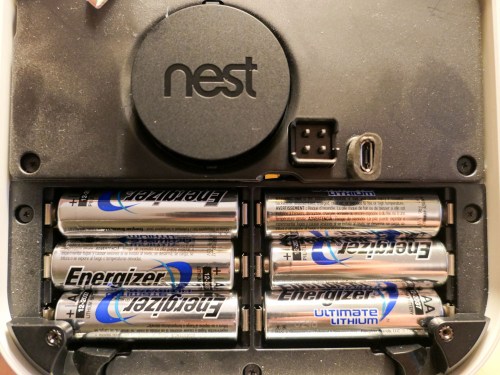
If you own a Nest Protect, you should pay attention to this picture. You’ll be needing to remember a particular detail to replicate in the future…

I needed to replace my Nest Protect’s batteries after the smoke and carbon monoxide alarm warned me it was time. I know that’s hardly a compelling start to a story, but what I discovered after I opened up the battery compartment’s door was rather surprising…

I found a big warning directing me to install one… and only one type of battery-
Energizer’s Ultimate Lithium L91 AA…

or else.

The Risk of Using Duracells Instead of Energizer Ultimate Lithiums
If I chose to install a less powerful battery, my human error would be “harmful to the smoke/CO alarm operation.”

All right then… I didn’t want to anger my Nest Protect. Nor did I want it to fail during an emergency. I took a look in my battery box for Energizer L91’s. And no, I didn’t have any.

So, I immediately went to Amazon Prime to order some L91’s.

But my Nest Protect was in its mind-melting chirping stage. So I had to either disable it for a couple of days or swap in some Duracell batteries I had on hand until the L91’s arrived.

I decided on the Duracells.

But I was worried that somehow the potentially ‘harmful’ Duracells would ‘destroy’ my Nest Protect. Perhaps less powerful batteries would simply not work as long.

It was only going to be for two days. So, I gave it a shot…

And guess what…?

The Duracell batteries worked just fine for the 48 hours.

Then, I replaced them with six Energizer L91’s.
My family was protected.

And life goes on.

Better be Prepared
If you own a Nest Protect, you might want to keep a package of Energizer Ultimate Lithium L91 AA batteries on hand so you don’t have to make “life-threatening” batteries choices like me.

But, what’s the deal with being able to use only one type of battery?
Are they so much more powerful?

Energizer Ultimate Lithiums are the Best Battery Out There?
Energizer claims that their Ultimate Lithiums are the world’s longest lasting battery in “high-tech devices.” And I haven’t found anything online to definitely dispute that claim.

So, apparently Nest Protect needs a serious battery to keep it going over the long haul. Will a ‘weaker’ model actual ‘harm’ the unit? I don’t think so… but perhaps other batteries would prevent the Nest Protect from operating properly over time.

I don’t think it’s the kind of rule you really want to question…

Obey Google’s Nest Protect instructions and use Energizer Ultimate Lithiums…

Let’s move on.

This App-Controlled Smart Watering Timer Saved My Lawn

Do you need a ‘smart’ watering system to run your lawn sprinklers the next time you’re away on vacation? Let’s take a look at what I did…

I’ve always dreaded one part of going away for a week on a summer vacation. It’s coming back to see if my lawn has survived all of those days without being watered. For years, my outdoor water faucet that fuels my lawn and garden sprinkler via a non-toxic hose was always shut tight as my family frolicked at some faraway beach. And all my outdoor green suffered the consequences…

The Risks of a Simple Solution…
Sure, I considered buying a battery-operated programmable hose faucet timer. You pop one of them on between your faucet and your hose, program the timer, turn on the faucet… and then walk away. What’s wrong with that?

Well, there’s an image in my head that I could never shake…
Remember… the batteries control the open/close valve. What happens if the battery dies when the valve is open?

Right.
Your sprinkler will run non-stop until you return home. That’s a nightmare that I just didn’t want to carry around with me while trying to relax during my time away.

Of course, the odds of that happening aren’t huge. If you put in fresh batteries right before you head out, you’d probably be fine.

But still…

Human Intervention
A neighbor could certainly help you out by simply turning off the faucet.

I actually ran into one of our neighbors when I was shopping for my lawn solution at Home Depot. It was so weird… I was standing in the aisle talking with one of the specialists, and I was literally at the point where I was saying that a neighbor could help out if my HAL-sprinkler was flooding the street.

And then my neighbor actually walked by!

He chuckled at my scenario.

The Home Depot specialist laughed too.

Then, I felt obliged to laugh at my absurd scenario.

Ha ha ha ha.

And it was right then that I realized what I needed…

Smart Sprinkler
I wanted a ‘smart’ sprinkler that could reach out to me wherever I was via my iPhone to let me know that my lawn was happy.

The system would need to connect to my home Wi-Fi and then communicate via a smartphone app while I was away on vacation.

And guess what…
That technology exists!

Hello, Orbit B-hyve
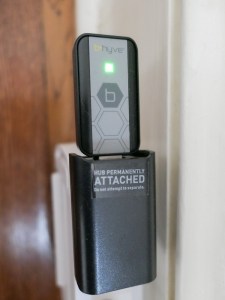
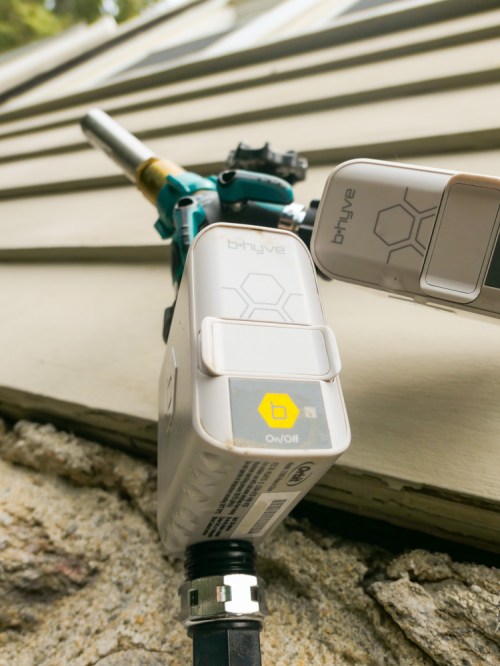
I decided to go with a solution made by Orbit called the “B-hyve Smart Hose Faucet Timer with Wi-Fi Hub.”

Admittedly, part of my B-hyve decision was based on the reality that I was leaving for vacation in less than a week, and my local Lowe’s carried it.
(Of course, I wanted to test out my $70 investment for a few days to ensure it would operate properly.)

If you’re not in such a rush, the B-hyve costs slightly less on Amazon Prime at $67.79.

My disclaimer aside, I really didn’t find a lot of other Wi-Fi watering choices out there for systems that aren’t permanently installed.

So, I opened up my B-hyve box and got to work…

The Set Up
The first step was to download the B-hyve app to my iPhone. As with many IoT devices today, you control this smart timer via the app.

Next, I plugged in and paired the little Wi-Fi hub to my home Wi-Fi network.


The hub needed to be positioned relatively close to where the on/off timer would be located outside, because the timer and hub communicate via Bluetooth.

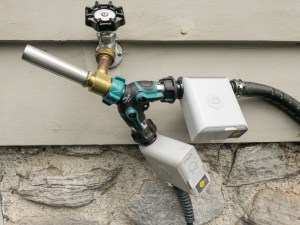
The final step was to power the timer with 2 AA batteries, screw it onto my outdoor faucet and pair it to the hub via the app.

I wouldn’t say the final step was exactly seamless, and it took me a few tries to figure the whole configuration out.

I think part of my problem was the app wasn’t entirely intuitive… but it eventually worked for me.

Exploring Manual Override
Once everything was connected, I eagerly set up my watering schedule on the app.

You can also manually activate the timer by holding down its one little button for a few seconds. Tap it again to turn it off. Alternately… using the app, you’re able to schedule a specific number of minutes for the water to flow.
(Nice)

There’s also the option to manually activate the timer via the app.
(Even nicer!)

Look Out for Water Hammer
The one plumbing challenge I encountered was a loud ‘bang’ in my water pipes every time the B-hyve turned off. That stress effect is called ‘water hammer,’ and it’s the result of the flow of water suddenly hitting the little wall of the timer in off mode.

The solution is to add in a screw-on water hammer arrestor between the faucet and timer to absorb the water hammer effect.


That’s what I did, and it made a big difference.

Message Received!
My Orbit B-hyve system passed my pre-vacation tests, and I’m happy to report it operated flawlessly while my family and I were away.

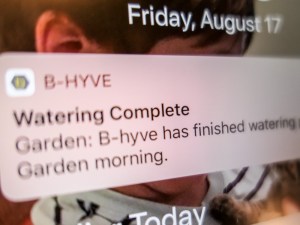
One of app’s best features was how it reminded me that it was actually operating… It sent me notifications that confirmed when scheduled watering has completed.


How’s that for vacation peace of mind?!

Water-Saving Option
The B-hyve app has other more advanced features that I didn’t activate… like a 24-hour rain delay mode that will cancel a scheduled watering session when there’s bad weather in the forecast.

That’s nifty, but I just wanted to use the basics for this first-time use.

Fail-Safe Mode
So, you might be thinking that the B-hyve’s Achilles heel is if your home Wi-Fi goes down when you’re away on vacation. The good news is the timer keeps operating on its last-known schedule.

I ran into this scenario a week after we got back from vacation…
I think the Wi-Fi hub got knocked askew during one of our son’s playdates, and it lost power.

The app actually notified me the next day that it had lost the connection. I didn’t pay attention, because my sprinkler was still hitting its schedule.
(Silly human)

I finally noticed the problem by accident when I was picking up a piece of LEGO on the floor near the Wi-Fi hub and didn’t see the blue glow of the hub.

So Helpful… Even When You’re Home!
My Orbit B-hyve is a welcome addition to our growing smart home and has solved my lawn watering dilemma while we’re away. Plus, it’s also added a certain ‘regularity’ to my lawn watering when I’m home.
(Not that I’ve ever forgotten to water the lawn in the morning, before I head out to work…)

Happy lawn.
Happy homeowner.
Thank you, B-hyve.