At Home with Tech

Unlock the power of all your technology and learn how to master your photography, computers and smartphone.

Category: Technology

12 Degrees, 5 Faces and a Central Park Wedding

Here’s my view earlier this week from Belvedere Castle in Manhattan. If you look closely, you can spot the warmth of a wedding in action. The cold can bring out the best in New Yorkers in more ways than one…

On what felt like one of the coldest days of the year in New York City, my wife, son and I walked about Central Park last Thursday with two other families… friends from the Boston area. The three boys ran about care-free in 12 degrees like it was a summer day. As for me, I wondered whether I was getting frost bite.

We eventually arrived at Belvedere Castle and walked to the top to experience the big Central Park view. I observed a small wedding ceremony in progress at the edge of the pavilion by Turtle Pond. Incredibly, the young bride and groom weren’t wearing coats! At the conclusion of the ceremony, a crowd that had spontaneously gathered around broke out in applause and began to hum Mendelssohn’s Wedding March.
(Now, that’s a New York moment!)

We moved on, but it was so cold, I think I began having some difficulty seeing clearly. Perhaps the molecular composition of my glasses began to change in the frigid conditions?
(I can only imagine how those newlyweds felt!)

Three Hats, One Scarf and a Hood in Zabar’s
Our little band eventually took a brief respite to warm up in Zabar’s Cafe on the Upper West Side. As you might imagine, it was packed with locals, sipping hot chocolate, tea and coffee.

As I looked about, I observed a crowd of faces.
Faces of experience that relayed different conditions… joy… angst… confidence… uncertainty… and enthusiasm.

If you want to find a certain cross section of life in New York City… there it was… right in front of me at Zabar’s.

On this day, the cold had brought out everyone’s winter wear.
It was quite a sight…
I zeroed in on three great hats, a massive hood and one vibrant scarf.
And I was immediately drawn to the faces underneath.

I had my Panasonic Lumix LX10 camera with me, and I asked these five customers if I could take their pictures for this post. They were all game to participate…
(Another New York moment)

Annette and Hope

Howard
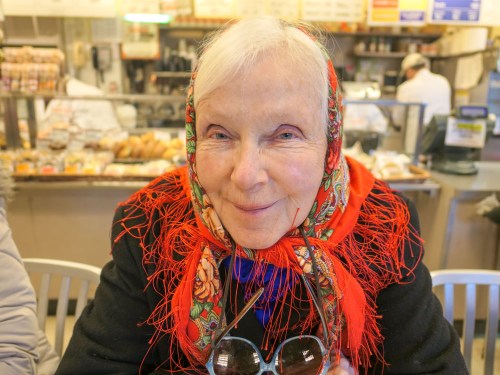
Gerry

Judy

My New Year’s Resolution
I saw a spark in each of these faces. One of my friends called it an aura. It was this warm energy which compelled me to break out my camera.

I don’t really know their stories, but all five were interested in chatting and helping me out.
And I could see they all had a strong sense of self.
I was inspired.

As we enter 2018, these five friendly souls reminded me of the importance in nurturing and growing our own sparks… to feed who we really are.

There are any number of New Year’s resolutions out there.
But for me… I think it’s simply not forgetting to fuel the spark.

Everything else follows.

Thank you, Annette, Hope, Howard, Gerry and Judy.

Congratulations to those Belvedere Castle newlyweds, who I expect have warmed up by now…
…and Happy New Year!

Do You Have 29 Seconds to Spare?

Whoa!! It’s all gone by fast! Allow me a moment to wish you Happy Holidays!
I think that’s probably all that anyone has time to read right now.

Well, perhaps I could ask for another 29 seconds to watch a little video I edited together that captures a bit of my own experience…

I call it “Holiday Blur.”

Each photo is a moment that contributed to my holiday season’s overall whole.
At the end, it always feels like a blur, right?

In case you’re interested, here are the tools I worked with:
I used my trusty Panasonic Lumix LX10 for most of the photos, tweaked the images with Adobe Lightroom, edited the video with Final Cut Pro on my iMac and used music from freemusicarchive.org.

The locations:
Norwalk, CT and Westport, CT. In New York City: Bryant Park, Grand Central Terminal, Finnegan’s Wake Pub, Radio City Music Hall, Rockefeller Center, and Times Square

Fun.

(To watch more of my videos, check out my Vimeo channel.)

How to View Your Photo Book on Your iPhone or iPad

You’ve just created a physical photo book using your favorite online book-making service. Bravo! Now, you’ve decided you also need to create a digital version that works on your iPhone or iPad. Here’s how you do that…

I know the idea of creating a digital version of a physical photo book is entirely counterintuitive… I’ve been talking for years about the need to create photo books to organize your pictures. I’ve been preaching that merely maintaining your photos in digital form isn’t the right move. I’ve been warning how hard drives and Cloud services will likely not protect your precious digital files in the decades to come.

Photo books will stand the test of time. Plus, they serve as an analog platform right now to enjoy all of your wonderful pictures that are locked away in digital form.

So why do I suddenly see a need to reverse engineer this solution and figure out how to generate a digital version of a photo book?

Slow as Molasses
Well, there’s one problem creating photo books… You have to wait for what seems like forever after you order them online, because they take a few days to print.
(It can take over two weeks to receive them without express shipping.)

If you’re trying to hit a deadline to create one of these books as a gift and didn’t plan early enough in advance, you may need a digital version to show off to the gift recipient as a ‘preview.’

And that’s not a terrible back up plan, because people are used to viewing pictures digitally anyway.
(Right?)

The Price for Immediate Gratification
Sure, you can pay a few bucks to have your book-making website do it for you.
(I use Blurb through Adobe Lightroom…and Blurb’s price to create a PDF version is $4.99.)

But when I ran across this exact situation recently, my finger immediately deselected the “Create a PDF” button. I figured that creating a sharable digital version of a photo book is something Mr. At Home with Tech should be able to do by himself for free.

I needed to preview my new photo book via an iPad. And then I wanted to email the gift recipient an online link to the photo book as well.
(Emailing the file itself wouldn’t be an option due to the large file size.)

So, here’s how you do it…

Save the Finished PDF Book Using Adobe Lightroom
As opposed to just using a website’s book-making tools, there’s one big benefit to creating your photo books using software that resides locally on your computer.
(Such as Adobe Lightroom or Apple’s Photos)

You’re creating the finished file first before uploading it to the book-making website. And the file you’re uploading is a PDF. You should also be able to save that exact PDF onto your computer’s hard drive for your own use.

Adobe Lightroom’s book-creation module offers you the option to export one large PDF or a whole bunch of JPEGs that represent each page.

In ‘Book Settings’ on the top right… you’ll see the choice of ‘Blurb,’ ‘JPEG’ or PDF.

  • Choose ‘PDF’
  • And then on the bottom right, click ‘Export Book to PDF’ and choose the destination

Now, it’s time to get that file onto the iPad…

Move the PDF Over Via the Cloud
There are a variety of Cloud-based methods to easily move the PDF over to an iPad.
(Like Apple’s iCloud Drive)
But I’m a big fan of Dropbox, and that’s the route I chose…

  • Export the PDF into the Dropbox folder on your Mac
  • Then, find and open the PDF using the Dropbox app on your iPad

Save to iBooks
Finally, you want to save the PDF locally for easy access. Sure, it’s always available via Dropbox, but the big PDF takes some time to load up. And the pages don’t show up cleanly on Dropbox. The iPad’s screen dimensions don’t match the book’s… so there’s some page overlap.

Instead, use Apple’s native iBooks app. It’s is a great solution!
When viewing your PDF via Dropbox on your iPad or iPhone…

  • Tap ‘Export’
  • Tap ‘Open In…’
  • Tap ‘Import with iBooks’

Now, each page shows up cleanly and independently as you swipe through!

Send a Link Via Dropbox
If you’ve used a Cloud-based sharing method to get your file onto your iPad, you should be able to also create a web link to that file, which you can then email to the gift recipient.

In the Dropbox app on your iPad…

  • Select ‘Share’
  • Tap on ‘Create a Link’
  • Tap on the ‘Mail’ icon
  • Type in the email address
  • And ‘Send!’

Best Gifts Ever
If you’re wondering after all of this whether you actually still need the physical photo book, don’t lose sight of your original mission!

The digital conversion is icing on the cake and satisfies an immediate need for instant access.

But when your gift recipient eventually opens up the actual book, you’ll remember that sometimes going ‘old school’ still has its advantages…