At Home with Tech

Unlock the power of all your technology and learn how to master your photography, computers and smartphone.

Category: Technology

How to Get the Most out of Lifetouch after School Picture Day
If you’re trying to figure out which Lifetouch photo package is the best one for you to purchase, you’ve come to the right place. Sure, individual needs will vary, but I’ve got ten tips to share that should lead to satisfaction.

My 2nd grader had his class photo taken at school last week. This is my third round of experiencing “Picture Day” as a parent, and as excited as I am for my son to take his official school photo, I’ve realized that I’ve also become somewhat stressed out in the aftermath. Why?
Well, I can’t figure out the right photo package to buy.

How to Make Lifetouch Work for You
Lifetouch is the company that comes to his school and performs the herculean feat of snapping hundreds of portraits of the students. And though I’ve been satisfied with the quality of the photo prints that Lifetouch has sent home, I’m always left with the feeling of buyer’s remorse that I didn’t order the right combination of prints at the best pricing.

And it doesn’t help that each year, I forget about the details from my last experience.
Who really wants to spend the time figuring this kind of challenge out?

This year, I decided that’s going to be me.
So, I’ve rolled up my sleeves and studied all of the choices and pricing. If you’re about to buy some prints from Lifetouch, here are ten tips to help you get exactly what you want…

#1
Don’t Try to Figure Out the Order Sheet

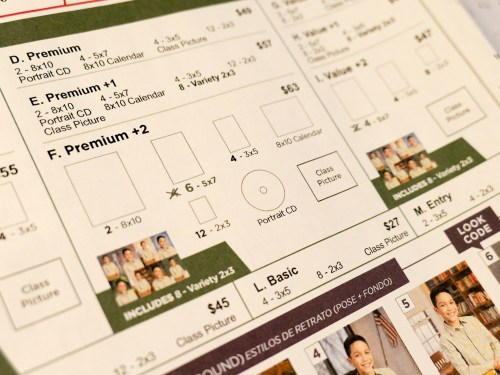
The process begins when your kids show up with a Lifetouch order sheet that documents 13 photo packages to choose between.

The packages range in cost from $19 to $63. Some include the class photo with all of his classmates. Others include a portrait CD with a digital file of your child’s portrait. There’s also an 8×10 calendar as well as multiple print sizes in different combinations.

Confused yet?

Eventually, your eyes will notice some bold lettering on the top of the page…
mylifetouch.com

On the bottom, there’s this helpful message:
“Get more choices and best value when you shop online.”

Okay then.
They don’t really want you to use the order sheet either!

#2
Order Your Lifetouch Photos Online

The good news is your order selection process is easier online.
The bad news is the pricing appears to be exactly the same.

But the overall experience is better online, which is key to helping you make your decisions and getting satisfaction with your purchase.

#3
Don’t Order a Custom Package

If you don’t like being locked into the predetermined number of 8×10’s and 3×5’s in the 13 listed packages, you have the online choice of clicking on ‘Custom Packages.’

I originally thought this was a wonderful idea.
But…

Even though custom packages allow you to choose your own combination of print sizes, some of them are also pre-grouped… like four 3×5’s or two 5×7’s.

Also, don’t expect to really save money this way.
You could save a few bucks, but you lose on the overall value compared to comparably priced regular packages.

That’s because the custom-package pricing starts at $41 for three items.
If you’re getting a CD containing digital files (and you should), that only leaves you room for two varieties of photo prints.

Ultimately, if you choose the least expensive option, you’re only saving $8 compared to the Premium Package, which gives you a much bigger bang for your buck.

#4
Buy the Premium Package for $49

Speaking of the Premium Package, I’ve decided that after some intense focus on all of the choices, it’s became clear to me that the Premium Package is the way to go.
(And I bet it will handle the needs of many of you parents out there.)

For $49, you get-

  • Two 8x10s
  • Four 5x7s
  • Four 3x5s
  • Twelve 2x3s (in groupings of 8 and 4)
  • Portrait CD
  • 8×10 Calendar
  • Class Picture

#5
The CD is the Key to Getting the Most Value

Ultimately, all I really need are the hi-res digital files of my son’s portrait. I’d be just fine only buying the CD. With my trusty Epson printer, I could do the rest of the work.

That said, I understand that not everyone wants to do their own printing.
(And I can imagine the business model here is based on making a profit on the prints.)

Plus, there’s nothing wrong with having some prints delivered and ready to hand out.
(And printing your own photos costs money too.)

But the real problem if you don’t order prints is you don’t get the opportunity to select different ‘looks.’

#6
Choose as Many Looks as You Can… Because They All Go on the CD!

I case you aren’t aware, when your child’s photo is snapped, the actual background is a pop-up backdrop with a generic color that’s eventually digitally replaced with different ‘looks.’ There are a whole bunch to choose from, and it’s almost as confusing as selecting your package.
(More on the best looks later.)

And here’s a little-known detail regarding ‘looks’ that I uncovered in my research:
All of the looks that you choose for your prints also end up as digital files on the CD you order!

Sure, you’re supposed to choose only one portrait look for the CD, but, if you go with the Premium Package and select as many looks as the package allows… that will give you eight different looks on the CD.
(Cool!)

Remember, each look uses the same image of your child, except that some of the looks use the original wide shot while other looks crop the shot tighter. I recommend you include both versions in your selections.

#7
The 8 Best ‘Looks’ to Use as Backgrounds

So, this of course is entirely subjective, but these are the looks I like:

School Days
Granted, these are all digitally inserted backgrounds. But this is a school photo, right?
It’s nice to give it context as opposed to choosing some generic background.

  • Looks #49 (blackboard/map) and #63 (library) for vertical wide
  • Looks #65 (school hallway) for vertical tight

My Grade
Perhaps it’s a tab obvious to weave the grade information boldly onto the background. On the other hand, why not? If it’s his 2nd grade photo, that’s kind of the point here.

  • Look #96 (blackboard) for tighter shot
  • Look #113 (blackboard) for wider shot

Traditional
If you do need a generic background that’s not school related, I’d stick with an easy-going color.

  • Look #13 (blue background) and tight shot.

Modern
This is a brighter option for a simple color background.

  • Look #27 (light blue background) and tight shot

Most Versatile Option
If you want a generic background plus a nod to a school environment, I like:

  • Look #51 (grey background)
    It’s a wide shot using a few books as props.
    (If you would ever think of getting just one digital file, this would be a great choice, because you can easily crop it in different ways.)

#8
Forget the Extras

I wouldn’t spend the extra money to have the name and date included on the bottom of your pictures.
You can write all of that on the back.

And I don’t think you need to retouch photos of 2nd graders. Aren’t they perfect just the way they are?

#9
Never Order Add-On Prints

You can also order individual prints through yet a different menu, but this is the most expensive way to go.
(So, don’t do that!)

For example:

  • One 8×10 – $13
  • Two 5x7s- $13
  • Four 3x5s- $13
  • Class Picture- $13

Ridiculous.

#10
Best Digital-Only Choice

Okay, remember when I said all I needed are the digital files?
Well you could actually go this way:

  • Five-Image Digital Special Offer- $35

Thirty-five bucks gets you five high-res portraits.
(With five different backgrounds)

And then you do the printing.
…Not a terrible way to go

There’s No Perfect Choice
But I’m still recommending the Premium Package for $49. It really comes down to knowing how you’re going to use your photos.

Will you really give away all of those tiny wallet photos?
(A billion smartphones just shuddered at the very idea.)

But if you can use most of what’s in the Premium Package, it’s still a solid deal.

The Details of My Order
Okay…
If you’re interested in one person’s opinion on how to best navigate all of the Lifetouch choices, here’s what I bought:
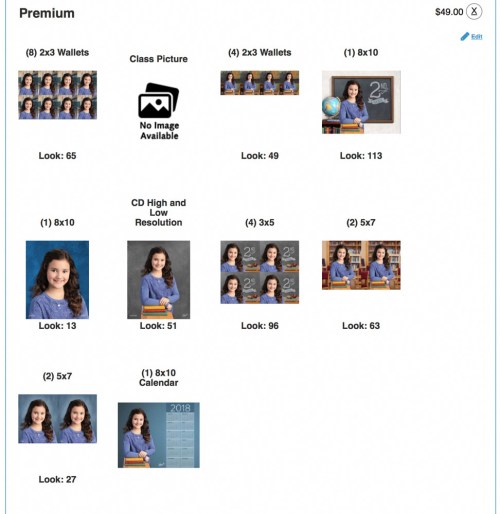
Premium Package
Using 8 different Looks for each of the 8 choices-

  • CD High and Low Resolution
    Look #51 (grey background with books used as props/wide shot)
    Again, this background is the most versatile if you want to crop the shot yourself.
    And remember, you’re going to also get the other seven looks on the CD too!
  • Eight 2×3 Wallets
    Look #65 (school hallway/tight shot)
  • Four 2×3 Wallets
    Look #49 (classroom blackboard and map/wide shot)
  • One 8×10
    Look #113 (classroom blackboard with 2nd grade/wide shot)
  • One 8×10
    Look #13 (traditional blue background/tight shot)
  • Four 3x5s
    Look #96 (classroom blackboard with 2nd grade/tight shot)
  • Two 5x7s
    Look #63 (library background with chairs and bookshelves/wide shot)
  • Two 5x7s
    Look #27 (modern blue background/tight shot)
  • One 8×10 Calendar
    (Default calendar background, which you don’t get to choose. But it’s similar to Look #27.)
  • One Class Picture

I’m Exhausted
Holy cow.
I feel like I just explained how to assemble a Star Trek warp-drive engine.
(All right… maybe only a warp-5 engine.)

But I feel better.
I’ve got the best deal I could figure out.
And I’m not going to think about this ever again.
(Next year, I’m just going to refer to this post!)

You can also call Lifetouch customer service at 1-800-736-4753.
They were quite helpful answering my questions.
(Maybe, don’t mention my name.)

I hope this has been useful.
Good luck with your own orders!

Why “Star Trek: Discovery” and “The Orville” are Tearing a Hole in My Mind and Wallet

I’ve been a Trekkie all of my life. Here’s a photo of me as a teenager sitting in a replica U.S.S. Enterprise captain’s chair at the 1976 New York City Star Trek Convention. Does this demonstration of core-level nerdiness qualify me decades later to offer my first impressions of “Star Trek: Discovery” and “The Orville?” You bet it does!

I feel like I’ve entered a sci-fi nexus. A place where I can clearly see a warped “Star Trek” from my past and a newly phased, slightly alternate-reality version for the future.

A little confused? So am I.
(Though not entirely displeased)

All right everyone… go find your Spock ears and put them on. This is going to get a little geeky…

Two New Versions of “Star Trek”
It may feel like blasphemy to tinker with the old “Star Trek” some of us grew up with. But as I’m sure you’re aware, two new “Star Trek” based sci-fi series have almost simultaneously arrived after twelve years without new Star Trek episodes on television.

After what seems like an eternity of preproduction, “Star Trek: Discovery” has finally premiered. But it doesn’t entirely own the new-Trek conversation, because Seth MacFarlane’s irreverent “The Orville,” actually beat “Discovery” to the premiere punch by a couple of weeks.

“The Orville” isn’t technically a “Star Trek” series, but it’s clearly paying homage to the original show and “The Next Generation” while also trying to have a lot of fun with the format.

“Star Trek: Discovery” has chosen a darker and grittier path than any of its predecessors, one seemingly inspired by the “Battlestar Galactica” reboot. Starring Sonequa Martin-Green, “Discovery” works hard to remind us it’s “Star Trek.” In the pilot episode, you’ll see a front-and-center shot of what looks like Kirk’s original phaser. Starship doors slide open with the familiar swish. And the gurgles and chirps on the U.S.S. Shenzhou’s bridge come from the same infrastructure as the bridge of the U.S.S. Enterprise.

Yet, it’s clear that as a series, “Discovery” is a new version of “Star Trek.”

And while “The Orville” isn’t “Star Trek,” in so many ways… it is.
The ship. The bridge. The uniforms. Everything.
The special effects are even good.

Science Fiction for 2017
Both new series are intentionally being disruptive. One is dark.
The other is trying to be funny.

And it is that so bad?
Who said a “Star Trek” series had to be exactly like earlier versions? If you believe that, you can be sure you’d never see another “Star Trek” series ever again.

Hey, Trekkies… Grow up!
Life changes. Entertainment changes. “Star Trek” changes.

Unless you simultaneously resurrect and spoof the old format as Seth MacFarlane has done. As a life-long Trekkie, I’ve been wincing at some of the bits in the first two episodes of “The Orville.” Whether MacFarlane can successfully tap into “Star Trek” nostalgia and then skewer it in the same script will be determined as his series gets a few more episodes in under its belt.

One Trekkie’s Opinion
So, do I like “Star Trek: Discovery?”

It’s really too early to tell. It’s clearly got some big ambitions. The sets and special effects are beautiful, but I haven’t yet been drawn in emotionally, other than to mourn the loss of what I was hoping would be a long-time character.

Sure, I could quibble over how accurately the producers have inserted this series into the official Trek timeline. Should there be force fields that protect destroyed hull plating on a ship that predates the NCC-1701? That kind of tech didn’t start to show up until the Enterprise-D.
Right?
(The new “Star Trek” movies displayed advanced levels of tech… but that’s from an alternate timeline… so anything goes.)

But I know if I get stuck babbling like this, I’m missing the big picture.

Sticker Shock
The big question is whether I am going to start paying for my Trek moving forward.
(Except for the pilot, you can only watch the rest of the series by streaming it on CBS All Access for a monthly cost of $5.99. New episodes are available Sundays at 8:30pm)

As much as I hate the idea of it, yes… I’m in.
Of course, I am.

It’s worth mentioning that “The Orville” on Fox is free to watch with regular commercials. Or you can stream it on Fox.com with only one commercial up front.
(As long as you ‘interact’ with the sponsor’s ad)

A Federation Universe without Commercials
So, I signed up to join the CBS Borg collective using the downloaded app on my Apple TV.
(Make it so!)

Now here comes the illogical part…
I’ve actually decided to pay CBS more than I have to for my “Star Trek: Discovery.”
(What?!)

There’s a second plan offered when you sign up online.
It’s the ‘commercial-free’ plan.

Yep, there’s a four-dollar monthly surcharge to lose the commercials.
So that gooses the price tag up to ten bucks a month.

And why exactly did I decide to throw away money every month?
Well, I figured I’m already paying for my “Star Trek.” I just know how I’d feel being forced to also watch commercials as well.
(There really shouldn’t be commercials in the $5.99 plan either, but I’m not ready to argue economics with CBS.)

So, all in… the price tag comes to $2.50 per “Discovery” episode.
(That’s assuming I don’t take advantage of any other programming on CBS All Access… which is substantial.)

Value Add
There’s actually one possible game changer available on CBS All Access that would help to soften the sticker shock for me.
You get your live, local CBS feed.
(In over 150 U.S. markets)

Now, that’s interesting…

Because as I continue to consider how to cut the cable cord without losing programming that I want, having access to live CBS news, sports and special events is a huge benefit.

Hmmm… Let me think a bit more about that.

Discovery Vs. Orville
If you’ve been expecting me to choose one of these series over the other, spoiler alert… I’m not. As much as they’re both based on the same origin material, they’re entirely different.

Yes, while it’s odd to see two “Star Trek” shows running simultaneously, that’s not unprecedented.
(“Next Generation” and “Deep Space Nine”)

And while it’s early for both series, I do think “Discovery” has a better chance of ongoing success if it can convince enough viewers to pay for the privilege.

“The Orville” relies on a simplicity in television storytelling that’s rather retro these days. And I don’t know if the occasional humor shtick is going to work out.
(Though “Galaxy Quest” and “Spaceballs” did just fine going for the funny bone.)
But at the end of the day, the series will have to decide if it’s a sit-com, a dramedy or just more relaxed sci-fi.

But one thing’s for sure… “The Orville” has heart. Lots of heart.

It reminds me of that sense of optimism and awe that flooded me when I was a young boy watching my first “Star Trek” episodes. I clearly remember that feeling.

Engage!
Even though I’m all grown up now, I yearn for a “Star Trek” to do that again for me, whether the branded name is in the title or not.

Because I’m still a kid at heart…

…I’ll be watching.

Best Ways to Quickly Compress a Video File

Video files are notoriously large. Now with HD and 4K… whoa! If you’re editing your home movies on your computer, you’ll quickly realize your final masterpiece is going to need some squeezing before you can share it. Here’s how…

If you happen to find yourself hyperventilating while trying to compress a video file, this post should offer you a shortcut to the finish line. The key word in today’s title is quickly. To be clear… For those of you who practice the craft at the professional level, I guarantee you know more about this task than I do, and I’ll let you lead the way on what is actually ‘best.’

This space is reserved for everyone else on planet Earth who may have shot or edited a family video into an extraordinarily-large file. And then you need to magically shrink the size to email the file or post it somewhere online.

And, I’ll be working in an Apple ecosystem on my 2017 iMac.

Still here?
All right then.
After that rather lengthy disclaimer, let’s begin…

It Was a Dark and Stormy Night…of Editing
The universe of video file compression can be unpredictable and sometimes stormy. It’s a place where even pros can encounter stiff winds. It’s also something of an art form that I guarantee you don’t want to explore if you don’t have to.

So, here are a few simple solutions to easily chop down your video file size…

Final Cut Pro X
If you want access to a more advanced editing tool, you’ll want to invest in Apple’s Final Cut Pro X, which costs $299.99. Sure, that’s a hefty investment, but a fraction of the cost of what Pro editing software used to run.
(Professional editors – Please hold your boos about FCPX.
Hey, you’re not even supposed to be here!)

Final Cut Pro X also offers you some decent file compression choices when it’s time to export your video. Here’s how to find them:

  • First go to ‘File’
  • Then ‘Share’
  • And ‘Master File’

Then select your Video Codec:

  • ‘H.264 for Faster Encoding’ or ‘H.264 for Better Quality’
    (‘Faster’ usually creates a smaller file.)

Then, select ‘Computer’ under ‘Format’
And choose your resolution:

  • 1920 x 1080
  • 1280 x 720
  • 960 x 540
  • 854 x 480

Of course, the smaller the resolution, the smaller the resulting file size.

If you want to shrink it more, I think you’re out of luck.
Unless…

Apple Compressor
…Unless you also buy Compressor, Apple’s separate file-compressing software.

This is FCPX’s companion ($49.99) that’s designed to create just about any size or flavor of video file you’ll ever think of.
(Plus, it can create multiple versions as one job.)

You can bring the resolution down to whatever you want.
(With some practice)
Plus, you’ll quickly see there’s a prebaked option that creates a wicked-small file.
(428 x 240)

Compressor is probably more than you need, but for fifty bucks, you’ll never complain about this topic again.

The Cost for Getting It Done ‘the Right Way’
So, for a total of $350, you’re set to edit, encode and compress like a professional.
(Sure, there are pros out there who walked away from Final Cut Pro platform after the 2011 FCPX redesign made it unrecognizable to long-time fans of FCP7. But others made the transition and have been satisfied with the ongoing free upgrades FCPX has received over the years.)

But you need not worry about this particular controversy as FCPX is plenty powerful for all of your personal editing/compression needs.
(It is for me!)

I should also mention that if you’re spending some money, there are great non-Apple options out there to consider like Adobe Premiere Pro CC and Adobe Media Encoder CC.

But what if you’d really prefer not to invest any money at all to get the job done?
Are there free options?
There are sure are!
(Though you won’t have as much flexibility.)

QuickTime Player
You can shrink your video file in the QuickTime Player application just by creating a new version with different settings:

  • Go to ‘File’
  • Then, ‘Export’
  • And click on ‘480P’
    (That’s the smallest file size option. It actually squeezed a test MOV file for me down to 640 x 360.)

iMovie
Using Apple’s iMovie editing software is another great choice.
Once you get your video file into the program-

  • Go to ‘File’
  • ‘Share’
  • ‘Resolution 540p 60’
  • ‘Quality: Low’
  • ‘Compress: Faster’

iMovie was able to create a smaller file size than QuickTime by automatically reducing the data rate.
(Yes, that’s another variable. No, don’t ask.)

And iMovie was also able to beat QuickTime at the compression game while still keeping the frame size a little larger.
(It’s really nice when your friends and family don’t need a magnifying glass to watch one of your videos.)

Getting the Job Done for Free
So, if you have to choose between QuickTime and iMovie as the free applications that Apple gives you, iMovie is the better choice.

That said, QuickTime is the easier choice.
(Unless you’ve already been editing your video in iMovie.)

Tech Inner Peace
If you’re beginning to get the feeling that there are no truly ‘simple’ solutions in the video editing and compression world, congratulations… You’ve begun your journey to knowing what you’re talking about.

But the really good news is you don’t have to feel like an amateur either when playing in this pond of complexity.

If you want to spend some money to get the job done… good choice.
If you want to MacGyver the solution for free, Apple gives you tools for that too.

And if you’ve got some other ideas to offer, do share!
…Like creating and sharing an animated GIF from your video.

Hold your applause.
Applause

All right, don’t.