At Home with Tech

Unlock the power of all your technology and learn how to master your photography, computers and smartphone.

Do You Have 29 Seconds to Spare?

Whoa!! It’s all gone by fast! Allow me a moment to wish you Happy Holidays!
I think that’s probably all that anyone has time to read right now.

Well, perhaps I could ask for another 29 seconds to watch a little video I edited together that captures a bit of my own experience…

I call it “Holiday Blur.”

Each photo is a moment that contributed to my holiday season’s overall whole.
At the end, it always feels like a blur, right?

In case you’re interested, here are the tools I worked with:
I used my trusty Panasonic Lumix LX10 for most of the photos, tweaked the images with Adobe Lightroom, edited the video with Final Cut Pro on my iMac and used music from freemusicarchive.org.

The locations:
Norwalk, CT and Westport, CT. In New York City: Bryant Park, Grand Central Terminal, Finnegan’s Wake Pub, Radio City Music Hall, Rockefeller Center, and Times Square

Fun.

(To watch more of my videos, check out my Vimeo channel.)

How to View Your Photo Book on Your iPhone or iPad

You’ve just created a physical photo book using your favorite online book-making service. Bravo! Now, you’ve decided you also need to create a digital version that works on your iPhone or iPad. Here’s how you do that…

I know the idea of creating a digital version of a physical photo book is entirely counterintuitive… I’ve been talking for years about the need to create photo books to organize your pictures. I’ve been preaching that merely maintaining your photos in digital form isn’t the right move. I’ve been warning how hard drives and Cloud services will likely not protect your precious digital files in the decades to come.

Photo books will stand the test of time. Plus, they serve as an analog platform right now to enjoy all of your wonderful pictures that are locked away in digital form.

So why do I suddenly see a need to reverse engineer this solution and figure out how to generate a digital version of a photo book?

Slow as Molasses
Well, there’s one problem creating photo books… You have to wait for what seems like forever after you order them online, because they take a few days to print.
(It can take over two weeks to receive them without express shipping.)

If you’re trying to hit a deadline to create one of these books as a gift and didn’t plan early enough in advance, you may need a digital version to show off to the gift recipient as a ‘preview.’

And that’s not a terrible back up plan, because people are used to viewing pictures digitally anyway.
(Right?)

The Price for Immediate Gratification
Sure, you can pay a few bucks to have your book-making website do it for you.
(I use Blurb through Adobe Lightroom…and Blurb’s price to create a PDF version is $4.99.)

But when I ran across this exact situation recently, my finger immediately deselected the “Create a PDF” button. I figured that creating a sharable digital version of a photo book is something Mr. At Home with Tech should be able to do by himself for free.

I needed to preview my new photo book via an iPad. And then I wanted to email the gift recipient an online link to the photo book as well.
(Emailing the file itself wouldn’t be an option due to the large file size.)

So, here’s how you do it…

Save the Finished PDF Book Using Adobe Lightroom
As opposed to just using a website’s book-making tools, there’s one big benefit to creating your photo books using software that resides locally on your computer.
(Such as Adobe Lightroom or Apple’s Photos)

You’re creating the finished file first before uploading it to the book-making website. And the file you’re uploading is a PDF. You should also be able to save that exact PDF onto your computer’s hard drive for your own use.

Adobe Lightroom’s book-creation module offers you the option to export one large PDF or a whole bunch of JPEGs that represent each page.

In ‘Book Settings’ on the top right… you’ll see the choice of ‘Blurb,’ ‘JPEG’ or PDF.

  • Choose ‘PDF’
  • And then on the bottom right, click ‘Export Book to PDF’ and choose the destination

Now, it’s time to get that file onto the iPad…

Move the PDF Over Via the Cloud
There are a variety of Cloud-based methods to easily move the PDF over to an iPad.
(Like Apple’s iCloud Drive)
But I’m a big fan of Dropbox, and that’s the route I chose…

  • Export the PDF into the Dropbox folder on your Mac
  • Then, find and open the PDF using the Dropbox app on your iPad

Save to iBooks
Finally, you want to save the PDF locally for easy access. Sure, it’s always available via Dropbox, but the big PDF takes some time to load up. And the pages don’t show up cleanly on Dropbox. The iPad’s screen dimensions don’t match the book’s… so there’s some page overlap.

Instead, use Apple’s native iBooks app. It’s is a great solution!
When viewing your PDF via Dropbox on your iPad or iPhone…

  • Tap ‘Export’
  • Tap ‘Open In…’
  • Tap ‘Import with iBooks’

Now, each page shows up cleanly and independently as you swipe through!

Send a Link Via Dropbox
If you’ve used a Cloud-based sharing method to get your file onto your iPad, you should be able to also create a web link to that file, which you can then email to the gift recipient.

In the Dropbox app on your iPad…

  • Select ‘Share’
  • Tap on ‘Create a Link’
  • Tap on the ‘Mail’ icon
  • Type in the email address
  • And ‘Send!’

Best Gifts Ever
If you’re wondering after all of this whether you actually still need the physical photo book, don’t lose sight of your original mission!

The digital conversion is icing on the cake and satisfies an immediate need for instant access.

But when your gift recipient eventually opens up the actual book, you’ll remember that sometimes going ‘old school’ still has its advantages…

Rechargeable Flashlights that Power the Rest of Your Life

Do you own flashlights that just suck the life out of your batteries? Well, that stinks. So, it’s time to upgrade to rechargeable flashlights that work harder for you in more ways than one…

B&H sent me a free holiday gift… an LED flashlight that came with
my recent Meade Instruments telescope purchase for my son.
(How nice of B&H!)

It was a little 45-lumen NITECORE TUBE keychain flashlight.
The TUBE normally sells for $9.20.


What was really interesting about this little, inexpensive flashlight was that you can recharge it via USB.
(Really?)

Had I been asleep at the wheel buying replacement batteries for my own fleet of home flashlights since I can remember?
(And believe me… my second grader has loved to play with my flashlights since he could walk. So, battery replacement has been an ongoing and expensive chore.)

Sure, I bought my dad a cool, rechargeable Klarus tactical-style flashlight to brighten his holidays a few years back…
The Klarus RS16 was rechargeable via an onboard magnetic charging port.

But I had never really considered upgrading to rechargeable battery tech for my own flashlights until my new NITECORE showed up.

The idea of ‘never’ having to replace the batteries in my flashlights ever again was quite tantalizing.
(Though I would still need to remember to recharge them)

So, I decided to take a look at today’s options…

How Many ‘Lumens’ Do You Need?
The first question I needed to address was how bright a flashlight do I really need.
(How many lumens?)

Of course, that depends on the use. For this exercise, I’ve decided to shop just for the home.
(Not for an ambitious outdoor camping trip)

Some ‘experts’ say under 100 lumens is fine. Others say you need two-three hundred lumens or more.

And there are plenty of options out there at or above 1,000 lumens!
(But that’s way brighter than I need or want)

REI has a good write up on other issues to consider when choosing a flashlight.

I decided to focus my research for a flashlight in the 250-300 lumen range with a few different illumination settings.
…And rechargeable via a USB cable as opposed to a proprietary battery charging system and charger that I would need to keep track of.
(Simplicity, please.)

Seven Rechargeable Flashlights that Get the Job Done
What I immediately found is rechargeable flashlight tech costs more.
(Not entirely unexpected)

But if you look around, you can also find additional functionality in these next generation flashlights!

Because a flashlight doesn’t have to just be a flashlight…
(More on this in a moment!)

I set my target price below $40.
And here are five good options I found…

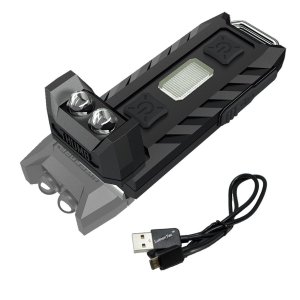
NITECORE THUMB 85


-85 lumens LED keychain flashlight
-$19.99 on Amazon
-120 degree tilting head
-White and Red LED
(This essentially has double the power of my TUBE.)

NITECORE TIP


-360 lumens LED keychain flashlight
-$29.95 on Amazon
(And this is an even stronger cousin to the TUBE.)

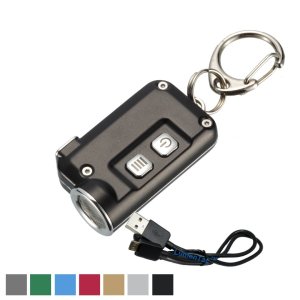
NITECORE TINI


-380 lumens
-mini metallic LED keychain flashlight
-$29.99 on Amazon
(I believe this is the newer version of the TIP design.)


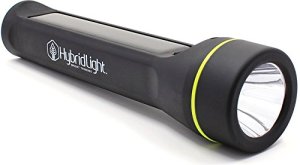
HybridLight Journey 250
-250 lumens flashlight and charger
-4,800 mAh rechargeable battery that will also charge your mobile gear via USB
-$35.78 on Amazon
-Can rapid-charge via Micro USB port or through its built-in solar panel. (Whoa!)
-Waterproof and floats
-I also like HybridLight flashlights, because they’re environmentally friendly.
(The HybridLight appears to give you more bang for the buck compared to the Celestron.)

Nebo Slyde King (#6434)


-330 lumens LED flashlight
-250 lumens work light
-$35.95 on Amazon
(This one is cool, because you can ‘stretch’ this flashlight to reveal its center LED that glows as a work light.)


Time to Upgrade
So, many rechargeable flashlights today provide more functionality than just forward-facing illumination. Whether they offer to juice up your other gear or provide multiple light configurations, you’re getting more uses out of the rechargeable battery.

And this speaks to the progression of portable rechargeable batteries, which no longer offer illumination as an afterthought.
(Interesting how the evolution of tech has reversed the equation in this product line.)

And most importantly, rechargeable flashlights reduce the number of batteries you’ve got to go through.

That’s good for the environment.
And me!

Because it increases the chance that the next time I pick up a flashlight and press the button…
…It will actually turn on.

Brilliant.