
Call it what you like – Tech Death Match or IT Smack Down. This Foscam BabyCam will be operating in our nursury by the end of this post or else! Need
“How-To” directions? You’ve come to the right place.
Previously on At Home with Tech,
Barrett decides to replace his old-school BabyCam system, and hooks up a cutting-edge Foscam Wireless IP Camera (Model F18910W). He plans on using the powerful conduit of his Apple Airport Extreme’s Wi-Fi home network to carry the video and audio signal of his sleeping toddler.
But the installation manual is gobbly gook.
And Barrett is flummoxed on how to do the install.
Will he find his answers online?
Will he be able to navigate conflicting suggestions by other Home IT Guys?
Or will failure jeopardize his very “Tech-Dentity?”
One thing’s for sure.
There’s no turning back now…
Foscam Installation or Bust!
First, I need to offer up a little disclaimer.
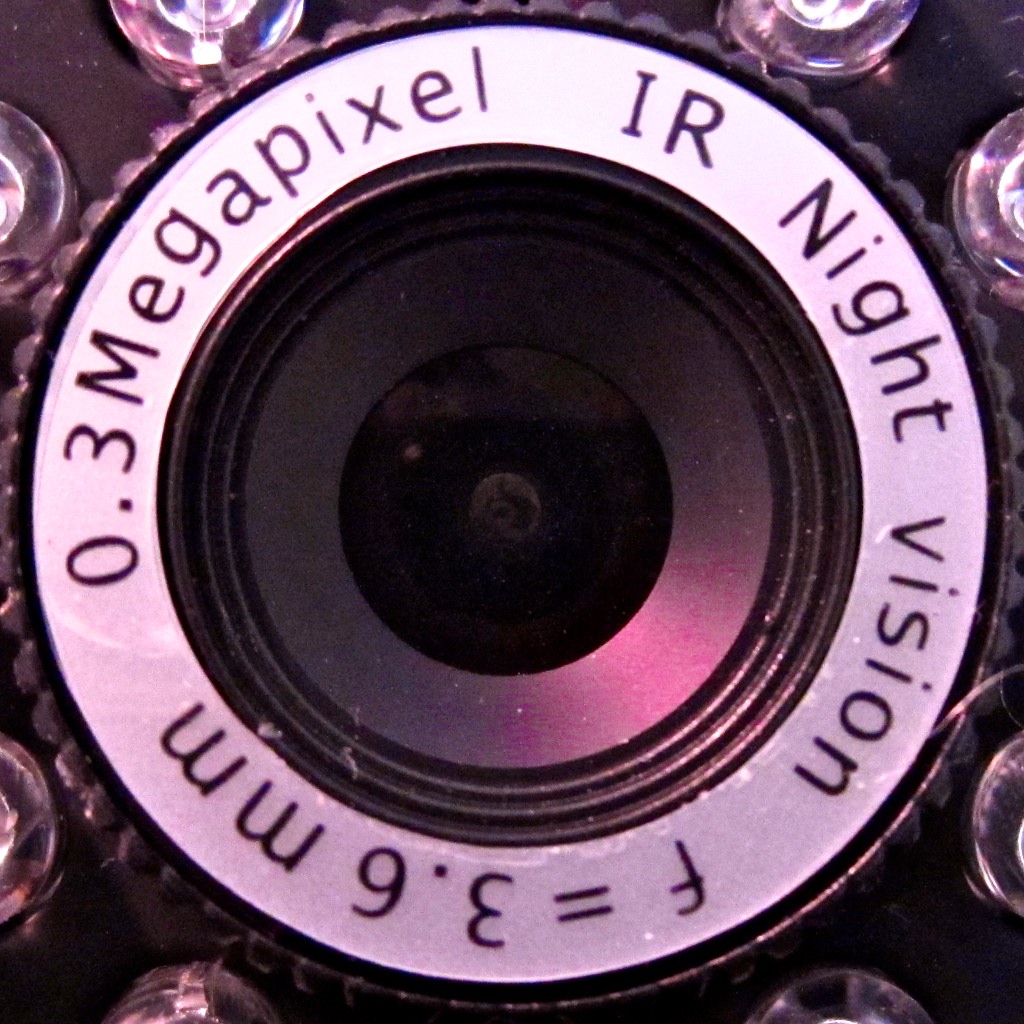
My friend who gave me the evil black eye (camera) recommended I call Foscam tech support if I had any problems hooking up the sleek but confusing IP device.
And did I do that?
No.
Why? Let’s just say I wanted to be able to figure it out for myself.
Maybe it’s a guy thing. Like asking for directions.
(It’s a discussion for another day.)
Web Wandering
Let me ruin my cliffhanger and joyfully report that my little tech project does have a happy ending. It just took me the better part of a week to get there.
I had to piece together the puzzle with bits of information from a variety of websites to get the whole kit and kaboodle to work. I found no central source.
Hopefully my experience will be of value to other Foscam owners wandering the web looking for answers.
Yes, I was right about how crazy hard it is to set this kind of tech up.
And two years ago wasn’t the time to crack this code.
Preparing for parenthood wouldn’t have allowed me the necessary discretionary focus. I can see that now.
Hey, what’s that sparkly feeling I feel rushing over my face?
It’s all that Tech Guilt…
Evaporating.
(nice)
My Manual Begins
The remainder of this post is the manual I feel should have been in the box.
But beware. I’m going to be throwing about a lot of acronyms.
And this how-to post is only designed for an Apple ecosystem using a current edition Apple Airport Extreme wireless router.
Are you still there?
(Cue the “Jeopardy!” music.)
Great!
For those of you who are left, thanks for taking this rigorous journey with me.
Let’s get started!
The Glossary
First, you should familiarize yourself with some acronyms.
Please tell your agitated neurons not to explode.
(You can also refer to this later. I won’t tell.)
• IP Address = Internet Protocol Address
It a unique location identifier that works like a mailing address for computers and other devices to find each other on the web.
• DNS = Domain Name System
This service manages and translates impossible-to-remember IP addresses into normal URL names.
• DDNS = Dynamic DNS
Similar to DNS, but this system handles dynamic IP addresses that change from time to time. To address this problem, you can download DDNS software to your computer to update the correct DNS mapping to your URL.
• DHCP = Dynamic Host Configuration Protocol
This network protocol is used by your Apple Airport Extreme router to assign a range of private IP address numbers to different devices running on your network.
• MAC Address = Media Access Control Address (not an Apple term!)
Like your social security number, each of your web-connected devices has a MAC Address hard-wired into it. One way to identify your Foscam MAC address is to download LanScan onto your computer. It’s a free program you’ll find in Apple’s App Store.
Chapter 1: Get your Foscam Camera Working in Wireless Mode
When you first log your camera into your home Wi-Fi network, you’ll have to hardwire it to your router to log it in. (like a temporary umbilical cord)
The trick is to activate its wireless mode to work with your Wi-Fi home network.
TIP:
When you reboot your Foscam to activate its wireless mode, you must quickly unplug the Ethernet cable before the camera completes its reboot. Otherwise it will incorrectly reestablish its connection via the cable and WILL NOT FIND your Wi-Fi signal when you pull out the cable later.
Chapter 2: Lock Your Home Network’s Dynamic IP Address Assigned to the Foscam
Once I had my Foscam up and running in the nursery and viewable on my iMac’s Safari browser, I quickly realized my Foscam viewer software asked me to keep re-logging in every day or so.
What was up with that?!
My Airport Extreme (like all routers) is given only one external IP address to work with. That IP address is provided by my internet service provider (ISP) and has to be shared with all my web-enabled devices when connecting up my army of tech.
But remember, each device needs its own unique web location identifier.
So the Apple router ends up assigning its own series of internal dynamic IP addresses to my web-connected tech.
The problem was the router-assigned internal dynamic IP address for my Foscam kept changing, forcing me to re-log back into it.
TIP:
Create a Static DHCP Reservation for the Foscam in your internal home network that won’t keep changing on you.
The Mac Observer has a great story on how to do this.
I found it especially valuable, because there’s not a lot out there on how to get Apple’s current Airport Utility (V6.1) to work with an IP camera.
That said, I did have one problem with this article. I couldn’t change the default DCHP Range as per the instructions. So I picked a number, reserved it, and hoped my router will know not use try to reuse it. (Isn’t that what a “reservation” means?)
Chapter 3: Don’t Stress over your ISP’s Dynamic IP Address
As I mentioned above, home internet users are assigned one dynamic IP address by their ISP. For me, it’s provided by Optimum (Cablevision). And yes, static IP addresses are available, but cost more.
So the external dynamic IP address Optimum assigned to my service changes from time to time.
We’ve just addressed the similar problem when accessing the Foscam on a home Wi-Fi network. But when you’re elsewhere and want to take a peek at your toddler, you’ll need to ping the Foscam via your external dynamic IP address. And that number is always changing.
That problem makes it hard for my Foscam Pro iPhone app ($3.99 in Apple’s App Store) to find my baby cam when I’m out and about.
The solution is to use a free DDNS service to assign a static host name to your dynamic IP address that won’t keep changing on you.
I signed up for an account with no-ip.com.
(My Foscam manual suggested using dyndns.com, but DynDNS no longer offers free accounts! D’oh!!)
You might think it’s great to have a static name instead of an ever-changing series of IP numbers for your Foscam.
But how does the host name know to keep up with the changing numbers?
Good question.
You’ve also got to download and install software that’s designed to track the changing numbers.
No-IP calls it the Dynamic DNS Update Client or Mac DUC for short.
(That’s much easier to remember!)
And as long as the software is running on your computer, it will sense your IP address change and update the current DNS address associated with your new static name.
Ugh.
Another program to run on my computer. I’m never a big fan of introducing software that always has to run the background.
Throughout my agonizing week of Foscam-Palooza, I noticed my dynamic IP address from Optimum only changed once.
So I’ve decided to delay this step, and I have not yet created a new host name for my IP address with No-IP. I will deal with this pesky problem at some point down the line.
For now, I will keep checking for changes to my IP address, which I do by going to-
www.whatismyip.com
I will then have to manually update the new IP addresses into Foscam Pro on our family’s two iPhones.
Not a perfect solution, but it works for now.
TIP:
Don’t bother with the whole DDNS thing. Do the DNS updates manually. You can always set up the auto-checking software later.
Chapter 4: Port Forwarding or Bust
No choice here.
This step you have to do to get Foscam Pro working without the safety net of Wi-Fi.
So what is port forwarding?
It’s when one internet device communicates directly with another, using a specific port number. The Foscam’s default is port 80, a commonly used port.
All of my research says you should change it to a less travelled port number to avoid conflicts with other devices also using port 80. And sometimes ISPs block port 80; another reason not to use it.
Finally, my Foscam Pro iPhone App says point blank: “Don’t use Port 80!”
TIP: Assign a port number other than 80 for your Foscam to use.
Show Me the Money!
Okay. If you’ve gotten this far, you must be serious.
Here’s my bonus ‘quick start’ guide.
(You’re welcome.)
It’s step-by-step detail on how to get your almost-awesome Foscam IP Camera up and running once it’s happily humming on your home network using Apple’s Airport Extreme router and Airport Utility V6.1.
STEP 1:
Log in to your Foscam’s Device Management Page in Safari.
- Go to the “Basic Network Settings” field
- Change “Http Port” from 80 to another number
(Foscam Pro recommends 8502-8599.)
- Press “Submit” and allow your Foscam to reboot
STEP 2:
Open Airport Utility on your Apple Computer.
(It’s in your Utilities folder, which is in your Applications folder)
- Click the “Network” tab
- Click “Network Options” at the bottom
- Make sure “Enable NAT Port Mapping Protocol” is checked
- Click “Save” which takes you back to where you were…
- Click the “+” under “DHCP Reservations”
- In the “Description” field-
Type in the name you want to call your device
- In the “Reserve Address By” dropdown-
Select – “Choose MAC Address”
- In the MAC Address field-
Type in your MAC address, which you can find with LanScan (see glossery)
- In “IPv4 Address” field-
Type the DHCP number you’d like to reserve as a static address for your Airport Extreme to use
- Click “Save”
- Then click the “+” “under “Port Settings”
- In “Description,” select FTP access from the drop down
(I know this may not be technically correct, but there isn’t a camera-related option.
And it did work!)
- In the “Private IP Address” field-
Type in the same DHCP number you used in the DHCP Reservations section
- In the four other fields that list private and public port options-
Type in your new port number that you earlier gave to your Foscam to use
(I punted here by filling in all the port fields, but the “throw spaghetti at the wall” approach seemed to cover me.)
- Click “Save”
That’s it.
STEP 3:
Purchase and Download Foscam Pro onto your iPhone or iPad.
- Launch the app.
- On the bottom left of the app, click the “+” to add a new camera
- In the “Name” field-
Type in the name of your choice
- In the “Remote Camera Address” fields-
Type in your computer’s external IP address and your new port number you assigned to your Foscam
Again, you can find your IP address by going to-
http://www.whatismyip.com
- In the “Local Camera Address” fields-
Type in your static internal IP address your reserved in Airport Utility and your new port number
- In the “User Name” and “Password” fields-
Type in your Foscam sign-in info
- Then choose your camera model
Then…. VOILA!
You should now be able to view your Foscam feed on your iPhone from anywhere, day or night! (Don’t forget to use the camera’s infrared nighttime mode.)
Anyone Still There?
Easy-breezy stuff, right?
I know. Not so much.
So I hope I’ve been of some assistance.
(If there are other/better solutions out there, please share!)
I publicly admit I’m outside my tech comfort zone, and my solutions are only one guy’s humble opinion. (I bow my head in deference to more proficient tech heads out there whose domain this type of conversation normally belongs.)
But sometimes you’ve to figure things out for yourself!
Especially when you’ve got no choice but to write the manual yourself.
Face Your Darth
All in all, it’s not been a totally horrible experience.
(though it did take me two years to attempt it)
So get off the barcalounger and go run around in the wild a bit.
(I highly recommend it.)
Confront the Dark Side, and tickle it until it gives up its secrets!
I’m happy to report my Tech-Dentity has remained intact.
My solutions may not be bulletproof, but they work! (for now)
And that, my friends, is all that matters.


 At Home with Tech