At Home with Tech

Unlock the power of all your technology and learn how to master your photography, computers and smartphone.

Tag: Adobe Lightroom Classic

Four Ways to Showcase your Best Family Photos on your Phone

Are you able to call up any family photo you want on your smartphone? If not, it may be time to update your photo-archiving plan. Here’s what I did.

Our teenage son asked me a question during dinner last week that I had a difficult time answering. He asked if I could show him some pictures from when he was younger. Pictures of when he was younger?! 

I had thousands of photos… tens of thousands from the past fifteen years! But where were they? Could I immediately call up any of these pictures that best represented his earlier years? 

Could I Meet the Moment?
Sure, I could flip though endless photos living in my iPhone. But that would take too long. I started sweating. 

For years, I’d been dutifully curating my family’s photos on my Mac using Adobe Lightroom Classic, but when I received this simple photo request, I wasn’t ready for it.

I took a breath. He kept eating. The opportunity was about to pass. Then, I pulled out my iPhone, opened Apple’s Photos app and quickly went… to my shared albums.

A Shared Photo Album Saves the Day
And yes, there it was… the photo album I had created years ago and shared with my wife that collected some of our Lester adventures. I opened it up, pulled up my chair next to my son and began displaying a few fun pictures from his elementary school years. He smiled, and after a few minutes, we agreed to look at more another time.

After he left, I exhaled. 

Whoa! That was a definite dad moment. And I almost blew it.

Set Up Cloud-Based Photo Albums with Easy Mobile Access
Afterwards, I thought about our exchange and wondered why I had been caught so off guard with this simple request. I’ve spent hundreds of hours working on our family photos over the years. My challenge was more about my phone having easy access to my curated photos from my multiple cameras. 

So, I decided it was time for a little review of my existing photo archiving process and how to give myself better mobile access.   

The obvious way to handle this need is to create cloud-based photos folders/galleries that you can easily view with phone apps. There are plenty of way to do this. But you’ve just got to maintain your plan and keep your albums up to date.

#1
Apple’s Photos App
For an iPhone user, Apple’s Photos app is the built-in solution. The only limitation to shared albums is the pictures are organized in the order you load them in, not in the chronological order of the photos’ time stamp.

A regular (non-shared) album that you set up just for yourself to sync with your iPhone will order the photos in the correct time sequence.

#2
Amazon Photos

Back in 2019, I started using Amazon Photos for my cloud photo archive. The big draw was it was free with unlimited storage of full-res photos… included in the cost of my Amazon Prime membership.

It has an app for my iPhone, and yes, I use it (though I didn’t have a photo album set up with my son’s pics).

The one problem with Amazon Photos is I do worry that one day, Amazon will abandon its interest in photos. And then… poof?

#3
SmugMug

So, I looked for a company with a more photo-centric raison d’être. And I decided to go with SmugMug. I’ve been curating my best photos with this platform across the past few years. 

Also with unlimited, full-res photo uploads, SmugMug has become the platform for my official family archive. But I’m being very ‘precious’ about which photos live there. I think about my SmugMug galleries as an archive that will be handed to the next generation. And I do pay $200+/year to maintain this current strategy.

Yes, of course, I have photos of my son in my SmugMug account, and yes, I have the SmugMug app on my iPhone for immediate access. But I’ve intentionally restricted the photos of my son to ones that more reflect his life’s milestones for future generations to see. (I’m still fine tuning this theoretical goal.)

So, SmugMug is missing a bunch of the fun photos that I’d otherwise want to share with my son today.

#4
Lightroom’s Mobile App
And then it hit me… All the above solutions require me to export selected, edited photos out of Adobe Lightroom Classic’s ecosystem. 

What I had missed was never setting up a syncing solution directly to Lightroom’s Mobile app. I suddenly realized that was the obvious hole in my photo-archiving plan. 

Oops. 

Of course, I already have a great photo collection of our son in Lightroom Classic. So, I loaded the Lightroom app onto my iPhone. Then, with one click, I synced the collection to my iPhone. 

Well, that was an easy fix.

I’m now prepared for my next dinner with my son.

Don’t Fall Behind
It’s important to never let up on any photo archiving strategy. You can see I’ve worked with several solutions over the years. (Part of that is intentional to help protect against unexpected digital-file loss.)

Good photo organization takes a life-long commitment.

If you can’t immediately access the photo you want on your phone, it’s a clue there’s more work to do.

Is your phone ready for your next dinner?
How to Use AI to Easily Improve your iPhone Photography

AI can effortlessly and perfectly select the people in your photos to individually brighten and edit. Here’s how to access this superpower using your iPhone and Adobe Lightroom.

I don’t travel about taking family photos with my own team of lighting professionals and a heavy bag of prime lenses (I wish). I typically just use the camera baked into my smartphone, which as you know is my trusty iPhone.

Sure, I sometimes get more ambitious and bring my GoPro, my Panasonic Lumix LX-10 or Lumix ZS200 with its bigger zoom. But my iPhone 15 Pro Max has a great camera system. And best of all, it’s always with me.

So, like the rest of us, most of my photography is generated through my phone.

When the Light is your Enemy
Even though my iPhone’s camera skills are admirable, the world usually doesn’t present perfect conditions to capture an optimal photo. Often, the lighting is not quite right.

Your subject can often look dark. Sure, my iPhone can sometimes handle this challenge. But it has problems (as does any camera) when my subject isn’t as well-lit as other parts of the frame. A similar limitation develops when the background is too bright (such as when your subject stands in front of a window with sun pouring in).

Then you’ve got yourself a silhouette shot, which is the opposite of what you probably wanted.

Yes, you can try to reframe, but that’s not always possible. The only option is to snap the photo and then try to fix it in post.

The Former Limits of Photo-Editing Solutions
There are any number of photo editing software options where you can brighten your photo to pump up how your subject appears. (Your smartphone will do this in one click.) But that can often start to overexpose the other parts of your image that are already sufficiently bright.

Professional photo editing programs can enable you to just select a portion of your photo to enhance, but there’s not been a one-click solution… until recently.

How to Brighten the People in your Photos using the AI in Adobe Lightroom
I use Adobe Lightroom Classic to organize and enhance my photos. The software now offers the ability to perfectly isolate and select people in photos with just one click. Being able to accomplish that used to take years of training and practice with complex software.

But with the power of Adobe Sensei AI, Lightroom does all that for you. Then you can easily pump up how the people in your photo look.

Here’s how:

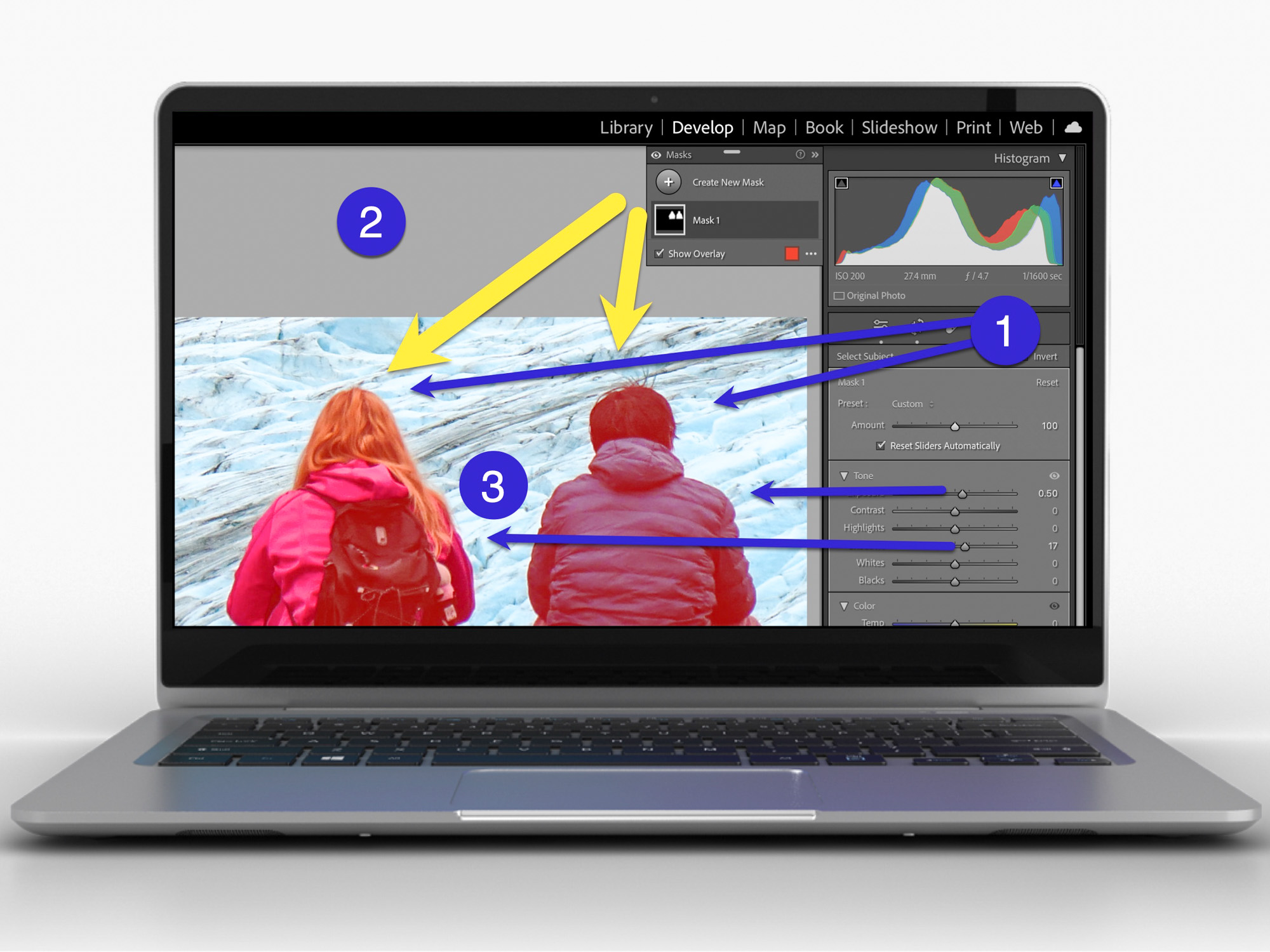
  • In Develop mode, click on the circular Masking Tool on the top right. That’s your entry point.

On the top of your options, there are three boxes you can click to select:

  • Subject
  • Sky
  • Background

The AI-powered Masking Tool immediately isolates a perfect cut out and adds a mask that you can brighten, darken or adjust in any number of ways. If there are several people in your photo, and you want to enhance the look of just one, you can click on ‘People’ to select that individual.

It’s amazing.

Two Examples of Lightroom’s Masking Tool in Action
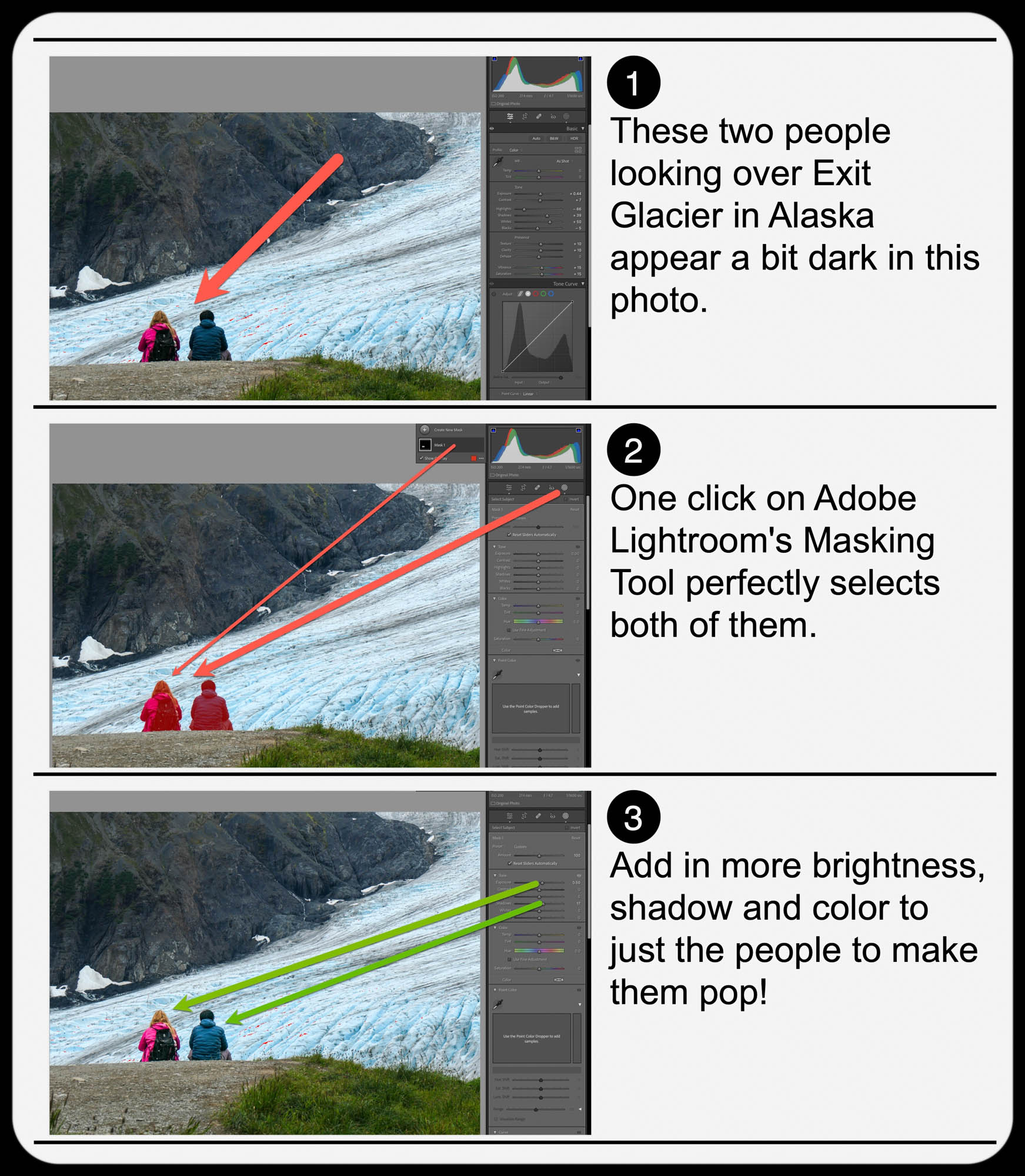
Here’s one example of using the Masking Tool to pump up the light and color saturation of just the two people in my shot overlooking Exit Glacier in Alaska’s Kenai Fjords National Park.

Brighten the People

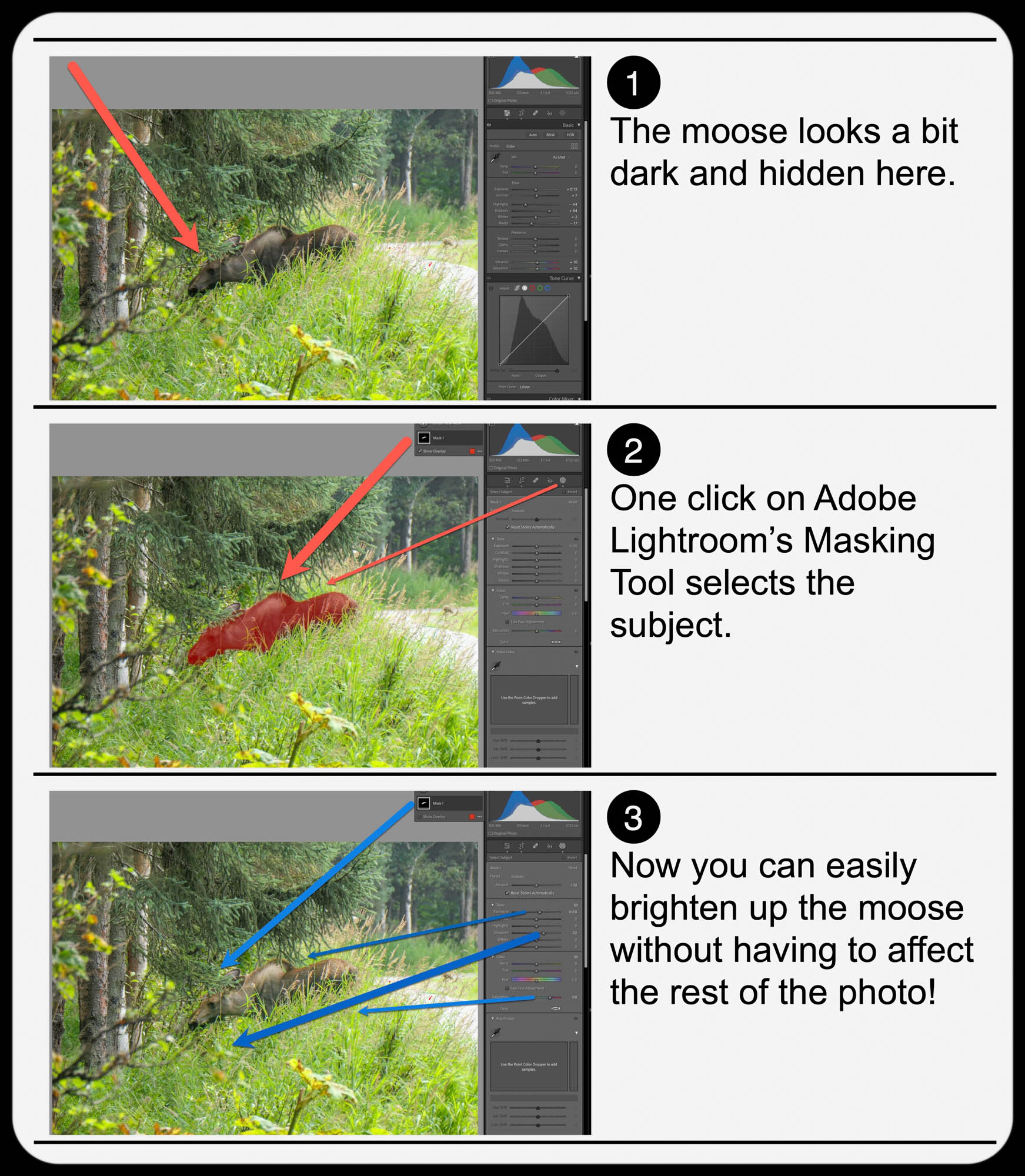
And here’s another example where I used the Masking Tool to brighten this somewhat hidden young moose I spotted while biking near Anchorage.

Brighten the Moose

It’s not a perfect shot but being able to actually see the moose more clearly with the help of AI certainly improves it.

  • A warning: Clicking-in more light onto your subjects should be a subtle enhancement. Otherwise, it will look fake. So, sprinkle in your extra light sparingly.

Add Buttery Bokeh Blur Using your iPhone’s Portrait Mode
Once, you’ve got your photo subjects properly ‘re-lit,’ then you can focus on editing the backgrounds in your shots. A relatively new AI trick you can use is adding in background blur or ‘bokeh.’

This nifty visual effect used to be achievable only while taking photos with a more traditional camera in bright light using the right lens and aperture setting. Now you don’t have to be an expert photographer to get some bokeh. AI can create the same effect in post!

An iPhone camera’s Portrait Mode setting is designed to do exactly that. The iPhone’s software in the Photos app isolates the background from your subject, allowing you to dial in your background blur. You can snap away and then later choose to add bokeh (as long as the photo was originally taken in Portrait Mode).

This feature has been a game changer for me.

  • Another warning: You might want to dial back the amount of your iPhone’s auto bokeh level setting (Yes, you can do that.). Sometimes, just a subtle background blur is all you need. Too much may make the background look like it’s a complete digital replacement.

Three Levels of Bokeh
Here are three examples adding different levels of bokeh in Portrait Mode on my iPhone. I took this selfie while I was shopping for a new pair of reading glasses. You don’t need to see the optometrist office background. So, I thought it was a perfect opportunity to blur it out. But how much bokeh is the right level? You decide…

Lens Blur in Lightroom Classic
Adobe Lightroom Classic can perform the same bokeh trick with its new Lens Blur feature. In one click, you can create a depth map of your photo using Adobe Sensei. From that point, you can tinker further to adjust the scope of the blur.

Is It Cheating to Use AI to Improve your Photos?
The technology to digitally adjust your photos has been around for years. But some of the tricks were complex to pull off. The big change now is AI can do much of the same work for you with just a few clicks.

Should you feel like all of this is somehow cheating? Are you not really a good photographer, because you couldn’t originally capture your shot perfectly, and you need AI to save you?

Please.

If you’re a Luddite, maybe. Otherwise, this is simple technological progress.

Time to get on board and use some AI-oomph to make your photos shine brighter!