At Home with Tech

Unlock the power of all your technology and learn how to master your photography, computers and smartphone.

Tag: apple

What To Do When Adobe Lightroom 6 Randomly Crashes

When your tenuous photo management process hits a wall, because your software gets glitchy, sometimes an obvious solution actually works. Let’s begin…

I’ll be honest… digital photo management has been a challenge for me since my 7-year-old son was born. I’m the kind of parent who takes way too many family photos and then struggles to organize them, quickly share the best ones and eventually create photo books.
(Sound familiar?)

But I’m trying.

The truth is you’ve just got to put in the time, have an organized plan, and use photo management software that’s right for you.

I switched to Adobe Photoshop Lightroom 6 from Apple’s Aperture a couple years back after Apple retired Aperture and launched the Photos app.

I wanted software that was more powerful than Photos, and Lightroom has indeed proven itself to be a rock star.

At the time, I made the choice to buy a standalone Lightroom 6 license for $149, instead of Lightroom CC, which requires you to pay into a $10/month Adobe Creative Cloud ecosystem.

I figured my one-time DVD purchase would be more economical than the pay-as-you-go model, as long as I used Lightroom for more than 15 months. That was the plan, and I’ve already passed the two year mark. So, yay Barrett.

But I know it’s just a matter of time until I’ll be joining Adobe’s Creative Cloud. It will eventually become unavoidable. For now though, I’ve been enjoying my Lightroom 6.

Until something went very wrong…

Random Crash Alert!
A few weeks back, my Lightroom began randomly crashing. It happened mostly when I wasn’t actually working with it. Lightroom would be open in the background, and then ‘pop,’ it would suddenly disappear. My iMac rushed to create a report to send to both Apple and Adobe, but I didn’t expect any engineers to be calling anytime soon.

I ignored the problem for a while. (Silly me.) But then, it began happening when I was actively using the program. And finally, it crashed while I was importing photos.

So, it was clearly time to do some troubleshooting…

The only recent change to my iMac’s ecosystem was an update to my iMac’s OS High Sierra. (And you know, that seemed to be about the time my troubles began.)

I did some Googling and ran across an insanely obvious question…
Was I running the most up-to-date version of Lightroom 6?

Uhhh…
What?

Huh.

Well, actually… No.
I hadn’t been receiving any notices about updates.
(I’m so used to Apple’s incessant reminders to update my software.)

So, no… I haven’t (ever) updated Lightroom 6.
(Maybe I did right after I installed it.)

Please don’t expel me from the Island of Misfit Toys.

All right…. So guess what I decided to do?

How to Update Adobe Lightroom
If you too are trying to figure this out, you’ll find your Lightroom software updates in the Adobe Application Manager program.
And here’s how to get there…

Go to the ‘Help’ drop down and click on ‘Updates…’
The Adobe Application Manager will open, and this is what you will see…
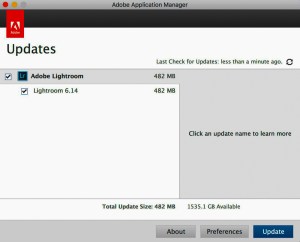


If you’ve got an update waiting, it’s time to take the blue pill.
From here, it’s straight forward!

Always Backup First
Updating Lightroom is a painless process, although it’s always good to do a backup before you update any important software.

For me, I simply ran Time Machine on my external G-Drive. And I also saved a backup Lightroom catalog file to the G-Drive.
(The catalog houses all the work you do to your photos.)

And guess what? Now that I’m running Lightroom 6.14… everything is…
Just… fine… again.

Yup.
Updating Lightroom did the trick.

Software Conundrum
I know my report ultimately falls under the category of “DUH!”

But can you tell me you’ve never dragged your feet on doing software updates, because you feared unexpected glitches and compatibility issues?

Well, if you wait long enough and do nothing, that’s clearly a problem too.
(And I’m not even talking about security patches.)

Choose your poison.

Lightroom stability: Restored!

#LovingMyDigitalLife

Don’t Fall into this DPI Rabbit Hole when Printing Your Photos

iCloud Photo Library makes it easy to sync and print your photos (like this New York City moment). But if you’re worried about maintaining image quality and DPI settings, it’s time to review a few facts…

One of my in-laws emailed me the other day and asked this: When iPhones sync their photos through iCloud Photo Library and then to the ‘Photos’ Mac app… is the resolution maintained? The big concern was whether Apple’s automatic digital file copying to iCloud wasn’t somehow cheating by transferring lower resolution copies.

Because when it comes time to print your photos, you’d want to be sure to have access to the full-resolution versions, right?

The answer is yes. Full resolution, baby!
Apple explains it right here.

Does DPI make a Difference when Exporting a Photo File?
As it turns out, I usually transfer pictures off of my iPhone to do photo management without the iCloud Photo Library ecosystem. I take them directly to Adobe Lightroom via USB along with the pics from my Panasonic Lumix LX10.

So I decided to do a little experiment with iCloud…

I have iCloud Photo Library activated on my iPhone as something of a default. So, I clicked on one of my iPhone’s synced photos on my iMac using the Photos app. Then, I exported the pic to check out its specs.

Yep… it had the same pixel dimensions as its duplicate that I also exported from Lightroom.

Case closed.
But…

I noticed that there was one difference between the two photo files when I compared the specs via ‘Inspector’…

The picture from the Photos app had a 72 Image DPI value, while the sister file from Lightroom displayed a 300 Image DPI value.

Huh?
So, were these two photo files the same or not?

The Fine Print on DPI
DPI stands for dots per inch and is relevant when you’re printing out a photo. It’s a piece of information that tells a printer how high a quality to print at.

I’ve typically exported my photo files from Lightroom at 72 PPI (pixels per inch) for web use and 300 PPI for a full resolution copy when I want to print it.
(PPI and DPI are related, and many use 300 DPI as a printing standard.)

And while you always should print your photos at 300 DPI (if you can) to maintain its printed quality, the fact that your photo file has 300 DPI in its metadata has absolutely nothing to do with the quality of the photo file itself.

What’s important is the pixel dimensions of the photo. The more pixels the better!
(Newer iPhone pics are 4,032 x 3,024 pixels.)

So, when the Photos app inserts 72 DPI into the metadata of its exported photo files, that’s actually meaningless to the quality of the digital photo files.

But will the 72 DPI setting affect the quality of a printed photo?

DPI ABCs
This is the center of some ongoing controversy out there. I found this blog post by Dara Skolnick, who did a really nice job explaining the facts and misperceptions about DPI.

But to cut to the chase… the simple answer is no.
If you’re only trying to print out a 4×6, 5×7 or even an 8×10 photo using the photo file’s original pixel count, it shouldn’t matter what the DPI is set to. Your computer and printer will still jam all of the megapixels into your photo, ensuring its quality.

But things will get trickier if you want to create a wicked-large print. That’s when the DPI issue comes into play. If you want to maintain a 300 DPI print quality, there will be a limit to the size of the photo you can print. (Remember, your photo file has a finite number of pixels.)

Yes, at lower DPI numbers, you’ll be able to print larger… but you’ll also begin to sacrifice image quality.

Another important detail to remember is you don’t have to print at the DPI number embedded in the file. Many folks out there say it’s just a meaningless piece of metadata. You can always change the DPI setting when printing…

The bottom line is there’s nothing wrong with simply exporting a file at 300 DPI. But there’s also no real difference when the same photo shows up with a 72 DPI setting.
(As long as the pixel dimensions are the same)

When DPI Does Matter
If you’re planning on sending your files to a professional photo shop to print out huge prints, then DPI can become an important factor.

Otherwise, if you’re like me printing out a few family pics on the home printer, I think you can pretty much forget about DPI.

72 DPI and the Web
And is 72 DPI the right setting for web photos?
Apparently that’s also irrelevant. That number is more of a holdover from the old days.

Let’s move on…

It’s Safe to Print
So, do yourself a favor and don’t fall down the DPI rabbit hole like I just did while researching the facts for this post.

Feel free to print out as many standard-sized photos from your iCloud Photo Library as you like without worrying about DPI and maintaining image quality…

Your photos will look great!

Learn These 7 Tricks Video Editors Use

“They’ll fix it in post!” Have you ever heard this phrase? Well, you don’t have to be a video editor to understand how great editing works. If you’re at all curious, I’ve got a few strategies to share that you might want to check out…

It’s well known that photos can be tweaked in any number of ways. This has been happening for decades. But today, digital photo editing tools are available to the masses. So, just about anyone can manipulate a picture and remove unwanted elements.
(I use Adobe Lightroom.)

The same technologies have helped improve video editing, even though your brain does more of the heavy lifting as opposed to just relying on software.
(Although I’m sure AI will one day regularly compete in the same storytelling arena as human minds.)

Digital editing platforms, such as Adobe Premiere Pro and Final Cut Pro X are where talented video editors practice their craft molding stories.

And these editors have a few tricks up their sleeves that you might not expect.
Want to know what they are? Well, you’re in luck!
I just wrote an article on LinkedIn which explains 7 of them…

Please click here to read –
“Become a Better Producer by Knowing These 7 Video Editing Tricks”

And let me know about any other helpful strategies you think I should add to my list…

Thanks!