At Home with Tech

Unlock the power of all your technology and learn how to master your photography, computers and smartphone.

Tag: computer repair

How to Fix Your Piper Computer Kit’s Corrupted Software
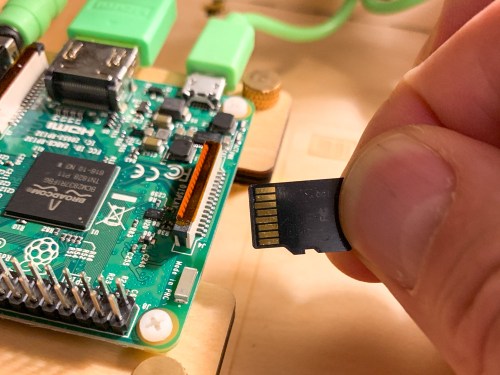
My son brought his new Piper to life, but its software quickly began glitching. So, it was time to help keep the learning experience on track. That means figuring out how to reflash the Raspberry Pi’s OS onto the MicroSD Card. (what?) Here’s what I did…

A few weeks back I proudly bought my nine year old a Piper Computer Kit for his birthday. I was so excited for him… He would build his very own computer, powered by a Raspberry Pi and then learn programming and other computer skills through a Piper-specific Minecraft StoryMode interface…

I felt it was the best birthday gift a dad could give his kid… ever!
(Okay, maybe I got a little too excited.)

The truth is all my boy really wanted was a big stack of Pokémon cards.

Pokémon cards!?

Come on… I was about to give the young Lester the tools to create a virtual universe if he desired… and all he wanted… were some glittery cards.
(Clearly, I don’t understand the Pokémon phenomenon.)

So, of course, we got him the cards… too. And during the next few days, our boy was fully immersed in his Pokémon world.

The Piper Computer Kit sat unopened in the corner.
(Sniff)

…Cue the tumbleweed shot.

Then…

The next Saturday morning at breakfast, he turned to me and said with a big smile,
“Let’s build my computer!”

Finally!
We were on…

The Piper’s Stormy Maiden Voyage
He opened up the massive blueprints, spread them out on the floor, and began constructing the Piper with the intensity of engineers racing to build the spaceship in the 1951 sci-fi movie, “When Worlds Collide.”

In little more than a couple of hours, we had a heartbeat.

He activated the Piper’s Minecraft ‘Story Mode’, and before I knew it, he was testing circuits faster than you can say, “Scotty, I need warp speed!”

It was just glorious.

And then suddenly, it all just… stopped. Minecraft had crashed, and we were just staring at the desktop.

My son turned and looked at me.

Frack.

I suggested he double click on the icon to get back into the teaching game.
Nothing.

Hmmm….

Then, I took the next logical step… I checked for any software updates and downloaded those.
Still nothing.

The computer itself was still seemingly working okay… but we couldn’t get back into the Piper Minecraft teaching program…

Piper, we have a problem!

Time to Reinstall the Software
My son was still feeling pretty pumped about building his Piper, but understandably a bit deflated by this glitch. He powered down his creation, and I pledged to do some research to find a fix…

The next day, I emailed Piper customer service asking for a little support…

After sharing my details, the prognosis came back that somehow the software on the Piper’s microSD card had gotten corrupted, and I needed to “reflash” the SD card.

Huh?
(Reflashing the card means reinstalling the Raspberry Pi’s operating system image back onto the card.)

Okay… So how do you do that…?

How to Reflash the SD Card
Taylor, from Piper Customer Care emailed me links to the Raspberry Pi software and instructions on how to reflash the SD card.

Beyond the obvious need to first download the image of the operating system, there were three other key steps…

  1. I also had to download Etcher, which is a graphical SD card writing app that flashes OS images onto SD cards.
  2. I needed to remove the MicroSD card from its Raspberry Pi slot, slip it into a larger SD card adapter (which I happen to have from my GoPro kit) and then insert that into my iMac’s SD card reader.
  3. When it was time to find the downloaded Raspberry Pi operating system image in the Etcher interface, I first needed to drag it from my ‘Downloads’ to my iMac’s desktop. After that, it was easy to locate.

Then, you click on ‘Flash,’ and you’re on your way!

Within five minutes, the operation was compete, and I reinserted the MicroSD card back into the Raspberry Pi.

I powered up the Piper, and BAM!
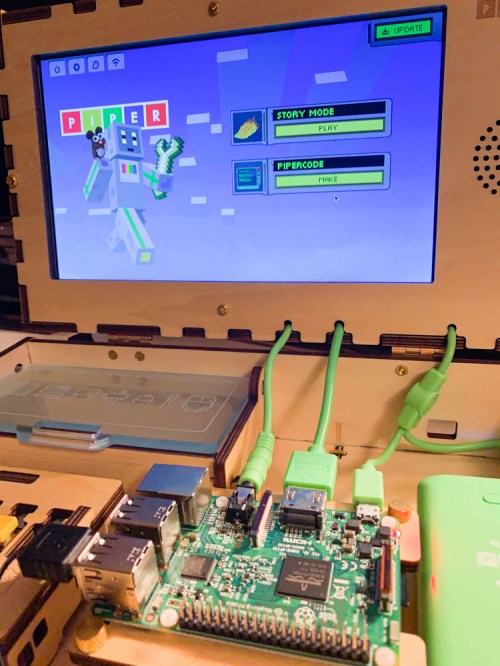
It was all working again…!

A Computer Kit May Require Some Hands-On Maintenance
So, even though the Piper was now fully functional, part of me still wondered how much of a problem it was that I had to reinstall the operating system.

Shouldn’t a new computer not crash after 20 minutes of use?

On the other hand, I had to remind myself that I was working with a $300 computer kit centered around a $40 Raspberry Pi motherboard… not a $2,000 iMac. The rules are a little different!

And isn’t the entire idea behind a build-your-own computer that sometimes you’re going to have to roll up your sleeves and get your hands dirty?

At the end of the day, reflashing the SD card was super simple, and our Piper works like new again.

If my son were a little older, I would have had him do all the reflashing work. That would have been an excellent project for him!
(I just wanted to make sure I flashed the SD card and not my iMac’s hard drive.)

Taylor from Customer Care was super responsive and even offered to mail me a replacement SD card. I’ve got to say that’s pretty good support…

Thank You, Piper!
So, what have we learned from all of this…?

There’s often a fine line between worrying that you’ve made a bad technology purchase and feeling helpless to fix the problem… and taking control to find a solution and making the repair yourself.

It just takes the right point of view…

That’s a lesson children of all ages can learn… and one that I’m really happy my Piper experience has reinforced in my own life.

Play on!
Five Rules to Follow When Your Computer Dies

How much should you pay to fix your computer when it stops working?  Should you just buy a new one if the repair costs too much?  I found myself smack in the middle of this decision tree as I contemplated the future of my broken digital companion…

How much should you pay to fix your computer when it stops working? Should you just buy a new one if the repair costs too much? I found myself smack in the middle of this decision tree as I contemplated the future of my broken digital companion…

My four year old ran into some unexpected trouble a couple of weeks back.
No, not my son. He’s fine.
I’m talking about my 27” iMac.
As you may have heard, its LCD screen stopped working.

The display didn’t entirely die… It just popped to black every so often.
Then, it remained that way until I forced the computer to sleep by pressing the power button in the back… and then reawakened it normally via the mouse.

Sometimes the screen would shine for another hour.
More often than not, the display would abruptly turn off again in a few seconds.

And that rendered my iMac rather useless.

How Many Apple Geniuses Does It Take to Fix a Computer?
So I took my ailing iMac to the Genius Bar at the Apple Store… three times.
Yes, it took three separate visits until one of the Geniuses finally determined that my precious computer needed to be formally admitted to the ‘iHospital.’

There were other Genius hunches and quick fixes, but eventually, the diagnosis shifted to something more serious.

Then, it took Apple almost a week to determine the display itself was the culprit.
The solution: replace the entire LCD.
(Originally, the Genius I saw on my third visit thought the two video cards were the problem.)

And this shift in repair diagnosis threatened to delay the fix beyond the
three-to-five business day promise I received.

But I got a happy Apple email on the fifth business day that said my machine was ready to go home.
(Apple really hustled!)

The Patient is Not Ready to Leave
I walked in to pick up the patient, carrying its original box with me. My iMac was whisked through the back door and placed onto the Genius Bar counter.

The Genius gleamed. I looked at the new LCD and spotted what looked like a horizontal two-inch scratch on the upper center part of the screen.

I pointed. “That wasn’t there before,” I said with concern.

The Genius peered at the scratch, pulled out a soft cloth and cleaning solution and carefully rubbed.

Nothing happened.

Then, she carefully touched the scratch. Feeling nothing, she looked closer.

“It’s on the inside,” she said.
“We can buff that out right now.”

And my computer was quickly carried away.

The Price for Computing Continuity
Twenty minutes later, we did a redo.

The scratch was gone.
Another Genius proclaimed the LCD screen had been successfully stress tested.
Now, it was time to pay up…

How much was the repair?

  • $510.23 for the LCD
  • $39 for labor
  • Plus tax

The total: $584.11.

Did your heart just skip a beat?

Buy a New Computer Instead?
Yes, that’s a costly fix.
(Unfortunately, my machine is over a year past its AppleCare warrantee.)

I’m sure many of you are thinking that at this repair price point I should have put the money towards a new iMac.

That’s kind of what the Repair Genius suggested when I got the call confirming Apple wanted to replace the LCD and asking for my permission to proceed.

As I hemmed and hawed over the phone over whether I should invest this heavily on fixing my old iMac, she said, “You can get a brand new iMac for $1799.”

Hmmm…$600 to fix vs. $1,799 for a new one
That’s a tough choice, right?

But it’s not really going to be $1,799.
Not for me…

Sure, the cheapest 27” new iMac today costs a buck shy of $1,800 for a 3.2GHz quad-core Intel Core i5 processor.

But my old iMac has an i7 processor… so I would buy the new iMac with the i7 for $1,999.

Then, I would double the RAM from 8GB to 16GB for $200.
(8GB is fine for now, but I don’t want to have to worry about RAM in a couple of years.)

And I’d have to upgrade the 1TB hard drive to 3TB for $150.
(My old iMac has a 2TB drive.)

Or another $200 on top of that for a 3TB fusion drive.
(more speed)

So now, we’re looking at a realistic price tag of $2,349-$2,549.
Plus tax.
And don’t get me thinking about the Retina 5K display option!
(drool)

…Or less than $600 to get the old machine (which is otherwise in good shape) back up and running.

So that was my decision tree.

A Happy Ending?
And the million-dollar question… did the expensive LCD replacement fix my iMac’s problem?

It did.

I’m happily typing away as I write this post, and so far my screen is fi

(just kidding)

The Five Rules

So what did I learn from my little computer-repair adventure?
Here are five suggested rules it couldn’t hurt to follow…

Rule #1
Don’t Ignore Your Computer’s Inner Ghost
There’s always a ghost lurking in your computer. Or there will be. You’ve just got to be ready for it, when it eventually decides to come out and play. And when that day arrives, you should have additional technology available to manage your ongoing computing needs.
(I powered up my old MacBook Pro.)

Rule #2
Make Sure Your Hard Drive is Backed Up
Of course, your data should always be backed up. Then, when the emergency happens, you can stay calm enough to work the problem…
And if the patient dies, you can easily clone your content onto a new computer.
(It never hurts to repeat the obvious.)

Rule #3
Save the Box!
You should absolutely save the original box your iMac came in. Yes, it’s a huge empty carton that’s going to collect dust for a few years, but if you hold onto your iMac long enough, you’ll likely need it to safely pack up your giant 30-pound rectangle to schlep to the Genius Bar.

And just as importantly, save the Styrofoam inserts. You’ll want them to successfully bundle your computer as snugly as the day you first unboxed it.

Rule #4
Upgrade Your Computer After the Extended Warrantee Runs Out
This is my second iMac to need significant repair about a year after its three-year AppleCare warrantee ran out. No computer lasts forever…

You’ve got to decide if you’re willing to put some additional money into an aging machine when it needs a sleepover at the Genius Bar or whether you should buy a new one before your ‘classic’ goes bad.

To reiterate: Computers break.
It’s inevitable…

I don’t relish saying this, but if you want to give yourself the best chance of living trouble free with your computers, you should probably upgrade soon after the extended warrantee runs out.

That’s an expensive replacement program, and please note:
In the past decade, I have twice not followed my own advice.

Rule #5
Embrace Apple Genius Group Think
Finally, you should always take advantage of multiple Apple Geniuses offering you their own expertise on any number of Apple topics. That said, they’ll often provide different perspectives.

I typically appreciate this organic Genius ‘Group Think.’ Polling as many Apple Geniuses as possible can often get you to the finish line more quickly.
But not always…

I went through six different Apple Geniuses on the road to my iMac’s recovery. Each offered valuable feedback.
But I could have done without the three trips to the Genius Bar.
(Four, if you count the pick up)

Still, I’m not really sure I would have done anything differently if I knew the dance I would have to go through.
(I needed a working computer again…)

Even though a multi-day experience at the Genius Bar might suggest otherwise, I still endorse Genius Group Think as a powerful diagnostic tool even if it doesn’t seem like the fastest way to get your computer back up and running…

Find Your Tech Zen
If it wasn’t clear to me before… It’s now obvious that fixing a computer can be as much an art as science.

So in summary…

  • My iMac broke.
  • Apple took a long time to figure out the problem.
  • I was frustrated.

But Apple didn’t give up.

  • Apple’s repair process concluded with a strong sprint.
  • Now, my iMac is fixed.
  • And my wallet is thinner.

But the experience could have been worse.
Much worse.

Life goes on…

All you can do is be as prepared as possible when a digital ghost decides to come out and wreak havoc in your computer.

Pop quiz:
How prepared are you?