At Home with Tech

Unlock the power of all your technology and learn how to master your photography, computers and smartphone.

Tag: iOS 8

How to Find iTunes Extras on Your iPhone

If you can satisfy three conditions, you just might find a surprise in your Videos folder the next time you click on an iTunes movie.

If you can satisfy three conditions, you just might find a surprise in your Videos folder the next time you click on an iTunes movie.

So while perusing my new iPhone 6 Plus, I stumbled onto what I thought was a rip in the fabric of the space/time continuum…

I took a look in my movies folder and randomly clicked on “Star Trek into Darkness.”  I had loaded the iTunes movie file months ago after purchasing the Blu-ray Disc, which came with the free digital download.

For me, that was the sweet spot… to have mobile access to the flick and also own all the Blu-ray extras.

I casually waited for my screen to load, half expecting something to look a little different in iOS 8. And guess what, something very different appeared.

It was an entirely unfamiliar interface, complete with a menu and extra content selections. What was this strange new experience I had encountered?
It was as if I were peering into an iPhone from an alternate universe.

In fact, iTunes Extras had loaded onto my iPhone.
I spotted the deleted scenes…!
I saw the long list of unwatched documentaries….

All this new content had magically appeared on my iPhone…
How was this all possible?!

I looked up and around me as if I were guilty of some crime.
This must be what it feels like to win the lottery.
(a little)

I cautiously slipped the iPhone back in my pocket and continued on with my afternoon…

Easy Come, Easy Go…
The next day, while on my train ride to work, I decided to explore all that new content I had found.

I eagerly clicked on the movie icon…
But this time, iTunes Extra wasn’t there. None of it. The extras had vanished.
Just the movie remained…

Khan!!!!

For a moment, I questioned my own reality. Which viewing experience was the real one?

The Recipe to Watch iTunes Extras on Your iPhone
That night, I went home to crack the mystery.
And the answer comes in the form of a recipe…

You need the following ingredients to serve up iTunes Extra content onto your iPhone or iPad:

And that points to the fact you need to stream iTunes Extras.

So the missing piece while I was on the train was Wi-Fi.
Trying to stream iTunes Extras on a cellular network won’t work.

Holding Onto the Extras
So yes, Apple has given you this little gift, assuming you’ve purchased your content in HD.
But you can only look. You don’t own the files.

In this situation, though, the limitation was not debilitating.
And I can still have my digital cake and eat it too…
Remember, I also own the Blu-ray Disc!

And considering the iTunes file came as a free digital download to begin with, in this particular space and time… I’m feeling like one happy customer!

Thank you, iTunes…
An Embarrassing Reason to Supersize It to iPhone 6 Plus

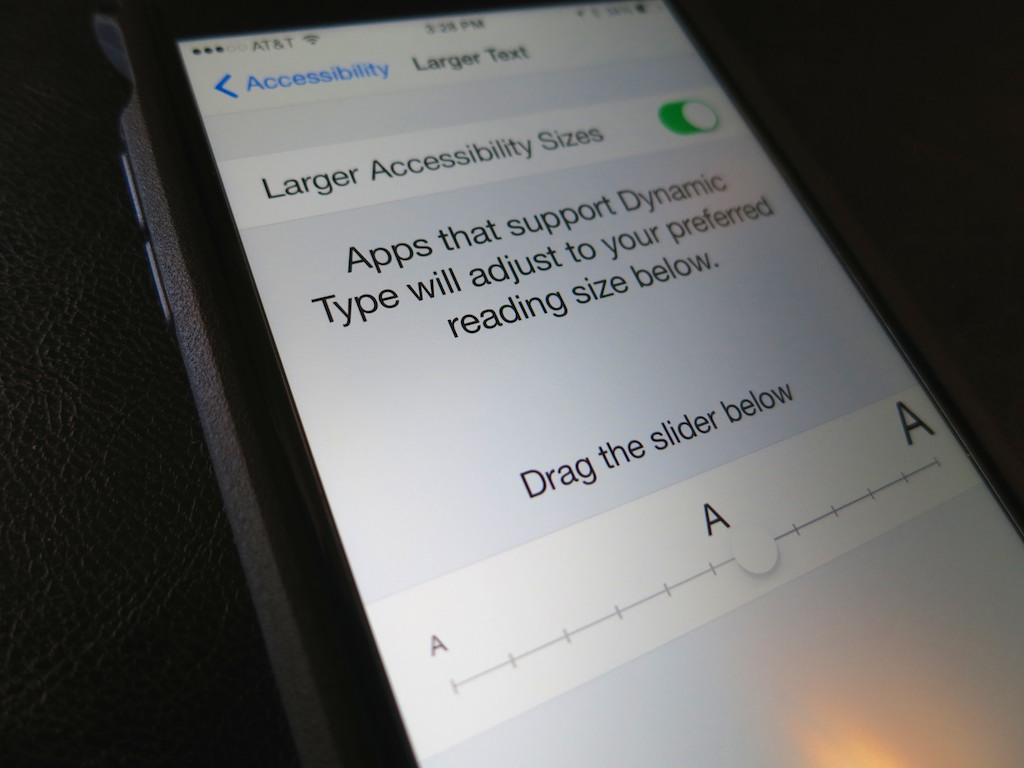
My new iPhone, sporting a black Tech21 case proudly displays how to increase its text size using iOS 8.  (Yes, some of us can’t pick out every period in a paragraph as accurately as we used to…)

My new iPhone, sporting a black Tech21 case proudly displays how to increase its text size using iOS 8. (Yes, some of us can’t pick out every period in a paragraph as accurately as we used to…)

I’m a newbie to the phablet world.
Just got myself my iPhone 6 Plus and so far… I’m a happy customer.

The slim giant hasn’t yet fallen out of my pocket or my hands, and I’ve really been digging the larger real estate of the 5.5” screen.

And all this, despite the fact that some of my friends who own older iPhones are making fun of that ‘huge thing’ I’ve got pressed up to my ear.
(Give them a little time… Big is clearly becoming the new small.)

But actually, all is not perfection in Florin. And I’ve got something to get off my chest…

I’m not sure if I should be embarrassed to admit this, but one of the major reasons I chose to supersize my iPhone 6 purchase has to do with the reality I’ve recently started wearing reading glasses.

How uncool is that?!
But hey, it happens to a lot of us at a ‘certain age’…

And to be honest, it stinks always having to schlep around your reading glasses everywhere you go.  But you kind of need them every time you make a move towards your smartphone’s home button.

Widen Your View
Life would be a lot easier if the screen’s displayed print could simply become a little larger, and Apple has good news here…

  • With iPhone 6 Plus and iOS 8, you can easily adjust the text size in ‘Settings’ under ‘Display & Brightness.’
  • There’s actually an entire ‘DISPLAY ZOOM’ section, which includes a ‘Text Size’ option.
  • You also get to goose the size of your app icons a bit if you select ‘Zoomed’ over ‘Standard’ when you tap on ‘View.’
    (Note that activating this setting nixes your iPhone’s ability to display your home screen in landscape mode. For me, that’s more of a parlor trick anyway.)

Sure, the DISPLAY ZOOM mode is also available on the standard iPhone 6, but you can’t see as much at one time on the smaller screen…
Thus, my reason for coveting my Plus.

More Zoom Options
Of course, Apple didn’t stop with only a couple of zoom settings. If you dig a little deeper in iOS 8, you’ll find a whole host of flexible options…

You can activate a ‘zoom mode,’ which allows you to zoom part of or the entire screen with a three-fingered double tap.

To set it up, go to:

  • Settings
  • General
  • Accessibility
  • Zoom

There, you’ll find other useful zoom choices, including ‘Follow Focus’ for your text cursor.

I Can See Again!
Apple has clearly put a lot of thought into text readability on iPhone screens…

Along the way, I’m sure someone at Apple said, “Hey, let’s market the Plus to all those millions of unfortunate middle-aged folks who can’t read the menu at the restaurant anymore.”
(happened to me again last Tuesday)

But Apple’s ‘culture police’ probably squashed that strategy quicker than Siri can say, “What?”
Instead, the glorious Retina HD display exists for more exciting uses:

  • To extend your gaming pleasure
  • To immerse you deeper in your movie viewing
  • To better display your magnificent photos

To be clear…
No one’s hiding the zoom functionality in iOS 8… but it’s not getting any real headlines either.

For me, regaining the ability to skim what’s on my iPhone without my reading glasses is news that goes above the fold.

And that’s not embarrassment…
It’s empowerment!