
iPhone Fix: When Videos Won’t Rotate to Play in Landscape Mode
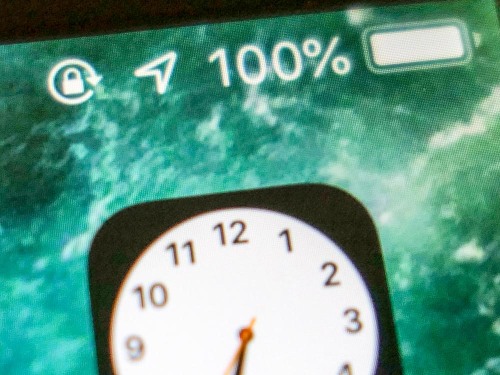
Can you identify every status icon in this image? If not, you may find yourself in trouble the next time you play a video on your iPhone…
How do you encourage videos on your iPhone to play horizontally? Well, that’s easy… you simply rotate your device on its side to cue the video to rotate and play full screen in landscape mode. Right?
(Barrett’s being a little silly.)
And to be clear, I’m not talking about vertical videos. I’m referring to horizontal videos that first pop up at a fraction of their size to fit in your vertically oriented iPhone as you typically palm it.
But what do you do when your gravity-driven iPhone reflex stops working, and your video remains locked in its portrait orientation after you’ve turned your phone?
Well, that’s exactly what happened to me!
The Icon Holds the Answer
So, I figured some setting had gone awry. It was just a matter of figuring out exactly which one it was…
The irony was my iPhone was trying to tell me the answer all along, but I didn’t recognize the hint…
In the status bar at the top of its screen, my iPhone had been displaying a little ‘lock icon’ with a curved arrow around it.

I had noticed the icon before. I just didn’t know what it meant!
(lazy Barrett)
Portrait Orientation Lock
After a little Googling, I discovered the answer. It means… ‘Portrait Orientation Lock.’ And when it’s on, that mode disables the phone’s ability to play videos horizontally.
So, here’s how you turn it off…
- From your iPhone’s home screen, open the Control Center
- Find the lock and arrow icon on the left side in the middle
- Tap it to deselect it
- Close the Control Center
It’s embarrassingly simple.
Cautionary Tale
There’s just one final unexplained piece to my original mystery… How did Portrait Orientation Lock get turned on in the first place?
Perhaps I accidentally tapped it when I was trying to use my iPhone as a flashlight. Beyond that, I’ll just chalk it up to a practical joke from the video gods.
The lesson, of course is to always pay attention to every new icon that mysteriously pops up on your smartphone. You can ignore it for a while. But eventually, its purpose will reveal itself, and not always in a positive way.
Mobile devices are constantly evolving. You’d better keep up or your digital life is going to get squeezed… just like a video that refuses to rotate properly on your smartphone.
 At Home with Tech