At Home with Tech

Unlock the power of all your technology and learn how to master your photography, computers and smartphone.

Tag: iPhone

Try This Fix to End Spam Robocalls on Your iPhone

It’s time to take more control of who gets access to you on your iPhone and when. Here’s how to set up what I call a modified “Do Not Disturb” strategy…

My 85-year-old father says to me that he’s receiving strange calls from different countries around the world. When he answers… no one’s there.

Of course, I tell my dad that these repeated annoyances are called spam robocalls that most every cell phone owner is troubled by. I explain that he should simply avoid answering them, and hopefully they will stop.

He protests that there has to be a more effective solution. But I just don’t want to go down the rabbit hole of suggesting a spam-blocker app, which I have yet to attempt for myself.

We move on to another topic of conversation, but I’m left with residual unease over the topic. I, too am enduring disruptive spam calls…

And in that moment, I resolve to attempt a dramatic solution for myself…

Do Not Disturb!
This fix to stop spam calls is admittedly overkill, because it also limits access to your iPhone for any legitimate calls trying to get through.

You simply activate your iPhone’s “Do Not Disturb” setting.

Some people call it the nuclear option, because what’s the point of having a phone if nobody can call you?!

Well, the answer lies in the details…

After checking out the different options for the “Do Not Disturb” setting, I realized there’s actually a way to let your phone still be a phone.

And instead of hiding from the world, you can end up feeling like you have a whole lot more control of it.

Here’s why…

Wean Yourself from the Buzz
Spam calls aren’t the only distraction your iPhone and Apple Watch serve up throughout your day. There are any number of other ‘notifications’ that your apps provide, which are accompanied by a ping or buzz. The cumulative result of checking these in-the-moment updates can really suck away at your productivity and distract from where you should be focusing.

But it feels so good, receiving all of those little nuggets of information, right? You’re so up to date!

If this is the baseline of your reality, taking all of that away might create something of a withdrawal response, because you’re no longer getting instantaneous access to new information, even though you’ve opted in.

So, that was me.
And that’s why I had never silenced my chatty apps or activated “Do Not Disturb” on my iPhone.

But you don’t really have to forgo all of that incoming communication from the outside world. You just need to direct its flow more intentionally…

Create Your New Rulebook
The trick is to modify the settings in your iPhone to create a new and more enlightened rulebook that says, “Do not disturb me… sometimes,” or more accurately…” do not disturb me…unless you really know who it Is.”

Here’s how you do that:

  • Tap your Settings icon
  • Tap “Do Not Disturb” (with the crescent moon)
  • Activate the “Do Not Disturb” green slider on the top
  • Under the “Silence” option, tap “While iPhone is Locked”
  • Next to the “Allow Calls From” option, select “All Contacts”


That’s it.

Now, what you’ve done is to tell your iPhone to allow calls from all of your contacts. Anyone else will have to leave a voicemail. If you’re like me, unless you know who’s calling you, you’re not going to answer the call anyway for fear it’s spam. So, all of this isn’t so big a change.

And taking this step effectively shuts down all of those horrible spam robocalls.

Learn to Look for Your Texts
What is a big change is all of your texts and app notifications also get blocked. Yes, even the text is from someone in your Contacts.

But those texts haven’t gone anywhere. They’re simply waiting for you to find them. And you can easily do that just by activating your iPhone’s screen.

The “Silence… While iPhone is Locked” subsetting means that when your device is unlocked, all of the messaging that’s waiting for you pops up.

So, functionally, you just need to check for your messages. And of course how quickly you get your texts relies on how often you check. No, you don’t want be pulling out your iPhone every two minutes. That looks a little crazy. And it is a bit crazy.

That said, if you also own an Apple Watch and you still feel compelled, you can mask your insanity by choosing the Messages icon as one of your Apple Watch’s complications. If a text comes through, the little icon will display “1 Unread.”

Looking at your Apple Watch every two minutes is slightly more socially appropriate, although you’ll look like you’re always in a rush.

If you know you’re waiting for an important text, you can also temporarily turn off “Do Not Disturb” in your iPhone’s Control Center.

Just tap the crescent moon.

Modified Do Not Disturb
This modified “Do Not Disturb” strategy will stop those evil spam calls. And you’ll have no more interruptions, unless someone in your Contacts calls you.
(You can also narrow that list of who ‘gets through’ by choosing “Favorites” or a particular “Group” as opposed to “All Contacts.”)

And if you want see what other messaging comes your way, just check every so often.
It’s not that bad, really…

I’ve just done it.

The Trade-off
No, it’s not a perfect solution. When my wife or a friend texts me, I’m not longer getting instantaneous notification. Their calls still get through, but I have to look at my Apple Watch or iPhone to see if there’s a new text waiting for me.
(And that could cause a 15-minute delay, which is an eternity for someone looking for a text response.)

If I could make a recommendation to Apple, it would be to modify “Do Not Disturb” to allow texts from people in your Contacts to get through… just like phone calls.

But again, if you know you’re waiting for an important piece of news or a text, just temporarily turn off your “Do Not Disturb” mode.

Take Control!
If you’re still thinking about my dad, yes, I suggested all of this to him, but he thought it was too draconian. Shutting out the outside world, even in a modified way can be a hard step to take. He said he’d be happier just enduring the ringing. Maybe he’ll reconsider in the future…

As for me, I’ve got to say it feels great blocking all of those spam robocalls and receiving texts and notifications ‘on demand.’

I’m no longer unnecessarily interrupted throughout my day by technology that’s designed to make my life better.

Too many want too much of my attention.

“Do Not Disturb.”

You should try it.

Why I Replaced My OtterBox iPhone Case with a Pelican

I’ve said goodbye to my Otterbox Symmetry case and turned to the Pelican Shield to protect my iPhone XS Max. Here’s why…

When I bought my iPhone XS Max, I was consumed with the idea of showing off its beauty with a clear case. So, I tried to maintain both its glamor and safety by buying an OtterBox Symmetry Series Clear Case.

Yes, the Symmetry had a slim profile (for an OtterBox). And it offered the legendary drop protection OtterBox cases are known for. I thought I was covered… until I actually started using it.
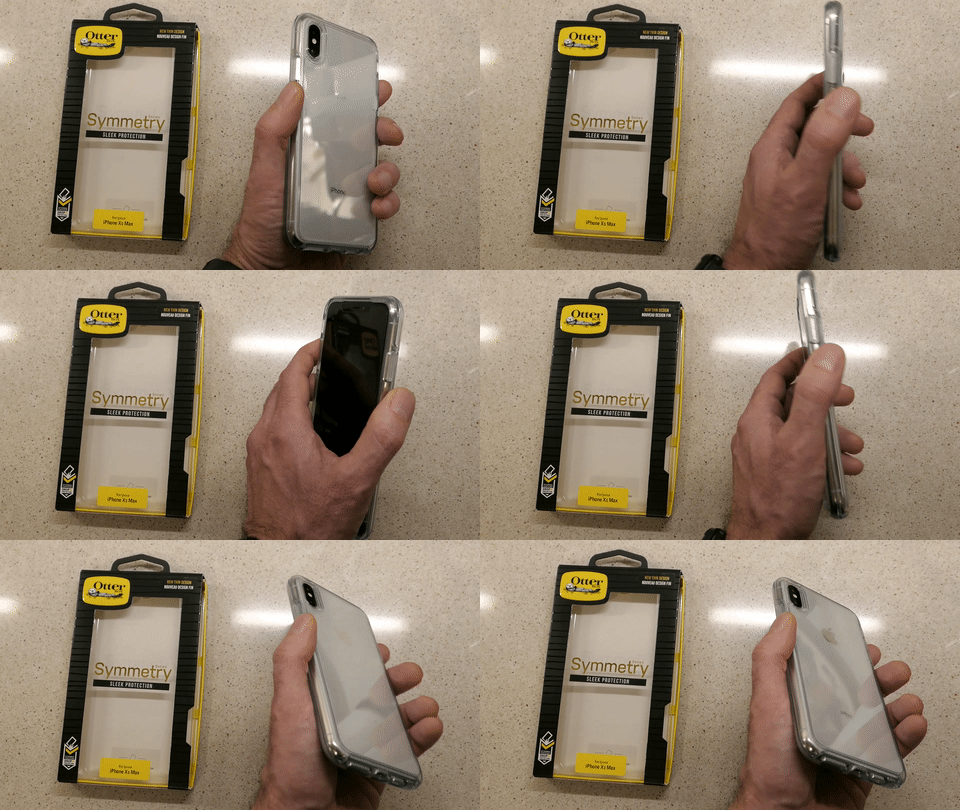
Holding My OtterBox Symmetry Case for iPhone XS Max
That’s because the clear plastic-like construction of the case didn’t provide enough… grip.
(Though it did attract plenty of finger prints)

Whenever I pulled my iPhone out of my pocket, I never quite felt that I had a firm hold on it. Several times, I experienced that micro-bobble moment where you feel like you don’t have total control of what’s in your hand.

That’s not good.

Sure, I knew my OtterBox could likely handle a drop or two. But I really didn’t want to test that capability on my precious new iPhone.

Plus, whenever I placed my iPhone on a table, it felt a bit like it was resting on ice. That said, the designers of this Symmetry did give the case some rubbery grip on the circumference of the front edge. So, when I placed my iPhone on a flat surface facing down, the Symmetry was much more likely to stay put.

…But then I couldn’t see my iPhone’s screen and notifications.

The evidence was mounting that it was probably smart to get another case. Sure, that created some frustration around my original purchasing decision. But when you consider the larger cost of dropping an expensive smartphone (regardless of how much protection any case provides), it’s the right choice to find another case you feel totally comfortable holding.

Goodbye OtterBox
I had to secure my iPhone in a more ‘grippy,’ non-clear case. Sure, I could easily go with another OtterBox model, but my irrational ‘id’… still in search of a ‘fresh design’ pointed me away from the proven safety but sometimes bulky world of Otterbox.

Yes, I wanted rugged protection… and an appropriately distinctive look too.

It was time to give it another shot…

Hello Pelican Shield
There are the usual suspects of well-regarded tough iPhone cases out there that reviewers talk about beyond OtterBox.
(Such as Supcase, Urban Armor Gear, Spigen and Lifeproof)

But I couldn’t quite ‘connect’ myself to the designs of any of them.

Then, I came upon the Pelican Shield.
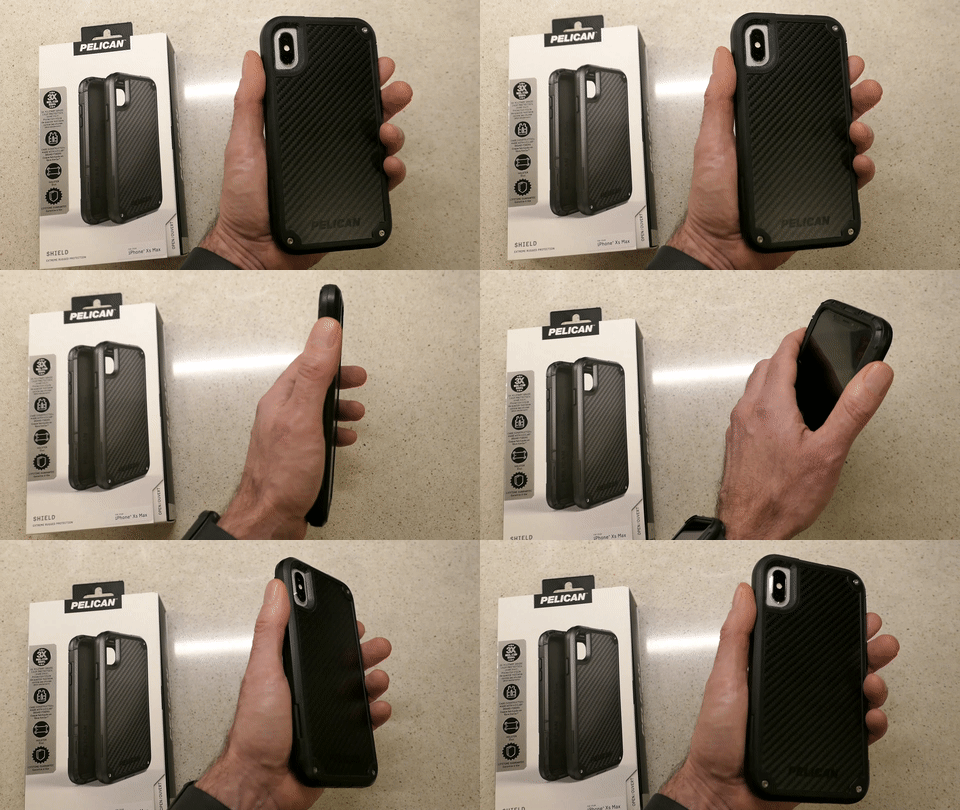
Holding My Pelican Shield Case for iPhone XS Max
I’m not sure if fatigue was beginning to wear me down or whether I actually liked the Shield’s look more than the competition.

It didn’t hurt that its drop protection capability won a three way tie in a CNET drop-test competition at CES 2018. Maybe I gravitated to it, because it’s made with Kevlar fibers in its back.

It wasn’t so much ‘sleek’ as it was noticeably ‘different’… with the tops of tiny screws embedded and glinting in three of the back corners. Its armor looked like something you might see if you traveled to the alternate universe of the TV series, “Fringe.”

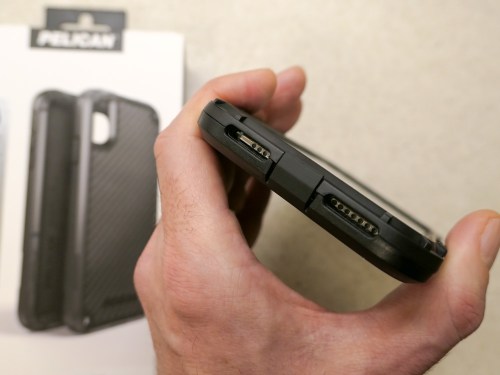
The Shield is also built with a cover protecting the iPhone’s lightning port. That’s there to keep dirt out. But I recognized a long time ago the danger that simple pocket lint accumulating inside the port can pose to iPhones. A port cover greatly reduces the need to clean out nasty pocket lint with a pin. Otherwise, it’s a real nuisance that needs addressing every couple of months.
The Power of a Good Brand
But ultimately, I think what got me across the finish line was the brand… Pelican.

They’re the folks who make those indestructible cases and luggage for outdoor enthusiasts and professionals who travel with delicate gear. And of course, that includes the world of video production equipment.

That’s how I know Pelican.

When you marry a third-party case to your iPhone, there’s usually a logo in plain sight. Maybe that brand in your hand doesn’t say quite as much as your choice to own an iPhone.
(And that isn’t so much a statement anymore either…)

But it says something. Maybe it’s just a fashion statement. Ultimately, I think it boils down to what ‘feels right’ to you… how it complements your own identity.

I think the simple idea of holding a Pelican product in my hand was appealing to me, because it successfully connects back to my professional video world.

All of the other factors follow after that…

Two Choices
So, that’s the psychology of how I landed on my Pelican Shield decision.
(I’ve got to make use my Psych degree sometimes, right?)

Pelican offers an all-black Shield model or black with a white edging.

I went all black.
(It has a black/grey pattern on its back.)

The Pelican Shield for the iPhone XS Max lists for $59.99.
$42.87 on Amazon Prime

Click.

First Impressions
Two days later, I received my Pelican Shield…

The two-piece design secured itself around my iPhone with three latches. How logical it that?!
(It’s not like the one piece design of the Otterbox Symmetry where you have to apply what feels like an unhealthy amount of force to jam all four corner in.)

The Shield’s raised front edging protects the iPhone’s screen when you place it face down on a smooth surface, and the back design protects the camera lenses in the same fashion.

Interestingly, the Shield has a rubbery edge on its back side… so that give you better surface grip when the iPhone is facing up. This is opposite to the OtterBox Symmetry’s design. And while I would ultimately prefer some grip on both the front and back edges, the Shield’s design is more practical…

  • It allows my iPhone to face up and not slide around when it sits on my desk.
  • It provides more grip in my hand, because the back edge and my index finger make full contact.

And beyond the rubbery back edge, the Shield’s overall design has more bumps and edging that definitely provide additional grip opportunities for your hand.

The Pelican Shield is a little bigger than the OtterBox Symmetry.
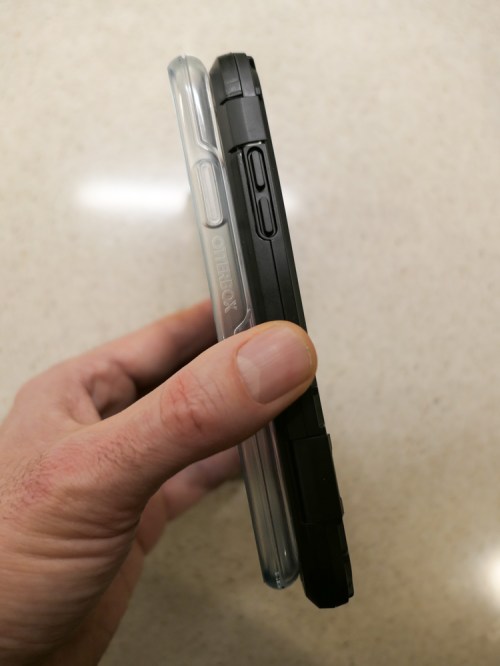
And you can see that the Shield’s extra quarter inch in overall size enables the inside construction design to offer an extra layer of rubbery protection.
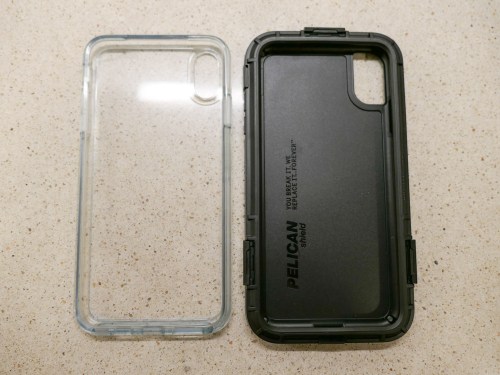
I should also mention that the Pelican Shield also comes with a belt holster, which doubles as a kickstand. I don’t need it, but you never know what the future might require.

The Importance of Finding the Right Fit
The parameters of my journey wasn’t to find the toughest case out there… but to locate protection with appropriate balance between ‘rugged’ and ‘attractive.’

The OtterBox Symmetry clearly attempted to maintain my iPhone’s beauty. It was slim and sleek…but ultimately too slippery for me.

The black Pelican Shield morphed my iPhone into something entirely new… a more angular device that you might expect Walter Bishop from “Fringe’s” more sinister alternate universe to be carrying.

It almost flaunts its utilitarian structure, seemingly designed to disdain the silly notion of maintaining iPhone beauty.
(It even strangely sports a tiny part number on the side of the front edging… MIL-STD 810G.)

But I still like the look.

For the record, I believe OtterBox makes great cases for smartphone protection. There’s even the Defender series, which more directly competes against the Pelican Shield. But this fickle human simply wanted to go down a different path.

And Pelican fit the bill.

Prepare Your iPhone to Travel in Any Universe
I’m happy to report that my Pelican Shield is doing its job quite nicely, but not because I’ve dropped my iPhone (well, not yet). My objective was simply to gain a better grip when holding it.

Goal… accomplished.

As for the design, the Shield certainly focuses more on protection than beauty. But it also manages a unique look that I enjoy.

Now, you must excuse me… I’m late for a conference call in the alternate universe.

How to Give Money to a Friend Using a P2P Payment App

If you want to pay back a friend but you don’t have cash or a check, don’t despair. Here are a couple of ways to do it using a digital wallet in your iPhone….

Isn’t it a drag when you have to write a check to pay back a friend if you don’t have cash? Perhaps that’s okay if you carry around your checkbook. Otherwise, it becomes at least a two-step process that can really linger…

You’ve got to go home… write the check… put it in the mail… or have to wait until you see your friend again to hand over your money.

There’s got to be a better way through technology.

Well, of course there is…

Peer to Peer Transactions
Welcome to the world of peer to peer (P2P) money transaction services… a cashless way to electronically transfer money to family and friends through a mobile app on your smartphone.

I haven’t had the need for this type of financial person-to-person interface… until one day I suddenly felt like I had transported to an alternate universe where cash and checks never existed…

Where’s Your Digital Wallet?
My wife and I were offered a payment by another family to split the cost of swim lessons for all of the kids as part of an ongoing group playdate.
(Yes… swim lessons that are baked into a playdate… how efficient of all of us!)

And the payment offer was via the Venmo app.

Huh?

Sure, I had my iPhone XS Max in my pocket.
I was proudly wearing my Apple Watch Series 4.

And I was blindly holding onto the false impression that I’m up to speed on all of the current tech trends.
(Pop)

So, with my little bubble burst, I went home to do a little homework.
I knew I had some catching up to do…

Venmo
Venmo is the well-known P2P mobile payment service owned by PayPal and has about 27 million users.

Signing up was a snap.

And if you just want to receive money and then use those same digital dollars to pay someone else, that’s also super simple.

But if you need to pull some of your own money into Venmo, then you have to link your Venmo account to your bank account, credit card or debit card.

While that’s not technically difficult to do, there’s sometimes a fee attached…

  • Bank account – free
  • Credit card – 3% fee
  • Debit card – free

When you want to transfer money out of Venmo into your checking account, there’s also a 1% fee if you chose the ‘Instant Transfer’ option.
(minimum- 25¢, maximum- $10)

Otherwise, it’s free. But you’ve got to wait a couple of days, just like waiting for ‘an old-school check to clear.’

My First P2P Payment
The next step was to ‘friend’ people you want to pay in Venmo.
(It’s always a good idea to only friend folks you actually know.)

I searched for our swim class friends who got me started down this relatively shallow rabbit hole. I sent out my invite. And faster than you can say PayPal three times… we were “Venmo’d” together.
(Is that a verb? Quick… someone find me a Millennial!)

But I wasn’t over the finish line quite yet. I had to actually use the technology. As if connected by the Force, my friend sensed my need and sent me a prescient Venmo message…

It was a $1 “friend tariff.”

I stared at my iPhone.
Okay… I guess this was the final quiz for my Venmo 101 elective.

I tapped and paid the buck.

It was official.
I had joined the P2P payments world.
Yay, me.

To celebrate, my friend paid me a dollar.
It was very exciting.
(And there was no disturbance in the Force)

In case you’re worrying about the swim lessons payment, my wife had already taken care of that particular Venmo transaction.
(Yes, I must admit that I often rely on “Mrs. More-at-Home-with-Tech.”)

How Social Do You Want to Be?
There’s also a social media component to Venmo. You have the choice to ‘share’ your Venmo activity…
You can post your activity to the Venmo world or just to your Venmo friends.

Or you don’t have to share it at all.

I know I might be revealing a wildly out-of-touch perspective here…
But why would I want to tell the world that I paid out money?
Is that really a social moment I’d want to share… with anybody?

For me, that information only belongs with me and the person I’ve paid.

Apple Pay Cash
A funny thing happened on my way to Venmo. I realized I already had access to another P2P payment app.

It’s Apple Pay Cash, and it works very much the same as Venmo.
And it was living right next to Apple Pay in my iPhone.

Apple Pay Cash is turned off by default… You’ve got to go into ‘Wallet’ app in your iPhone to simply turn it on.


Once you’ve activated Apple Pay Cash, then you’ve just got to fund it, again much like Venmo.

And just like Venmo, you can transfer your Apple Pay Cash balance into your checking account.

You can also initiate an Apple Pay Cash payment by simply sending an iMessage.
(That almost feels a little too easy.)

One limitation to using Apple Pay Cash is both parties need to be in the iOS ecosystem.

Cash is So Yesterday
My alternate universe existence had quickly evaporated, and I was now armed with both Venmo and Apple Pay Cash and fully functional in the P2P payments game.

Sure, there are competing P2P money transfer systems out there, like Google Pay, Zelle, and Square Cash. But for now, I am satisfied with my choices.
(Which apps do you prefer? Any recommendations out there?)

I’m not so sure this particular form of financial enablement is a game changer for me right now, but at least I can play in the P2P payments’ pond when others insist.

And my toe-in-the-water mentality could change.
(It hasn’t been long since I’ve been actively using Apple Pay at stores instead of my credit card.)

But to simply have the capability to receive money from more ‘enlightened’ humans who want to pay me from their digital wallet…

I am now ready.

(P.S. I still accept cash.)